
Good WordPress security rarely comes from one clever plugin. It comes from a handful of basics done consistently: controlled access, a sensible update routine, careful handling of public inputs and a recovery plan you have actually tested. This guide covers each of those foundations and how to keep them going without a large security budget.
Protect access first
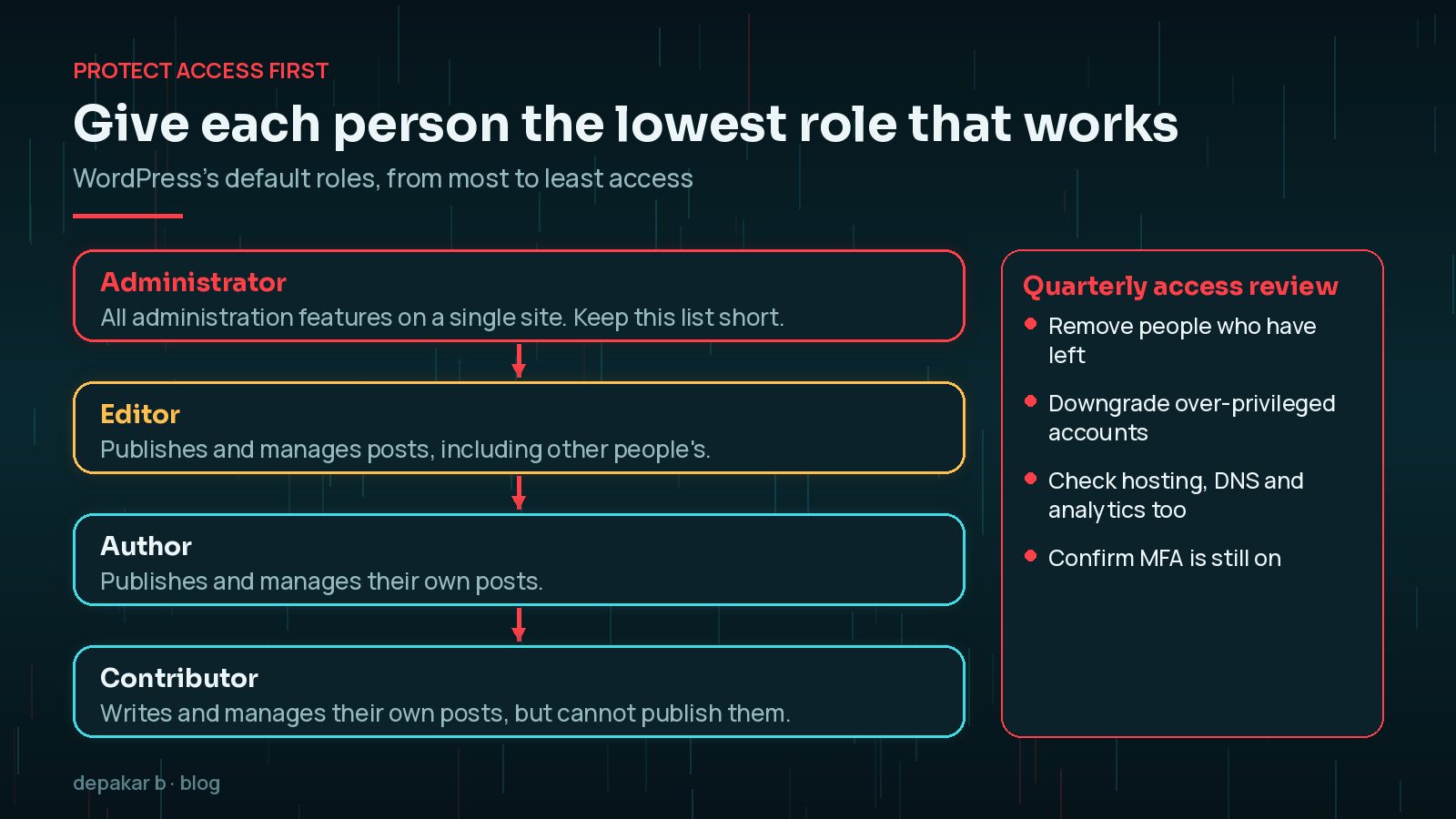
Use unique passwords, multi-factor authentication for administrators, the lowest sensible user role, and controlled access to hosting, plugins, and analytics accounts. Remove accounts that no longer need access rather than sharing a single administrator login.
- Unique admin and hosting credentials stored in a password manager
- MFA on WordPress admin, email, hosting, DNS, and analytics where available
- Editor or author roles for people who only need content access
- Quarterly access review when freelancers or agencies rotate off a project

What Does Least Privilege Mean in WordPress?
Least privilege simply means giving each person the lowest level of access that still lets them do their job. WordPress has built-in roles for exactly this. According to the WordPress documentation, an Administrator can access all administration features on a single site, an Editor can publish and manage everyone's posts, an Author can publish and manage their own posts, a Contributor can write but not publish, and a Subscriber can only manage their profile.
Most people who update content need Editor or Author access, not Administrator. Fewer administrators means fewer powerful accounts for an attacker to target, and fewer people who can install plugins by accident. If you inherit a site, check the user list for administrators nobody can explain; my guide to finding hidden admin users shows how.
Multi-factor authentication matters most on the accounts that can take over everything else. Start with WordPress administrators, then the email inbox that receives password resets, the hosting control panel and the domain registrar or DNS provider. The UK's National Cyber Security Centre describes two-step verification as one of the most effective ways to protect online accounts, and lists email among the most important to protect. For a WordPress site that matters, because whoever controls the inbox can usually reset the admin password.
Update with a release routine
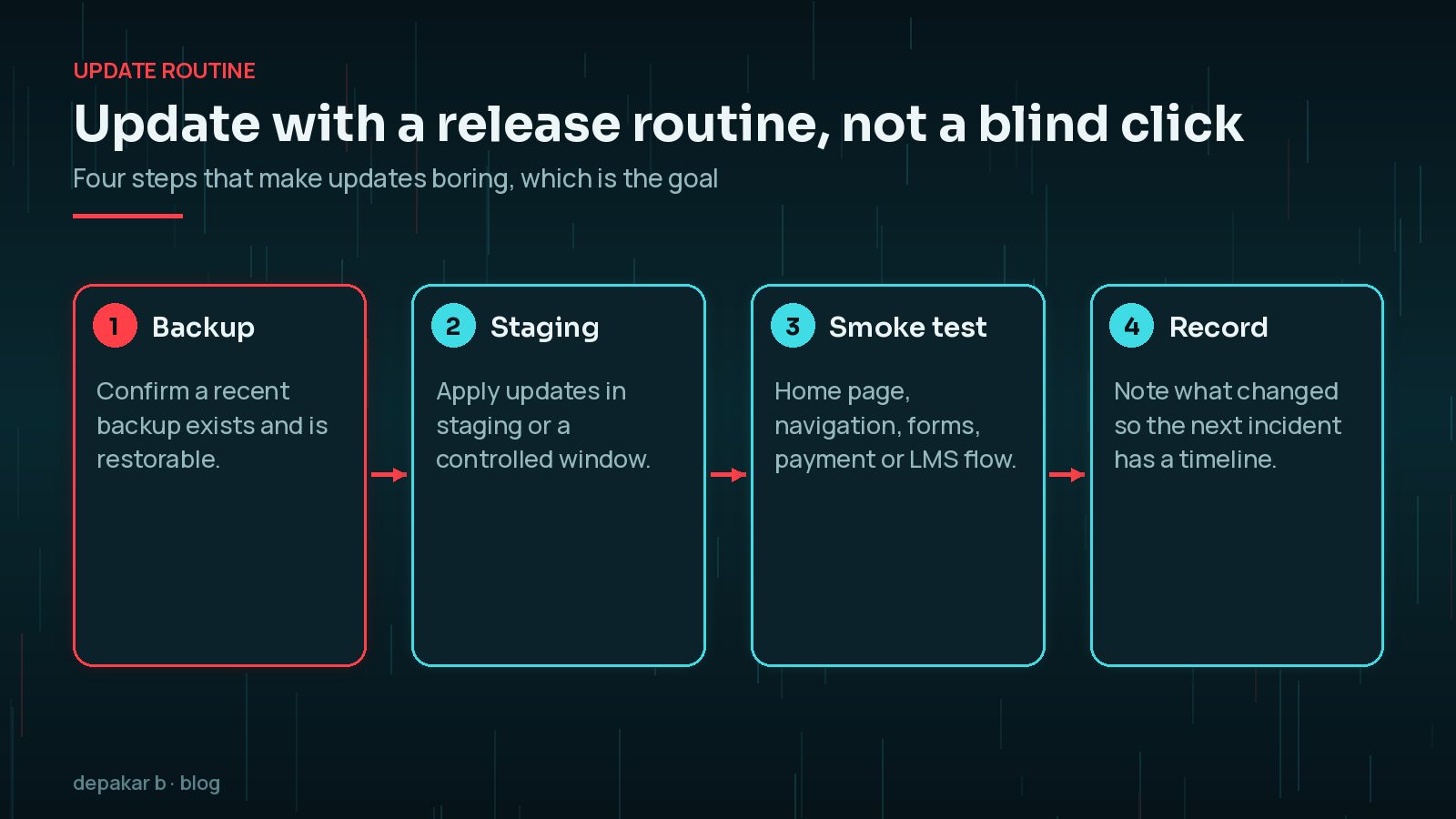
Keep WordPress core, themes, and plugins updated, but do not treat updates as a blind click. Maintain backups, use staging when possible, and check the main journeys - home page, navigation, forms, payment or LMS flow - after a material update.
- Confirm a recent backup exists and is restorable
- Apply updates in staging or a controlled window
- Smoke-test critical paths before announcing “done”
- Record what changed so the next incident has a timeline
Urgent security releases are the exception to the monthly rhythm. When WordPress or a plugin you rely on ships a security fix, apply it promptly. Recent examples include the WordPress 7.1.4 security update and the plugin vulnerabilities patched this month.
Performance and SEO can regress after plugin changes. Re-check with the performance guide and technical SEO checklist when a major plugin or theme update ships.
Harden public inputs
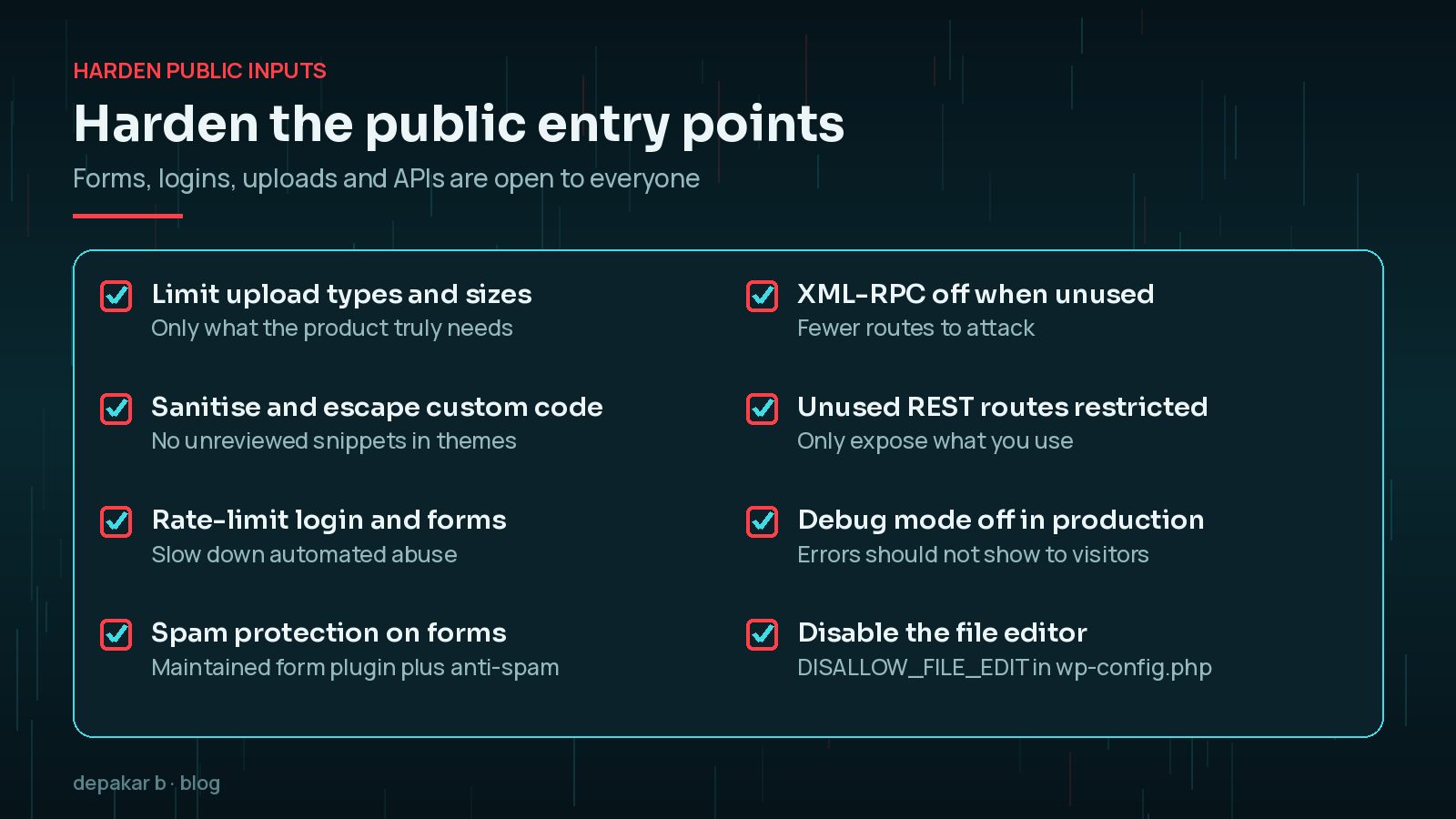
Forms, login routes, uploads, and API endpoints should be treated as public entry points. Use a maintained form solution, validation, anti-spam measures, limited permissions, and secure handling for any uploaded or submitted data.
- Limit file upload types and sizes to what the product truly needs
- Sanitize and escape custom code; avoid pasting unreviewed snippets into themes
- Rate-limit or protect login and form endpoints against abuse
- Keep XML-RPC, unused REST routes, and debug modes disabled when not required
Form and CRM hand-offs need the same care as login security. Plan them with WordPress forms and integrations.
Which wp-config.php Settings Help Security?
A couple of small settings in wp-config.php remove easy wins for an attacker. The WordPress hardening guide recommends disabling the built-in theme and plugin file editor, so someone who gains admin access cannot simply paste code into a theme file:
define( 'DISALLOW_FILE_EDIT', true );Keep WP_DEBUG off on the live site so error messages, file paths and other details are not shown to visitors. If you need to debug, log errors to a file on a staging copy instead. Also make sure wp-config.php and any backups are never stored in a public folder or a public code repository.
Prepare for recovery
Security work includes knowing how to restore the site, who owns the accounts, where backups are stored, and how to contact the right people. A documented recovery path is more useful than a long list of security settings nobody can maintain.
- Off-site backups with a tested restore drill
- Named owners for DNS, hosting, email, and WordPress admin
- Incident contacts and a short “first hour” checklist
- Change log for plugins, themes, and custom code releases
Ownership is the part most small sites miss. Write down who controls the domain registrar, DNS, hosting, email and the main WordPress administrator account, and make sure at least two trusted people can reach each one. When a freelancer or agency has registered the domain in their own name, transfer it to the business while relations are good, not during an emergency.
How Do You Know Your Backups Will Work?
The only reliable test is a restore. Every few months, restore a recent backup to a staging site and check that pages, media, forms and logins work. WordPress's backup guidance recommends keeping several recent copies in different locations, so one failed or lost backup does not leave you stranded. Make sure at least one copy lives outside your hosting account, because a compromised or suspended account can take on-server backups with it.
When you need to use them for real, my guide on restoring WordPress from a backup walks through the process step by step.

A maintainable baseline
Prefer a short baseline your team will actually keep: access control, MFA, updates with staging, form hardening, backups, and recovery ownership. Expand with hosting firewalls or scanning tools only when someone is responsible for reviewing their alerts.
Do You Need a Security Plugin?
A security plugin can help with login protection, file change alerts and malware scanning, but it is not a substitute for the basics above. Many sites are compromised through outdated plugins, reused passwords or over-privileged accounts that no plugin can fully protect. Choose one well-maintained tool, configure it properly and make sure its alerts reach someone. Stacking several security plugins often causes conflicts and slows the site down without adding much protection.
For how secure, maintainable builds sit inside broader delivery, see WordPress development and technical work.
Frequently Asked Questions
What is the most important WordPress security step?
Protecting access. Unique passwords stored in a password manager, multi-factor authentication for administrators and as few admin accounts as possible prevent a large share of avoidable problems.
How many administrators should a WordPress site have?
As few as practical, often one or two named people. Everyone else should use Editor, Author or Contributor roles that match what they actually do.
Should I disable XML-RPC in WordPress?
If nothing on your site uses it, such as an older app or integration, disabling it removes one more route for automated attacks. Check your integrations before turning it off.
Is a free security plugin enough?
It can be a useful layer, but it does not replace updates, access control and tested backups. What matters most is that someone reviews its alerts and acts on them.
How often should I test a WordPress backup?
Test a restore to staging every few months and after major changes to hosting or the backup tool, so you know the process works before you need it.
Final Thoughts
WordPress security basics are not glamorous, but they prevent most of the incidents I see: limit who has access and how much, update with a routine, treat every public input as untrusted, and know exactly how you will recover. If a site has already been compromised, start with hardening after a hack instead. For ongoing care, see WordPress maintenance.
Official References
Sources checked on 29 October 2026:
- WordPress Advanced Administration: Hardening WordPress
- WordPress Documentation: Roles and Capabilities
- WordPress Advanced Administration: Two Step Authentication
- WordPress Advanced Administration: Brute Force Attacks
- WordPress Advanced Administration: WordPress Backups
- NCSC: Turn on 2-step verification (2SV)
- WordPress Developer Resources: Security (APIs)