
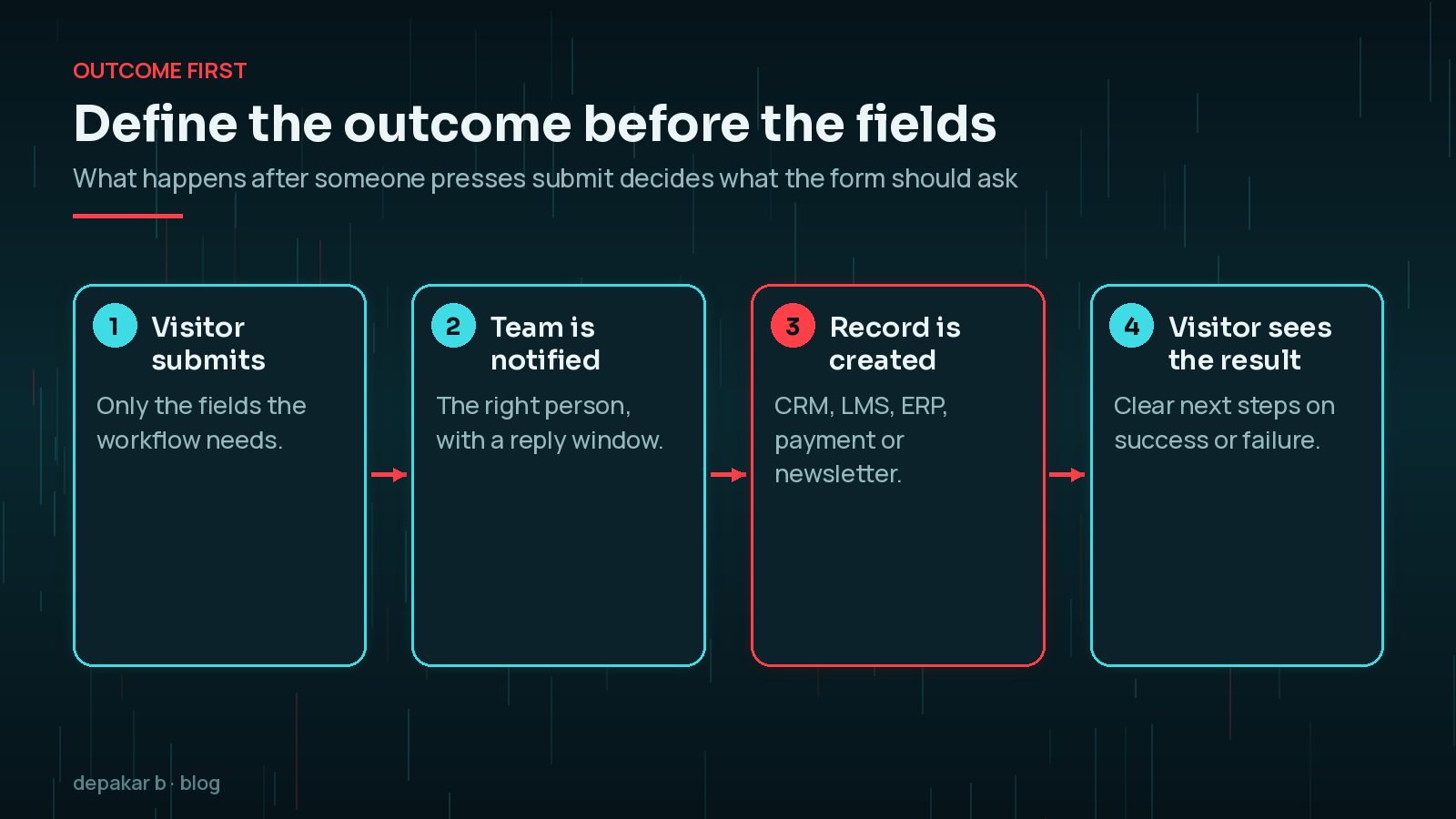
Define the outcome before the fields
Start by deciding what the team needs to do after submission. That determines the fields, validation, notification recipient, consent language, source tracking, and any integration mapping. A form should only ask for information that helps complete that workflow.
- Who receives the enquiry, and within what time?
- Does the submission create a CRM, LMS, ERP, payment, or newsletter record?
- What should the visitor see on success versus failure?
- Which fields are required for the business, not only for marketing curiosity?
Service-level patterns for this work live on WordPress forms and integrations; this article is the planning checklist behind those builds.
Make completion easy on real devices
Use readable labels, appropriate input types, visible required fields, helpful validation, and a success message that tells the user what will happen next. Test keyboard navigation and mobile behaviour; a form that looks clean but is hard to complete loses enquiries.
Usability checklist
- One column on small screens; sensible grouping on larger screens
- Email, tel, and date inputs where they help the OS keyboard
- Inline errors that name the problem, not only a red border
- Confirmation copy that sets expectation (reply window, next email, account access)
If the form also appears on a lightweight or AMP template, validate that path separately using AMP and mobile page experience.

Map integrations intentionally
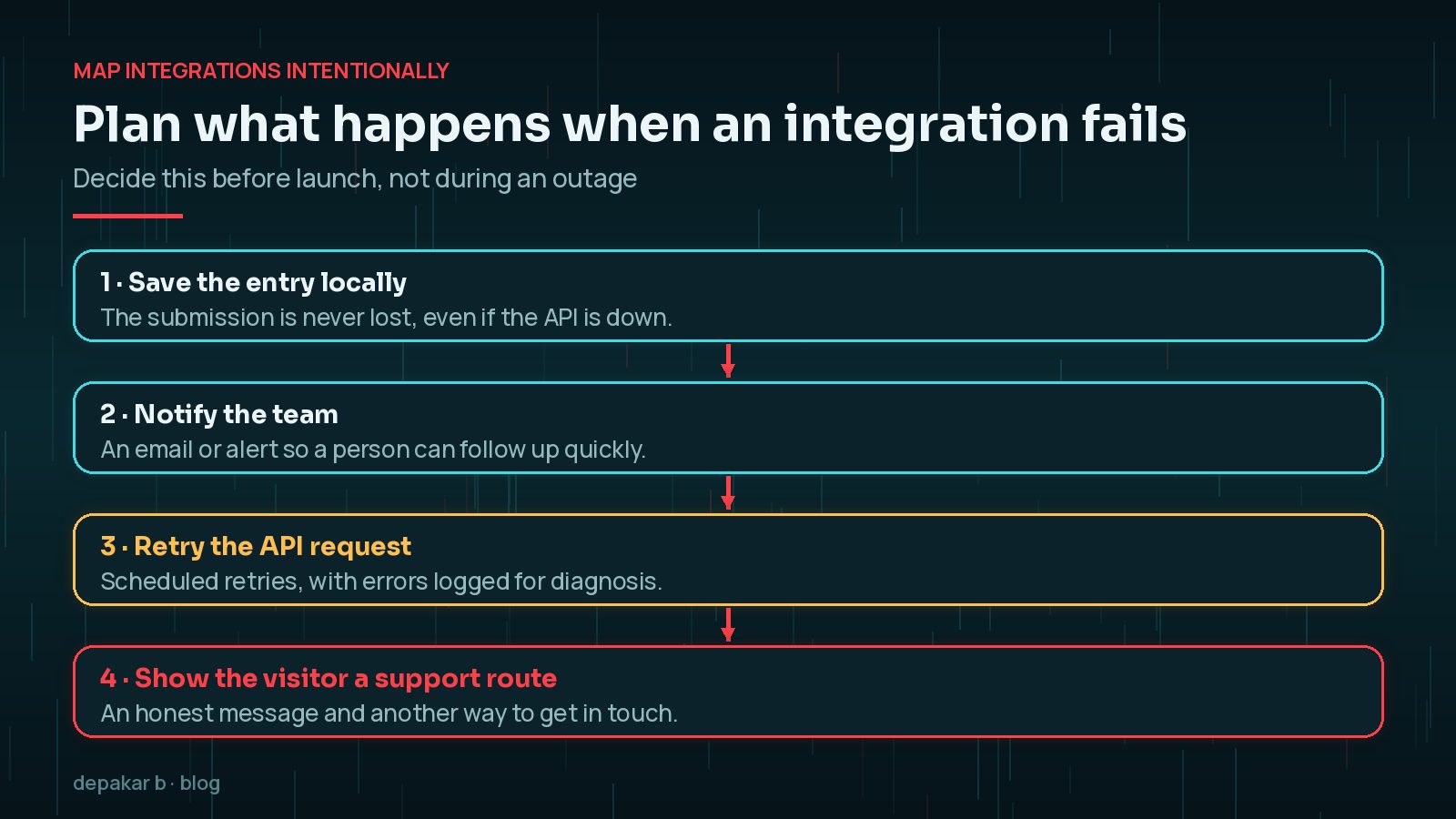
For CRM, ERP, LMS, payment, newsletter, or webinar workflows, document the field mapping and failure behaviour. Decide whether the form should save the entry locally, notify a team, retry an API request, or show a support route when an integration is unavailable.
- List source fields and destination fields side by side
- Define required vs optional values in each system
- Agree authentication, environments (staging vs live), and owners
- Write the visitor-facing message for partial failure
- Test a real end-to-end submission before launch
Protect data and measure the flow
Use spam protection, sensible rate limiting, secure transport, minimal retention, and confirmation messages. Where appropriate, track form views, starts, errors, and completed submissions without recording sensitive message content in analytics.
- HTTPS everywhere; avoid storing secrets in the theme
- Maintained anti-spam that does not block legitimate users
- Least-privilege access for who can export entries
- Event names that help diagnosis without capturing free-text PII
Security foundations for logins, updates, and public inputs are covered in practical WordPress security foundations. For broader WordPress delivery context, see WordPress development.

Handoff template you can reuse
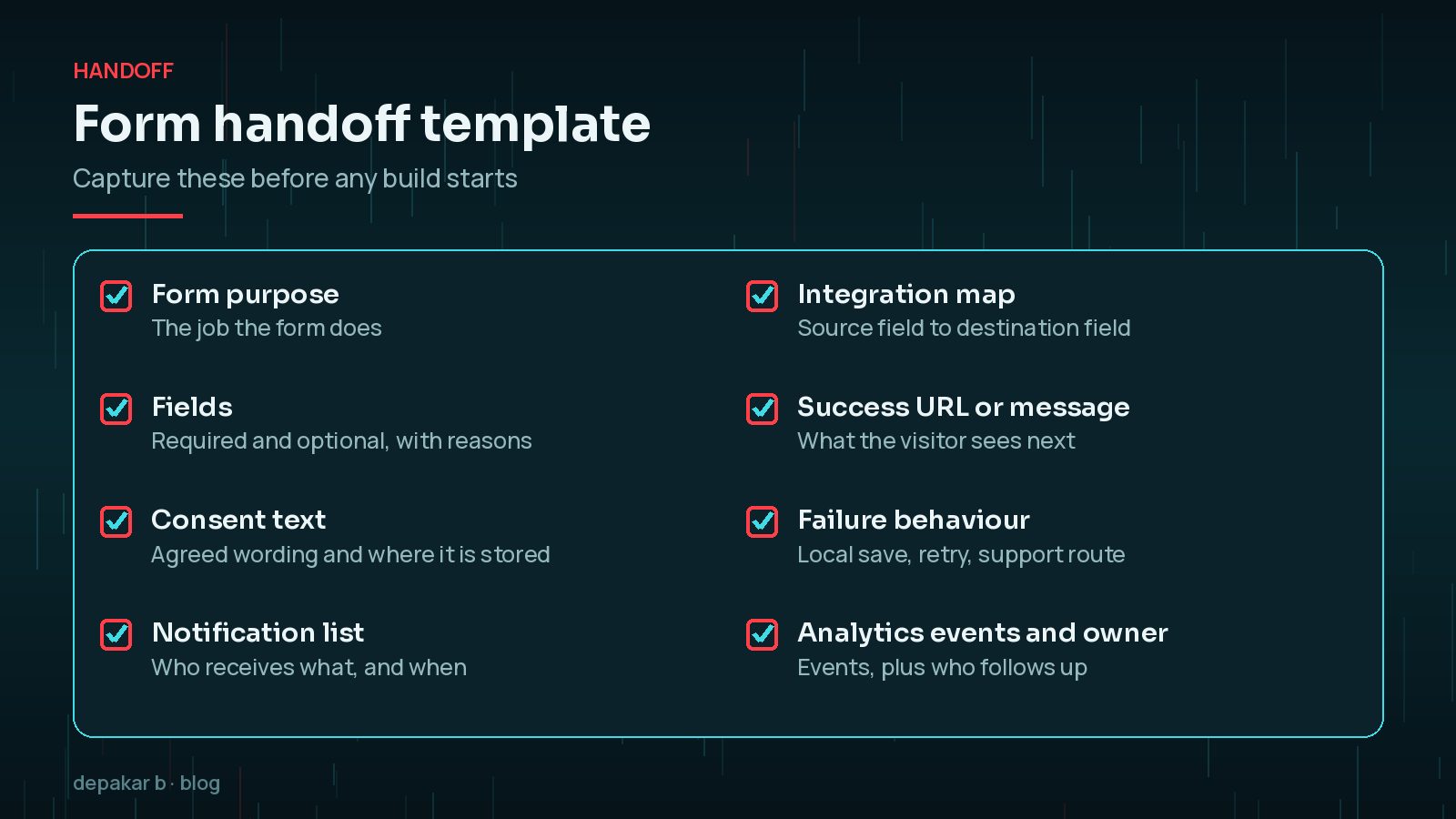
Before build starts, capture: form purpose, fields, consent text, notification list, integration map, success URL or message, failure behaviour, analytics events, and the person who owns follow-up. That short brief prevents most “the form works but the business still loses the lead” problems.
Which form fields should you actually ask for?
Every extra field is a reason for someone to stop. It is also extra personal data you are responsible for. The UK GDPR principle of data minimisation, explained in the ICO's guidance, says personal data should be adequate, relevant and limited to what is necessary for the purpose. That is good form design advice even where UK law does not apply.
Go through each field and ask who uses the answer and what they do with it. If nobody can say, remove it or make it optional. Common candidates are job title, company size, full postal address on a simple enquiry, and "How did you hear about us?" when source tracking already captures it.
- Keep required fields to what the follow-up genuinely needs.
- Ask for sensitive details later, once there is a relationship, rather than on the first form.
- Explain why you need anything that looks intrusive, such as a phone number.
How do you make WordPress forms accessible?
Accessible forms are easier for everyone, not only for people using assistive technology. The W3C's forms tutorial and WCAG 2.2 cover the essentials:
- Visible labels for every field, connected to the input, rather than placeholder text that disappears as people type.
- Errors identified in text. WCAG's Error Identification criterion asks that the field in error is identified and the error described in words, not only with colour.
- Autocomplete attributes such as
name,emailandtel, so browsers and password managers can fill details correctly. - Keyboard access through every field, checkbox and button in a logical order.
- CAPTCHA alternatives where possible, because puzzles block real people as well as bots.
Most WordPress form plugins handle labels well by default, but custom styling often undoes it. Test each form with the keyboard alone and with a screen reader at least once before launch.
How should you test a form before launch?
Testing a form means testing the whole workflow, not just the button. Use realistic data on staging first, then a clearly marked test on the live site:
- Submit a valid entry and confirm the email arrives, the CRM or LMS record is created, and the confirmation message is right.
- Submit invalid data and check every error message makes sense.
- Temporarily break the integration on staging, for example with a wrong API key, and confirm the entry is still saved and the team is alerted.
- Check that analytics events fire once, with no names, emails or message text in them.
After launch, keep an eye on entries compared with notifications for the first few weeks. A gap between the two is the earliest sign of a delivery or integration problem. If a form is also part of an AI or automation workflow, review how WordPress 7.0 Connectors handle credentials before adding new services.
Frequently Asked Questions
What is the best way to connect a WordPress form to a CRM?
Use the form plugin's official add-on or the CRM's supported integration where one exists, and document the field mapping. For custom needs, a small plugin using the WordPress HTTP API can send data with proper error handling and retries.
Why are my WordPress form emails not arriving?
Default server mail is often filtered as spam or blocked by the host. Send through an authenticated SMTP or transactional email service, check spam folders, and compare form entries with notifications to spot gaps.
How many fields should a contact form have?
As few as the follow-up genuinely needs. Many enquiry forms work well with name, email and message. Add fields only when someone uses the answer, and make the rest optional.
Should form submissions be tracked in analytics?
Tracking form views, starts, errors and completions is useful, but never send names, emails or message content to analytics. Google Analytics policies prohibit sending personally identifiable information.
What should happen if a form integration fails?
The entry should be saved in WordPress, the team should be notified, the request should be retried, and the visitor should see an honest message with another way to get in touch.
Final Thoughts
A WordPress form is only as good as what happens after someone presses submit. Plan the outcome first, ask only for the data you need, make the form easy to complete on a phone and with a keyboard, design the failure path as carefully as the success path, and test the whole workflow before launch. If you would like help planning or building forms that connect reliably to your CRM, LMS or payment tools, see my WordPress forms and integrations service.
Official References
Sources checked on 29 October 2026: