
WordPress 7.0, released on , added a new Settings → Connectors screen. It is the official way to connect your site to AI providers, and the WordPress AI Connectors it manages are what the WordPress AI plugin uses to write excerpts, suggest alt text or generate images.
Setting it up takes a few minutes. Setting it up safely takes one extra decision: where your API key lives. This guide walks through both, based on the official documentation.
What Is the WordPress Connectors Screen?
The Connectors screen lets you connect WordPress to external services. According to the WordPress.org documentation, it comes with three featured AI connectors: Anthropic, Google and OpenAI.
Behind it sits the Connectors API, introduced in WordPress 7.0. Each connector appears as a card showing its name, description, whether its plugin is installed, a link to get credentials, and, for API-key connectors, where the key is coming from and whether the connection works.
Connecting a provider does not switch on any AI features by itself. That happens separately in the AI plugin.
How Do You Set Up an AI Connector?
Following the official documentation, the steps are:
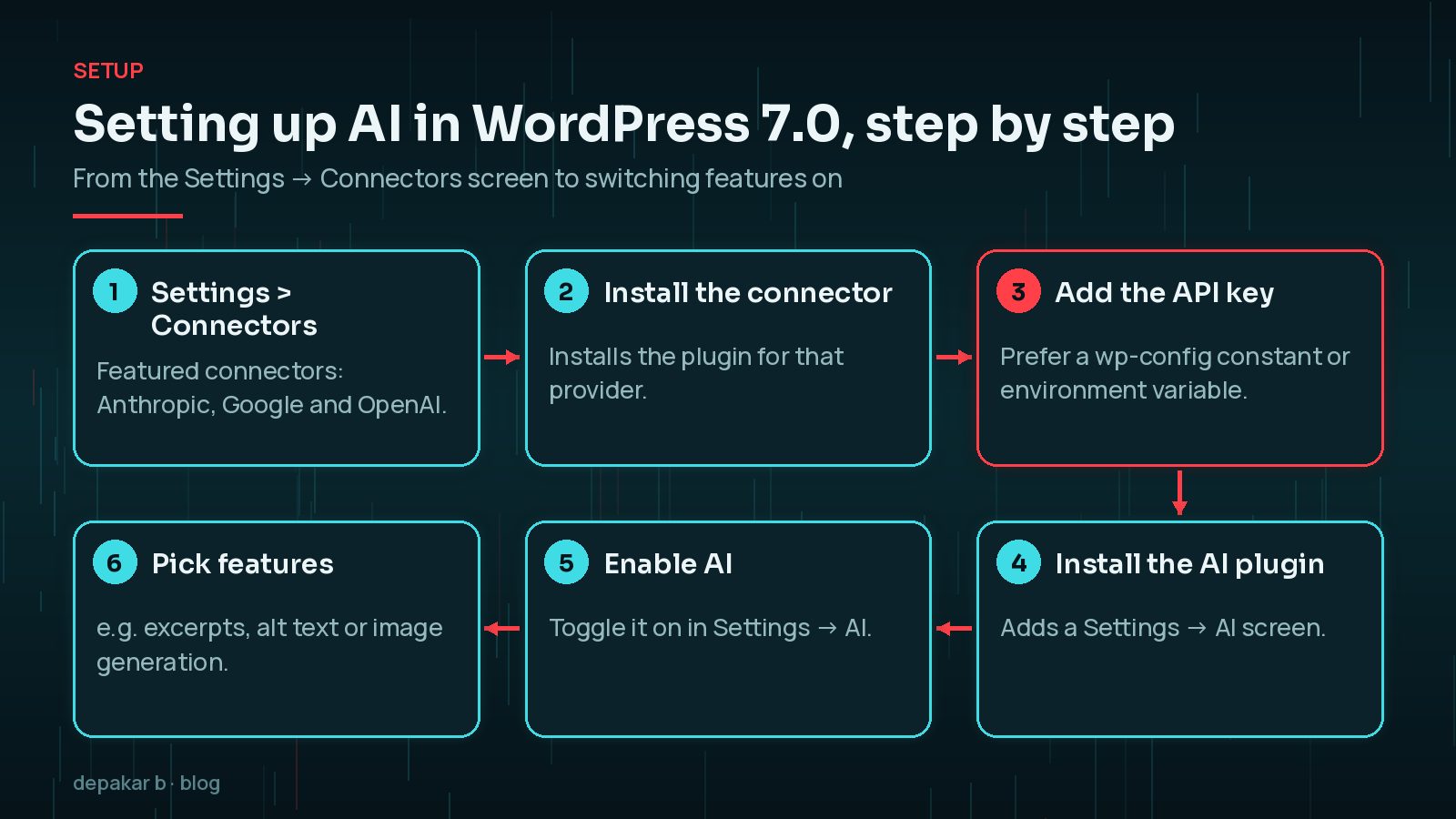
- Go to Settings → Connectors in your dashboard.
- Select Install on the provider you want. This installs the plugin associated with that connector.
- Add an API key from the provider. Each card links to the provider's site where you can create one.
- Install the AI plugin from the notice on the Connectors screen. It adds a Settings → AI screen.
- In Settings → AI, turn on Enable AI.
- Switch on only the features you want, such as excerpt, alt text or image generation.
Once enabled, the options appear in the editor where they apply. For example, image and excerpt generation add buttons for a featured image and an excerpt.
Where Does WordPress Store Your API Key?
This is the important part. For connectors that use API keys, WordPress checks three places, in this order, and uses the first one it finds:
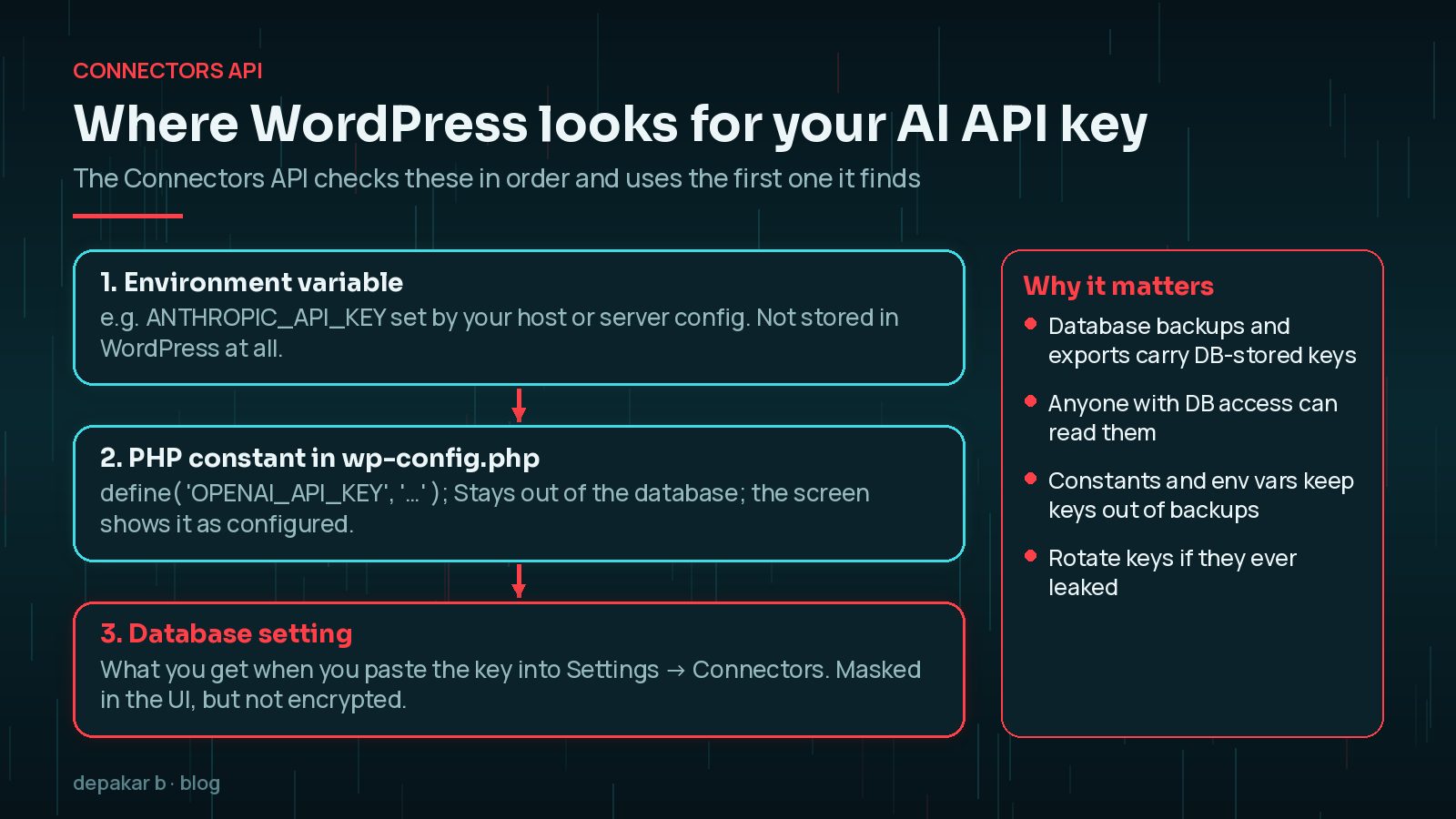
- Environment variable, for example
ANTHROPIC_API_KEY - PHP constant, usually defined in
wp-config.php - Database setting, which is what you get when you paste the key into the Connectors screen
For AI providers, WordPress uses a naming convention of {PROVIDER_ID}_API_KEY, so the anthropic provider maps to ANTHROPIC_API_KEY and openai to OPENAI_API_KEY.
Keys saved in the database are not encrypted. The WordPress documentation says database-stored keys are masked in the interface, but not encrypted. Anyone who can read your database, or a copy of it, can read the key.
Database copies end up in more places than you might think: backups, staging sites, migration exports and support tickets. Encryption is being explored in a follow-up Trac ticket, and WordPress 7.2 plans a separate Secrets API, but neither changes how 7.0 works today.
How Do You Put the API Key in wp-config.php?
If you can edit wp-config.php, define the key as a constant above the line that says "That's all, stop editing!":
define( 'ANTHROPIC_API_KEY', 'your-key-here' );
define( 'OPENAI_API_KEY', 'your-key-here' );
Only define the providers you actually use. After saving, reload Settings → Connectors. The card should show the key as configured, and because the key is not stored in the database, the screen does not offer to remove or replace it there. To change it, edit the file.
Environment variables are even better
Many managed hosts and container setups let you set environment variables in a control panel or deployment config. If yours does, set ANTHROPIC_API_KEY (or the relevant name) there. It takes priority over the constant and the database, and it never appears in your WordPress files at all.
Whichever you choose, make sure wp-config.php is never committed to a public Git repository or included in a downloadable backup.
How Do You Keep WordPress AI Connectors Safe?
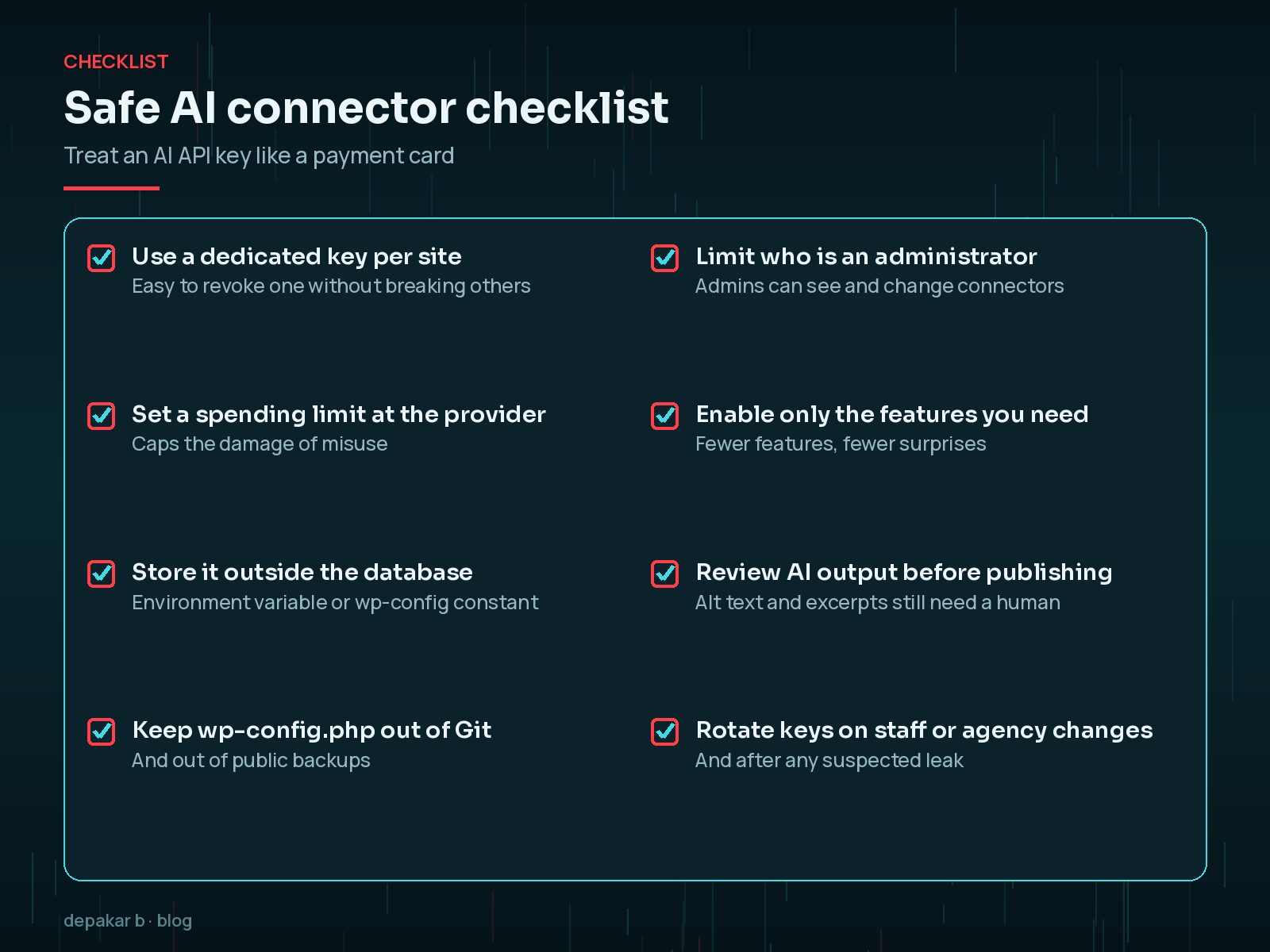
An AI API key is closer to a payment card than a password: if it leaks, someone else can run up usage on your account. A few habits go a long way.
- Use one key per site. If a key leaks, you can revoke it without breaking every other project.
- Set spending limits in the provider's dashboard where available.
- Limit administrator accounts. Admins can manage connectors and plugins. Review who has that role, and look for accounts you do not recognise using this guide to finding hidden admin users.
- Keep the basics in place. Strong passwords, two-factor authentication and timely updates still matter most; see practical WordPress security foundations.
- Enable only the AI features you need. Fewer features mean fewer unexpected requests and costs.
- Review AI output before publishing. Generated alt text and excerpts still need a human check for accuracy and tone.
- Rotate keys after staff or agency changes, and immediately if you suspect a compromise.
If your site has been hacked at any point, assume database-stored keys were exposed and rotate them as part of hardening after a hack.
Do You Need to Connect AI at All?
Not necessarily. The Connectors screen and AI plugin are optional. If you do not plan to use AI features, there is no need to install connectors or add keys.
If you do want to try them, a staging site is a good place to start. You can test the features, check the quality of the output and confirm costs before anything touches your live content. Developers who want AI agents to act on the site itself, rather than generate text, should also read about the WordPress MCP Adapter, which is a different tool with different risks.
wp-config.php constant, enable only the AI features you need, and review what it produces.Frequently Asked Questions
Where is the Connectors screen in WordPress 7.0?
Go to Settings → Connectors in the WordPress dashboard. It lists the featured AI connectors, Anthropic, Google and OpenAI, and any others registered by plugins.
Are API keys encrypted in WordPress 7.0?
Not when saved through the Connectors screen. The official documentation says database-stored keys are masked in the interface but not encrypted. Use an environment variable or PHP constant to keep them out of the database.
What constant name should I use for my AI API key?
For AI providers, WordPress uses the pattern {PROVIDER_ID}_API_KEY, such as ANTHROPIC_API_KEY or OPENAI_API_KEY. Define it in wp-config.php or set it as an environment variable.
Which takes priority, wp-config.php or the Connectors screen?
WordPress checks the environment variable first, then the PHP constant, then the database setting. A key in wp-config.php therefore overrides one pasted into the screen.
Final Thoughts
The Connectors screen makes connecting AI to WordPress much simpler than the plugin-by-plugin approach we had before. The one thing to get right is key storage: the screen is convenient, but the database is the least protected place to keep a secret.
If you would like help setting up AI features safely, or building a custom integration on top of the Connectors API, my WordPress development work covers exactly that kind of project.
Connect deliberately, keep keys out of the database, and switch on only what you will actually use.
Official References
Sources checked on 29 October 2026: