WordPress security hardening after a hack is the part of recovery that stops it happening again. Cleaning the malware removes the symptoms, but if the weak password, outdated plugin or open setting that let the attacker in is still there, the same route usually works twice. This guide sets out what to lock down, in what order, and how to keep it locked down.

Why Do Hacked WordPress Sites Get Reinfected?
Reinfection is usually not bad luck. The most common reasons are a backdoor that was missed during clean-up, a password that was never changed, or the original vulnerable plugin or theme still being installed. Attackers often automate their tools, so a site that was compromised once is likely to be scanned and tried again.
That is why hardening comes after a thorough clean-up, not instead of one. If you have not finished cleaning yet, work through the WordPress malware cleanup checklist first, then come back here.
Identity and access
Unique passwords, MFA, fewer admins, and no shared logins.
- MFA for WP, hosting, DNS, and email
- Least-privilege roles
- Remove stale accounts
After a hack, treat every account as potentially exposed. Give each person their own login, so activity can be traced and access removed cleanly when someone leaves. Review application passwords on each WordPress profile, and check hosting, SFTP and database users for accounts nobody can explain. Attackers often create an extra administrator with an innocent-sounding name, so read my guide to finding hidden admin users before assuming the user list is clean.
Pay particular attention to access granted to previous developers, agencies and plugin vendors. Support accounts created for a one-off job are easily forgotten, and they often have administrator rights. If someone genuinely needs access again later, create a fresh account for them with an expiry date in your notes, and remove it when the work is finished.
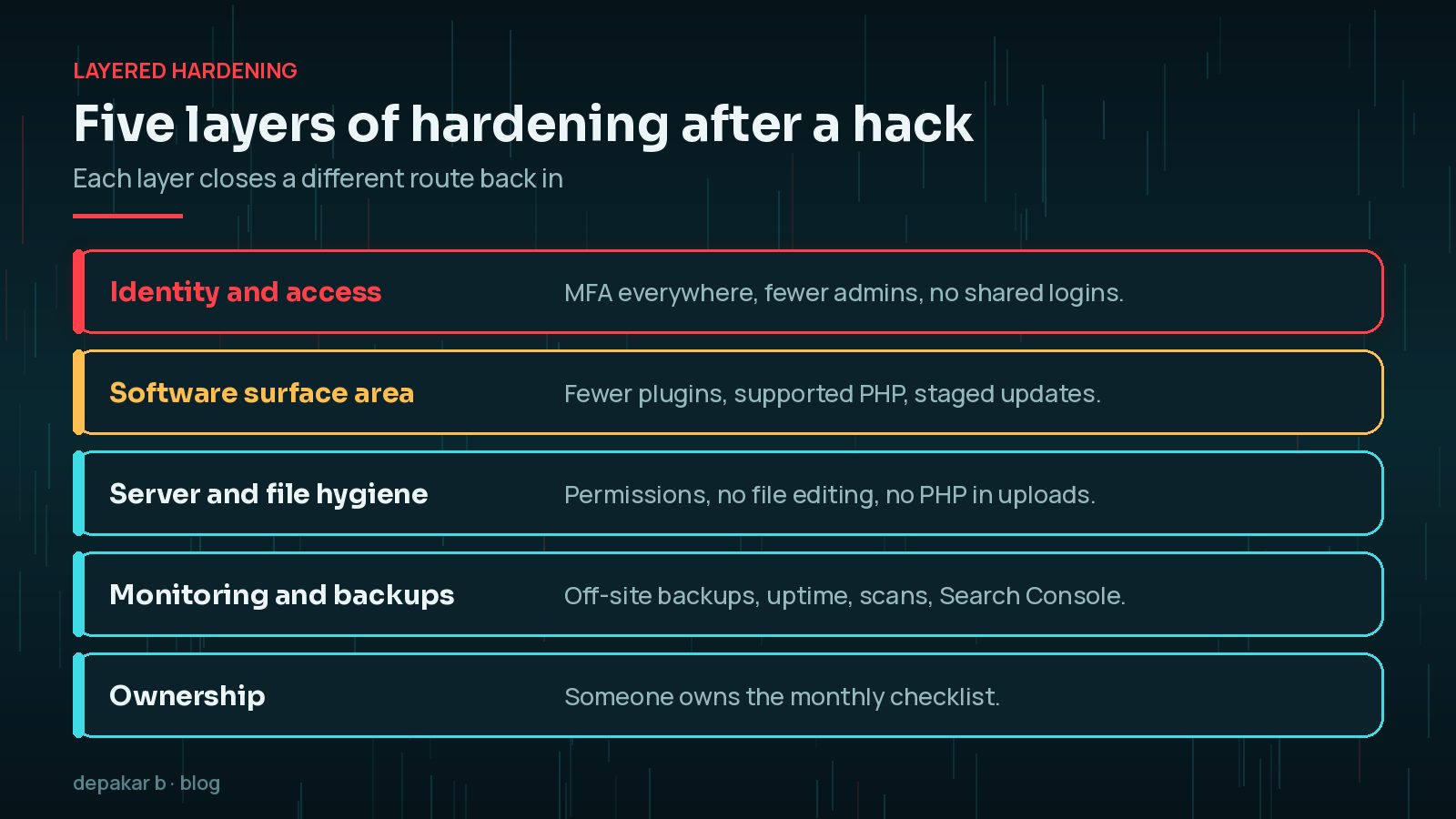
Software surface area
Fewer plugins, supported PHP, and a real update routine.
- Delete unused plugins/themes
- Move to a supported PHP version
- Stage updates before production
How Many Plugins Is Too Many?
There is no magic number. What matters is whether every plugin is needed, maintained and kept up to date. Deactivated plugins and themes still sit on the server and can still contain vulnerable code, so delete what you do not use rather than just switching it off. Replace plugins that have not been updated for a long time, and never reinstall nulled or pirated copies of paid plugins.
The PHP version matters too. The PHP project publishes which branches still receive security fixes, and running an unsupported branch leaves known problems unpatched at the server level. If your host is still on an older branch, my PHP 8.2 end-of-life guide explains how to upgrade without breaking the site.
Staging closes the loop. A copy of the site where updates are tested first makes it far less tempting to postpone them, because a broken update is found before visitors see it. If a full staging site is not possible, at least take a backup, update during a quiet period and check the key pages and forms straight afterwards. Keep a short note of what changed each time, so that if something odd appears later you can match it to a specific update.
Server and file hygiene
Correct permissions, disable risky features, and keep debug off in production.
- wp-config secrets not in public repos
- Disable file editing in admin when possible
- Restrict executable uploads
Which wp-config.php and Server Settings Should You Change?
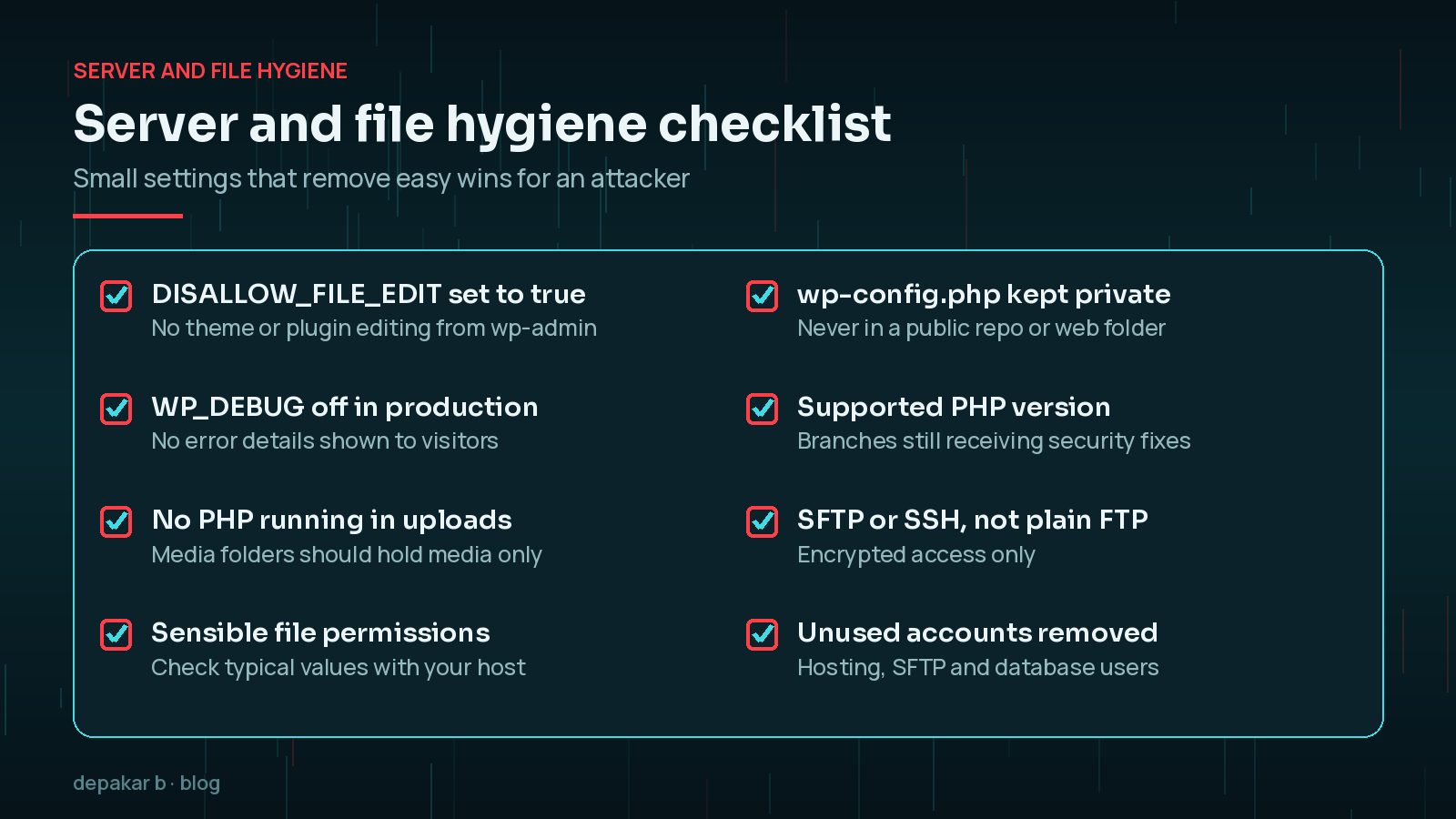
The WordPress hardening guide recommends disabling the built-in file editor, which stops anyone with admin access from editing theme and plugin code from the dashboard:
define( 'DISALLOW_FILE_EDIT', true );Keep WP_DEBUG off on the live site, and if you need logs, write them to a file on a staging copy. Prevent PHP from running inside the uploads folder, because that folder should only ever hold media. Your host or server administrator can usually set this at server level.
File permissions are worth checking as well. WordPress's file permissions guide describes typical values of 755 or 750 for directories and 644 or 640 for files, with stricter settings for wp-config.php. Hosting setups differ, so confirm the right values with your host rather than changing everything at once.
Monitoring and backups
Know when something changes and how to roll back.
- Off-site daily backups
- Uptime + malware scans
- Search Console connected and watched
What Should You Monitor After a Hack?
Monitoring is how you find out about a problem before your visitors or Google do. Useful signals include:
- Uptime alerts from an external service, sent to someone who will act on them.
- File change or malware alerts from a single, well-configured security tool.
- Search Console, especially the Security Issues report and sudden spikes in indexed pages, which can reveal injected spam.
- New administrator accounts or unexpected plugin installs.

Backups complete the picture. Keep several recent copies in more than one location, including at least one outside your hosting account, and test a restore to staging so you know the process works.
What Should You Learn From the Incident?
Before the details fade, write a short incident note. It does not need to be formal, but it should answer a few questions: how was the problem noticed, roughly when did it start, what was changed by the attacker, which entry route seems most likely, and what has been done to close it. If you are not certain how the attacker got in, say so, and harden every likely route rather than guessing one.
This note is useful in three ways. It helps whoever maintains the site next, it gives you a timeline if the problem returns, and it shows clients or managers that the response was thorough. Keep a copy of the infected snapshot alongside it for a while in case further investigation is needed, stored safely away from the live site.
Baseline maintenance
Hardening sticks when someone owns the monthly checklist.
- Pair with security foundations
- Consider maintenance support
The most common failure after a hack is not technical. Everyone is careful for a few weeks, then updates slip, a new plugin is added without review and an old account reappears. Name one person or provider who owns the monthly checks, and write the routine down so it survives staff changes.
Frequently Asked Questions
How soon after a hack should I harden WordPress?
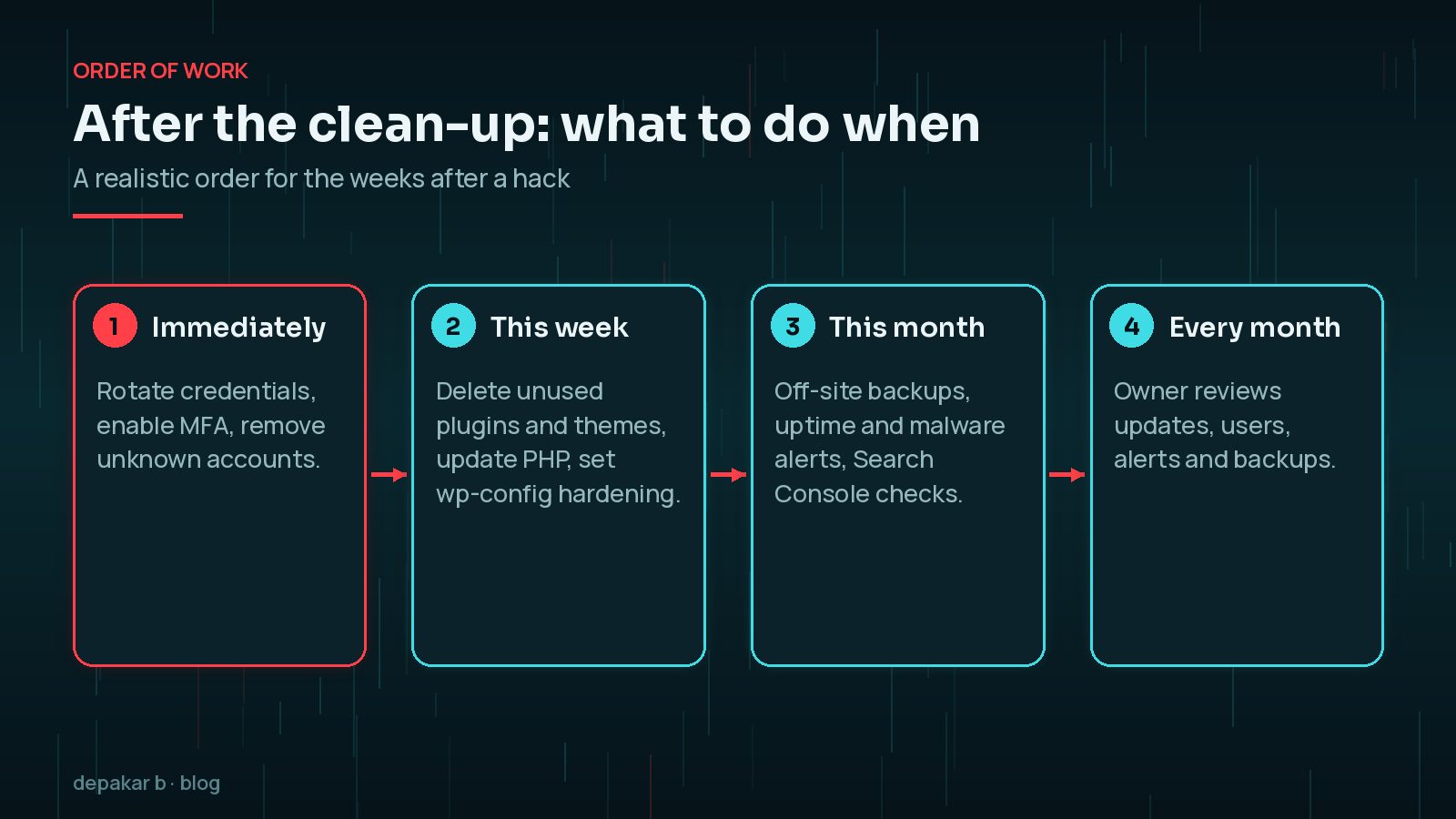
Start as soon as the clean-up is complete. Rotate credentials and enable MFA immediately, then work through plugins, PHP, server settings and monitoring over the following days and weeks.
Does changing passwords stop a hacker returning?
Only if the malware and backdoors are gone. Passwords changed while a backdoor is still active may be captured again, so rotate them after the site is clean.
Should I delete deactivated plugins?
Yes. Deactivated plugins and themes still exist on the server and can contain vulnerable code. Delete anything you do not use.
Is DISALLOW_FILE_EDIT safe to enable?
For most sites, yes. It stops theme and plugin files being edited from the dashboard, which is rarely needed on a live site and is a common way for attackers to add code.
Do I need a web application firewall after a hack?
A firewall from your host or a reputable service can add useful protection, but it does not replace updates, access control and backups. Make sure someone reviews what it reports.
Final Thoughts
WordPress security hardening after a hack is about closing the route the attacker used and the routes they might try next. Lock down access first, shrink the software you run, tighten server and file settings, then add monitoring and tested backups. Most importantly, make sure someone owns the routine, because hardening only works while it is maintained. For the full recovery process, see how to clean a hacked WordPress site.
Need help applying this?
I can combine cleanup and hardening through hacked-site recovery.
Official References
Sources checked on 29 October 2026:
- WordPress Advanced Administration: Hardening WordPress
- WordPress Advanced Administration: Changing File Permissions
- WordPress Advanced Administration: Two Step Authentication
- WordPress Advanced Administration: Debugging in WordPress
- PHP: Supported Versions
- Google Search Console Help: Security issues report
Related service: Site hacked recovery · Contact · All articles