
1. Contain the incident
Put the site into maintenance mode if needed, take a forensic copy before mass deletes, and change hosting panel passwords if you still have access. Note what visitors see: redirects, spam pages, injected scripts, or a defaced homepage.
- Screenshot the public symptoms
- Export a full backup/snapshot before cleanup
- List admin users and recently modified files
Write down when you first noticed the problem, what changed recently (a new plugin, a theme edit, a hosting move) and which time zone your notes use. The WordPress.org guidance on hacked sites calls this documentation step the start of an incident report, and it is worth the five minutes: your host, a security vendor or a developer will ask for exactly this information.

2. Identify the entry path
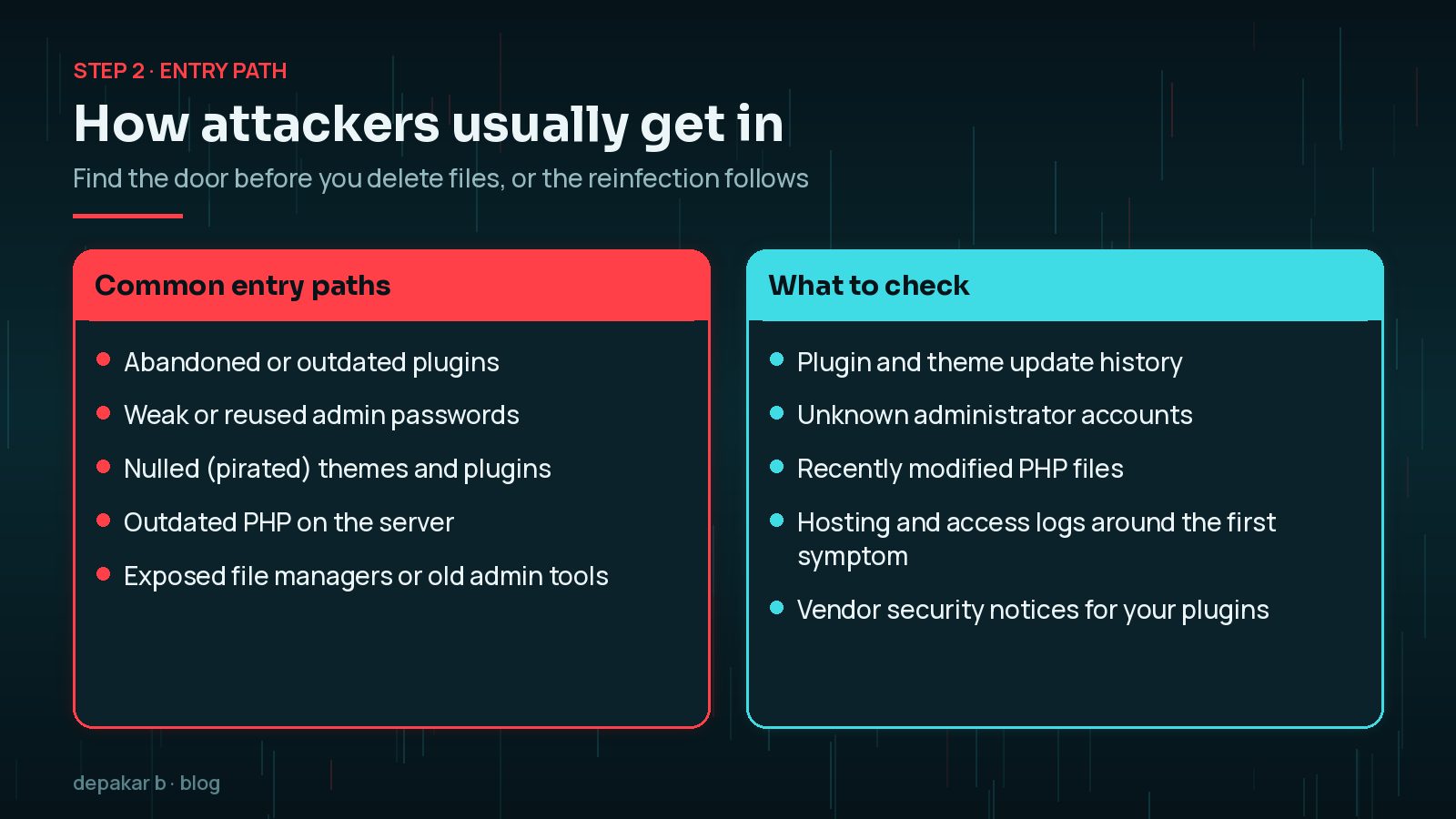
Common paths include abandoned plugins, weak admin passwords, nulled themes, outdated PHP, and exposed file managers. Knowing the door matters more than deleting one suspicious file.
- Review plugin/theme update history
- Check for unknown admin users
- Scan for recently modified PHP files
Hosting access logs are often the fastest clue. Look for unusual POST requests to plugin files, logins from unfamiliar locations, or uploads that happened just before the first symptom. If one plugin appears in a current security advisory, such as those in my October 2026 plugin vulnerabilities round-up, treat it as the prime suspect until you can rule it out.
3. Clean malware and restore trust
Remove injected code from themes, mu-plugins, uploads disguised as PHP, and database spam posts. Prefer restoring known-good core/theme/plugin files from official sources over editing malware by hand when the infection is wide.
- Replace WordPress core files
- Reinstall clean theme and plugin packages
- Delete spam posts, users, and cron jobs
If you have WP-CLI access, wp core verify-checksums compares core files with the official WordPress.org checksums, and wp plugin verify-checksums --all does the same for plugins hosted on WordPress.org. Premium plugins are not covered, so download fresh copies from the vendor's account area rather than trusting the files already on the server.

4. Rotate credentials and harden
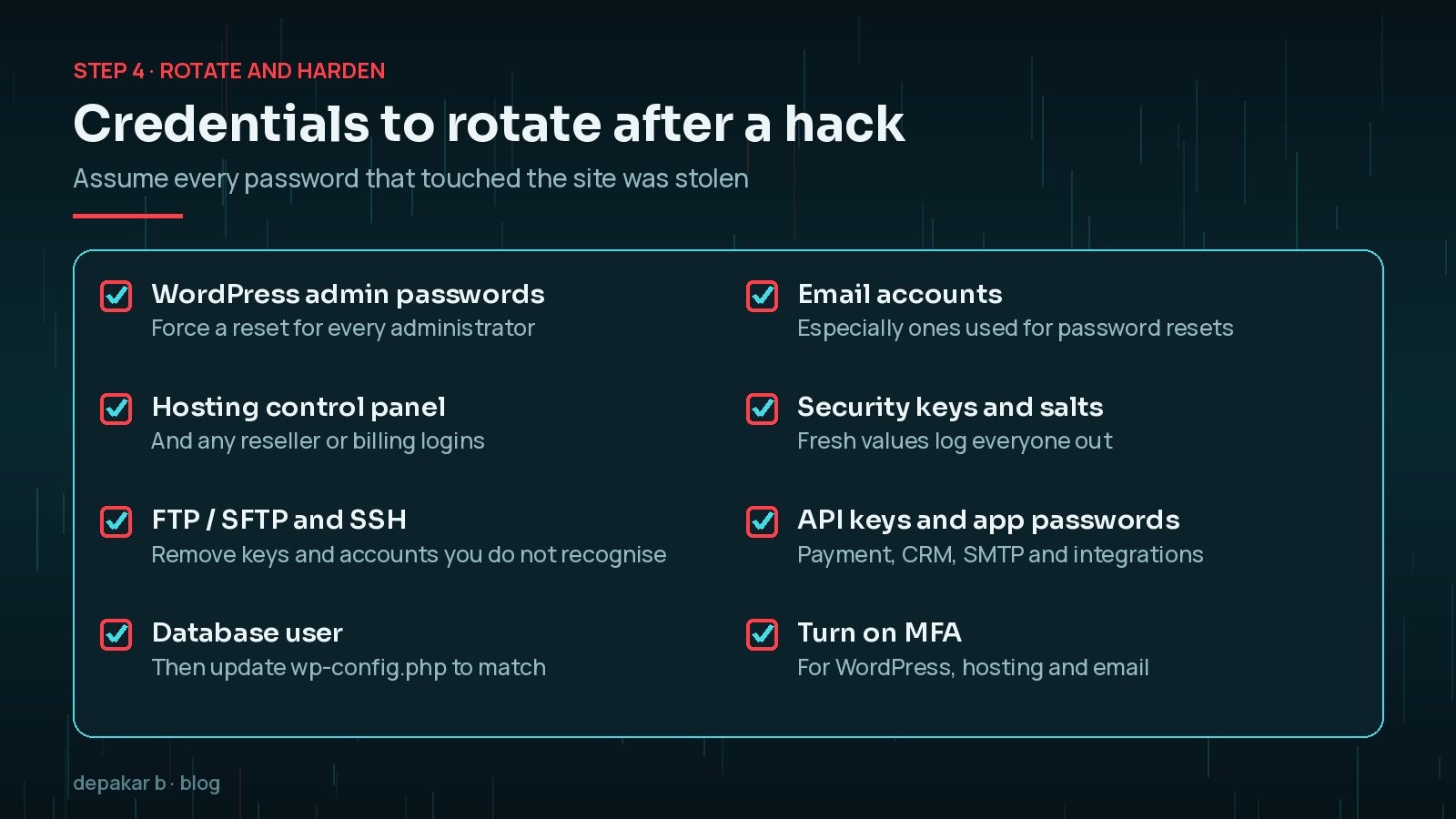
Assume passwords were stolen. Rotate WordPress, hosting, FTP/SFTP, database, and email credentials. Enable MFA, limit login attempts, and remove unused plugins.
- Force password resets for all admins
- Enable MFA where available
- See the full hardening notes below
What should hardening include after a hack?
Hardening is about closing the door you found in step 2 and the obvious neighbouring ones. It does not need a dozen overlapping security plugins. Start with the basics that remove whole classes of attack:
- Update or remove the plugin or theme that let the attacker in, and delete anything inactive.
- Generate new security keys and salts in
wp-config.php; this logs out every session, including the attacker's. - Add
define( 'DISALLOW_FILE_EDIT', true );so the built-in theme and plugin editors cannot be used to plant code. - Move to a supported PHP version; see PHP 8.2 end of life and how to upgrade safely.
- Limit login attempts and require multi-factor authentication for administrators.
- Review file permissions so the web server cannot write where it does not need to.
The official WordPress hardening guide is clear that disabling the file editor will not stop every upload, but it removes an easy path. Combine it with off-site backups so the next incident, if there is one, starts from a clean restore point. My post-hack hardening notes go into each item in more depth.
5. Verify and monitor
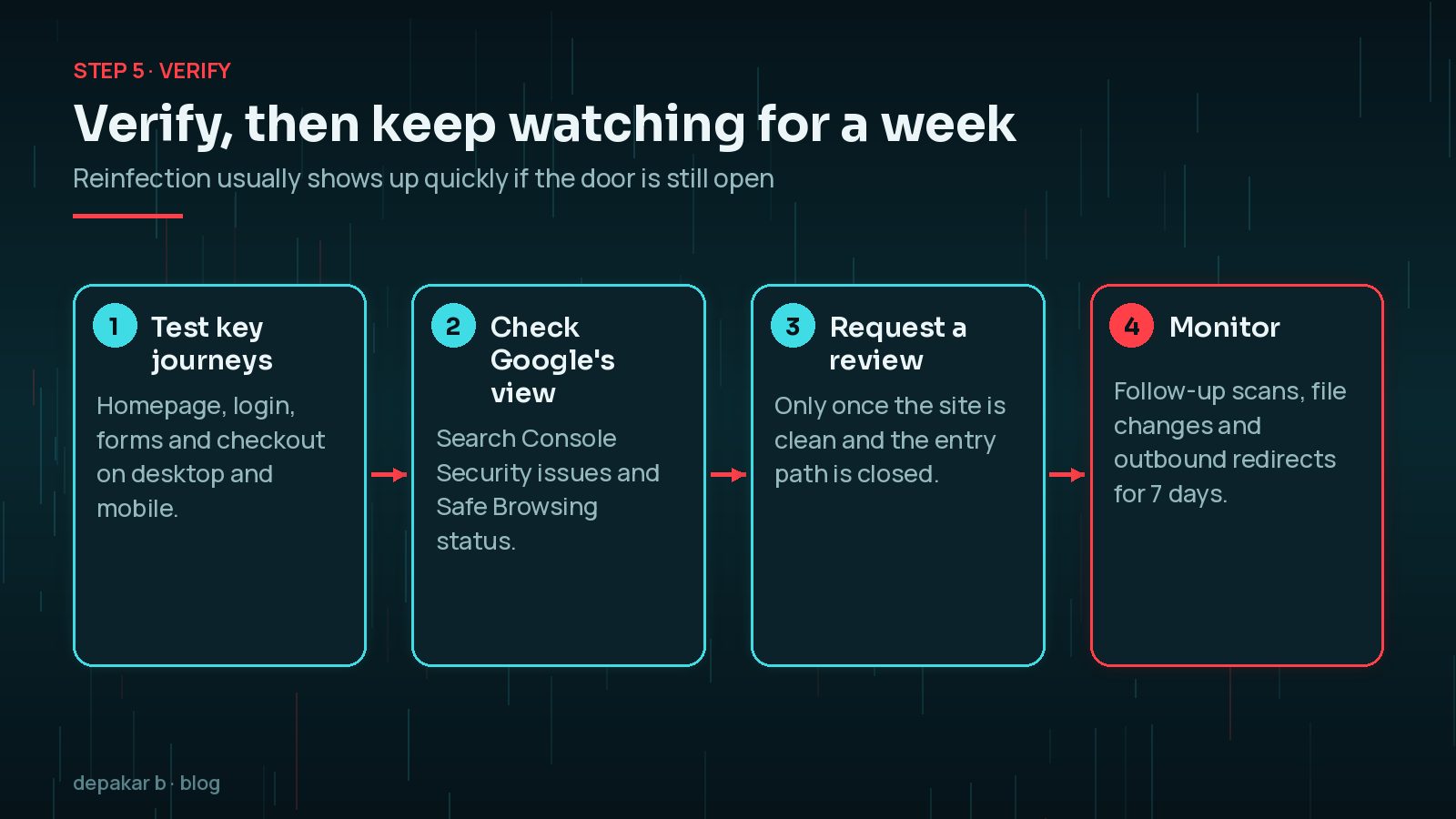
Check the homepage, login, forms, Search Console security issues, and Google Safe Browsing status. Keep monitoring for a week-reinfection usually shows up quickly if the door is still open.
- Request a review in Search Console if flagged
- Confirm no unexpected outbound redirects
- Schedule follow-up malware scans
If Google flagged the site, the Security issues report in Search Console lists the problems it found. Fix every issue, make sure the entry path is closed, and only then request a review; asking too early tends to slow things down rather than speed them up.
Should you restore a backup or clean the site in place?
If you have a backup taken before the infection started and the site has not changed much since, restoring it is often the fastest route. The catch is timing: many infections sit quietly for days or weeks before symptoms appear, so a recent backup can contain the same backdoor. Compare file dates and the first suspicious log entries before you choose a restore point, and follow restoring WordPress from a backup for the order of work.
Cleaning in place makes sense when you have no clean backup, when there are orders, bookings or posts since the last good backup that you cannot afford to lose, or when the infection is limited to a few known files. Either way, steps 2, 4 and 5 still apply. A restore without closing the entry path is just a pause before the next compromise.
When should you bring in professional help?
Some situations are worth handing over early rather than late:
- The site handles payments, personal data or logins for customers.
- The host has suspended the account or Google shows a warning to visitors.
- Malware keeps coming back after you have removed it.
- You find unknown administrators, scheduled tasks or SSH keys you cannot explain.
If personal data may have been accessed, you may also have legal reporting duties in your country, so involve whoever is responsible for data protection in your organisation. For hidden accounts specifically, my guide to finding hidden admin users in WordPress walks through the checks.
Frequently Asked Questions
How long does it take to clean a hacked WordPress site?
A small site with a clear entry path and good backups can often be cleaned in a few hours. Wider infections, missing backups or repeated reinfection take longer, because the investigation, not the deletion, is the slow part.
Will a security plugin remove the malware for me?
A scanner can find many known infections and is useful for monitoring, but it cannot always tell you how the attacker got in or find every backdoor. Use it alongside clean reinstalls, checksum checks and a review of users, cron jobs and uploads.
Do I need to tell Google my site was hacked?
If Search Console shows a security issue or visitors see a Safe Browsing warning, request a review once the site is clean and the entry path is closed. If Google has not flagged anything, there is nothing to request, but keep watching the Security issues report.
Should I delete my WordPress site and start again?
Usually not. Replacing core, theme and plugin files with clean copies and cleaning the database achieves the same result while keeping your content and URLs. A full rebuild is only worth considering when the site is very old and unmaintained anyway.
How do I stop it happening again?
Keep plugins, themes, WordPress and PHP updated, remove anything you do not use, use unique passwords with multi-factor authentication, and keep tested off-site backups. A regular maintenance routine prevents most repeat incidents.
Final Thoughts
Cleaning a hacked WordPress site is mostly about order and patience: contain, find the door, replace what you cannot trust, rotate every secret, and then watch closely for a week. Skipping straight to deleting suspicious files feels productive but is the most common reason infections return. Work calmly through the steps, document what you find, and you will end up with a site that is cleaner and better protected than it was before the attack.
Need help applying this?
If you need hands-on cleanup, I offer WordPress hacked-site recovery and ongoing maintenance.
Related service: Site hacked recovery · Contact · All articles
Official References
Sources checked on 29 October 2026:
- WordPress.org: FAQ My site was hacked
- WordPress Developer Resources: Hardening WordPress
- WP-CLI: wp core verify-checksums
- WP-CLI: wp plugin verify-checksums
- Google Search Console Help: Security issues report
- web.dev: Help, I think I've been hacked
- Google Transparency Report: Safe Browsing site status