
Pick the right restore point
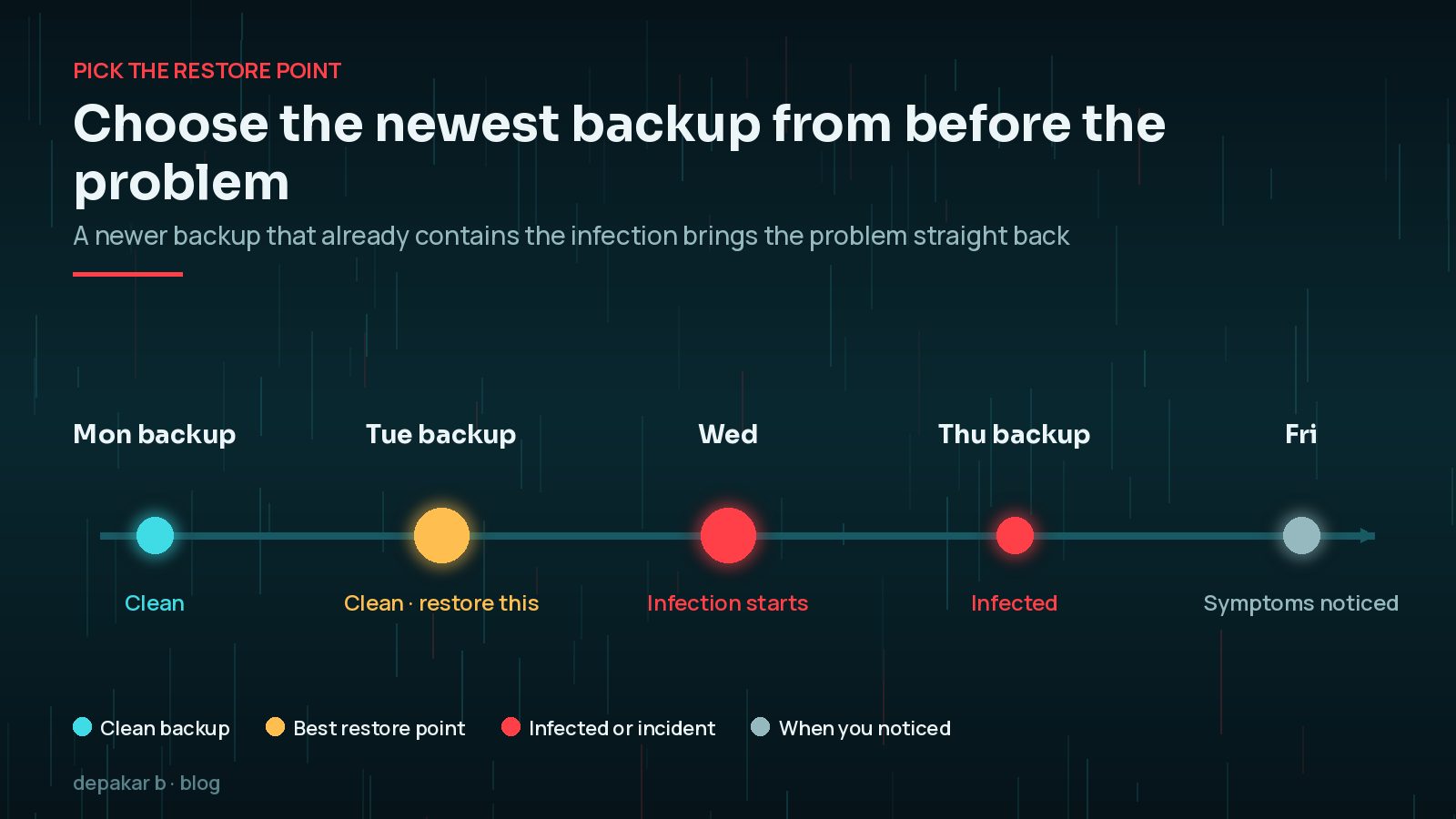
Choose the newest backup from before the failure or infection. A newer infected backup will bring the problem back.
- Prefer pre-incident timestamps
- Confirm backup includes files and database
- Keep a copy of the broken site for investigation
If you are not sure when the problem started, look for the earliest sign rather than the day you noticed it: the first odd entry in access logs, the modification date of a suspicious file, or the date a plugin update was applied. Many infections and bad updates sit unnoticed for days, so the "newest" backup is not automatically the right one.
Restore order
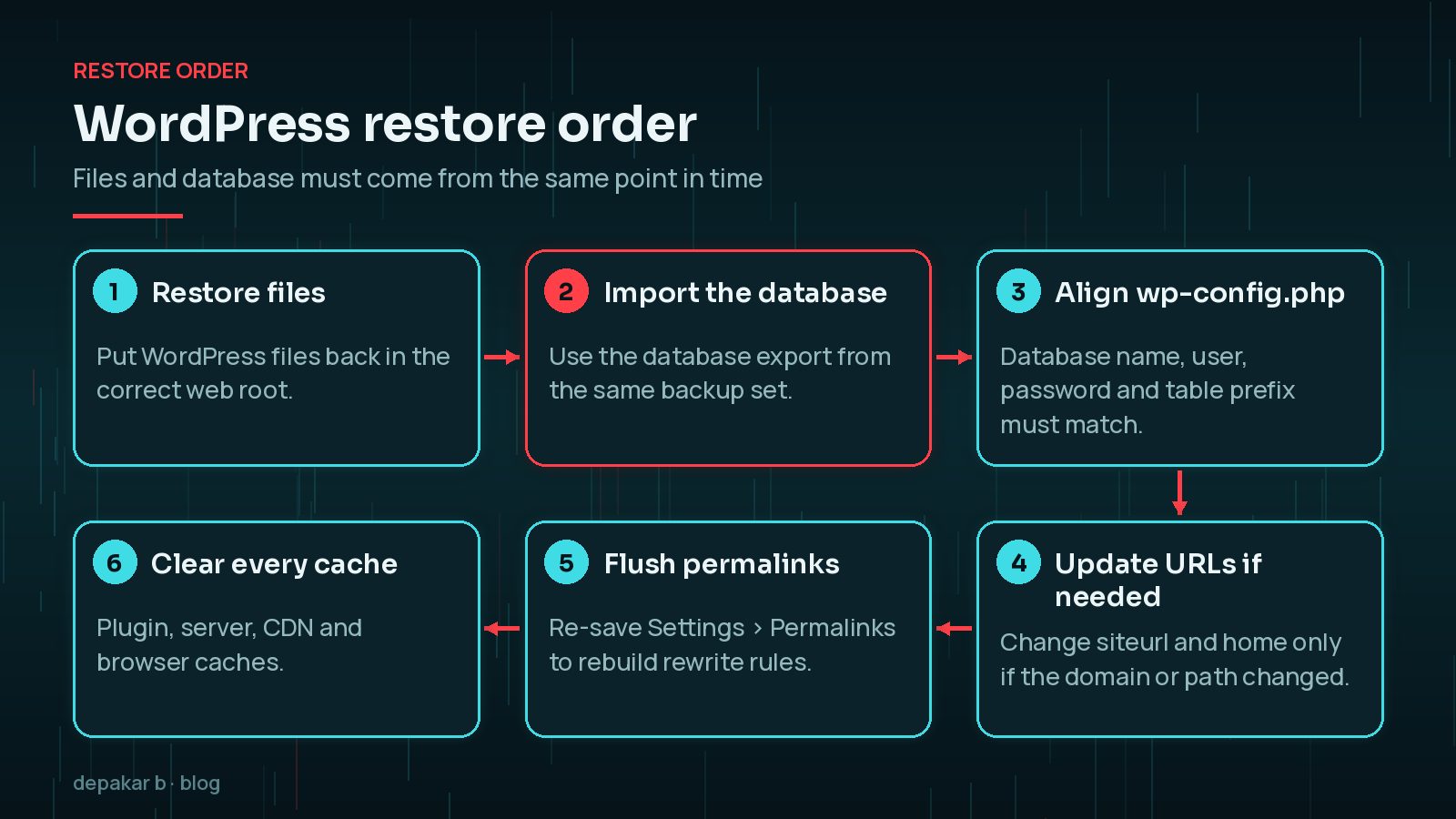
Usually: files first or together with database, then wp-config alignment, then permalinks flush.
- Restore files to the correct web root
- Import the matching database
- Update siteurl/home if the domain/path changed
Restoring files without the matching database, or the other way round, is a common cause of broken layouts and missing media after a restore. If your backup tool stores them separately, check that both come from the same date before you begin.
Verify critical journeys
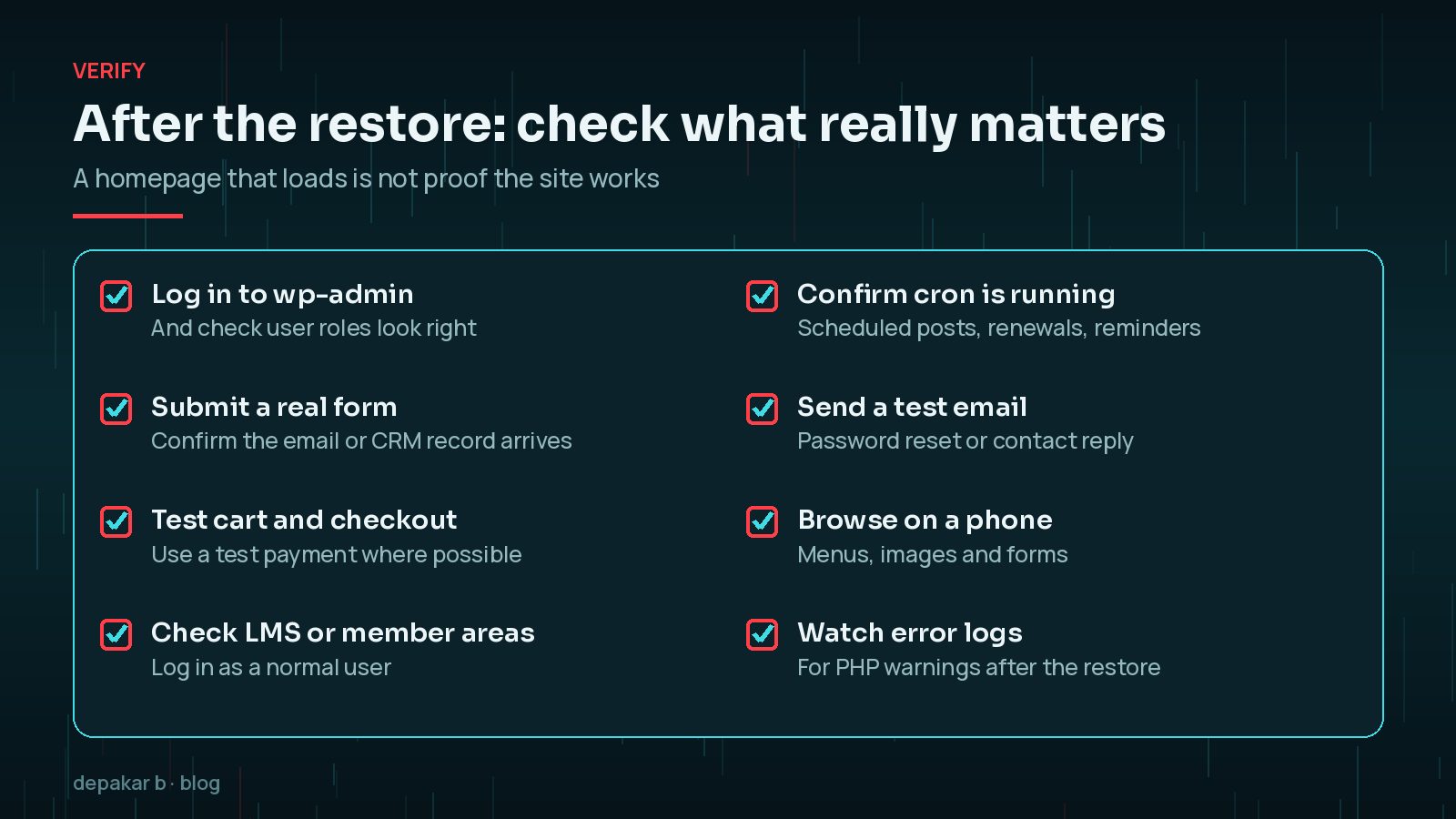
Homepage beauty is not enough. Check login, forms, carts, LMS, and admin screens.
- Clear caches after restore
- Test one form submission
- Confirm cron and email still work
If backups are missing or incomplete
Partial recovery may mean rebuilding from a public crawl, staging copies, or hosting snapshots. Prevention matters more after this happens once.
- Ask the host for server snapshots
- Export content from staging if available
- Start off-site backups the same day
Before rebuilding anything, ask your host whether they keep their own server snapshots. Many do, even on plans that do not advertise backups, and they may be able to restore files or a database from a specific date. Public copies of your pages can help you recover text, but they will not contain your database, users or orders, so treat them as a last resort for content only.

Connect restore to security
After a hack restore, still rotate credentials-attackers may still have passwords.
- Follow hacked-site cleanup after restore when malware was involved
- Enable MFA
- Document backup ownership
A restored copy of a hacked site still has the same weakness that let the attacker in. Update or remove the vulnerable plugin, rotate passwords, and generate new security keys before you reopen the site. The full order of work is in how to clean a hacked WordPress site.

What should a usable WordPress backup contain?
A WordPress site has two halves, and a backup needs both. The database holds posts, pages, users, settings, orders and form entries. The files hold WordPress core, themes, plugins, wp-config.php and the wp-content/uploads folder with your media. A backup that only covers one half will not give you a working site.
- Database export from the same moment as the files.
- The full
wp-contentfolder, including uploads and any mu-plugins. wp-config.phpand any server files you have customised, such as.htaccess.- At least one copy stored off the server, so a hosting failure or account suspension does not take the backups with it.
The WordPress.org backup documentation suggests keeping several recent backups in different locations, and backing up before every upgrade. How often you back up depends on how much you change: a brochure site may be fine weekly, while a shop or membership site with daily orders needs at least daily database backups.
How do you restore WordPress with WP-CLI?
If your host gives you SSH access, WP-CLI makes the database side of a restore quicker and more predictable than uploading through phpMyAdmin. A typical sequence, after copying the files back into place, looks like this:
wp db export before-restore.sqlto keep a copy of the broken state for investigation.wp db import backup.sqlto load the database from your chosen backup.wp search-replaceif, and only if, the domain or path has changed. Run it with--dry-runfirst.wp rewrite flushto rebuild permalinks, thenwp cache flushif you use an object cache.
What if the restore fails halfway?
Restores fail for ordinary reasons: an upload times out, the database file is larger than phpMyAdmin allows, or the archive was only partly written when the backup ran. Stop rather than retrying blindly, and go back to the broken-state copy you took at the start so you are never worse off than when you began.
Check the size of the backup archive and database file against earlier backups. A file that is much smaller than usual is a warning sign that something was skipped. If an import times out, ask your host to import the database for you or use WP-CLI over SSH, which avoids browser upload limits. If the archive itself is corrupt, move to the next oldest clean backup and accept losing a little more recent content rather than restoring something you cannot trust.
Keep the site in maintenance mode until the restore is complete and checked, so visitors and search engines do not see a half-restored version.
How do you test your backups before you need them?
A backup you have never restored is a hope rather than a plan. Once a quarter, or after any major change, restore your latest backup to a staging site or a local environment and click through the same checks you would use after a real incident. You will find out whether the export is complete, whether the archive opens, and how long a restore actually takes.
Write the steps down while you do it: where the backups live, who has the login, and which order works for your host. That short document is what saves the most time during a real outage. If the site goes down and you are not sure whether a restore is the right move, my WordPress site down emergency checklist helps you decide.
Frequently Asked Questions
Will restoring a backup delete recent orders or posts?
Yes, anything created after the backup was taken will be lost from the restored database. Export recent orders, form entries or posts before restoring so you can re-enter or re-import them afterwards.
Can I restore only the database or only the files?
Sometimes. A bad plugin update can often be fixed by restoring only that plugin's files, and lost content may only need the database. For hacks, restore both from the same clean point so nothing infected is left behind.
How many WordPress backups should I keep?
Keep several recent backups in more than one location, including at least one off the server. The WordPress.org documentation suggests keeping three to five recent copies.
Why does my site look broken after a restore?
The usual causes are files and database from different dates, a wrong site URL, stale caches or missing uploads. Clear every cache, re-save permalinks and check that siteurl and home match the domain.
Do I still need to change passwords after restoring from a backup?
If the restore followed a hack, yes. The backup restores old passwords too, and the attacker may already know them. Rotate WordPress, hosting, database and email credentials and generate new security keys.
Final Thoughts
Restoring WordPress from a backup is straightforward when the backup is complete, recent and clean, and stressful when any of those is missing. Choose the restore point carefully, restore files and database together, and test the journeys that matter before you reopen the site. Then use the experience to tighten your backup routine, because the best time to test a restore is before you need one.
Need help applying this?
Need restore support now? See emergency recovery or hack cleanup.
Related service: Site down recovery · Contact · All articles
Official References
Sources checked on 29 October 2026: