When your WordPress site is down, the pressure is to try fixes immediately. This WordPress site down emergency checklist asks you to slow down for a few minutes first: work out which layer is failing, gather the error details, and then choose the safest fix. That order usually gets the site back faster than guessing.
Confirm the failure type
Is the domain resolving? Is SSL failing? Is WordPress throwing a critical error? Is checkout broken while the homepage works?
- Open the site in another network / phone data
- Check DNS with a lookup tool
- Note exact error messages and HTTP status codes
Is It Down for Everyone or Just for You?
Start by ruling out your own connection. Try the site on mobile data, in a private browser window and on another device. If it loads elsewhere, the problem may be your network, a browser cache or a firewall rule that has blocked your IP address after too many login attempts.
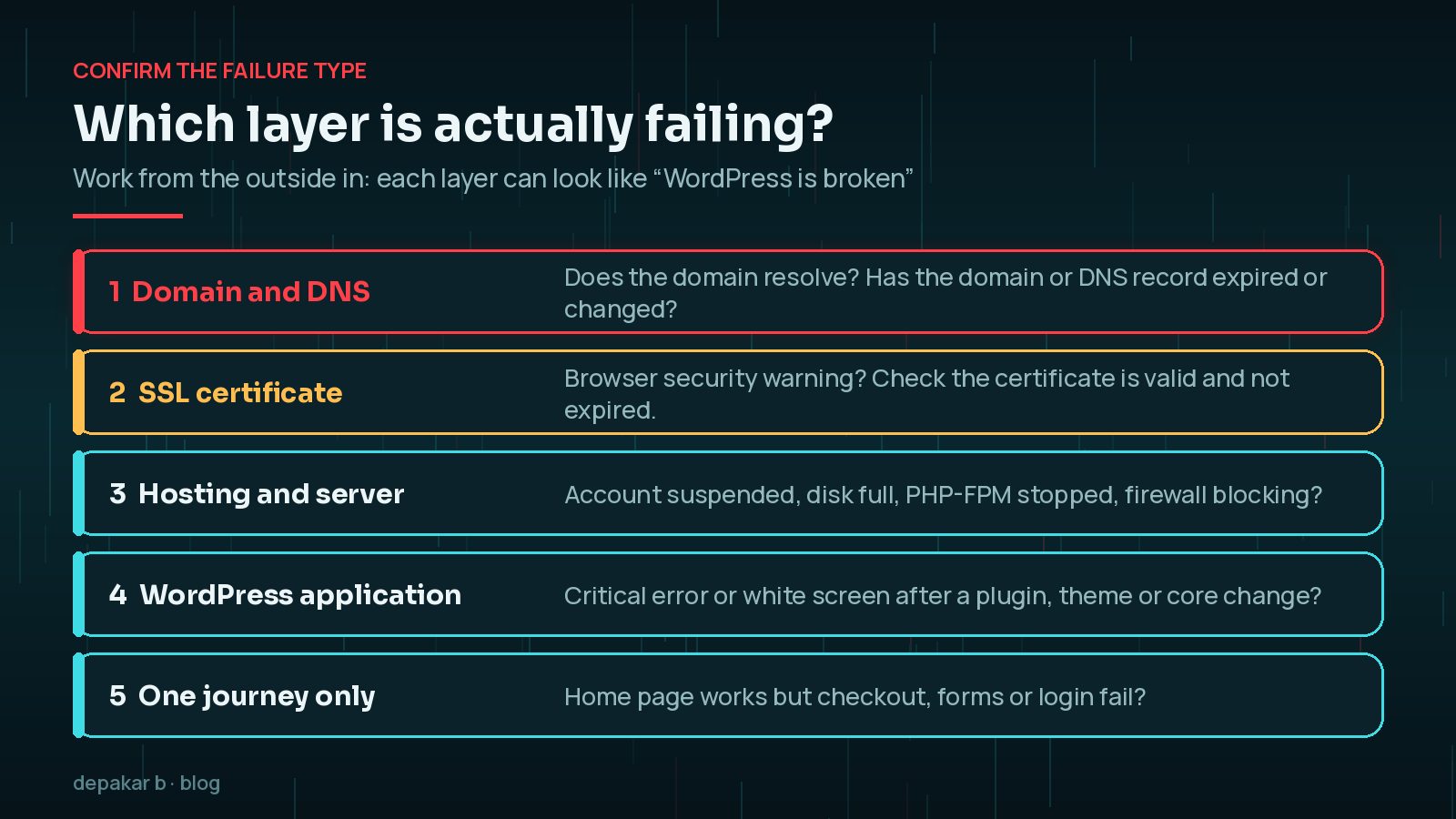
If it is down everywhere, work from the outside in. A domain that does not resolve, an expired SSL certificate, a suspended hosting account and a broken plugin all look like “the website is down” to a visitor, but each needs a completely different fix.
Hosting and server checks
Disk full, stopped PHP-FPM, expired hosting, or firewall blocks look like “WordPress is broken” from the outside.
- Check hosting panel status and resource meters
- Review error logs for the last deploy window
- Confirm SSL certificate validity
Check your host's status page and your inbox for billing or suspension notices before you touch any files. Renewal failures for the domain, hosting or SSL certificate are among the most avoidable outages, and they are fixed by renewing, not by debugging.
If you can reach the hosting panel, look at disk usage and the server error log. A full disk stops the database writing and can break uploads, sessions and backups at the same time, and large log or backup files are common causes. The error log, read for the minutes around the moment the site failed, often names the exact plugin file or PHP problem behind a critical error.
What Do Common WordPress Error Messages Mean?
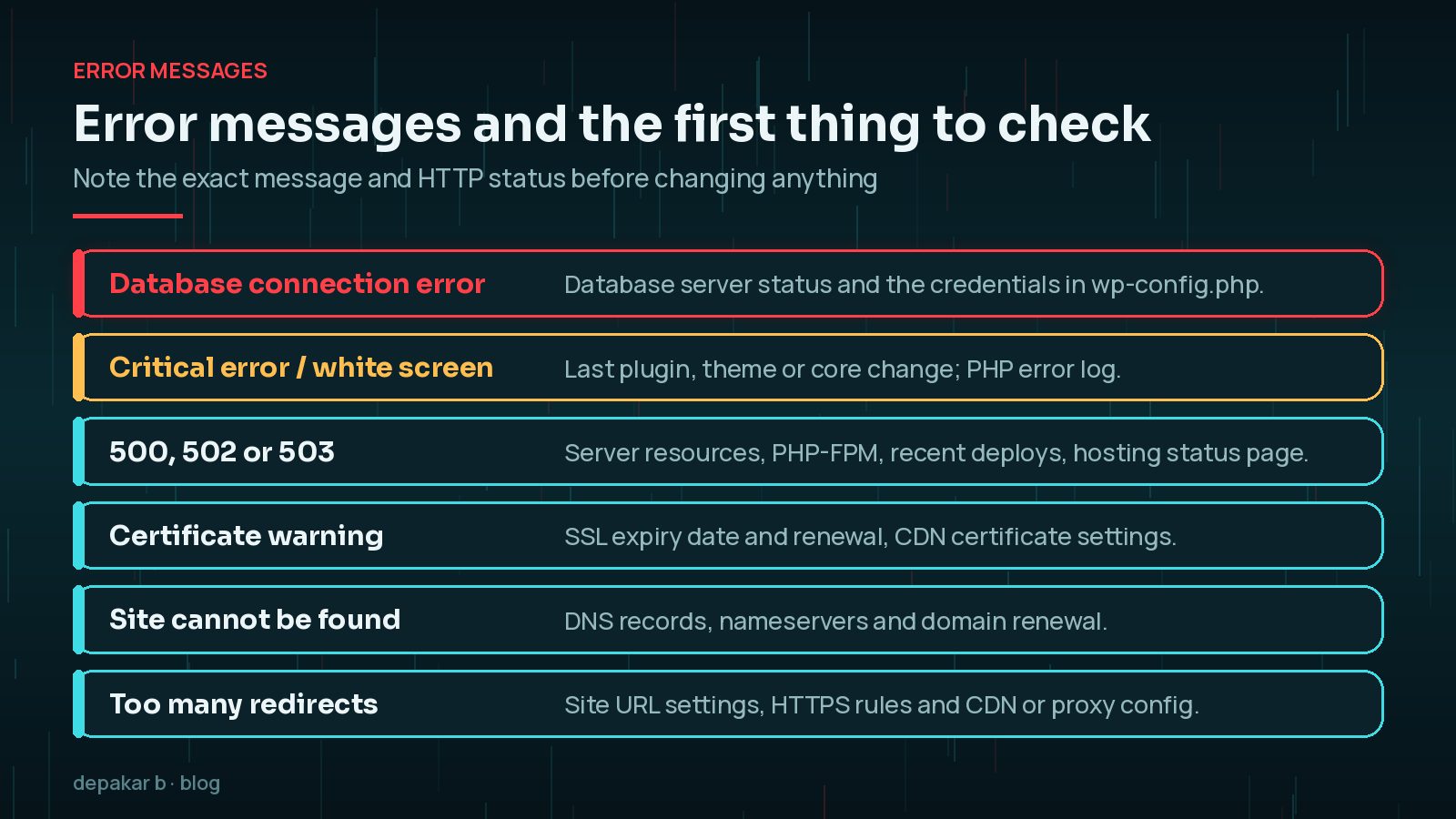
The exact wording of the error is valuable, so copy it down along with the HTTP status code. Some common examples:
- “Error establishing a database connection” usually means the database server is unavailable or the credentials in
wp-config.phpno longer match. - “There has been a critical error on this website” or a blank white screen usually points to a PHP error, often from a plugin or theme. The WordPress documentation calls the blank version the White Screen of Death.
- 500, 502 or 503 errors come from the server or a proxy in front of it, and often relate to resources, PHP processes or a recent deployment.
- Too many redirects often follows a change to the site URL, HTTPS rules or CDN settings.
WordPress application failures
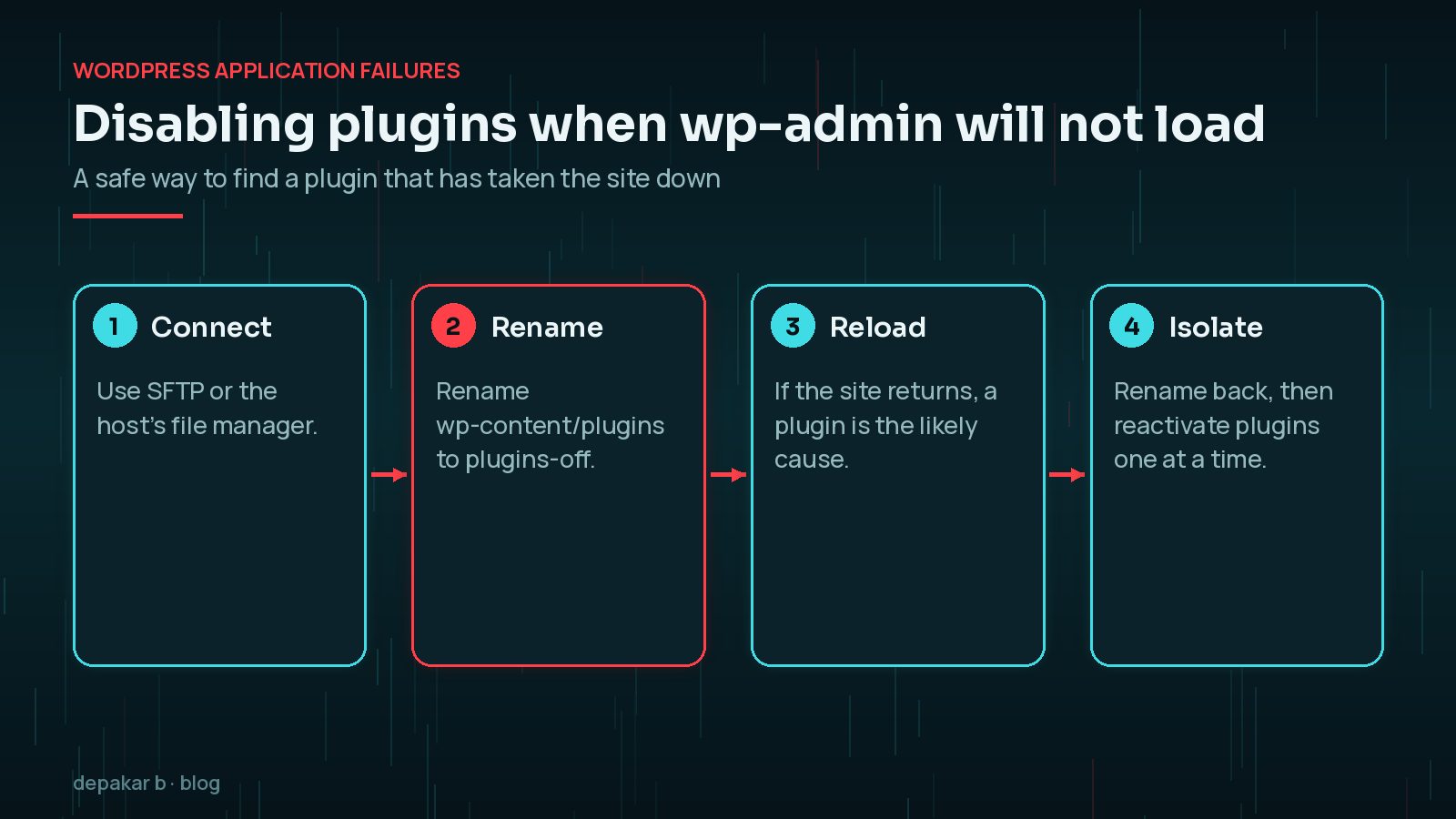
A bad plugin update or theme edit often white-screens the site. Disable plugins via SFTP rename when wp-admin is unreachable.
- Rename the plugins folder temporarily
- Switch to a default theme if needed
- Enable WP_DEBUG_LOG briefly on staging/copy
Can WordPress Recovery Mode Help?
Often, yes. Since WordPress 5.2, when a fatal error occurs WordPress shows visitors a technical difficulties message and emails the site's admin address with details of the problem and a special recovery mode link. Recovery mode lets you log in and pause the plugin or theme causing the error, without touching any files. Check that inbox, including the spam folder, before you start renaming folders.
If the email never arrives, or the admin address is an old inbox nobody reads, the SFTP method below does the same job by hand. It is also a good reminder to keep the admin email address current.
Do not turn on on-screen debugging on the live site. If you need more detail, use WP_DEBUG_LOG to write errors to a log file, ideally on a staging copy, and switch it off again once you are done.
Restore from a known-good backup
If the last change is unclear, restoring a verified backup can be safer than debugging live under pressure.
- Prefer the newest clean backup
- Restore database + files together when possible
- Re-test forms and login after restore
Before you restore, note what will be lost. Orders, form entries, comments or new posts created since the backup was taken may need to be exported first or re-entered afterwards. If you suspect the outage was caused by a hack rather than a broken update, do not simply restore and move on; read signs your WordPress site is hacked and follow the malware cleanup checklist. For the restore itself, see my step-by-step guide to restoring WordPress from a backup.
Will Downtime Hurt Your Google Rankings?
A short outage is unlikely to cause lasting harm. Google's documentation explains that server errors in the 5xx range make its crawlers temporarily slow down, and that already indexed URLs are preserved for a while, but URLs that keep returning server errors are eventually dropped from the index. In other words, fixing the problem quickly matters far more than worrying about rankings during the first hour.
What Should You Tell People While the Site Is Down?
Communication is part of the fix. If customers rely on the site for bookings, orders or support, a short message on social media, in your email signature or on a temporary holding page saves a lot of confused enquiries. Keep it simple: what is affected, that you are working on it, and another way to reach you in the meantime.
Internally, agree who is leading the fix so several people are not changing files, DNS or plugins at the same time. Parallel changes make it much harder to tell what actually solved the problem, and occasionally they cause a second outage on top of the first.
Aftercare
Document the cause and add a staging habit so the next update does not repeat the outage.
- Write a short incident note
- Enable uptime monitoring
- Consider a maintenance plan
The incident note only needs a few lines: when the outage started and ended, what the visible error was, what caused it, how it was fixed and what will change. Then fix the habit behind it. If an untested plugin update caused the outage, start testing updates in staging. If an expired renewal caused it, turn on auto-renewal and update the billing details. A WordPress maintenance plan can cover these checks every month.
Frequently Asked Questions
What should I check first when my WordPress site is down?
Confirm it is down for everyone by trying another network, then check DNS, the SSL certificate and your hosting account status before looking at WordPress itself.
How do I fix the WordPress critical error message?
Check the admin inbox for the recovery mode email, which lets you pause the faulty plugin or theme. If it is not available, disable plugins by renaming the plugins folder over SFTP.
Is it safe to rename the plugins folder?
Yes, it deactivates all plugins without deleting them or their settings. Rename it back afterwards and reactivate plugins one at a time to find the cause.
Should I restore a backup straight away?
If the cause is unclear and the outage is costing you, restoring a verified recent backup can be the safest option. Note what data will be lost, and do not restore blindly if you suspect a hack.
How can I stop my site going down again?
Test updates in staging, keep renewals on auto-pay, use uptime monitoring and keep tested backups. A short incident note helps you fix the habit behind the outage.
Final Thoughts
When a WordPress site is down, calm triage beats fast guessing. Confirm the failure type, check the hosting and renewals, read the exact error, use recovery mode or the SFTP method to isolate plugins, and restore a known-good backup when the cause is unclear. Afterwards, write down what happened and change the habit that caused it.
Need help applying this?
For emergency restore help, use site down recovery.
Official References
Sources checked on 29 October 2026:
- WordPress Advanced Administration: Common WordPress Errors
- Make WordPress Core: Fatal Error Recovery Mode in 5.2
- WordPress Advanced Administration: Debugging in WordPress
- WordPress Advanced Administration: WordPress Backups
- Google Crawling Infrastructure: HTTP status codes and network errors
Related service: Site down recovery · Contact · All articles