
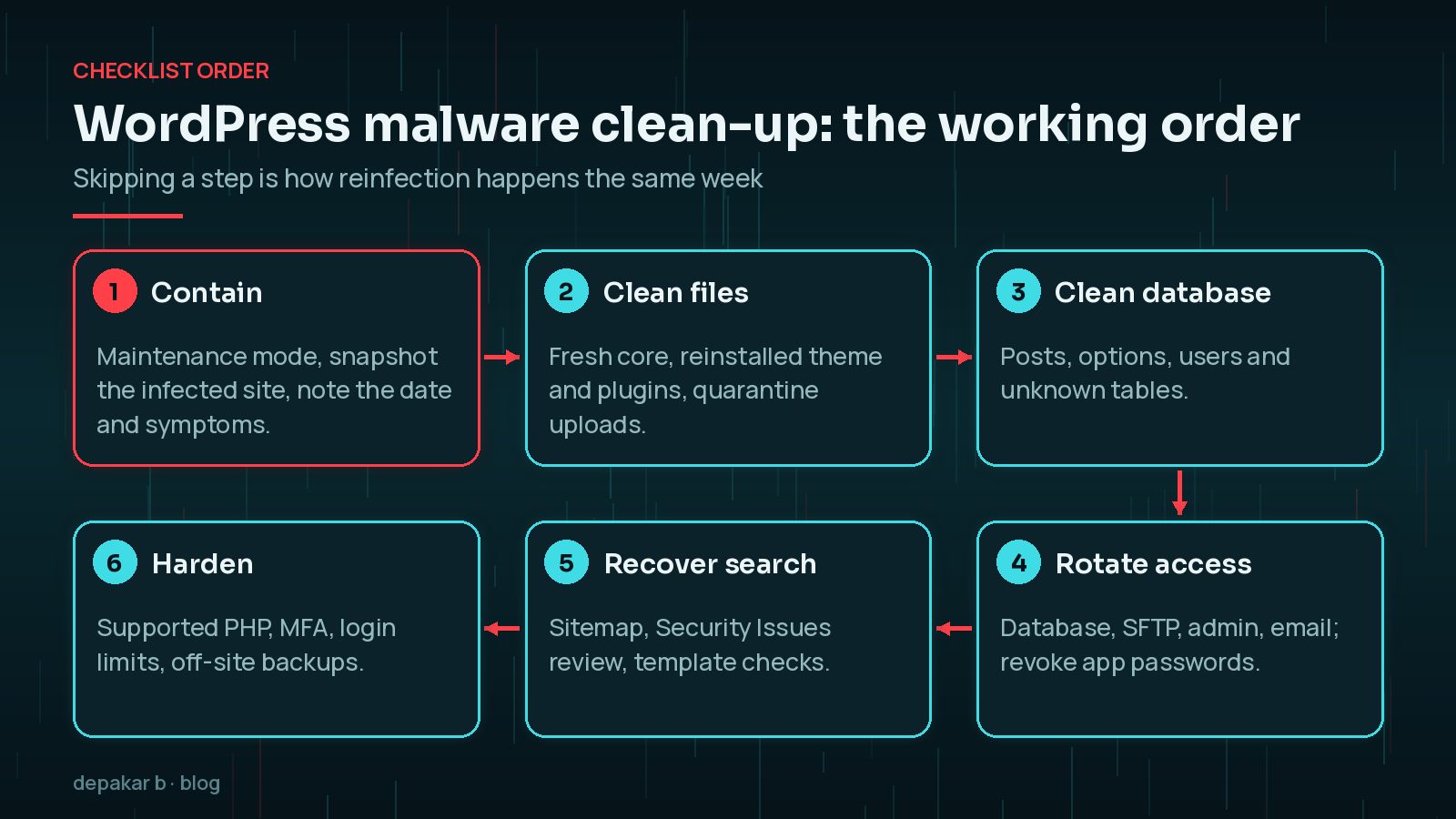
This WordPress malware cleanup checklist gives you a working order for removing an infection: contain the site, clean files and the database, rotate every credential, recover in search, then close the gap that let the attacker in. Each step matters, because malware left in any one place can quietly rebuild the rest.
What Should You Do Before You Start Cleaning?
Resist the urge to start deleting files straight away. A few minutes of preparation makes the clean-up safer and helps you understand what happened.
- Take a snapshot of the infected site. Download the files and export the database as they are now. This copy is evidence, not a restore point, so label it clearly and never restore it to live.
- Note the symptoms and dates. Spam pages in Google, redirects on mobile, unknown admin users or a hosting warning all point to different entry routes.
- Limit the damage. If visitors are being redirected or served malware, a maintenance page while you work is kinder than leaving it running.
- Check for a clean backup. If you have one from before the infection, restoring it may be quicker, but you still need the credential and hardening steps below.
If you are not yet sure the site is compromised, start with the signs your WordPress site is hacked.
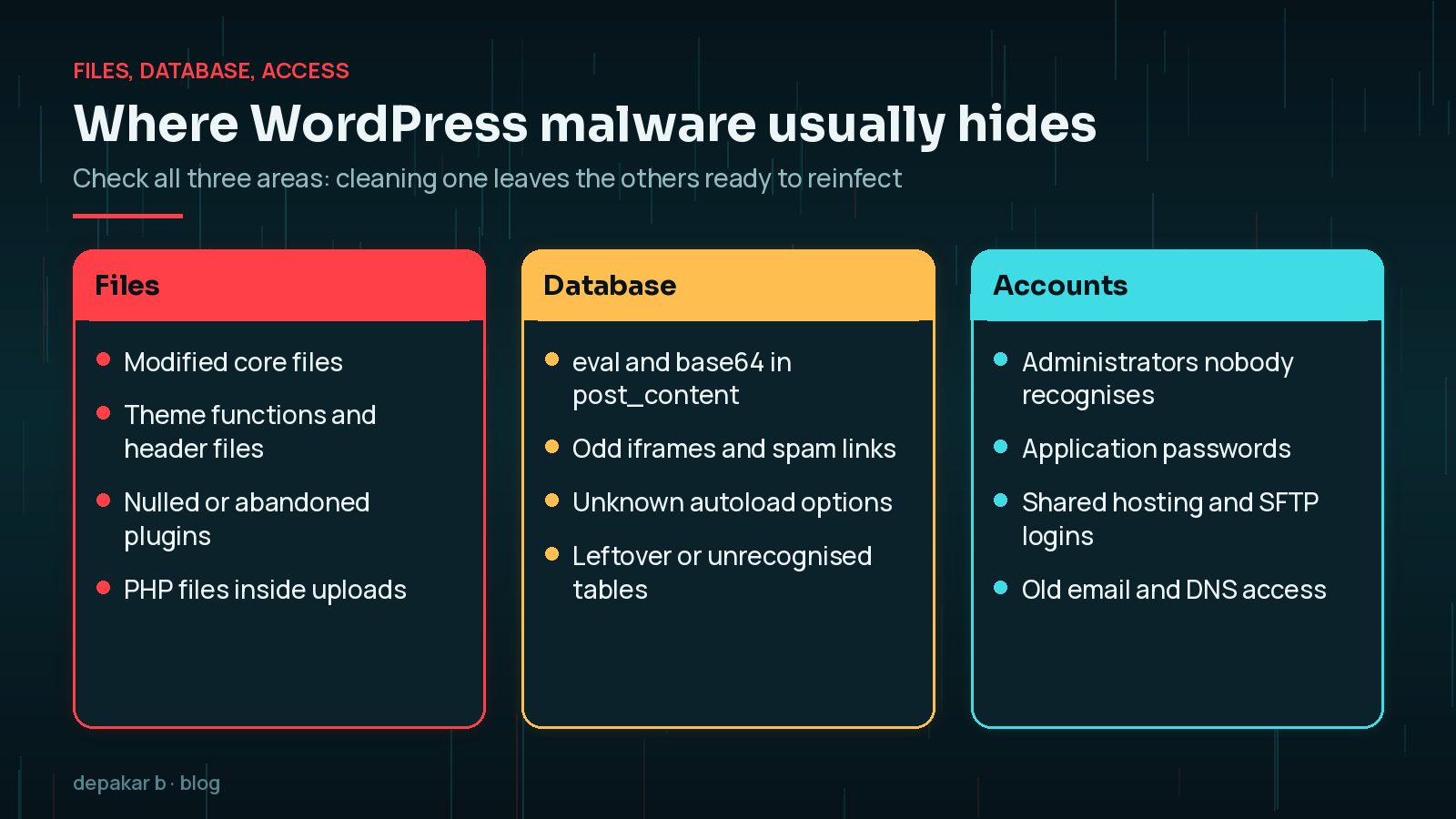
Files and code
Work from a backup copy. Replace core, scan wp-content, and treat uploads as untrusted.
- Reinstall WordPress core from wordpress.org
- Diff or reinstall the active theme
- Remove abandoned and nulled plugins
- Quarantine executable files inside uploads
How Do You Know Which Files Are Infected?
For WordPress core, you do not need to guess. WP-CLI's wp core verify-checksums command compares your core files against the checksums published by WordPress.org, and wp plugin verify-checksums does the same for plugins from the WordPress.org directory. Any file that is modified, or that should not be there, is worth a closer look.
wp core verify-checksums
wp plugin verify-checksums --all
Premium plugins and custom themes cannot be checked this way, so reinstall them from a fresh download or compare them against your own version control. Pay special attention to the uploads folder: it should hold media, not PHP files. Anything executable in there is suspicious until proven otherwise.

Nulled plugins and themes, meaning pirated copies of paid products, are a common source of hidden backdoors. Remove them completely and replace them with licensed or maintained alternatives.
Database
Spam often lives in posts, options, and unrecognized tables.
- Search post_content for eval, base64, and odd iframes
- Review wp_options for unknown autoload scripts
- Delete spam users and leftover tables
Database clean-up is where rushed jobs usually fall short. Injected scripts can sit inside post content, widget settings or options that load on every page, and they survive a full reinstall of the files. Search for the patterns above, look for options and tables you cannot link to a plugin you actually use, and review user accounts carefully. Be cautious with bulk find-and-replace on serialised data, and always work on a copy first.
Look at scheduled tasks too. WordPress cron events and server cron jobs can be used to re-download malware or recreate files on a timer, which explains why some infections seem to come back by themselves. Compare the list of scheduled events with the plugins you actually run, and ask your host to check server-level cron jobs if you cannot see them yourself.

Hidden administrator accounts are a favourite way back in. My guide to finding hidden admin users and rogue plugins covers the database queries and checks in more detail.
Access and credentials
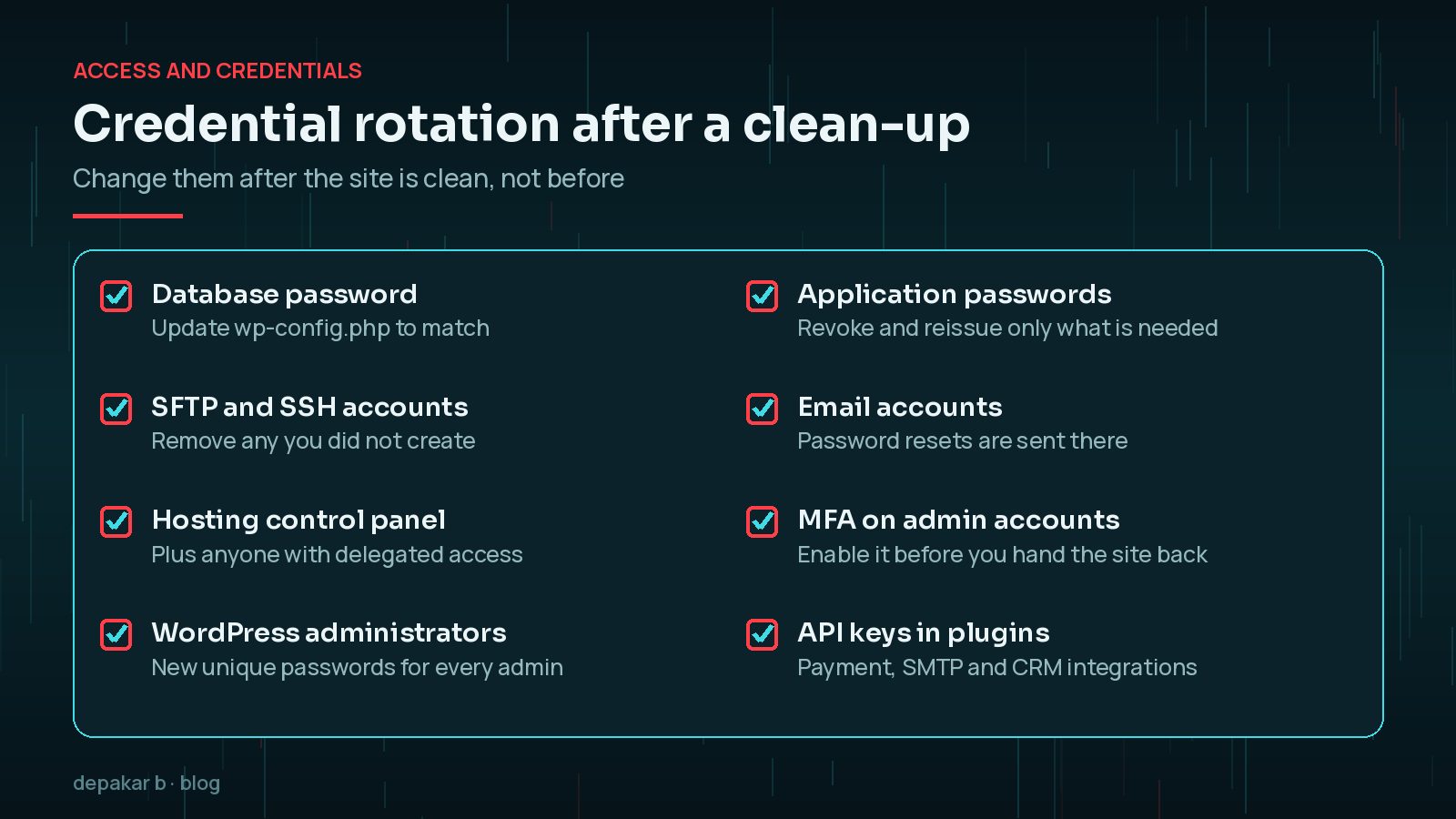
Cleanup without rotation invites reinfection the same day.
- Rotate DB, SFTP, WP admin, and email passwords
- Revoke application passwords
- Enable MFA on admin accounts
Why Does Credential Rotation Come After the Clean-up?
If you change passwords while malware is still on the server, the attacker may simply capture the new ones. Rotate credentials once the files and database are clean, and include everything that touches the site: hosting, SFTP and SSH, the database user, every WordPress administrator, the email accounts that receive password resets, and API keys stored in plugins for payments, email delivery or CRM integrations.
Application passwords deserve their own mention. They let external tools access WordPress through the REST API, and they are easy to forget because they do not appear on the login screen. Review them on each user's profile and revoke any you do not recognise.
Do not skip the email accounts. If an attacker still has access to the inbox that receives WordPress password resets, they can take the site back no matter how well it was cleaned.
Public and search recovery
Make sure Google and visitors see a clean site.
- Resubmit sitemap after spam URL removal
- Request Security Issues review if needed
- Test key templates on mobile and desktop
If Google has flagged the site, the Security Issues report in Search Console lists what it found. Once you are confident the problem is fixed, you can request a review from that report. Spam pages created by the attacker should return a 404 or 410 so they drop out of the index over time, and the sitemap should list only real pages.
How Do You Confirm the Site Is Really Clean?
“The scanner says it is clean” is a start, not a finish line. Before you call the job done, check the site from several angles:
- Re-run the core and plugin checksum checks and confirm nothing unexpected remains.
- Browse the site logged out, on mobile data, and from a search result, because some malware only redirects visitors who arrive from Google or use a phone.
- Search Google for
site:plus your domain and look for spam pages, odd titles or foreign-language results that do not belong to you. - Compare the list of administrators, plugins and scheduled tasks against what you expect.
- Watch file changes and server logs for a week or two. If deleted files reappear, a backdoor is still running somewhere.
Keep the notes from this stage. If the infection returns, they show exactly what was checked and narrow down where to look next.
Hardening follow-through
Close the door that let the attacker in.
- Update PHP to a supported version
- Limit login attempts / 2FA
- Confirm off-site backups are running
A clean-up only lasts if the original weakness is fixed. That might be an outdated plugin, a reused password, or a server running a PHP version that no longer receives security fixes. My WordPress security hardening after a hack guide covers the next layer, and the full walkthrough in how to clean a hacked WordPress site explains each stage in more depth.
Frequently Asked Questions
Can a security plugin clean WordPress malware on its own?
Scanners are useful for finding known patterns, but they can miss custom backdoors, database injections and rogue accounts. Treat a clean scan as one signal, and still check files, the database and access manually.
Should I restore a backup instead of cleaning?
If you have a backup from before the infection, restoring it can be faster. You still need to rotate credentials, update outdated software and fix the original weakness, or the site may be reinfected.
How do I check WordPress core files for changes?
WP-CLI's wp core verify-checksums command compares core files against the checksums WordPress.org publishes. Modified or unexpected files deserve a closer look.
How long does Google take to remove a hacked site warning?
After you request a review in the Security Issues report, Google reviews the site and updates the report. Timescales vary, so make sure the site is fully clean before you ask.
Why did my site get reinfected after cleaning?
The most common reasons are a missed backdoor, an unchanged password, or the original vulnerable plugin still being installed. Work through files, database, credentials and hardening in order.
Final Thoughts
A WordPress malware clean-up is only finished when every hiding place has been checked, every credential has been changed and the original weakness has been closed. Work in order, keep a record of what you found, and treat a quick “scan came back clean” with healthy scepticism until the files, the database and the accounts all agree.
Need help applying this?
Need this handled end-to-end? See hacked WordPress cleanup.
Official References
Sources checked on 29 October 2026:
- WordPress Documentation: FAQ My site was hacked
- WP-CLI: wp core verify-checksums
- WP-CLI: wp plugin verify-checksums
- Google Search Console Help: Security issues report
- web.dev: Help, I think I've been hacked
- WordPress Advanced Administration: Hardening WordPress
Related service: Site hacked recovery · Contact · All articles