
The WordPress MCP Adapter lets AI agents talk to your WordPress site through the Model Context Protocol (MCP). On , the WordPress Core AI team announced it as a canonical plugin on WordPress.org, which makes it much easier to install than the earlier GitHub and Composer-only versions.
That is exciting for developers. It also raises a sensible question for site owners: if an AI agent can act on my site, what stops it doing too much? This guide explains how the adapter works and how to give an agent useful access without handing over the keys.

What Is the WordPress MCP Adapter?
MCP is an open protocol that lets AI apps, IDEs and agents discover and call tools on a server in a standard way. The MCP Adapter makes a WordPress site act as an MCP server.
According to the announcement and the plugin's documentation, it:
- Provides a default MCP server at
/wp-json/mcp/mcp-adapter-default-server. - Bridges the Abilities API to MCP. The Abilities API, introduced in WordPress 6.9, is a central registry of things a site can do. Publicly exposed abilities become discoverable and executable through MCP.
- Lets developers build custom MCP servers by hooking into
mcp_adapter_init.
It does not include an MCP client or a user-facing agent interface. You bring your own client, such as a desktop AI app or a coding tool.
How Does an AI Agent Connect to WordPress?
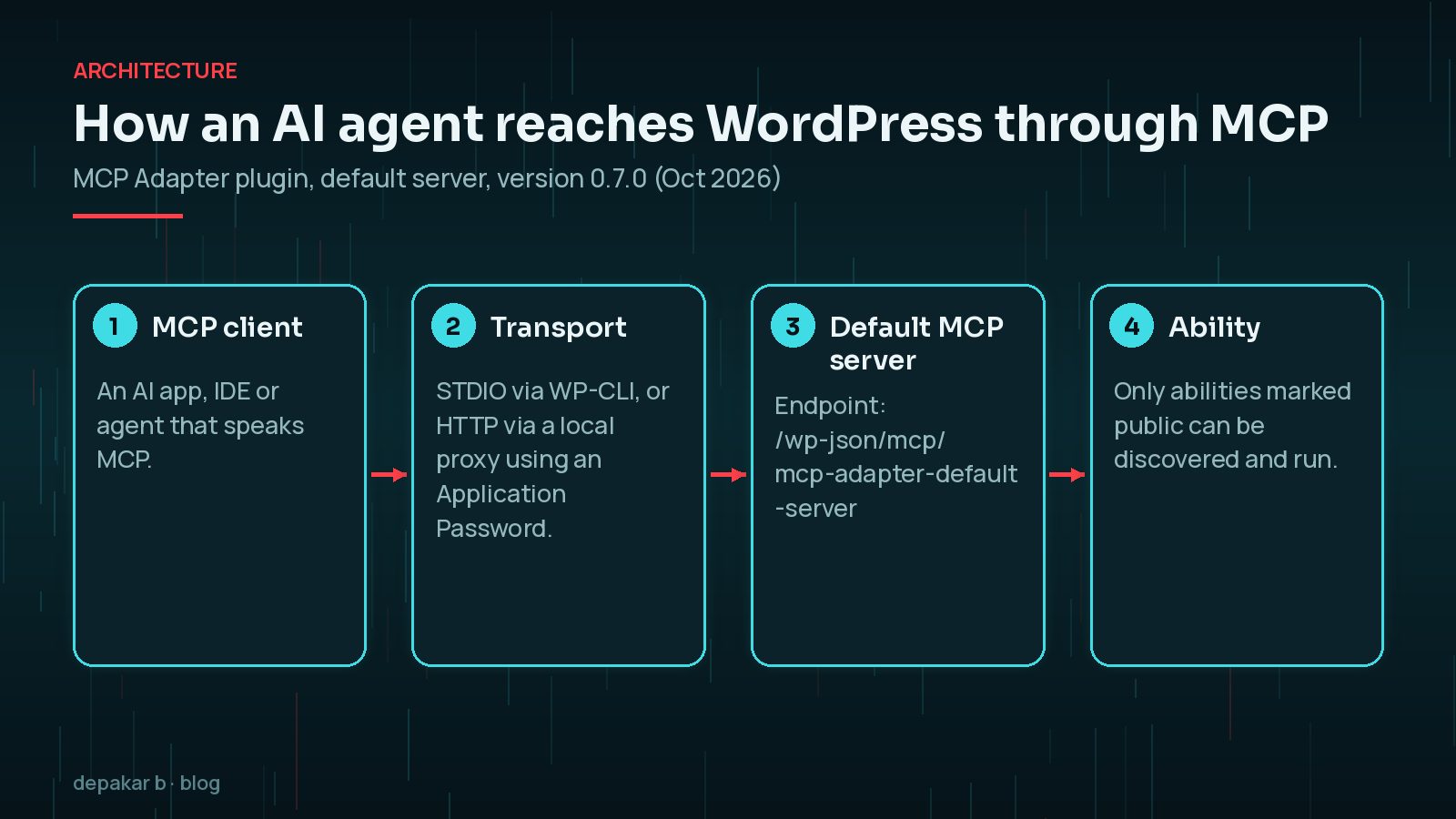
The documentation describes two main ways to connect:
STDIO through WP-CLI
For local or development sites, an MCP client can launch WP-CLI directly:
wp mcp-adapter serve --server=mcp-adapter-default-server --user=agent-editorThe --user option decides whose permissions the agent runs with. Without it, the server runs unauthenticated with limited capabilities. The documentation's examples use --user=admin, which is convenient for testing but not something I would leave in place.
HTTP through a proxy
For remote sites, the docs describe a small local proxy, @automattic/mcp-wordpress-remote, that translates the client's MCP traffic into HTTP calls to your site. It authenticates with a WordPress Application Password, which you can create per user and revoke at any time.
How Does the MCP Adapter Decide What an Agent Can Do?
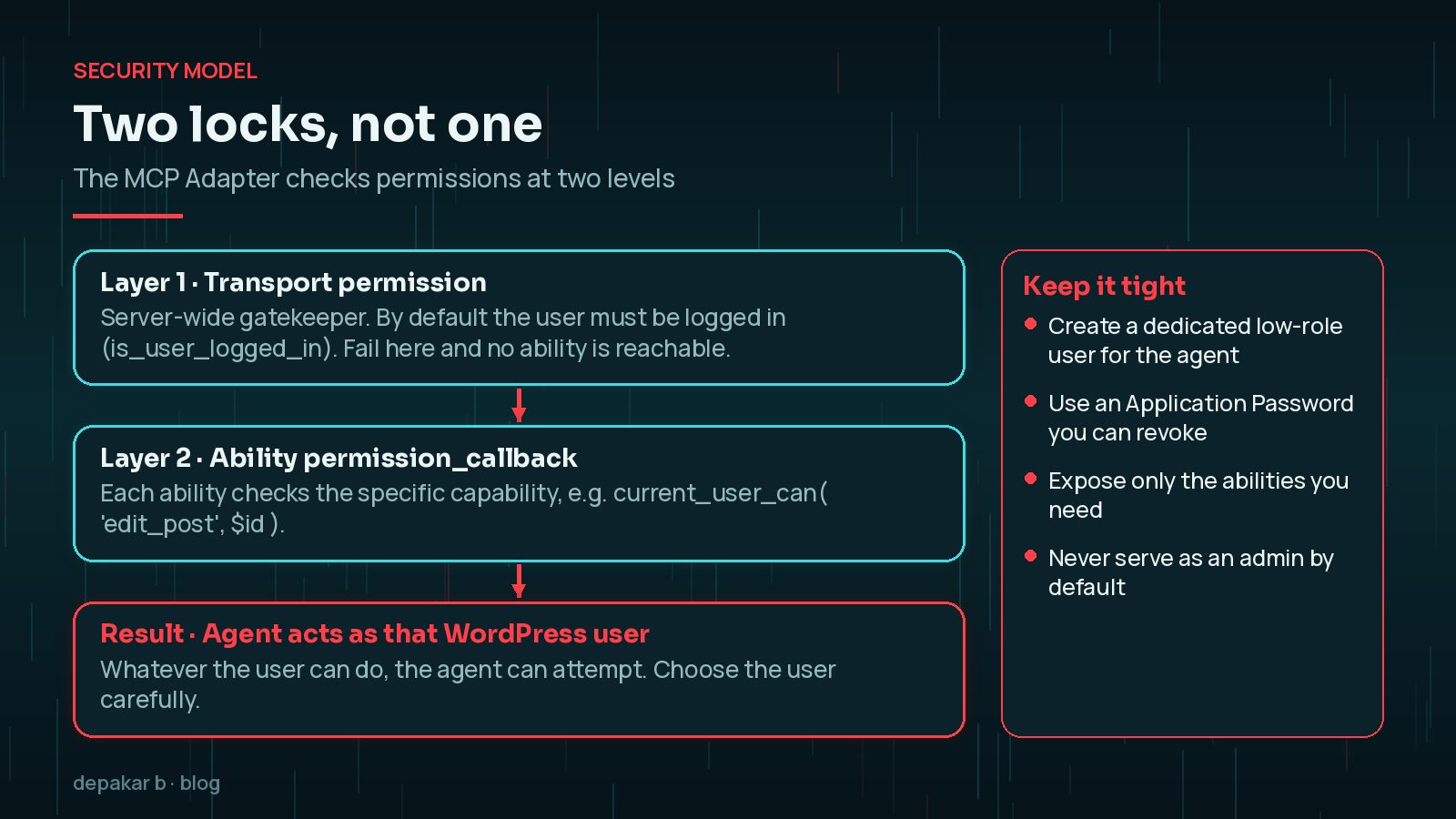
There are two layers of protection, and you should understand both.
1. Abilities are private by default
The adapter's guide says WordPress abilities are not accessible through the default MCP server unless they opt in. A developer must set meta.public (or meta.mcp.public) to true. That is a good default: installing the plugin does not suddenly expose everything.
Once an ability is public, the default server offers three tools to work with it: discover abilities, get ability info and execute ability.
2. Transport and ability permissions
The documentation describes two checks:
- Transport permission: a server-wide gatekeeper. By default it requires a logged-in user. If it fails, no ability on that server is reachable.
- Ability permission: each ability has its own
permission_callback, which should check the specific capability, such as whether the user can edit this particular post.
A minimal, read-only ability might look like this:
wp_register_ability( 'my-plugin/list-drafts', array(
  'label'               => 'List draft posts',
  'description'         => 'Returns titles of draft posts.',
  'category'            => 'site',
  'execute_callback'    => 'my_plugin_list_drafts',
  'permission_callback' => function () {
    return current_user_can( 'edit_posts' );
  },
  'meta'                => array( 'mcp' => array( 'public' => true ) ),
) );
Register it on the wp_abilities_api_init hook. The guide warns that if the category is missing or not registered, the ability silently fails to register when WP_DEBUG is off, so test with debugging on.
The agent is only as safe as the user it runs as. If you connect it as an administrator, every public ability runs with admin rights. If an attacker gets hold of that Application Password, they get the same access.
Create a dedicated user with the lowest role that does the job, and give that user its own Application Password.
How Do You Give an Agent Access Without Handing Over the Keys?
Here is the approach I would take on a client site:
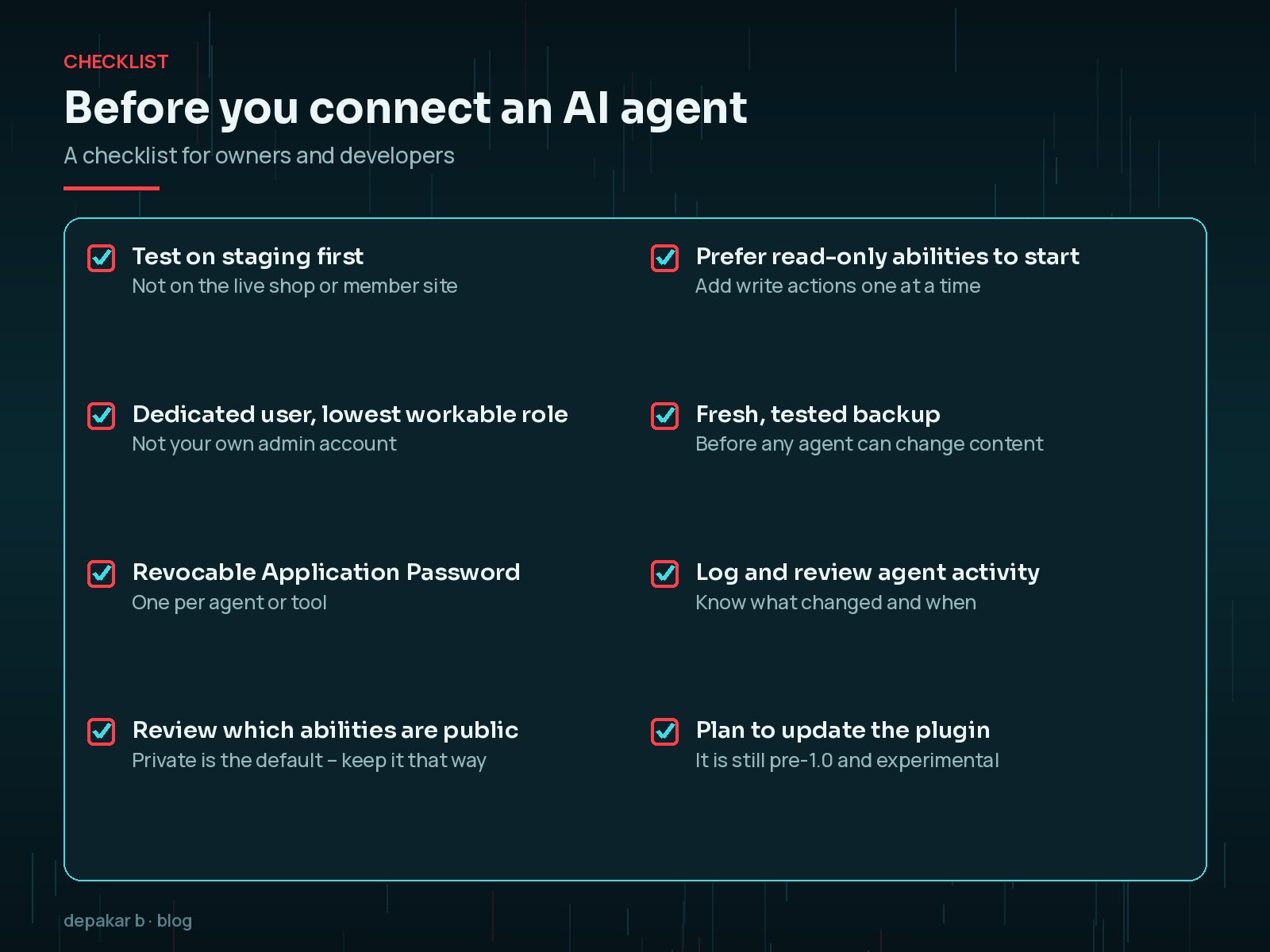
- Start on staging. Connect your client to a copy of the site first and see exactly which tools it discovers.
- Create a dedicated agent user. Give it the lowest workable role, for example Author or Editor, never your own admin account.
- Use an Application Password just for the agent. One per tool, named clearly, so you can revoke it in seconds.
- Expose read-only abilities first. Listing drafts or fetching analytics summaries is a safe start. Add write actions one at a time.
- Check permission callbacks. Every ability should check a specific capability, not just "is logged in". If you need bespoke abilities, read when you need a custom WordPress plugin.
- Back up before allowing writes. A tested backup turns a bad agent action into an inconvenience.
- Watch the activity. The adapter supports pluggable error handling and observability, so log what the agent does.
What Should You Monitor After Connecting an Agent?
Treat the agent like a new team member with limited access. Check regularly:

- Which abilities it calls and how often.
- Any new or changed content, users or settings.
- Application Passwords on the agent user, and when they were last used.
- Plugin updates for the MCP Adapter, which is still changing quickly before 1.0.
If you ever spot accounts or passwords you did not create, follow this guide to finding hidden admin users and revoke access first. For broader context, practical WordPress security foundations still apply to AI access just as they do to human logins.
If you only want AI to help write content inside the editor, you may not need MCP at all. The AI Connectors screen in WordPress 7.0 covers that use case with less exposure.
Frequently Asked Questions
Is the MCP Adapter part of WordPress core?
No. It is a canonical plugin on WordPress.org. The Core AI team says the MCP specification is still changing too quickly to include it in core, which has a strong commitment to backwards compatibility.
Does installing the MCP Adapter expose my whole site to AI?
No. Abilities are private by default and must be marked public by a developer. Connections also need authentication, and each ability checks its own permissions.
How does an AI agent log in through the MCP Adapter?
Over STDIO, WP-CLI runs the server as the user you pass with --user. Over HTTP, the documented proxy authenticates with a WordPress Application Password for a specific user.
Is the WordPress MCP Adapter safe for production?
The team still describes it as experimental and pre-1.0. If you use it on a live site, run the agent as a dedicated low-privilege user, expose only the abilities you need and keep tested backups.
Final Thoughts
The WordPress MCP Adapter is a careful piece of infrastructure. Private-by-default abilities and two permission layers are the right foundations. The remaining risk is mostly in how we use it: which user the agent runs as, which abilities we expose and whether anyone is watching.
If you want custom abilities built for your workflow, with tight permission checks and logging, my custom plugin service is a good fit for that kind of work.
Give agents a small, well-labelled set of tools, run them as a limited user, and keep the master keys to yourself.
Official References
Sources checked on 29 October 2026: