
If you want to improve WordPress performance, the fastest progress usually comes from fixing the few heavy things that slow your most important pages, not from chasing a perfect score. This guide shows how to find that weight, deliver images and fonts sensibly, protect Core Web Vitals and keep the gains after the next plugin update.

Find the biggest weight first
Start with the page that matters most commercially or editorially. Large images, unused plugins, page-builder assets, third-party scripts, and heavy fonts often create more impact than minor CSS tweaks. Use browser DevTools and a page-speed report to identify the largest requests and render-blocking resources.
- Record a before baseline (lab and, when available, field data)
- List the top five network requests by transfer size and by blocking time
- Note which plugins or tags own those requests
- Change one major weight at a time so you can attribute the result

How Do You Choose Which Page to Fix First?
Pick the pages that matter most to the business, not the pages that happen to score worst. For most sites that means the home page, the top service or product pages, and any page where people fill in a form or pay. Search Console's Core Web Vitals report groups similar URLs together, which helps you spot whether a problem belongs to one page or to a whole template, such as every blog post or every product page.
Template-level problems are good news. Fixing one template can improve hundreds of URLs at once.
For how this fits into broader delivery work, see WordPress performance optimisation on the service side of this portfolio.
Deliver images and fonts deliberately
Use correctly sized images, modern formats where supported, lazy loading below the fold, and reserved width and height to reduce loading time and layout shift. A high-resolution asset should not be sent to a small mobile screen by default.
Practical image rules
- Serve the dimensions the layout actually needs
- Prefer WebP or AVIF when quality remains acceptable
- Lazy-load below-the-fold media; keep the LCP image eager with a sensible priority
- Compress hero media before relying on a CDN alone
Fonts and third-party scripts
Limit font families and weights, preload only what the first screen needs, and audit chat widgets, tag managers, and marketing pixels that compete with content. A faster page that still ships every optional script rarely stays fast.
What Are Good Core Web Vitals Targets?
Google's guidance on web.dev sets out three Core Web Vitals and a “good” threshold for each, measured at the 75th percentile of page loads on mobile and desktop:
- Largest Contentful Paint (LCP): 2.5 seconds or less. This measures when the largest image, text block or video in the viewport appears.
- Interaction to Next Paint (INP): 200 milliseconds or less. This measures how quickly the page responds to taps, clicks and key presses.
- Cumulative Layout Shift (CLS): 0.1 or less. This measures how much content jumps around while the page loads.
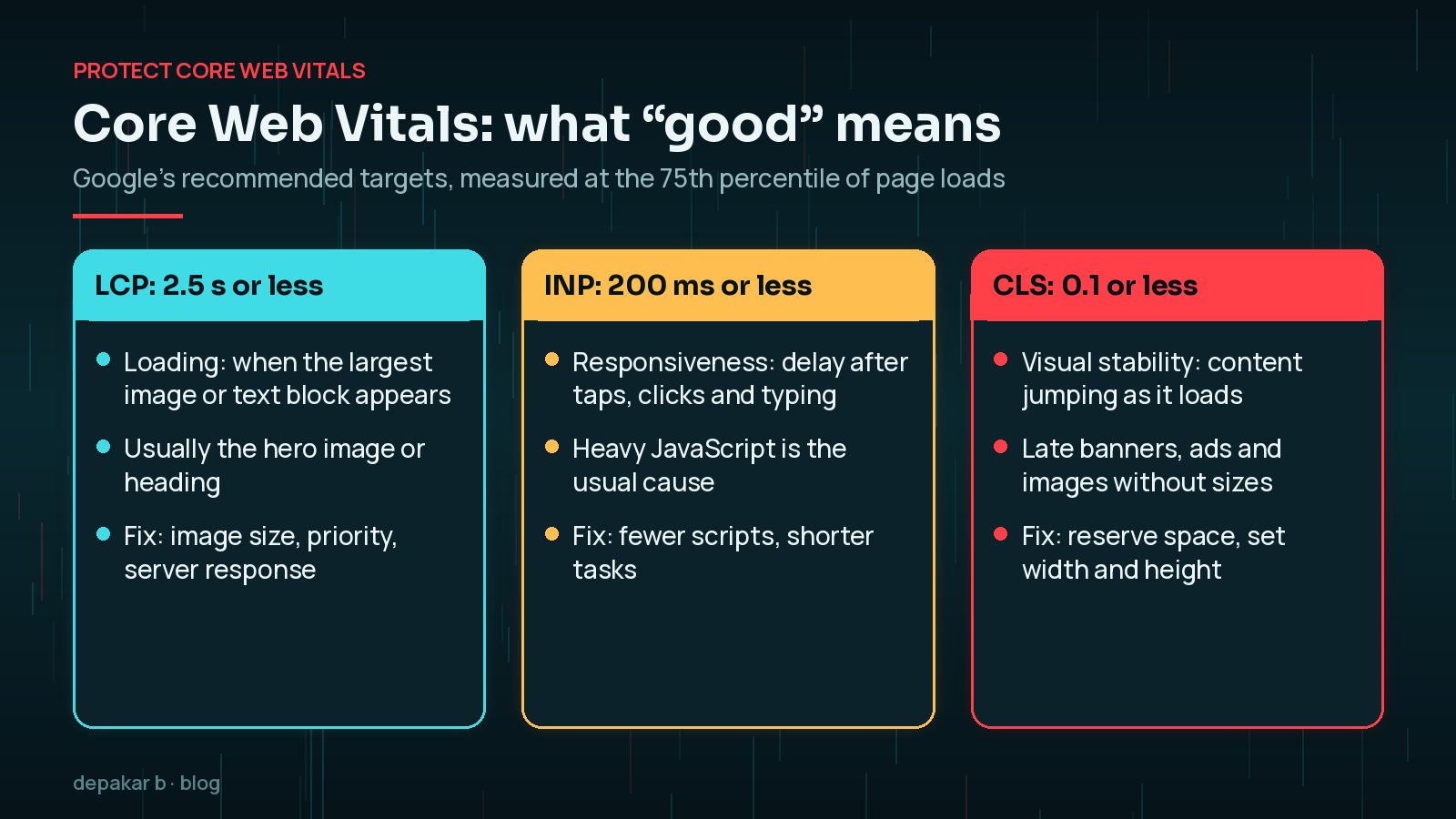
On WordPress, slow INP is often caused by heavy JavaScript from page builders, sliders and third-party widgets. My guide to fixing INP on WordPress covers that metric in detail.
Protect Core Web Vitals and the main journey
Prioritise the content, primary call to action, and form or purchase journey above the fold. Largest Contentful Paint, Interaction to Next Paint, and Cumulative Layout Shift are useful signals, but a page is not “fast enough” if visitors still struggle to complete the next action on a real phone.
- Test navigation, typing, validation, and submission on mobile devices
- Avoid late-loading banners that push content after first paint
- Keep critical CSS lean; defer non-essential JavaScript
- If you maintain a lighter mobile experience, read keeping AMP and mobile experiences useful
A quick plugin audit often pays off. For each active plugin, ask what it does, which pages need it and whether it loads CSS or JavaScript everywhere. Contact form, slider and gallery plugins are frequent culprits, adding files to pages that never use them. Where a plugin is only needed on one or two pages, see whether its assets can be limited to those pages, or whether a lighter alternative does the same job.

Caching, hosting, and plugin hygiene
Server and edge caching help, but they cannot fix an oversized theme or an unused plugin stack. Remove or replace plugins that load global assets on every page. Prefer a maintained caching or optimisation approach that your team can operate, and re-test after WordPress core, theme, and plugin updates.
Does Hosting or PHP Version Affect WordPress Performance?
Yes, but usually less than people expect. Slow server response shows up as a high Time to First Byte, which delays everything that follows, including LCP. Caching, a supported PHP version and adequate server resources all help here. WordPress lists its recommended PHP version on its requirements page, and running an old PHP branch can cost you both speed and security fixes.
Even so, a fast server cannot rescue a page that ships several megabytes of images and scripts. Treat hosting as the foundation and page weight as the thing you control every day. If your server is still on an older PHP branch, my PHP 8.2 end-of-life upgrade guide explains how to move safely.
What Is the Difference Between Lab Data and Field Data?
Lab data comes from tools such as Lighthouse or PageSpeed Insights running a test in a controlled environment. It is repeatable and great for debugging. Field data comes from real Chrome users visiting your site, and it is what the Core Web Vitals report in Search Console is based on. Use lab data to find and fix problems, and field data to confirm that real visitors noticed the difference. Field data reflects a rolling window of visits, so it takes time to move after a release.
Test, release, then review
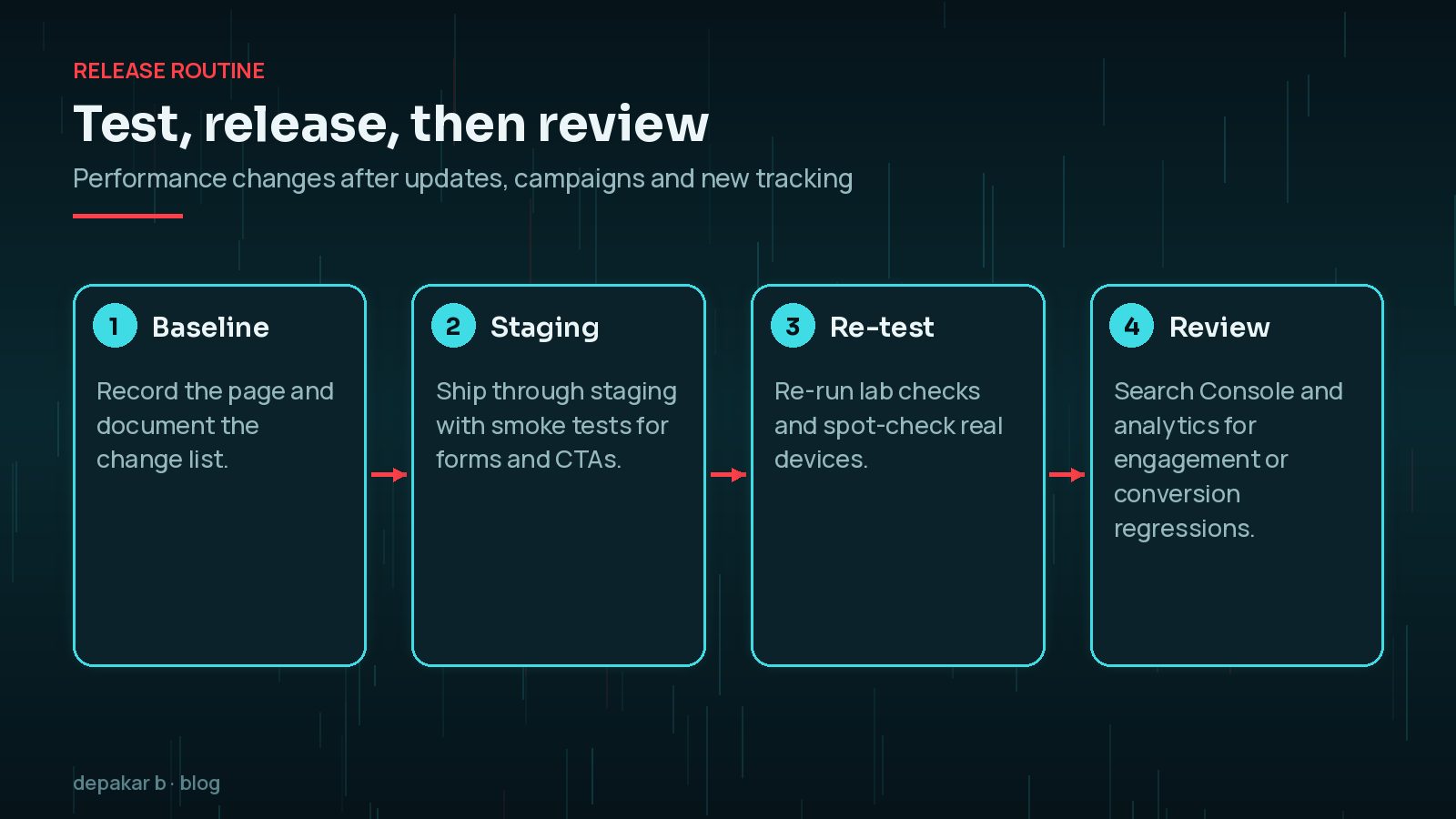
Performance can change after a plugin update, campaign launch, or tracking addition. Keep a simple before-and-after record, validate pages in staging where possible, and watch field data when available.
- Baseline the page and document the change list
- Ship through staging with smoke tests for forms and key CTAs
- Re-run lab checks and spot-check real devices
- Review Search Console and analytics for regressions in engagement or conversions
Technical SEO still matters after speed work. Use the WordPress technical SEO checklist so a faster page remains crawlable and clearly structured. For discoverability beyond classic rankings, the SEO, AEO and GEO guide covers how useful, fast pages support answer and generative systems.
Frequently Asked Questions
What is the quickest way to improve WordPress performance?
Look at the largest requests on your most important page. Resizing and compressing the hero image, and removing scripts that load on every page without being needed, often makes the biggest single difference.
Are Core Web Vitals a ranking factor?
Google recommends good Core Web Vitals for success with Search and says that, along with other page experience aspects, they align with what its core ranking systems seek to reward. Helpful, relevant content still comes first, so treat them as a user experience goal.
Should I lazy-load every image?
No. Lazy-load images below the fold, but keep the main above-the-fold image, which is often the LCP element, loading eagerly so it appears as soon as possible.
Why does PageSpeed Insights show different results each time?
Lab tests vary with network and server conditions. Run several tests, compare trends rather than single scores, and confirm with field data where available.
Will a caching plugin fix a slow WordPress site?
Caching helps server response, but it cannot fix oversized images, heavy themes or too many third-party scripts. Fix page weight as well as caching.
Final Thoughts
Improving WordPress performance is mostly about discipline: measure the pages that matter, remove the heaviest weight first, protect the main journey on a real phone and re-check after every material change. Do that consistently and the scores tend to follow, along with a site that simply feels better to use. If you would like a hand, see speed and performance support.
Official References
Sources checked on 29 October 2026:
- web.dev: Web Vitals
- web.dev: Optimize Largest Contentful Paint
- web.dev: Browser-level image lazy loading
- Google Search Central: Understanding Core Web Vitals and Google search results
- Search Console Help: Core Web Vitals report
- WordPress Advanced Administration: Optimisation
- WordPress.org: Requirements