
If PageSpeed Insights or Search Console is flagging slow responsiveness, you probably need to fix INP on WordPress. INP, short for Interaction to Next Paint, measures how quickly your page responds when someone clicks, taps or types. It became a Core Web Vital on 12 March 2024, replacing First Input Delay.
The good news is that INP problems on WordPress usually come from a handful of familiar causes: heavy scripts, third-party widgets and bloated pages. This guide shows you how to find the slow interaction first, then fix it in a sensible order.

What Is INP and What Counts as a Good Score?
According to web.dev, INP looks at the latency of all clicks, taps and keyboard interactions during a visit and reports the slowest one, ignoring rare outliers on pages with lots of interactions. Scrolling and hovering are not counted.
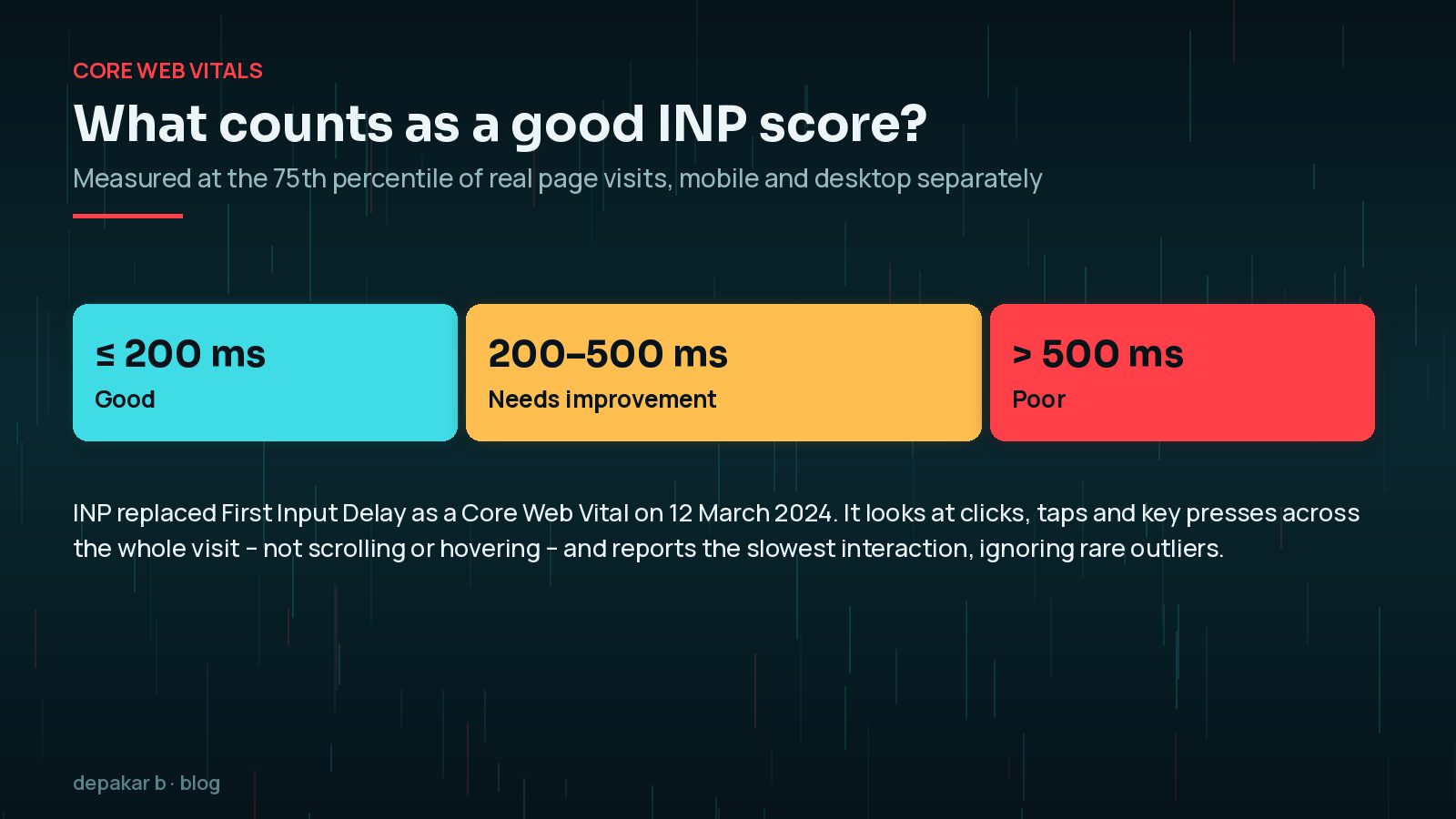
Google's thresholds, measured at the 75th percentile of real visits and split by mobile and desktop, are:
- Good: 200 milliseconds or less
- Needs improvement: over 200 and up to 500 milliseconds
- Poor: over 500 milliseconds
Because INP depends on real people interacting with real devices, it is a field metric first. A fast laptop in a quiet office will often hide the problem.
Why Is INP Often Poor on WordPress Sites?
WordPress itself is not the issue. The issue is everything we add on top. In my experience, the usual suspects are:
- Third-party scripts: chat widgets, tag managers, heatmaps, cookie banners, ad and tracking tags.
- Page builder extras: animation libraries, sliders, carousels and mega menus loaded on every page.
- Heavy event handlers: a single click handler that filters a product list, updates the cart and fires analytics all at once.
- Large DOMs: deeply nested sections and huge menus make every visual update more expensive.
- Plugins loading assets everywhere, even on pages that never use them.

How Do You Find the Slow Interaction?
Do not start by installing an optimisation plugin. Start by finding which interaction is slow.
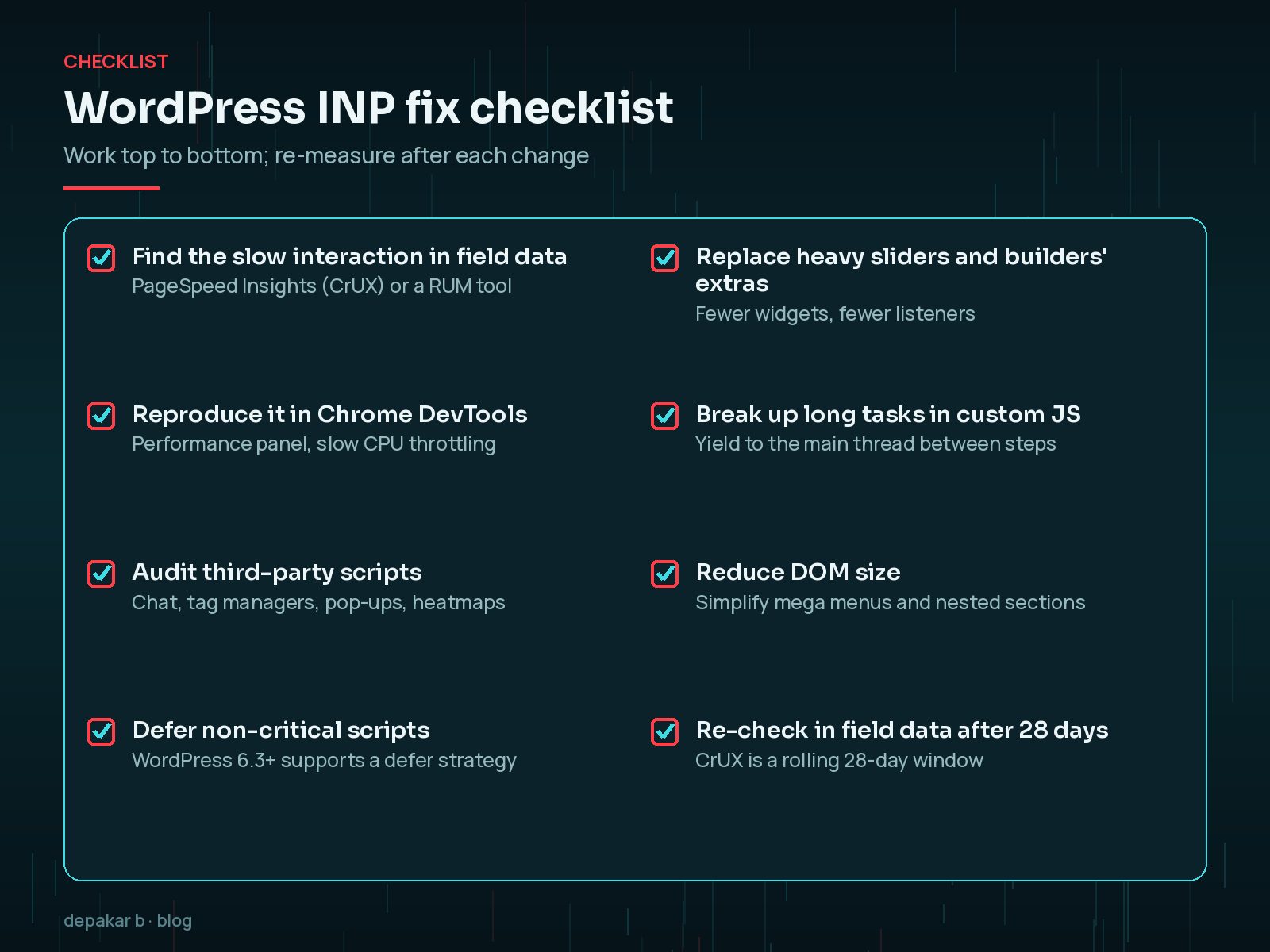
- Check field data. Run the page through PageSpeed Insights. If your site has enough traffic, it shows INP from the Chrome User Experience Report. Search Console's Core Web Vitals report groups affected URLs.
- Add real-user monitoring if you can. web.dev recommends RUM data because it can tell you which element and interaction caused the slow INP. The open-source
web-vitalslibrary is a simple way to collect it. - Reproduce it in the lab. Open Chrome DevTools, go to the Performance panel, turn on CPU throttling and record yourself using the page: open the menu, tap filters, submit the form. Try interacting while the page is still loading too.
import { onINP } from 'web-vitals';
onINP( console.log );
Lighthouse alone cannot measure INP without interactions. web.dev suggests Total Blocking Time as a reasonable lab proxy, but not a substitute.
Which Part of the Interaction Is Slow?
web.dev breaks every interaction into three parts. Knowing which one is slow tells you what to fix.
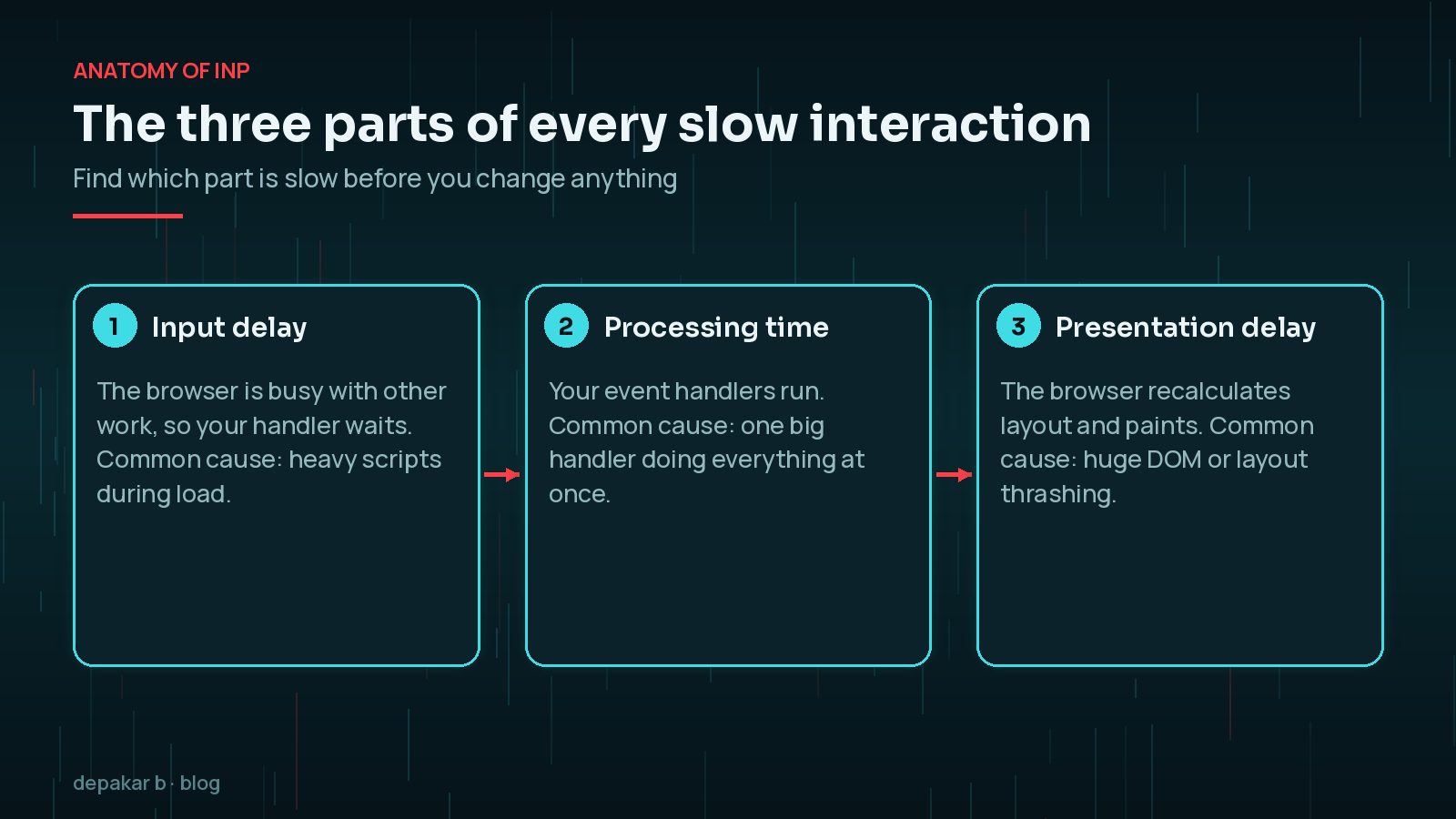
- Input delay: the browser is busy with other work, so your handler waits. Usually caused by long tasks from scripts running during load.
- Processing time: your event handlers run. Usually caused by doing too much work in one go.
- Presentation delay: the browser recalculates styles and layout, then paints. Usually caused by a large DOM or expensive layout changes.
How Do You Fix INP on WordPress?
1. Audit and trim third-party scripts
List every external script and ask whether it earns its place. Remove what you do not use, load chat widgets only after interaction or on key pages, and keep tag manager containers tidy.
2. Defer non-critical JavaScript
Since WordPress 6.3, scripts can be registered with a defer or async loading strategy. For your own theme or plugin scripts:
wp_enqueue_script( 'site-ui', get_theme_file_uri( 'js/ui.js' ), array(), '1.0', array(
  'strategy'  => 'defer',
  'in_footer' => true,
) );
WordPress checks dependencies before applying a strategy, and an inline script added "after" can make a script blocking again, so verify the output.
3. Load plugin assets only where needed
A slider plugin's JavaScript does not need to run on your contact page. Use the plugin's own settings, or a careful conditional dequeue in your theme, and test afterwards.
4. Break up long tasks in custom code
If your own handler does several jobs, update the visible UI first and yield to the main thread before the rest. web.dev's long-task guidance describes this pattern:
function yieldToMain() {
  if ( globalThis.scheduler?.yield ) return scheduler.yield();
  return new Promise( ( resolve ) => setTimeout( resolve, 0 ) );
}

button.addEventListener( 'click', async () => {
  showLoadingState();
  await yieldToMain();
  runFiltersAndAnalytics();
} );
5. Reduce DOM size and layout work
Simplify mega menus, nested builder sections and very long pages. Avoid reading layout values and writing styles in a loop. Smaller pages repaint faster.
What Should You Avoid When Fixing INP?
- Stacking optimisation plugins. Two plugins both delaying JavaScript can break menus and forms.
- Delaying every script blindly. Delaying the script behind your menu button can make the first tap feel broken.
- Only testing on desktop. Mid-range phones are where INP problems show.
- Chasing a lab score. The goal is real people getting fast feedback, not a green number.
For the wider picture, including LCP and caching, see how to improve WordPress page performance and the WordPress speed optimisation checklist.
Frequently Asked Questions
What is a good INP score?
According to web.dev, an INP of 200 milliseconds or less is good, over 200 and up to 500 milliseconds needs improvement, and over 500 milliseconds is poor, measured at the 75th percentile of real visits.
Can a plugin fix INP on WordPress?
Some optimisation plugins help by deferring or delaying scripts, but they cannot fix heavy custom handlers or unnecessary widgets. Find the slow interaction first, then decide whether a plugin setting, code change or removal is the right fix.
Why does PageSpeed Insights show no INP data for my page?
INP needs enough real Chrome users interacting with the page. Low-traffic pages, or visits with only scrolling and no clicks, taps or key presses, may not produce INP data.
How long does it take for INP improvements to show?
Changes show immediately in DevTools, but PageSpeed Insights field data covers the previous 28 days, so it can take several weeks for the reported score to reflect your fixes.
Final Thoughts
To fix INP on WordPress, resist the urge to install yet another plugin. Find the slow interaction, work out whether input delay, processing or presentation is the problem, and fix that. Most of the time, the answer is less JavaScript, loaded later, doing smaller pieces of work.
If you would like help tracing a stubborn INP issue, my speed and performance service starts with the same field-data-first review described here.
Measure the real interaction, fix the slowest part, and re-check with real users.
Official References
Sources checked on 29 October 2026: