
This WordPress speed optimisation checklist starts where the real gains are: the templates your visitors actually use. Measure those pages first, fix images and scripts, match caching to the way your site publishes content, then check that real users feel the difference. One overlapping cache plugin too many rarely solves anything.

Measure first
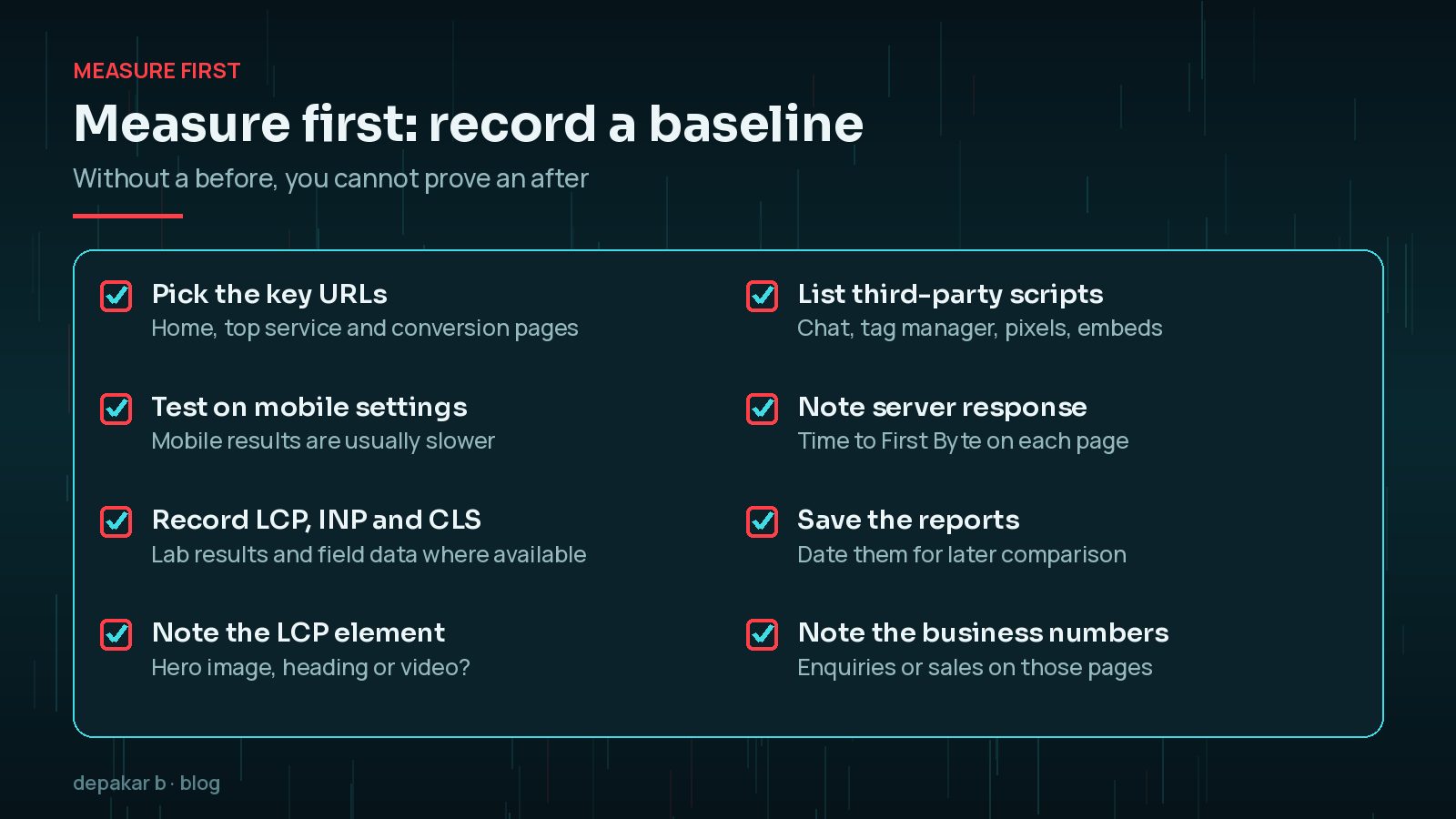
Capture mobile LCP/CLS on key URLs before changing anything.
- Home, top service, and conversion pages
- Field data in Search Console when available
- Note third-party script cost
Which Speed Metrics Should You Record?
Record the three Core Web Vitals for each key page. Google's guidance on web.dev describes good targets as a Largest Contentful Paint of 2.5 seconds or less, an Interaction to Next Paint of 200 milliseconds or less and a Cumulative Layout Shift of 0.1 or less, measured at the 75th percentile of page loads. Note which element is the LCP element too, because that tells you what to fix first. It is often the hero image, but sometimes it is a heading or a video.
PageSpeed Insights shows lab results and, where enough data exists, field data from real Chrome users. Search Console's Core Web Vitals report groups pages by template, which is useful for spotting site-wide problems. Save dated copies of these reports so your before-and-after comparison is fair.
Finally, write down what is not about speed at all: how many enquiries, bookings or sales those pages produced over the last month. Performance work should support those numbers, and having them to hand makes it far easier to decide whether a change was worth keeping.
Media and assets
Images and unused CSS/JS usually dominate LCP.
- Modern formats and correct dimensions
- Defer non-critical scripts
- Remove abandoned pixel tags
Start with the largest files on each key page. Resize images to the dimensions the layout actually uses, compress them, and serve WebP or AVIF where quality holds up. Then look at JavaScript: sliders, chat widgets, tag managers and marketing pixels all compete with your content for the browser's attention. Heavy JavaScript is also the usual cause of slow responses to taps and clicks, which my guide to fixing INP on WordPress covers in detail.
WordPress helps here more than people realise. It creates several sizes of each uploaded image and adds responsive srcset markup to images placed through the editor, so phones can download a smaller file. Problems usually appear when themes or page builders bypass this, for example by setting a full-size image as a CSS background, or when someone uploads a huge original and drops it into a slider. Check the size of the file each device actually downloads, not just how the image looks on screen.
Caching and hosting fit
Cache must match how the site publishes content.
- Page cache + CDN when appropriate
- Object cache for dynamic sites
- PHP version and TTFB checks
Which Type of Caching Does Your WordPress Site Need?
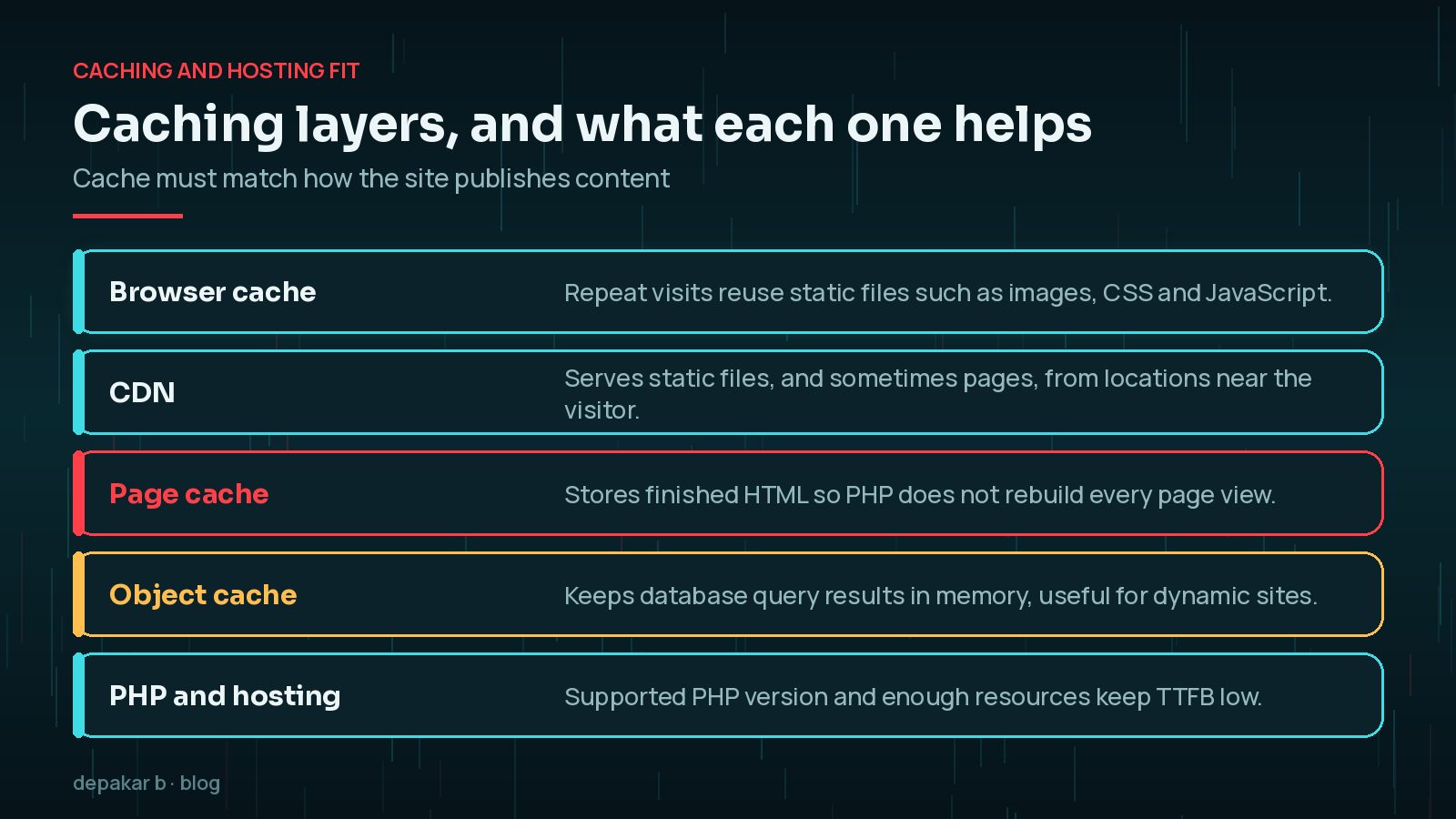
Different caches solve different problems. Browser caching lets repeat visitors reuse static files. A CDN serves files from locations closer to the visitor. A page cache stores finished HTML so WordPress does not rebuild the same page for every visitor, which suits brochure sites and blogs very well. An object cache, such as Redis or Memcached, keeps the results of database queries in memory, which helps busier dynamic sites like shops and membership sites where many pages cannot be fully cached.
Be careful with pages that must never be cached for everyone, such as baskets, checkout, account areas and some forms. Most good caching tools exclude these by default, but always test them after changing cache settings. Use one caching approach that your host supports and your team understands, rather than stacking several plugins that try to do the same job.

Does Your PHP Version and Hosting Affect Speed?
They affect how quickly the server can start sending the page, which web.dev measures as Time to First Byte. A slow TTFB delays everything after it, including the LCP. Check that the server runs a PHP version that is still supported, that the hosting plan has enough resources for your traffic, and that the database is not bloated with years of revisions, expired transients and leftover plugin tables. If pages are slow even when served from the page cache, the bottleneck is more likely the front end than the server. If you are still on an older PHP branch, my PHP 8.2 end-of-life upgrade guide explains how to move safely.
Template-level fixes
Hero images, font loading, and layout shifts are theme problems - not mystery server problems.
- Reserve space for media
- Limit font variants
- See performance guide
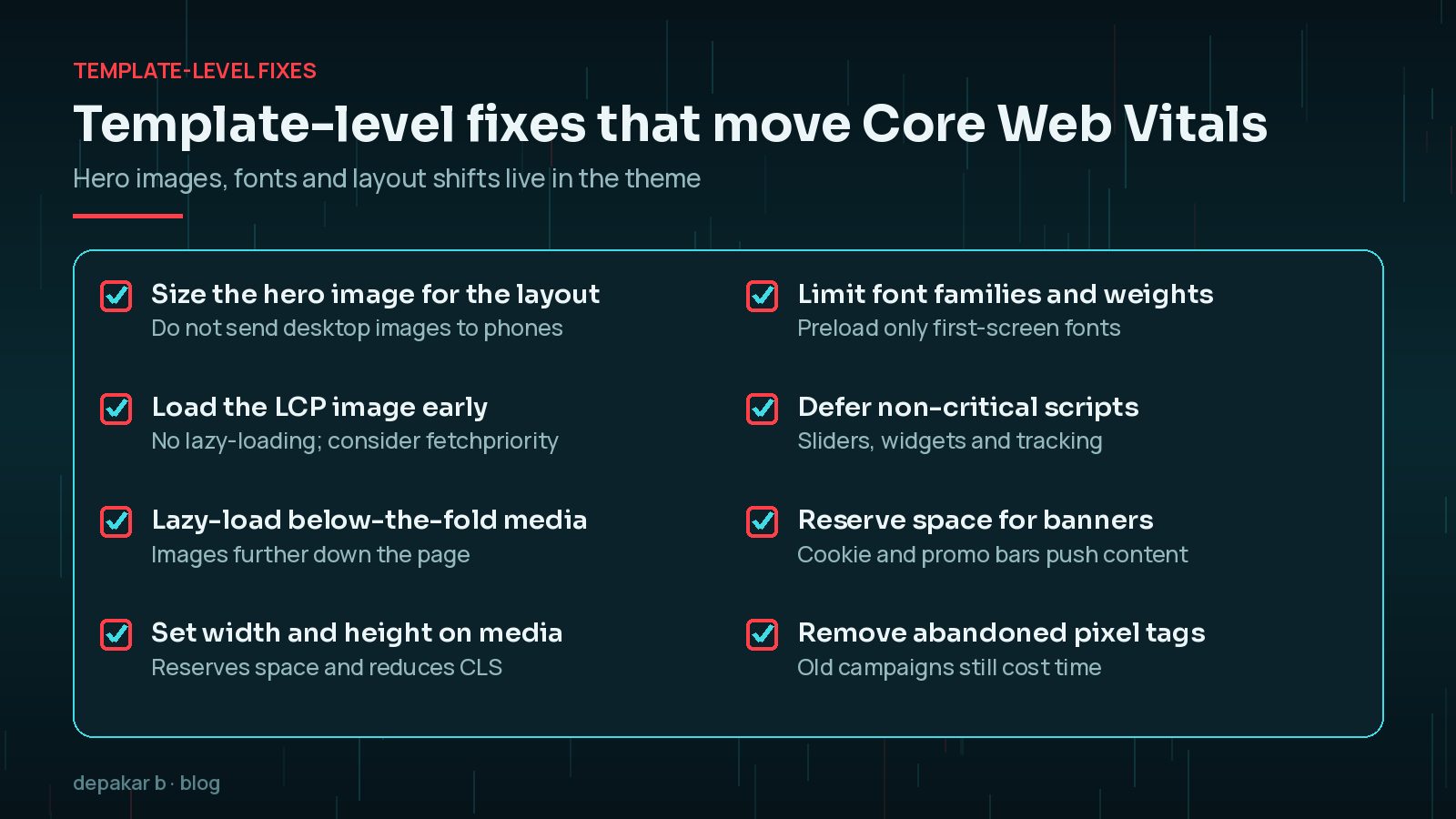
Template fixes often deliver the biggest improvement because one change applies to every page that uses the template. Make sure the hero image is not lazy-loaded, since that delays the LCP element; web.dev's guidance on Fetch Priority shows how fetchpriority="high" can help the browser fetch it sooner. Add width and height to images and embeds so the browser reserves space, and keep cookie banners and promotional bars from pushing content down after it appears.
How Should You Handle Web Fonts?
Fonts are easy to overlook because each file seems small, but several families and weights add up quickly, and text may stay invisible or jump while they load. Audit what the theme actually uses: often one family in two or three weights is enough. Remove fonts left behind by old page-builder sections, host fonts locally where your setup allows it, and preload only the font files needed for the first screen. web.dev's font best practices guide explains the trade-offs between showing fallback text quickly and avoiding visible layout shifts when the web font arrives.
Validate after release
Re-test the same URLs and watch real-user metrics.
- Compare before/after
- Watch conversions, not only lab scores
Re-run the same tests on the same URLs and compare them with your baseline. Lab results show the change straight away, while field data reflects a rolling window of real visits, so give it a few weeks before you judge the final outcome. Most importantly, check forms, checkout and other key journeys still work. A faster page that has quietly broken the enquiry form is not an improvement.
Speed tends to drift back as plugins, campaigns and tracking are added. Re-check key pages after major updates, and consider making it part of a monthly maintenance plan.
Frequently Asked Questions
What is the first step in WordPress speed optimisation?
Measure. Record Core Web Vitals and the largest requests on your home page, top service pages and conversion pages before changing anything, so you can prove what helped.
Do I need more than one caching plugin?
No. Overlapping caching plugins often conflict and make problems harder to diagnose. Use one approach that suits your host and your site.
Should the hero image be lazy-loaded?
No. The main image at the top of the page is often the LCP element, so it should load straight away. Lazy-load images further down the page instead.
Why has my speed score not changed in Search Console?
Search Console uses field data from real users over a rolling period, so improvements take time to show. Use lab tests to confirm the change, then watch field data over the following weeks.
Does a CDN make WordPress faster?
It can, especially for visitors far from your server, because static files are served from nearby locations. It will not fix heavy images or scripts on its own.
Final Thoughts
The best WordPress speed optimisation work is methodical: measure the pages that matter, fix the heaviest images and scripts, choose caching that fits how the site works, correct template-level issues, and validate with real users and real conversions. Work in that order and you avoid the common trap of piling on plugins in the hope that one of them fixes everything.
Need help applying this?
Need hands-on work? See speed & performance.
Official References
Sources checked on 29 October 2026:
- web.dev: Web Vitals
- web.dev: Optimize resource loading with the Fetch Priority API
- web.dev: Time to First Byte (TTFB)
- WordPress Advanced Administration: Cache
- web.dev: Best practices for fonts
- PageSpeed Insights
- Search Console Help: Core Web Vitals report
Related service: Speed & performance · Contact · All articles