
The WordPress white screen of death, often shortened to WSOD, is exactly what it sounds like: a completely blank page where your site should be. The WordPress documentation notes that both PHP errors and database errors can produce it. Because nothing is displayed, it gives you no clue about the cause, which is what makes it feel so serious.
In practice, the cause is usually a plugin, the theme, a memory limit or a cache. Work through them in order.
What Causes the White Screen of Death?
A white screen almost always means PHP hit a fatal error and stopped before it could send any HTML, while error display was switched off. Common triggers include:
- A plugin update or conflict, especially right after updating several plugins at once.
- A theme error, such as a broken edit to
functions.php. - PHP memory exhaustion on a heavy page or process.
- A PHP version change on the server that older code does not support.
- A cache or CDN that stored a blank copy during a brief failure and keeps serving it.
The fastest clue is usually timing. Ask what changed just before the screen went white: a plugin or theme update, a new plugin, a code edit, a hosting change or a WordPress core update. Also check how far the problem reaches. Is it every page or just one? The front end, wp-admin or both? Logged-in and logged-out visitors alike? A problem limited to one template points at different code from one that takes down the whole site.
Before changing anything, take a backup of files and database if your host allows it. My site-down emergency checklist covers the first ten minutes of any outage.
White Screen vs "There Has Been a Critical Error"
Since WordPress 5.2, many fatal errors no longer produce a blank page. Instead, WordPress shows a short message saying there has been a critical error, and it emails the site administrator a special recovery mode link. That link lets you log in and pause the plugin or theme that caused the problem.
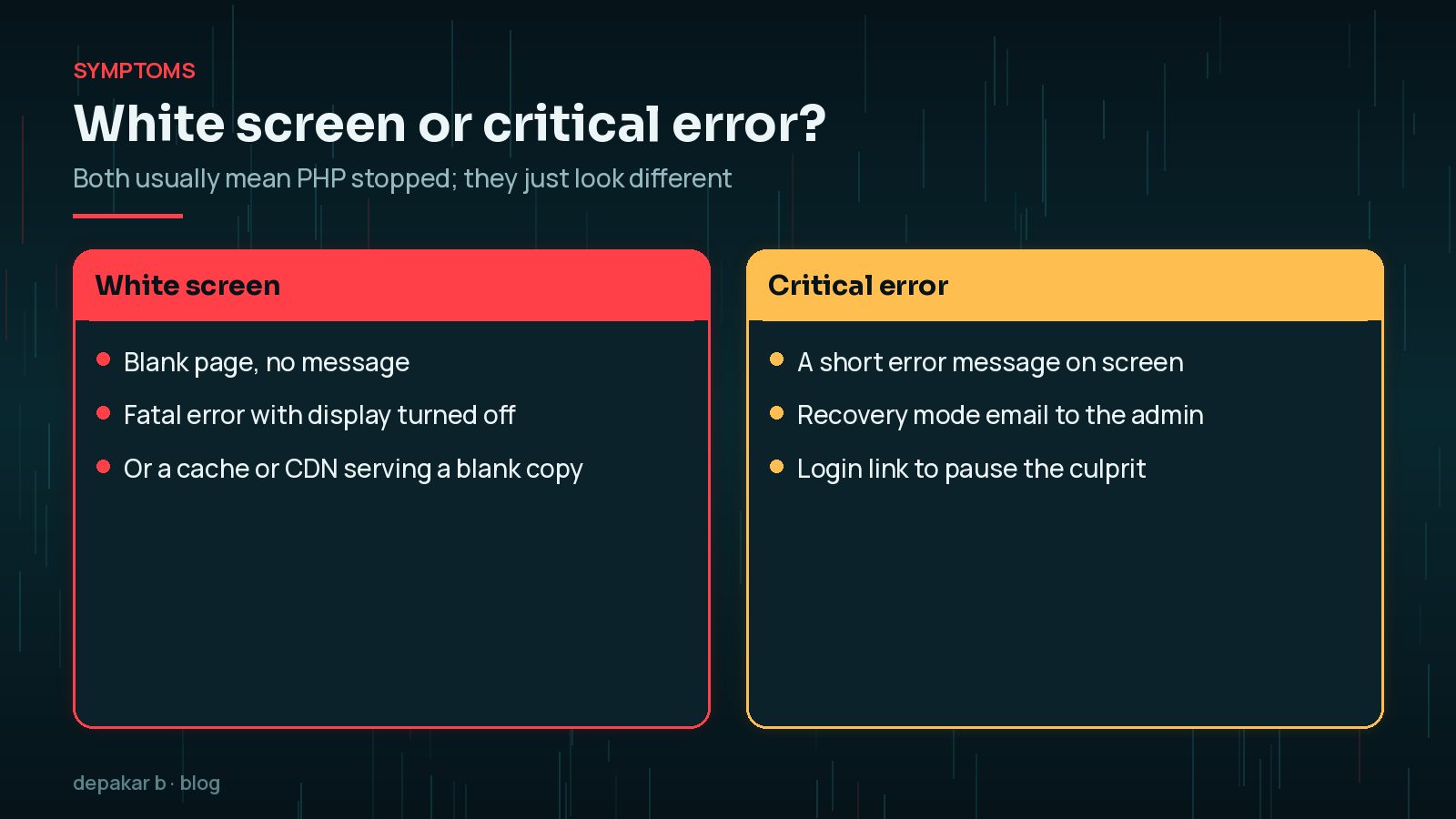
So if you see a truly blank page, it may be because the error happened before recovery mode could step in, the email was not delivered, or a cache is serving an empty copy. Check the admin inbox and spam folder for the recovery email first. If you do see the critical error message, my guide to fixing the WordPress critical error walks through recovery mode.
Deactivate Plugins Without the Dashboard
Plugins are the most common cause, so start here. The official troubleshooting advice is to disable them all by renaming the plugins folder.

- Connect with SFTP, SSH or your host's file manager.
- Open
wp-contentand renamepluginsto something likeplugins_old. - Reload the site. If it comes back, a plugin was responsible.
- Rename the folder back to
plugins. WordPress will treat the plugins as deactivated. - Reactivate them one at a time from the dashboard, reloading the site after each, until the white screen returns.
Once you know which plugin is responsible, leave it deactivated and check its changelog and support forum. If it appeared after an update, my guide to safely updating WordPress plugins explains how to avoid a repeat.
Switch to a Default Theme Without Logging In
If disabling plugins changed nothing, test the theme. Without dashboard access:
- Make sure a default theme, such as a recent Twenty-something theme, is installed in
wp-content/themes. - Rename your active theme's folder. WordPress will fall back to an available default theme.
- Reload the site. If it works, the error is in your theme or child theme.
If you use a child theme, test the parent theme on its own as well, because the error may sit in either one. Remember that switching themes can change menus and widget areas, so note your settings before you start and check them once the site is back.
Recent edits to functions.php are a frequent culprit. A missing semicolon or bracket is enough to stop PHP. Restore the previous version of the file from your backup or version control.
Raise the PHP Memory Limit
If the white screen only appears on certain heavy pages, or during imports and updates, PHP may be running out of memory. The WordPress documentation says WordPress tries to set 40MB for single sites and 64MB for multisite by default, and you can ask for more with a line in wp-config.php, placed above the line that says to stop editing:
define( 'WP_MEMORY_LIMIT', '256M' );
This only works up to the limit your host allows. If the setting has no effect, ask your host to raise PHP's memory_limit. Treat a higher limit as a stopgap: if a plugin needs ever more memory, find out why.
Turn On Debug Logging to Find the Error
Rather than guessing, ask WordPress to record the error. Add or edit these lines in wp-config.php:
define( 'WP_DEBUG', true );
      define( 'WP_DEBUG_LOG', true );
      define( 'WP_DEBUG_DISPLAY', false );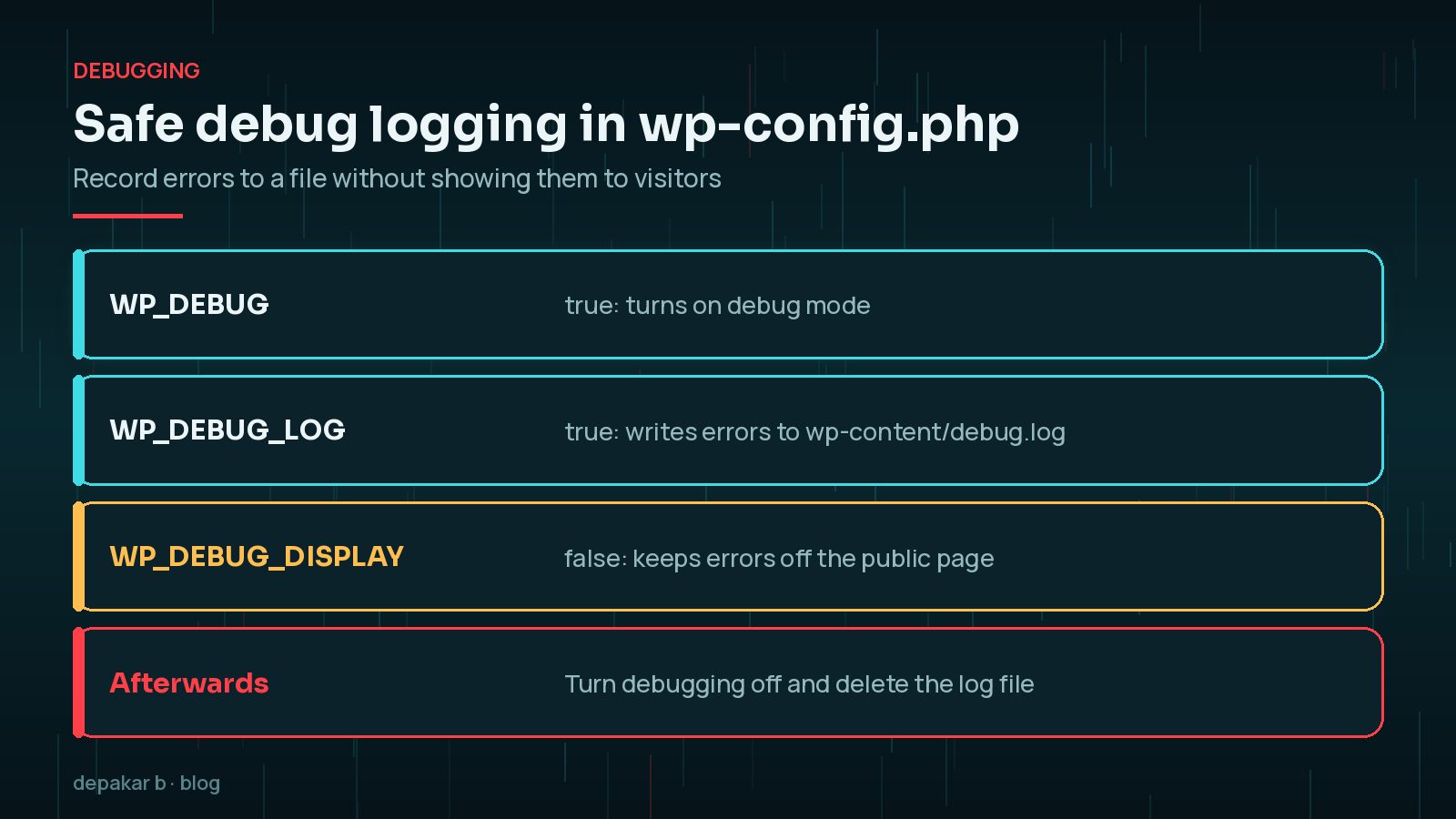
Reload the white page, then open wp-content/debug.log. Look for a line containing "Fatal error". It usually names the file and line number, and the folder path tells you which plugin or theme is involved.
Switch debugging off afterwards. A debug log can reveal file paths and other details. Once you have found the error, set WP_DEBUG back to false and delete the log file. Never leave errors displaying on a live site.
When Caching or a CDN Serves a Blank Page
Sometimes the site has already recovered, but you still see a white screen. A page cache or CDN may have stored the blank response and is still serving it.
- Open the site in a private window, and try adding a query string such as
?nocache=1to bypass some caches. - Purge your caching plugin, your host's server cache and your CDN.
- Check whether wp-admin loads. If the dashboard works but the front end is blank, a cache is a strong suspect.
If nothing brings the site back, restore a known-good backup. My guide to restoring WordPress from a backup explains how to do that without losing recent orders or posts.
Frequently Asked Questions
Is my content lost when I see the white screen of death?
Almost certainly not. A white screen usually means PHP stopped before it could output the page. Your posts, pages and settings are stored in the database and are normally untouched. Take a backup before you change anything, all the same.
Why is only wp-admin white while the front end works?
A plugin or theme function that only runs in the admin area can fail there alone. The same steps apply: check the debug log, then disable plugins and switch theme until the dashboard loads.
Do I need FTP to fix it?
You need some way to reach the files, such as SFTP, your host's file manager or SSH. If you have none, your host's support team can rename the plugins folder or check the error logs for you.
What if none of these steps work?
Check the server error log through your host, confirm the PHP version has not changed, and look for a failed update that left core files incomplete. If you have a recent, known-good backup, restoring it is often the fastest route.
How do I stop it happening again?
Update plugins on a staging copy first, keep reliable off-site backups and monitor uptime so you hear about problems before visitors do.
Final Thoughts
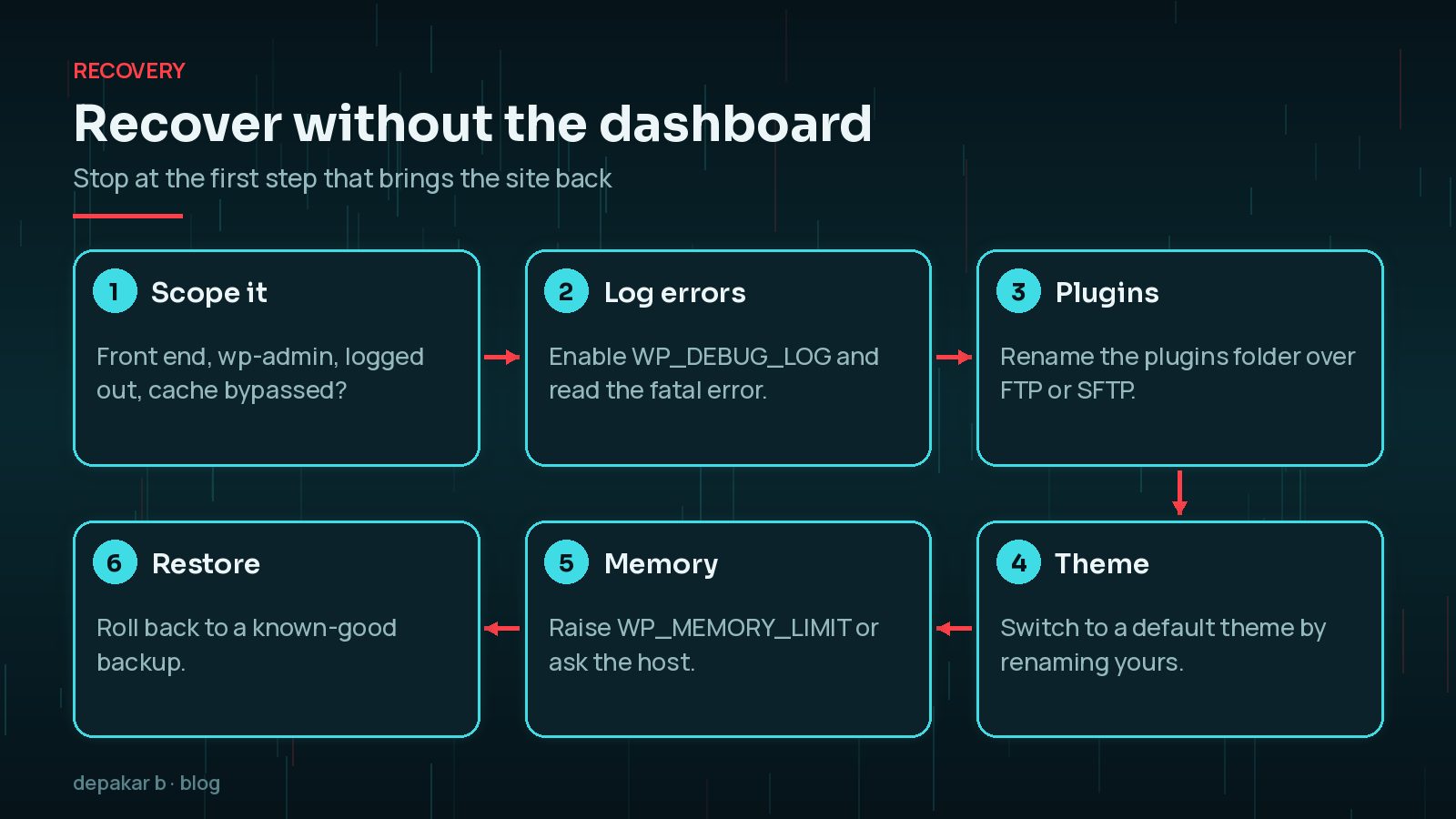
The WordPress white screen of death looks dramatic, but it is usually a single fatal error. Check for the recovery email, turn on logging, disable plugins by renaming the folder, test a default theme, look at memory and purge caches. Most sites are back within a few steps.
If your site is down now and you would rather hand it over, my site-down rescue service is built for exactly this situation.
Official References
Sources checked on 29 October 2026:
- Common WordPress Errors (WordPress Advanced Administration Handbook)
- Debugging in WordPress (WordPress Advanced Administration Handbook)
- wp-config.php: Increasing memory allocated to PHP (WordPress Advanced Administration Handbook)
- FAQ Troubleshooting (WordPress Documentation)
- Fatal Error Recovery Mode in WordPress 5.2 (Make WordPress Core)