Seeing "There has been a critical error on this website" is alarming, especially when it replaces your whole site. Take a breath. This message is WordPress protecting you from a crash, and in most cases the cause is a single plugin, theme or PHP problem that can be found and fixed.
This guide walks you through the fix in the safest order: use the recovery email, read the error log, pause the broken plugin or theme, then deal with PHP and memory issues. You will need access to your admin email and, ideally, SFTP or your hosting file manager.
What Does 'There Has Been a Critical Error on This Website' Mean?
It means PHP hit a fatal error while loading your site, and WordPress caught it instead of showing a blank white screen. This behaviour arrived in WordPress 5.2 as part of the fatal error recovery mode feature.
The WordPress documentation on common errors lists the usual causes:
- a conflict between plugins
- a theme compatibility problem
- an incompatible PHP version
- hitting the PHP memory limit
- corrupted WordPress files
Usually the error started right after something changed: an update, a new plugin, a hosting change or a PHP upgrade. Write down what changed most recently. It is often the answer.
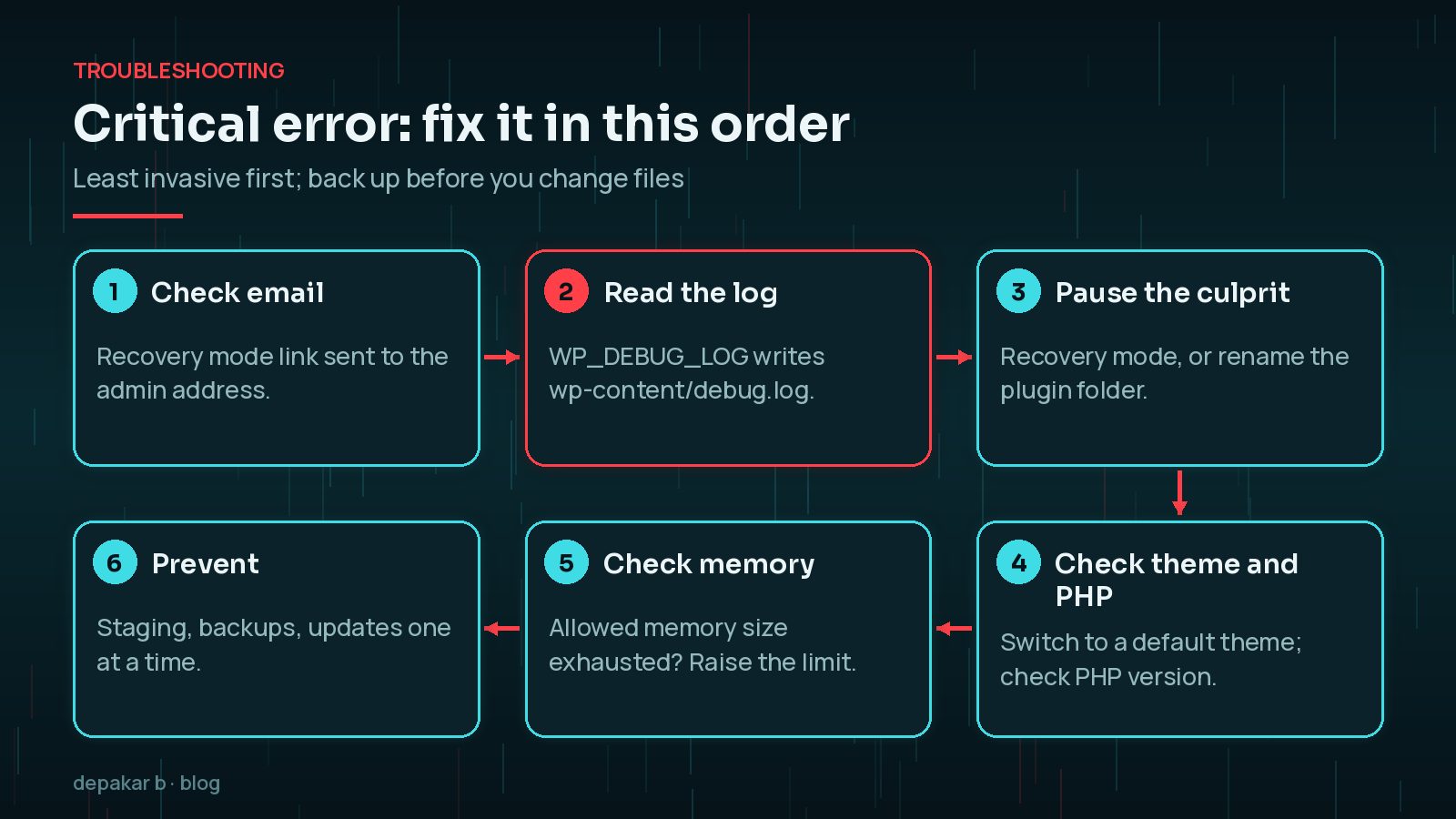
Check Your Email for the Recovery Mode Link
When WordPress catches a fatal error, it emails the site's admin email address. The email says which plugin or theme caused the problem and includes a special link to recovery mode.

- Search your inbox and spam folder for an email from your site about a technical issue.
- Click the recovery mode link and log in as usual.
- WordPress shows a notice listing the paused plugins or themes and the error each one caused.
- Deactivate the culprit, or update it if an update is available.
- Exit recovery mode using the button in the admin bar and check the site.
According to the WordPress core team's announcement, recovery mode pauses the broken extension only for you, using a cookie in your browser. Visitors still see the error until you deactivate or fix the plugin.
No email? The admin address may be old or unmonitored, or your server may not send mail reliably. Move on to the next step.
How to Read the Error With WP_DEBUG_LOG
The error log tells you exactly what failed. The official WordPress debugging guide recommends adding these lines to wp-config.php, above the line that says /* That's all, stop editing! */:
define( 'WP_DEBUG', true );
define( 'WP_DEBUG_LOG', true );
define( 'WP_DEBUG_DISPLAY', false );
@ini_set( 'display_errors', 0 );
Reload the broken page, then open wp-content/debug.log using SFTP or your host's file manager. Look for lines starting with PHP Fatal error.
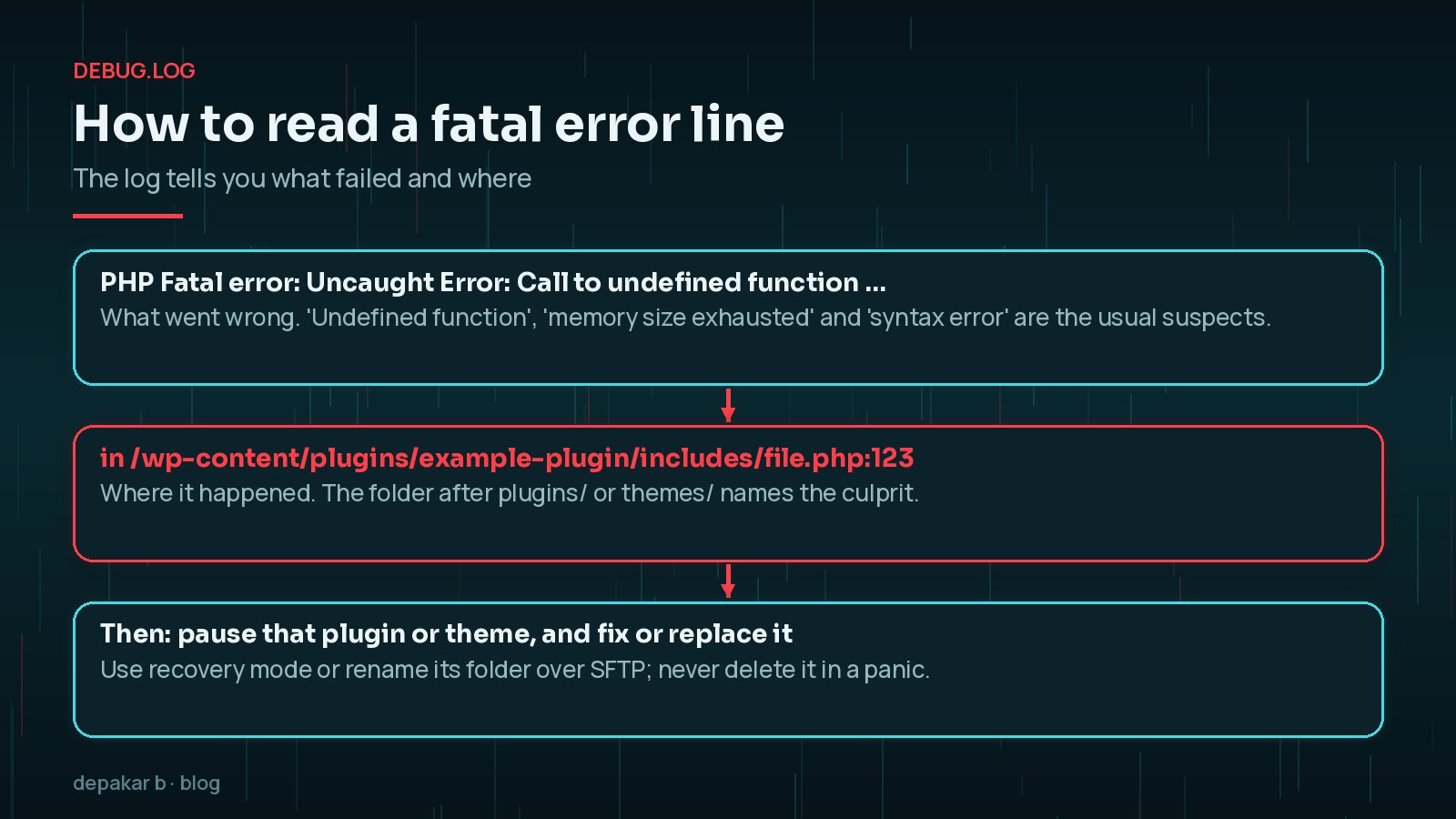
The file path is the key clue. If it contains /wp-content/plugins/some-plugin/, that plugin is the likely cause. If it contains /wp-content/themes/, look at your theme.
Turn debugging off when you're done. WordPress says debug tools are not recommended on live sites. Keep WP_DEBUG_DISPLAY false so visitors never see errors, set WP_DEBUG back to false once fixed, and delete debug.log, which can reveal file paths.
Disabling a Broken Plugin Without Dashboard Access
If you cannot get into the dashboard, you can deactivate a plugin by renaming its folder. WordPress cannot find it, so it stops loading it.

- Connect with SFTP or open your hosting file manager.
- Go to
wp-content/plugins/. - Rename the suspect plugin's folder, for example
some-plugintosome-plugin-off. - Reload the site. If it works, you have found the cause.
- Not sure which plugin? The WordPress documentation suggests renaming the whole
pluginsfolder toplugins_oldto deactivate everything, then renaming it back and re-enabling plugins one at a time from the dashboard.
Do not delete the plugin in a panic. Its settings and data may still matter. Once the site is back, update it, contact its developer with the error message, or replace it with a maintained alternative.
When the Theme or PHP Version Is the Cause
If the log points at your theme, rename the active theme's folder in wp-content/themes/. WordPress will fall back to a default theme if one is installed. Check that a default theme, such as Twenty Twenty-Five, is installed first.
PHP version changes are a common trigger. Hosts upgrade PHP, and older plugins or themes that use removed functions then fail. Signs include errors mentioning deprecated or undefined functions right after a hosting change.
- Check your current PHP version in your hosting panel or in Tools → Site Health → Info once you can log in.
- Update the plugin or theme that fails. Most maintained code supports current PHP.
- Temporarily switching back to the previous PHP version can restore the site while you fix the code, but treat it as a short-term measure.
If your host is moving you off PHP 8.2, my guide to PHP 8.2 end of life covers a staging-first upgrade.
Memory Limit and Hosting Errors
A log line containing Allowed memory size of ... bytes exhausted means PHP ran out of memory. The WordPress documentation suggests raising the limit in wp-config.php or php.ini:
define( 'WP_MEMORY_LIMIT', '256M' );This only works up to the limit your host allows. If it makes no difference, ask your host to raise it. Also ask why the site needs so much memory: a heavy plugin or a big import is often the real cause.
If the log is empty or the error looks unrelated to WordPress, the problem may be on the server: a full disk, a database issue or a failed update. My WordPress site down emergency checklist helps you separate hosting, DNS and database failures. For a completely blank page with no message, see how to fix the WordPress white screen of death.
How to Stop It Happening Again
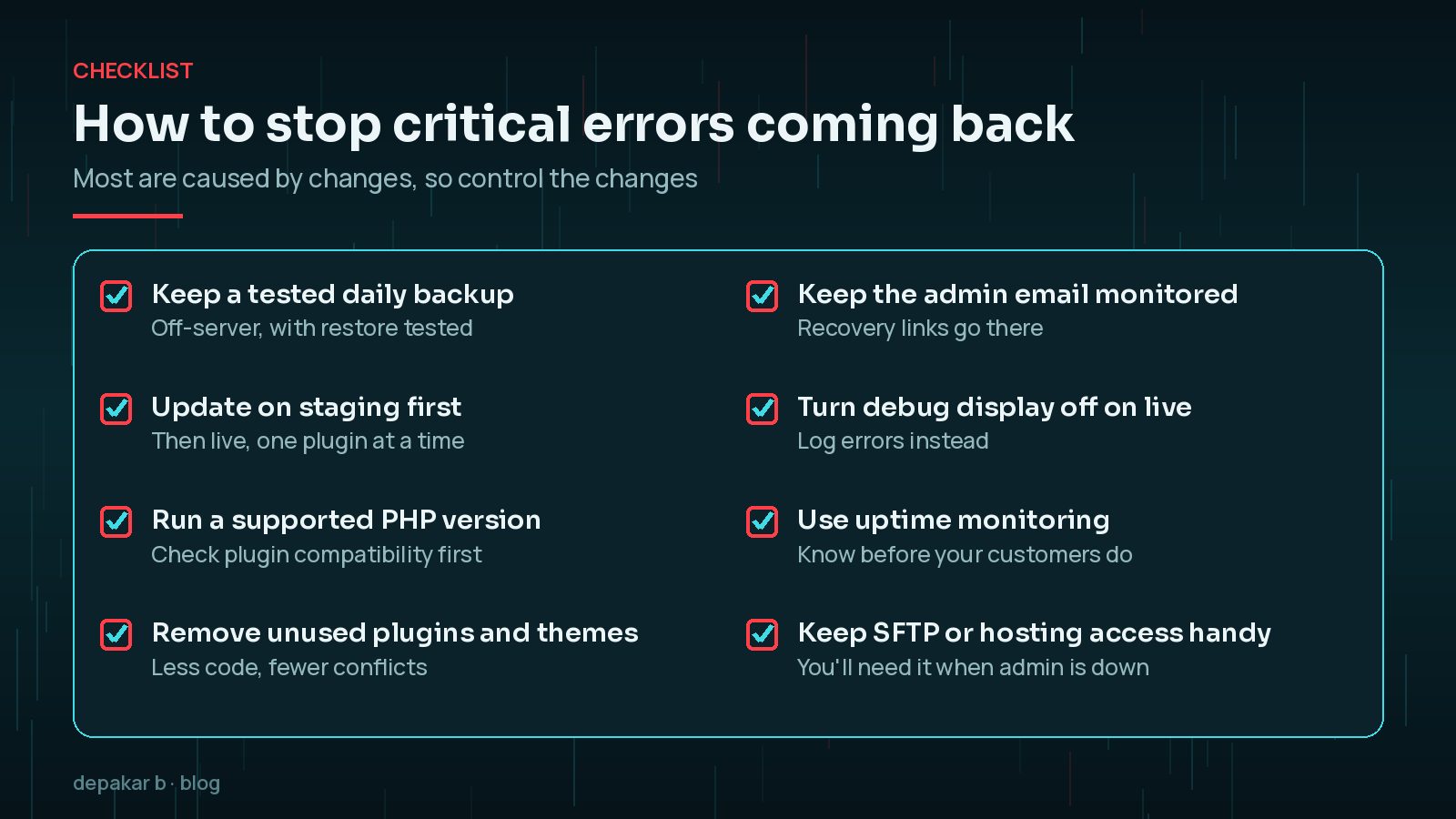
Most critical errors are caused by changes, so the fix is to control how changes happen.
- Keep tested backups stored away from your server.
- Update on staging first, then live, one plugin at a time. My guide to updating WordPress plugins safely covers the routine.
- Keep the admin email monitored, because recovery links go there.
- Remove plugins and themes you don't use.
- Use uptime monitoring so you hear about problems before customers do.
- Keep SFTP or hosting access details somewhere safe and current.
Frequently Asked Questions
What causes 'There has been a critical error on this website'?
A PHP fatal error. WordPress's documentation lists plugin conflicts, theme compatibility issues, an incompatible PHP version, hitting the memory limit and corrupted WordPress files as the most common causes.
I didn't get the WordPress recovery mode email. What now?
Check spam and confirm which address is set as the site admin email. If no email arrived, enable WP_DEBUG_LOG to find the error in wp-content/debug.log, then rename the broken plugin's folder over SFTP.
Will renaming a plugin folder delete its settings?
No. Renaming the folder just stops WordPress loading the plugin. Its settings usually stay in the database, and renaming it back restores it, although you should fix the cause first.
Is it safe to leave WP_DEBUG on?
No. WordPress recommends debug tools for local and staging sites, not live ones. Turn WP_DEBUG off after fixing the error, keep error display off, and delete the debug.log file.
Can a hacked site show a critical error?
Yes, sometimes malicious or broken injected code causes fatal errors. If you see unfamiliar files or plugins in the error log, treat it as a possible compromise and investigate before simply reactivating everything.
Final Thoughts
"There has been a critical error on this website" sounds dramatic, but it is usually a single plugin, theme, PHP or memory problem. Use the recovery email if you have it, read the log, switch off the culprit, then fix the underlying cause.
If your site is down right now and you'd rather hand it over, my site down service is built for exactly this situation.
Back up first, read the log, and change one thing at a time.
Official References
Sources checked on 29 October 2026: