
Most plugin updates are uneventful. The ones that break a site usually do so for predictable reasons, which means a little preparation prevents most problems. If you want to update WordPress plugins safely, the habits below matter far more than any single tool.
The timing is relevant too. WordPress 7.1.4, a security release, shipped on 28 October 2026, and WordPress 7.2 is due on 8 December 2026. Plugins will be shipping compatibility updates throughout that period.
Why Do Updates Break WordPress Sites?
An update replaces a plugin's code with a new version. Things go wrong when that new code meets something it did not expect:
- Conflicts with another plugin or the theme that both change the same thing.
- Version requirements: the new release needs a newer PHP or WordPress version than you run.
- Custom code in the theme or a snippet plugin that relied on how the old version worked.
- Database changes in major releases that run migrations on update.
- Interrupted updates, from timeouts, low disk space or file permission problems.
The official upgrading guide puts it simply: if the site looks scrambled after an update, an old plugin that does not work with the new code may be the culprit.
What Should I Check Before Clicking Update?
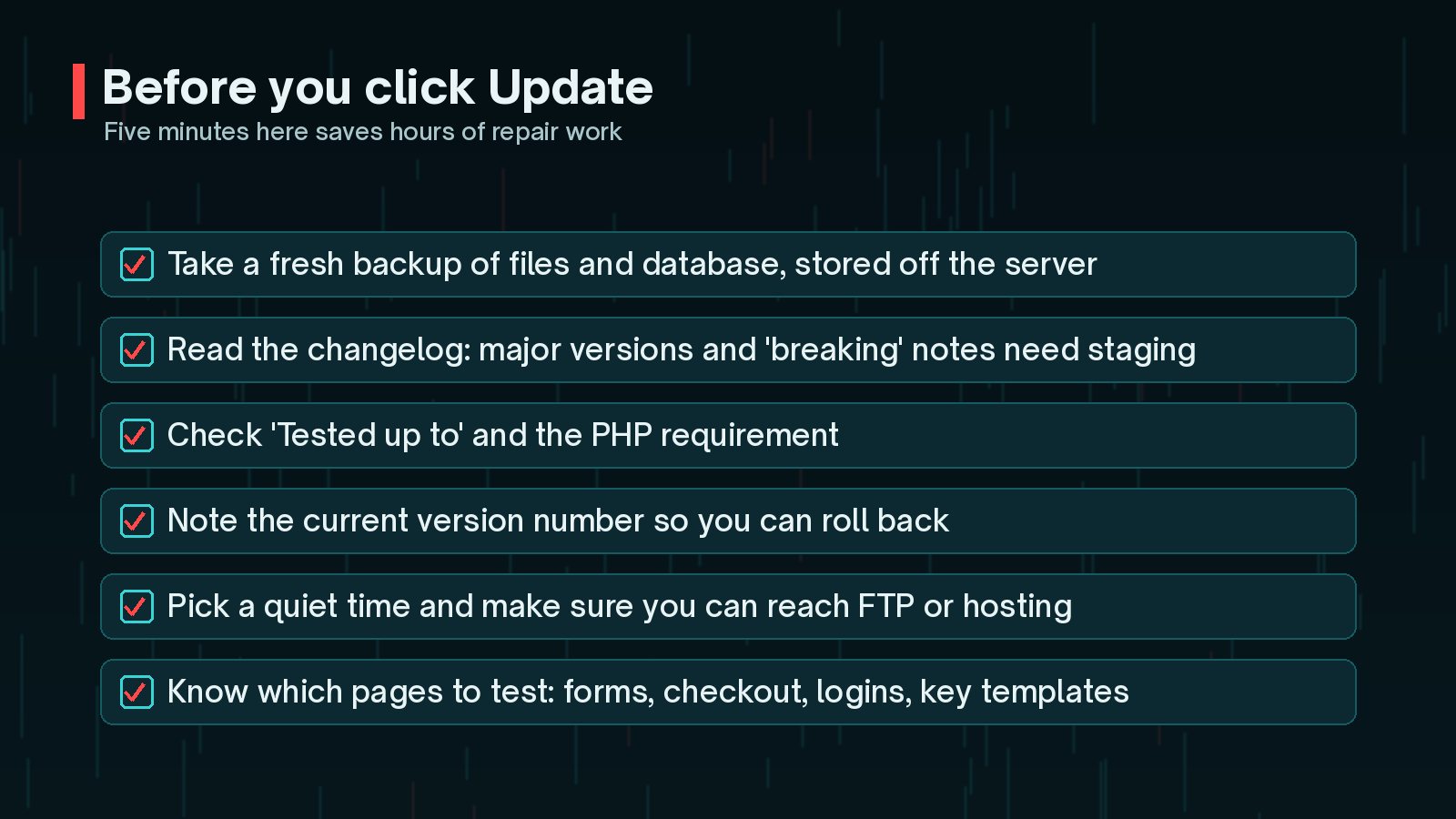
- Take a fresh backup of files and database, stored away from the server. Check you can actually restore it; my guide to restoring WordPress from a backup walks through this.
- Read the changelog. Look for words such as "major", "breaking", "requires" or "database update".
- Check compatibility. On the plugin's page, look at "Tested up to" and "Requires PHP".
- Note the current version number so you know exactly what to roll back to.
- Pick a quiet time, and make sure you can reach FTP or your hosting panel in case wp-admin goes down.
- List the pages that matter: contact forms, checkout, logins and key templates.
In What Order Should You Update Core, Plugins and Themes?
WordPress does not prescribe a strict order, but a consistent routine makes problems easier to trace. This is the order I use on client sites:
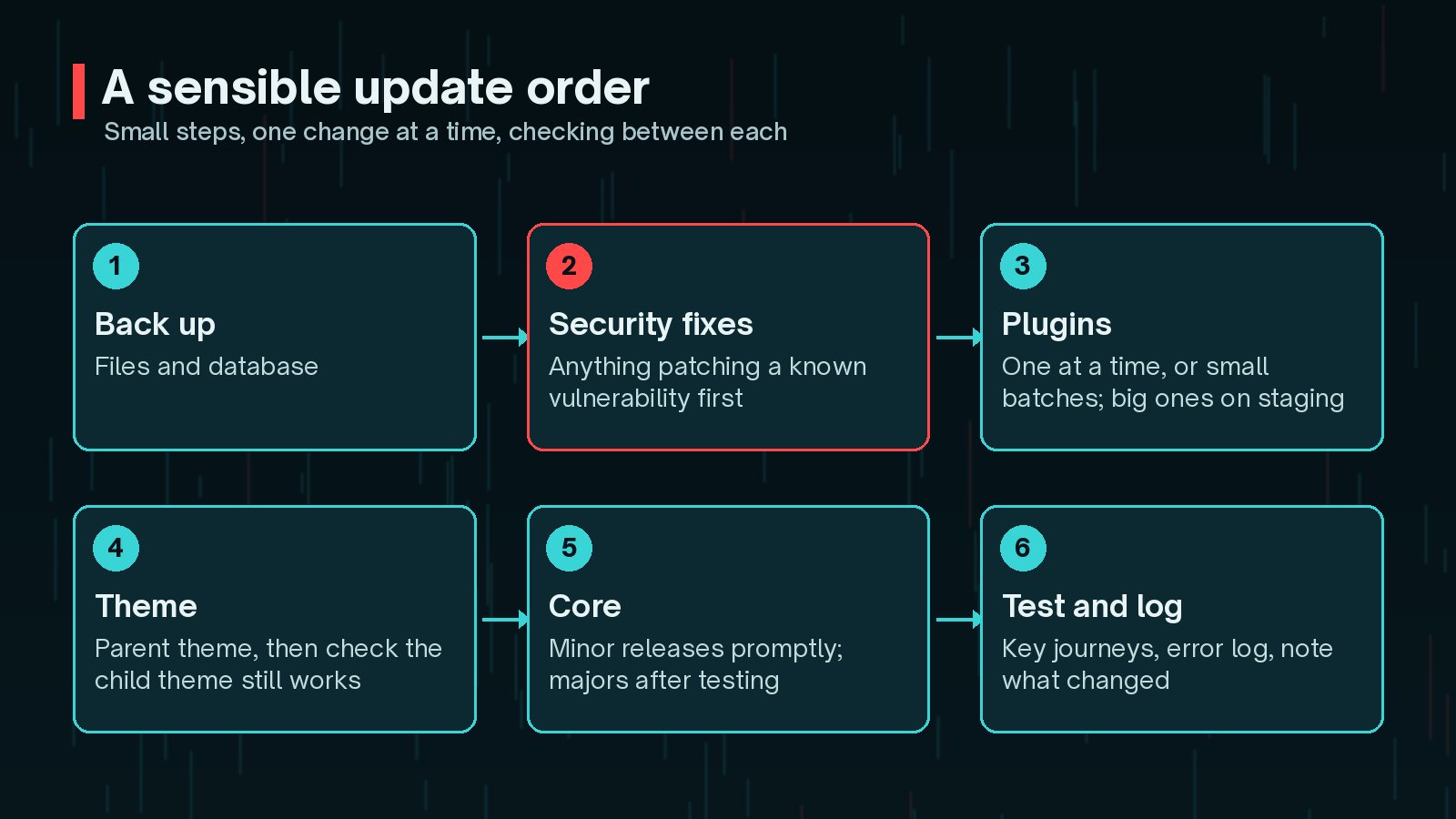
- Back up everything.
- Security fixes first. Anything that patches a known vulnerability goes ahead of feature updates. The WordPress 7.1.4 security update is a current example.
- Plugins, one at a time or in small groups. Load the site between each. Save large or business-critical plugins, such as WooCommerce or page builders, for staging.
- The theme, then check that any child theme still looks right.
- Core: minor releases promptly, major releases after testing.
- Test and record what changed, with version numbers.
Avoid stacking big changes. A major plugin update, a PHP upgrade and a core release on the same afternoon make it very hard to see which one caused a problem.
How to Update WordPress Plugins Safely on Staging First
A staging site is a private copy of your live site where updates can fail without anyone noticing. Many hosts offer one-click staging; my guide to setting up a WordPress staging site covers the other options.

A useful staging test is short and specific:
- Refresh staging from live so the data is recent.
- Apply the updates in the same order you will use on live.
- Test the key journeys: submit a form, place a test order, log in and out, edit a page.
- Check the PHP error log or the debug log for new warnings.
- If everything passes, repeat the same steps on live.
Keep outgoing email turned off on staging, so test orders and form submissions do not reach real customers.
What to Do If an Update Breaks Your Site
First, breathe. Since WordPress 5.2, fatal error protection usually emails the site administrator a link to recovery mode, which lets you log in and deactivate the faulty plugin. Since WordPress 6.3, if a manual plugin update causes a fatal error on reactivation, the plugin is not reactivated, which limits the damage.
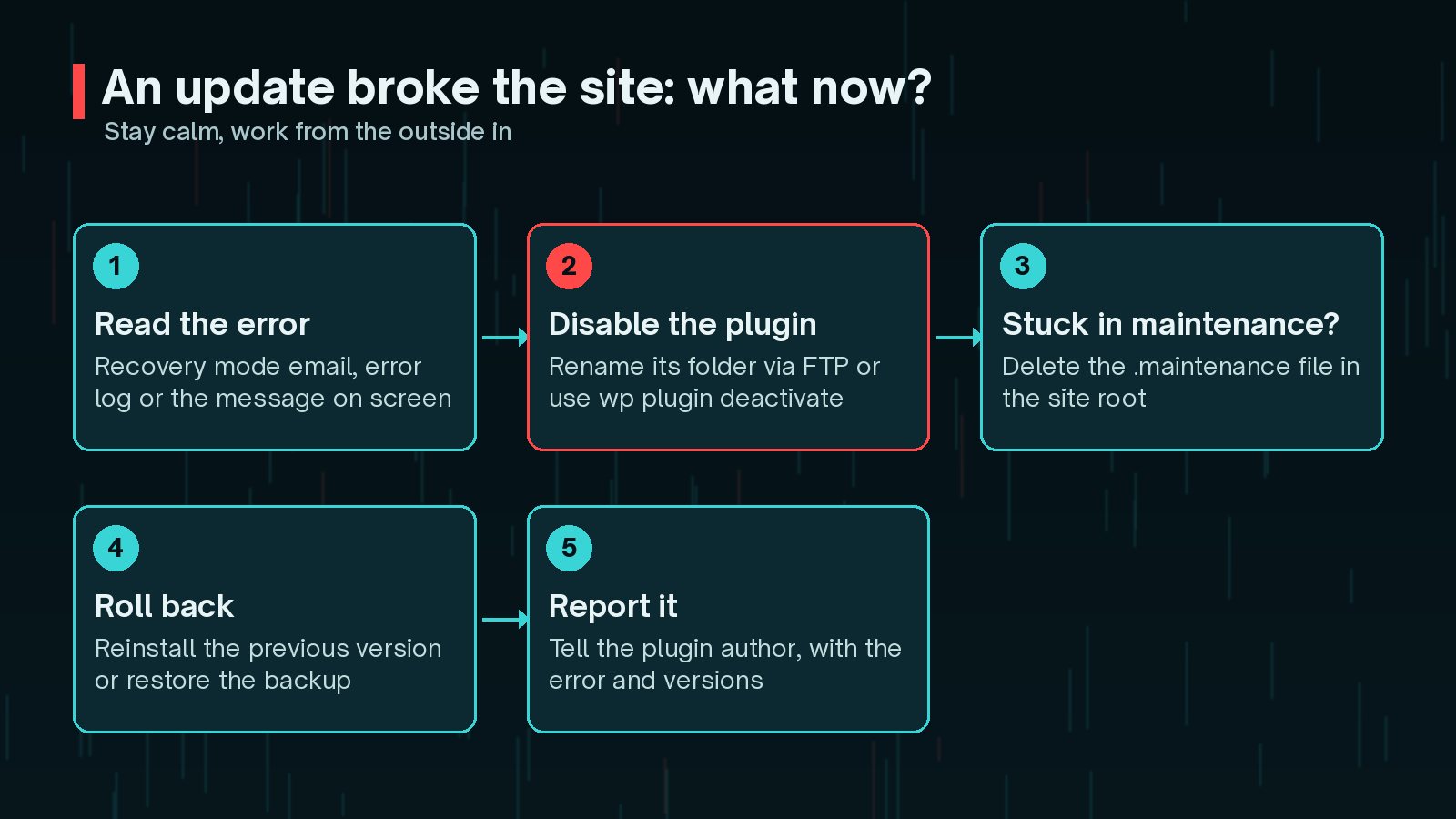
If you cannot reach wp-admin:
- Read the error. Check the recovery email, the message on screen or the PHP error log for the plugin name.
- Disable the plugin. Over FTP, rename its folder in
wp-content/plugins/, for example topluginname-off. WordPress will deactivate it. With WP-CLI:wp plugin deactivate pluginname. - If you do not know which plugin, the WordPress documentation suggests deactivating plugins one at a time until the problem disappears.
- Roll back to the previous version (see below) and test again.
- Report it to the plugin author with the error message and your WordPress, PHP and plugin versions.
Do not keep clicking Update. Retrying a failing update repeatedly can leave half-copied files behind. Diagnose first, then fix.
Fixing "Briefly Unavailable for Scheduled Maintenance"
During an update, WordPress puts a file called .maintenance in the site root and shows visitors the message "Briefly unavailable for scheduled maintenance. Please check back in a minute." Normally it removes the file when the update finishes.
If the update is interrupted, the file can be left behind and the message stays. The official fix is simple:
- Connect with FTP, SFTP or your host's file manager.
- Show hidden files, because the name starts with a dot.
- Delete
.maintenancefrom the folder that containswp-config.php. - Reload the site, then check Dashboard > Updates to see whether the interrupted update needs to be run again.
How to Roll Back a Plugin Update
Since WordPress 6.6, automatic plugin updates have their own safety net. According to the Make WordPress Core merge proposal, WordPress makes a loopback request to the homepage after an auto-update; if it detects a fatal error, it restores the previous version and emails the admin. Manual rollbacks are still sometimes needed for problems that are not fatal errors, such as layout or checkout bugs.

Your options:
- From WordPress.org: on the plugin's directory page, open Advanced View, download the previous version and upload it over the current one.
- With WP-CLI:
wp plugin install pluginname --version=2.4.1 --force- From your backup: restore the plugin folder, or the whole site if the update changed the database.
For premium plugins, download earlier versions from the vendor's account area. Once you are stable, pause auto-updates for that plugin until a fixed release appears.
Frequently Asked Questions
Should I turn on automatic plugin updates?
For well-maintained plugins on simple sites, automatic updates are usually a net win, especially for security fixes. Since WordPress 6.6, an automatic plugin update that causes a fatal error on the front end is rolled back and the admin is emailed. For shops, membership sites and heavily customised sites, many owners keep big plugins on manual updates and test them on staging first.
How do I fix 'Briefly unavailable for scheduled maintenance'?
WordPress creates a .maintenance file in the site root while it updates. If the update is interrupted, the file can be left behind. Connect with FTP or your host's file manager, delete .maintenance from the root folder, then check whether the interrupted update needs to be run again.
Can I undo a plugin update?
Yes. Reinstall the previous version from the plugin's page on WordPress.org (Advanced View lists earlier versions), use WP-CLI with the --version option, or restore your backup. If the update changed the database, a full backup restore is the safest route.
How often should I update plugins?
Check at least weekly and apply security releases as soon as you can. Feature releases can wait a few days for early bug reports, unless they fix a vulnerability.
Is it safe to update everything at once with Bulk Update?
It works, but if something breaks you will not know which plugin caused it. Updating one at a time, or in small groups, makes problems much easier to trace.
Final Thoughts
The routine is simple: back up, read the changelog, update in small steps, test the pages that earn you money and know your way back. Do that every time and plugin updates stop being stressful.
If you would rather hand the whole job over, regular updates, staging tests and rollbacks are part of what a good maintenance plan should include, and they are exactly what my website maintenance service covers.
Official References
Sources checked on 29 October 2026: