
A WordPress staging site is a separate copy of your live site, on its own address, used for testing. You update plugins, try a new design or build a feature there first. When everything works, you apply the same changes to the live site.
Without one, every update is a live experiment. With one, most problems are caught before a customer ever sees them.
What a WordPress Staging Site Is and Why You Need One
Updates are the most common moment for something to break: a plugin conflicts with another, a theme update changes a layout, or a new PHP version exposes old code. A staging site lets you see that first.
- Test plugin, theme and WordPress core updates.
- Build new pages, features or designs without a half-finished version going live.
- Try a new PHP version before switching the live site.
- Reproduce and fix bugs without affecting visitors.
Staging also protects your time. When an update breaks something on staging, you can investigate calmly instead of rushing to restore a live site while customers watch. And because the copy is disposable, you can always refresh it from live and start again if an experiment goes wrong.
It is also a core part of any professional WordPress development process.
Host Staging vs Plugin vs Local Setup
There are three common ways to get a staging site. The right one depends on your host and how hands-on you are.
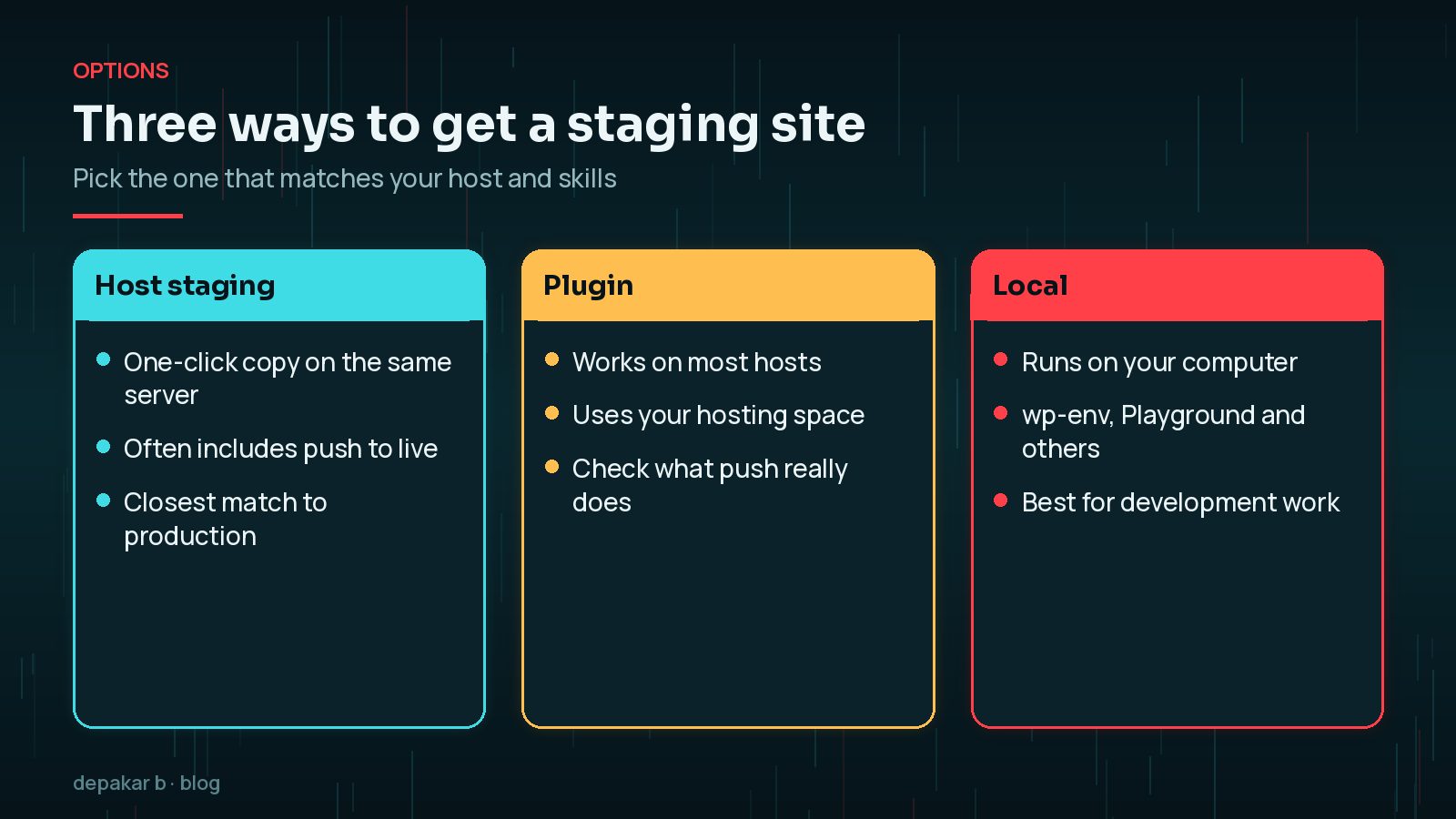
- Host staging: many managed WordPress hosts offer one-click staging on the same server, often with a push-to-live button. It is the closest match to production and usually the easiest.
- Staging plugin: creates a copy within your hosting account. It works on hosts without built-in staging, but uses your disk space, and push features vary between plugins.
- Local setup: a copy on your own computer. The WordPress handbook lists tools such as wp-env, maintained by the core developer community, and others like VVV. WordPress Playground also runs WordPress directly in the browser and lets you test different WordPress and PHP versions.
Whichever you choose, check that staging runs the same PHP version and similar server settings as live. A test is only as good as its match with production, and a mismatch can hide problems or invent ones that live will never see.
Local setups are ideal for development work. For testing updates against your real data and server, host staging is usually more realistic.
Keeping Staging Out of Google
A staging site is a full copy of your content. If search engines find it, it can compete with the live site or expose unfinished work.

- Password-protect it. Google says password protection is the way to keep private content out of Search. Many hosts offer this for staging with one click.
- Add noindex as a second layer, for example with WordPress's "Discourage search engines" setting on staging only.
- Do not rely on robots.txt alone. Google explains that a page blocked by robots.txt cannot have its noindex rule seen, and blocked URLs can still be indexed if linked from elsewhere.
Check search settings after every push. The most common staging mistake is copying "Discourage search engines" or a noindex rule back to the live site. After pushing changes, confirm in Settings › Reading that the live site is visible to search engines.
Syncing Staging With Live Safely
Copying from live to staging is safe. Copying from staging to live needs care. Before you start working on staging, refresh it from live so you are testing against current content.
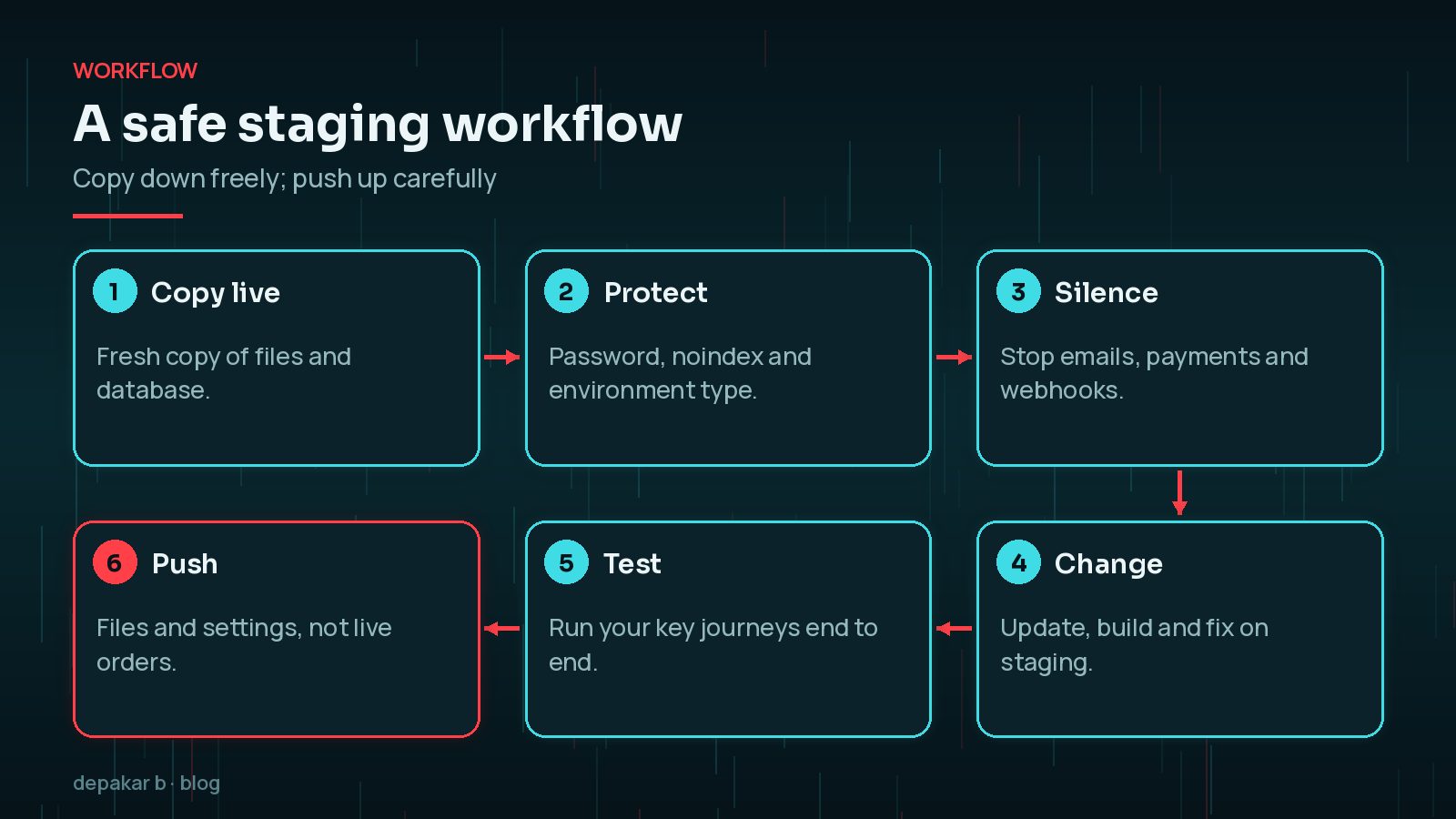
- Set the environment type. WordPress supports a
WP_ENVIRONMENT_TYPEconstant with values of local, development, staging or production. Production is the default, so set staging on the copy. - Silence outgoing actions: transactional emails, payment gateways in live mode, webhooks, CRM syncs and scheduled newsletters.
- Check scheduled tasks so staging does not run imports or exports against real services.
define( 'WP_ENVIRONMENT_TYPE', 'staging' );WooCommerce and Data You Shouldn't Overwrite
On sites where data changes every day, the live database is constantly moving. Anything created after you copied it to staging exists only on live.
- WooCommerce orders, customers and stock levels.
- Form submissions, comments and new user accounts.
- Membership and subscription records.
The same applies the other way round. If someone edits a page on live while you are working on staging, that change will be lost when you push, so agree a short content freeze for bigger releases.
Pushing the full staging database to live would wipe those out. Instead, push files such as themes and plugins, and either push selected tables if your host supports it, or repeat database changes, such as settings, by hand on live. Always take a fresh backup first; my WordPress backup strategy explains what a restorable backup looks like.
Pushing Changes Live
When testing is complete, plan the push like a small release.

- Back up the live site.
- Choose a quiet time for your audience.
- Push files, or apply the same updates in the same order on live.
- Clear caches and test the key journeys: forms, checkout, login.
- Check search visibility settings and the error log.
For plugin updates, my guide to safely updating WordPress plugins covers rollback options if something slips through.
A Staging Routine for Monthly Updates
A fixed routine means nothing is skipped, even when you are busy.
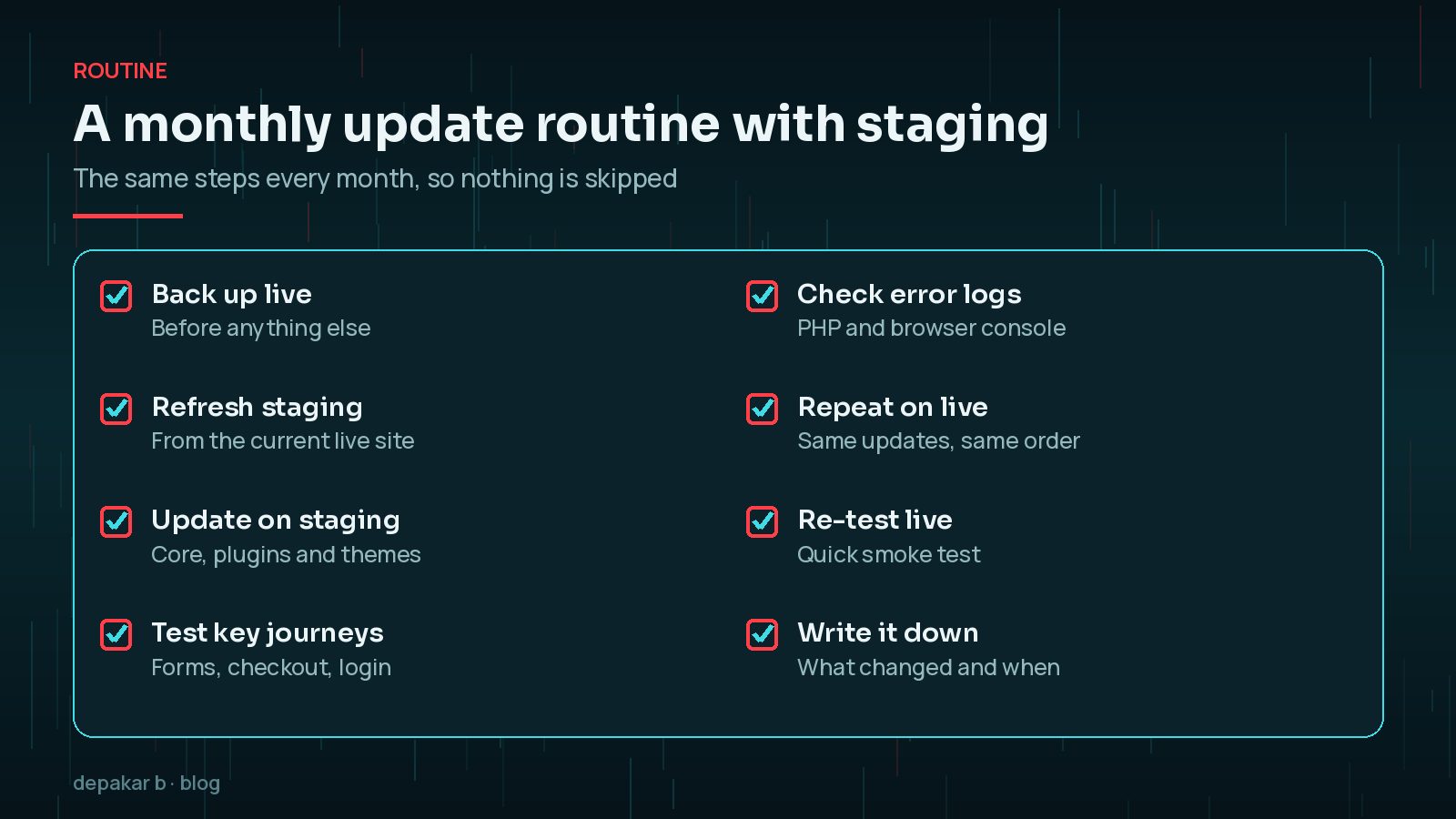
- Back up live, then refresh staging from it.
- Update core, plugins and themes on staging.
- Test your most important pages and journeys, and check the logs.
- Apply the same updates on live, re-test, and note what changed.
Keep the routine short enough that you will actually follow it. Fifteen minutes of testing on staging is far better than an hour-long checklist that gets skipped when you are busy. Add steps only when a real problem shows you they are needed.
This routine sits at the heart of a good WordPress maintenance plan.
Frequently Asked Questions
Do I need a staging site for a small brochure website?
It is still worth having, especially for plugin and theme updates. Many hosts include staging at no extra cost, and even a simple copy lets you test an update before your visitors see a problem.
Can Google index my staging site?
It can if the staging site is publicly reachable and linked from anywhere. Password-protect it, which Google says keeps content out of Search, and add a noindex rule as a second layer. Do not rely on robots.txt alone.
Should I push the whole database from staging to live?
Not on sites with changing data. Pushing a full database overwrites anything that happened on live since you copied it, such as orders, form entries, comments and new users. Push files and specific settings instead, or redo database changes on live.
What is WP_ENVIRONMENT_TYPE?
It is a constant, or server variable, that tells WordPress and plugins which environment they are running in: local, development, staging or production. Production is the default. Setting staging lets well-written plugins disable things like emails or payments automatically.
Is WordPress Playground a staging site?
Not exactly. Playground runs WordPress in the browser and is great for trying plugins, themes and PHP versions quickly. For testing your real site with its data, a host or local copy is usually better.
Final Thoughts
A WordPress staging site turns risky changes into routine ones. Choose host, plugin or local staging, keep it private with a password, set the environment type, silence emails and payments, and never push a full database over live orders. Then use it every month, not just for big projects.
If you would rather have updates tested on staging and applied for you each month, my website maintenance service includes exactly that.
Official References
Sources checked on 29 October 2026:
- WordPress Playground (WordPress.org)
- Installing WordPress locally / development (WordPress Advanced Administration Handbook)
- wp_get_environment_type() (WordPress Developer Resources)
- Block Search indexing with noindex (Google Search Central)
- Control what you share with Google (Google Search Central)