
A backup you cannot restore is not a backup. That is the idea behind every good WordPress backup strategy: decide what to back up, how often, where to keep it, how long to keep it, and then prove it works. Here is how to set one up for a typical business site.
Why Host Backups Alone Aren't Enough
Many hosts include automatic backups, and they are genuinely useful. But relying on them alone has risks:
- They are usually stored with the same company, sometimes on the same infrastructure as your site.
- If your hosting account is suspended, cancelled or compromised, you may lose access to them.
- Retention can be short, so a problem that went unnoticed for a few weeks may be older than your oldest copy.
- Restore options vary. Some hosts only offer a full-site rollback.
CISA's ransomware guidance warns that many ransomware variants try to find and delete accessible backups. That is why it recommends keeping offline, encrypted copies. Treat host backups as one layer, and add at least one copy you control.
How Often Should You Back Up WordPress?
WordPress's own backup documentation suggests backing up the database regularly and always before an upgrade. It mentions weekly backups for smaller sites and daily for sites with a lot of activity.
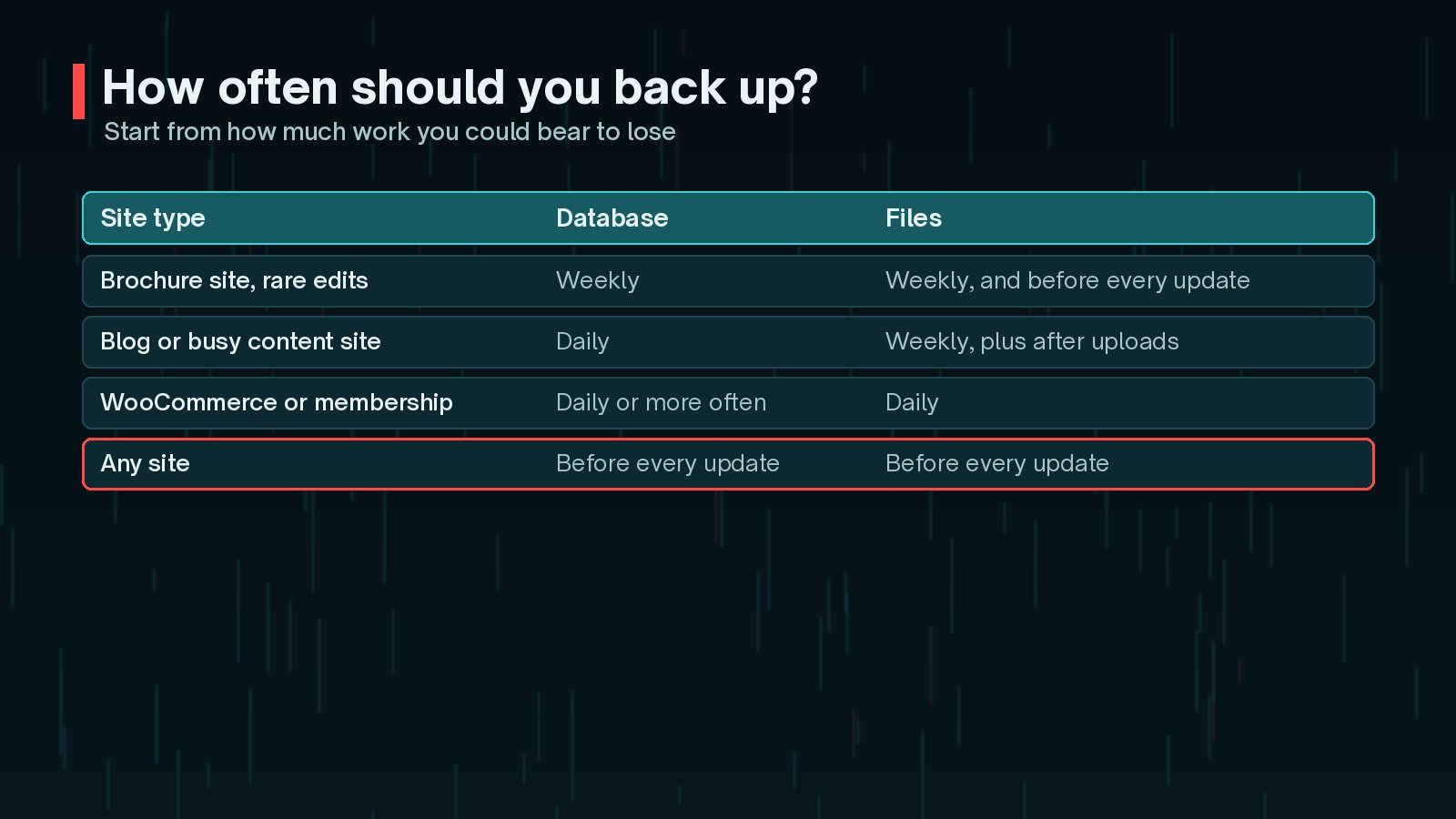
The practical question is: how much could you afford to lose? If you publish once a month, a weekly backup loses very little. If you run a WooCommerce store, a day of lost orders could be serious, so you may want daily or more frequent database backups.
- Back up before every core, plugin or theme update.
- Back up before any big content change, migration or redesign.
- Schedule backups at quiet times to reduce load on the server.
If you are deciding whether to let WordPress update itself, my guide to WordPress auto-updates explains how backups fit into that choice.
Files, Database or Both?
A WordPress site has two parts, and you need both. The WordPress documentation is clear that backing up your files does not include your database.
- Database: posts, pages, settings, users, comments and, for WooCommerce, orders and customers.
- Files: the
wp-contentfolder, including uploads, themes and plugins, pluswp-config.phpand any custom server files.
The database changes most often, so many sites back it up more frequently than files. The WordPress documentation also recommends a sensible order: back up the database first, then the files. When restoring, restore the files first, then import the database.
Exclude what you do not need. Cache folders and old backup archives stored inside wp-content can make every backup much bigger. Leave them out, and never store backups inside the site's public folder.
The 3-2-1 Rule for a WordPress Backup Strategy
CISA describes the 3-2-1 rule for small and medium businesses: keep three copies of your data, on two different types of media, with one copy offsite.
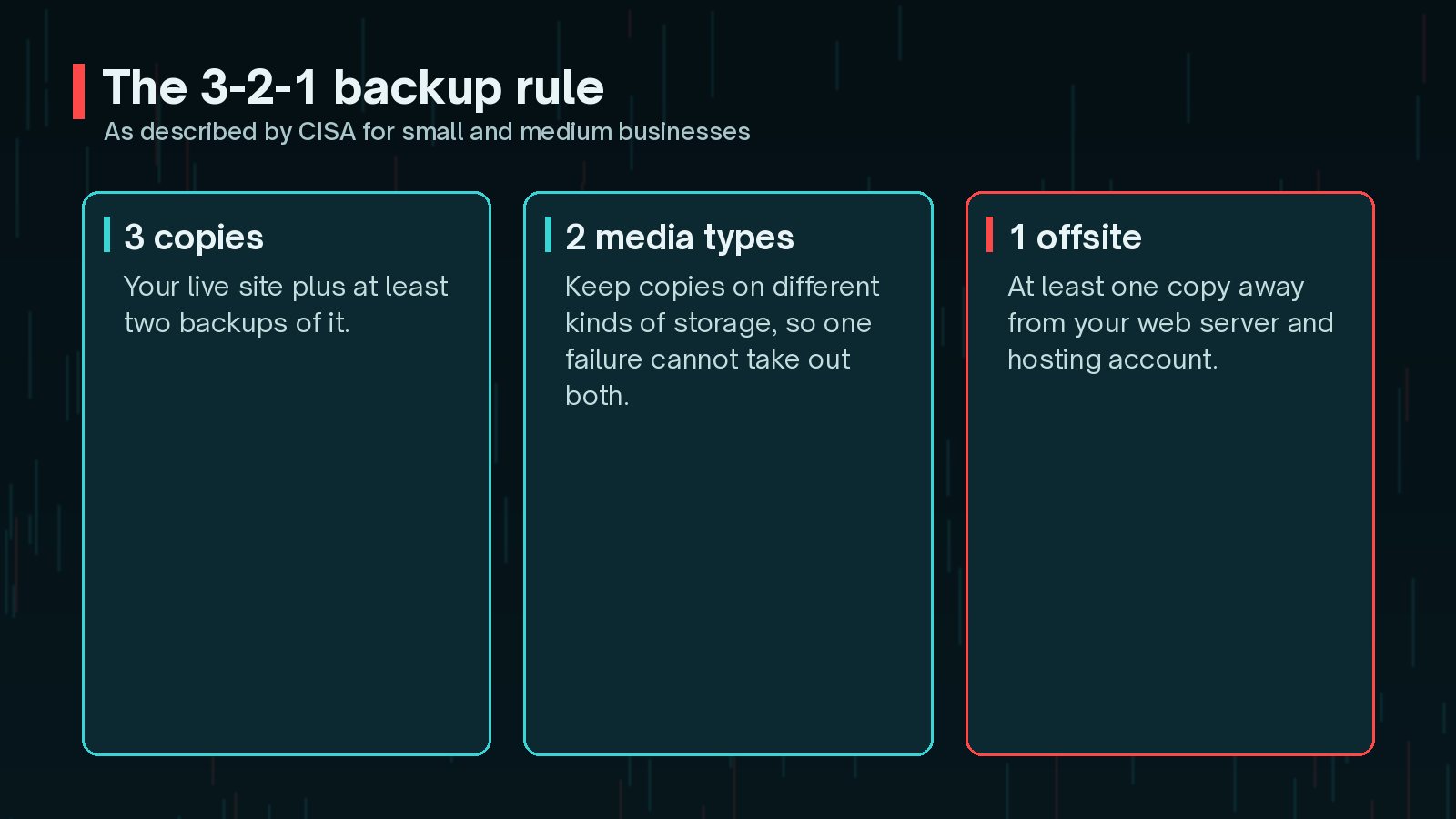
For a WordPress site, that might look like this:
- Copy one: your live site.
- Copy two: your host's automatic backups.
- Copy three: a separate backup sent to cloud storage under a different account, away from your host.
The point is that no single failure, such as a server fault, a hacked hosting account or a mistaken deletion, can take out every copy at once.
Where to Store Backups Safely
The WordPress documentation suggests keeping backups in different places, such as your server, cloud storage and a local copy.
When you choose offsite storage:
- Use a separate account from your hosting, with its own strong password and two-factor authentication.
- Give the backup tool permission to add backups, but avoid letting it delete old ones if your storage allows that.
- Encrypt backups, because they contain personal data such as user and customer details.
- Keep at least one copy that is offline or cannot be changed, so ransomware or an attacker cannot wipe it.
Retention: How Long to Keep Backups
Retention is how long you keep each backup before deleting it. WordPress's documentation suggests keeping at least three to five recent backups. In practice, you also want some older copies.

Why older copies matter: malware, spam injections and accidental deletions are not always noticed straight away. If your oldest backup is from three days ago and the problem started three weeks ago, every copy you have may include it.
A common pattern is to keep daily backups for a couple of weeks, weekly ones for a month or two, and monthly ones for longer. Balance that against storage space and privacy. Keeping personal data for longer than needed has its own risks.
How to Test a Backup
WordPress's documentation recommends checking occasionally that automatic backups actually work. CISA goes further and recommends regularly testing the availability and integrity of backups in a disaster recovery scenario.
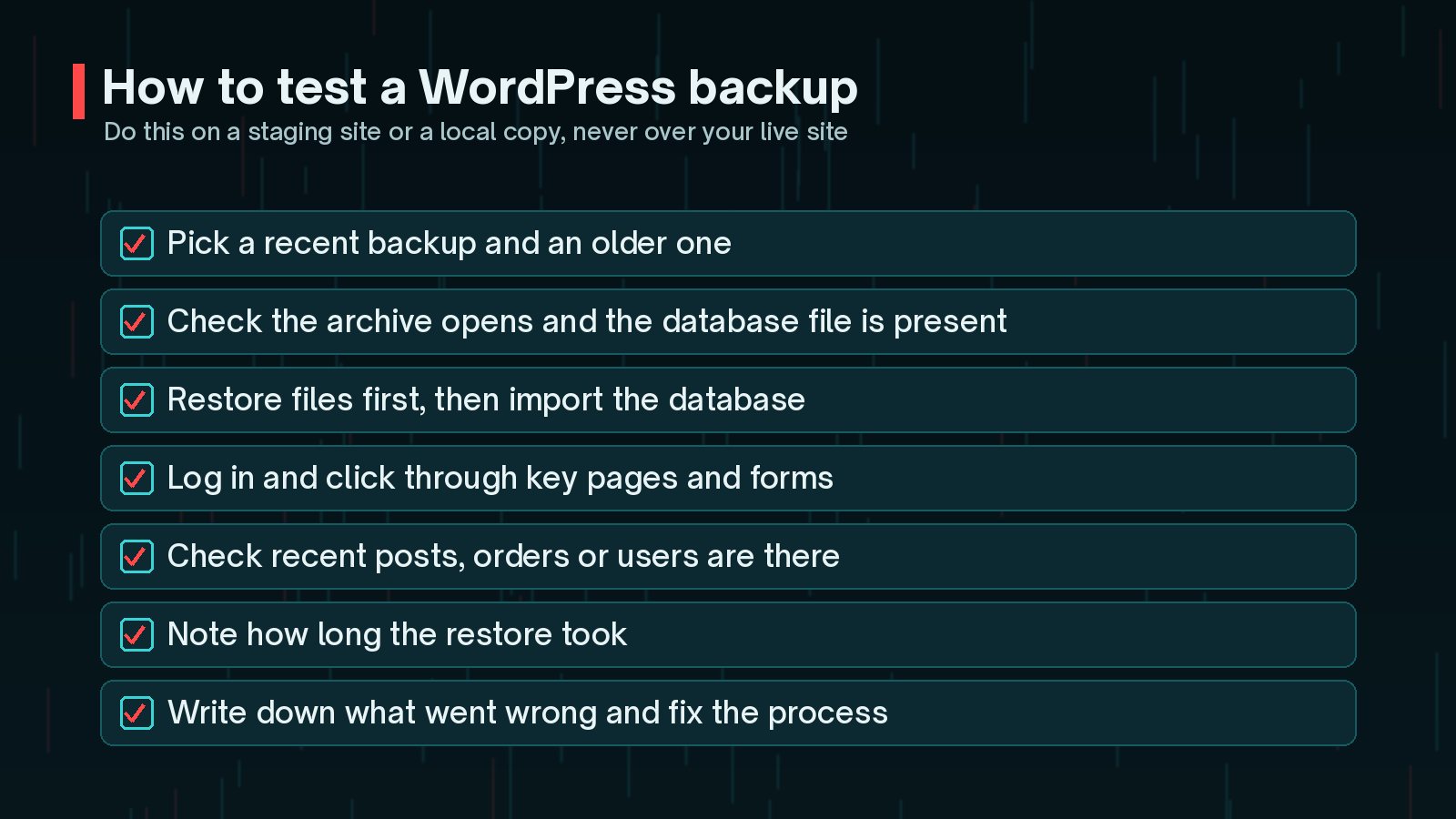
A simple test:
- Choose a recent backup and an older one.
- Restore it to a staging site or local environment.
- Log in, click through key pages and submit a test form.
- Check that recent posts, orders or users are present.
- Write down how long it took and any steps that were unclear.

Having a written restore process makes a real emergency much calmer. My step-by-step guide to restoring WordPress from a backup covers the restore itself, and a staging site gives you a safe place to practise.
Never test a restore over your live site. If the backup is incomplete, you could replace a working site with a broken one. Always test somewhere separate.
Frequently Asked Questions
Are my hosting company's backups enough?
They are a useful layer, but they should not be your only one. They are usually stored with the same provider, may have short retention, and may not be easy to restore selectively. Keep at least one copy that you control, somewhere else.
How many backups should I keep?
WordPress's own documentation suggests keeping at least three to five recent backups in different locations. Many sites keep daily copies for a couple of weeks and some older weekly or monthly copies as well, depending on how far back problems might go unnoticed.
Do I need to back up the whole site or just the database?
Both. The database holds your content, settings and users, while the files hold uploads, themes and plugins. Backing up files does not include the database, so a complete backup needs both.
How often should I test a backup?
Test a restore after you first set up backups, after any change to the backup tool or hosting, and regularly after that. Quarterly is a sensible starting point for many small sites; busier sites may want to test more often.
Should backups be encrypted?
Yes, especially offsite copies. Backups contain the same personal data as your live site, such as customer and user details. CISA recommends offline, encrypted backups as part of ransomware preparation.
Final Thoughts
A solid WordPress backup strategy is not complicated. Back up both files and database, as often as your site changes, following the 3-2-1 rule. Store at least one encrypted copy away from your host, keep enough history to go back before a hidden problem began, and test restores regularly. Then you will know, rather than hope, that you can recover.
Backups are a core part of looking after a site. If you would rather someone set them up, monitor them and test restores for you, that is included in my website maintenance service.
Official References
Sources checked on 29 October 2026: