
WordPress has been able to update itself in the background since version 3.7, and since 5.5 you can switch on auto-updates for individual plugins and themes with one click. So should you turn WordPress automatic updates on for everything? For most small business sites, the answer is “some things, yes; a few things, no”.
The timing matters. WordPress 7.1.4, released on 28 October 2026, is a security release that WordPress.org asked everyone to install immediately, and sites that support background updates receive it automatically. That is automatic updates doing exactly their job. According to the release announcement, 7.1.4 fixes a weakness in the upgrade process itself that could lead to remote code execution during the upgrade window, several stored cross-site scripting issues, and updates the bundled root certificates. WordPress 7.2 is planned for 8 December 2026.
What do WordPress automatic updates cover by default?
WordPress has four kinds of background updates: core, plugins, themes and translations. What happens by default depends on the type and on when your site was set up.
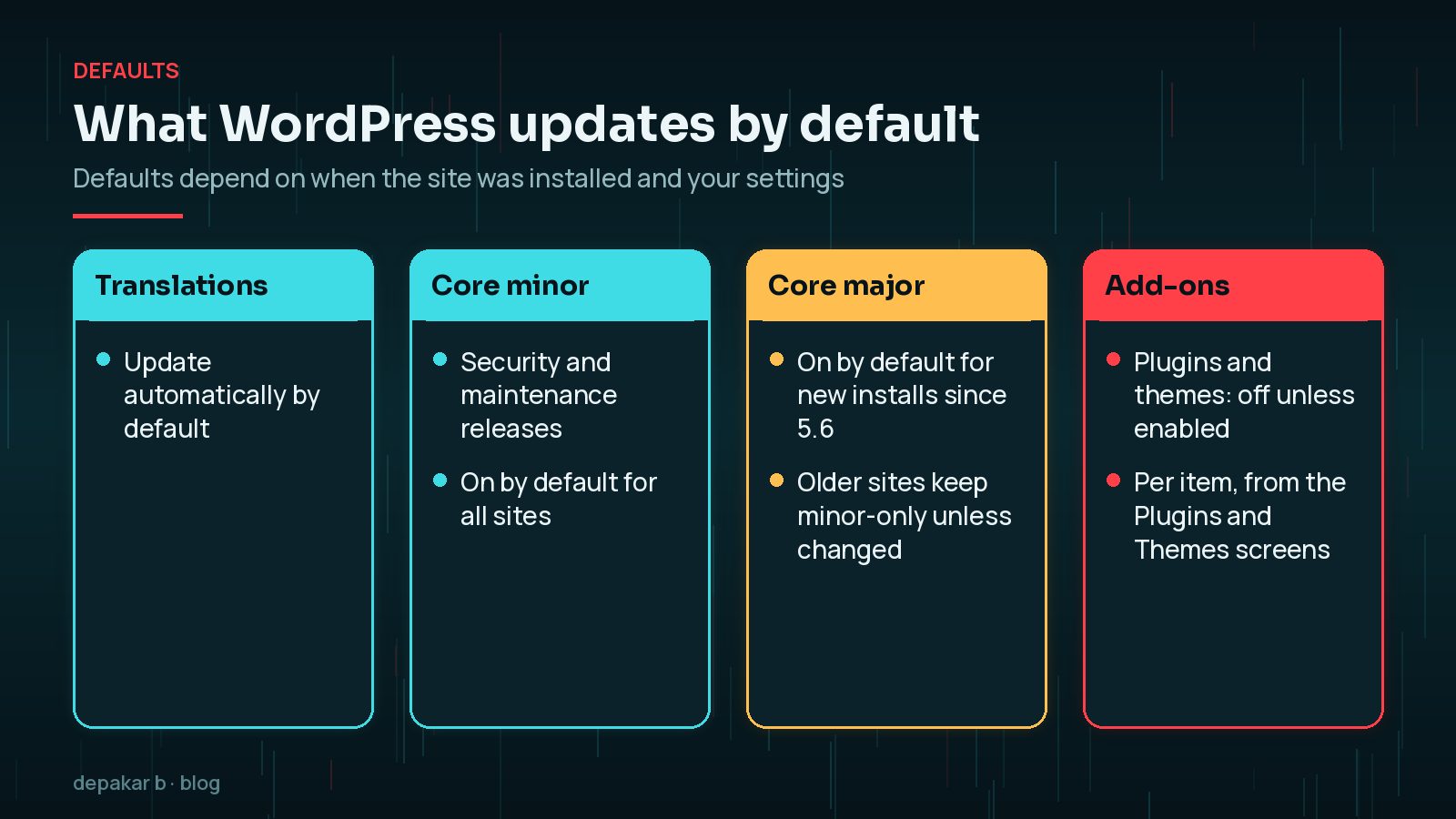
- Translations update automatically by default.
- Core minor releases, the security and maintenance updates such as 7.1.3 to 7.1.4, update automatically.
- Core major releases update automatically on new installs since WordPress 5.6. Sites installed earlier keep minor-only updates unless someone changes the setting.
- Plugins and themes do not auto-update unless you enable them.
Sites that look like a version-control checkout, such as a Git repository, skip core auto-updates by default.
Pros and cons of plugin auto-updates
Once a plugin security fix is published, every site that has not installed it stays exposed, and the details of the flaw are often public. Auto-updates close that gap without waiting for someone to log in.
- Pro: security fixes usually land within a day rather than whenever someone next logs in.
- Pro: less routine admin work for small teams.
- Con: an update can change features, layouts or integrations without anyone checking.
- Con: conflicts between plugins can appear when nobody is watching.

WordPress has reduced the downside. Since version 6.6, if a plugin auto-update causes a PHP fatal error, WordPress detects it with a loopback request to your homepage, restores the previous version and emails the site administrator. It does not catch layout problems or broken features that do not cause a fatal error, though. Version 6.3 added a similar safety net for manual plugin and theme updates: if the update fails part-way, the previous version is restored instead of leaving the plugin missing.
Which plugins should never auto-update?
“Never” is strong, but some plugins deserve a human check first because a subtle change costs money or trust:
- WooCommerce and its payment, shipping and subscription extensions
- membership, learning and booking plugins
- page builders and your main theme, where visual changes need eyes on them
- custom or heavily customised plugins
- plugins with a history of breaking changes in updates
How to control auto-updates (dashboard, wp-config, filters)
You have three levels of control.
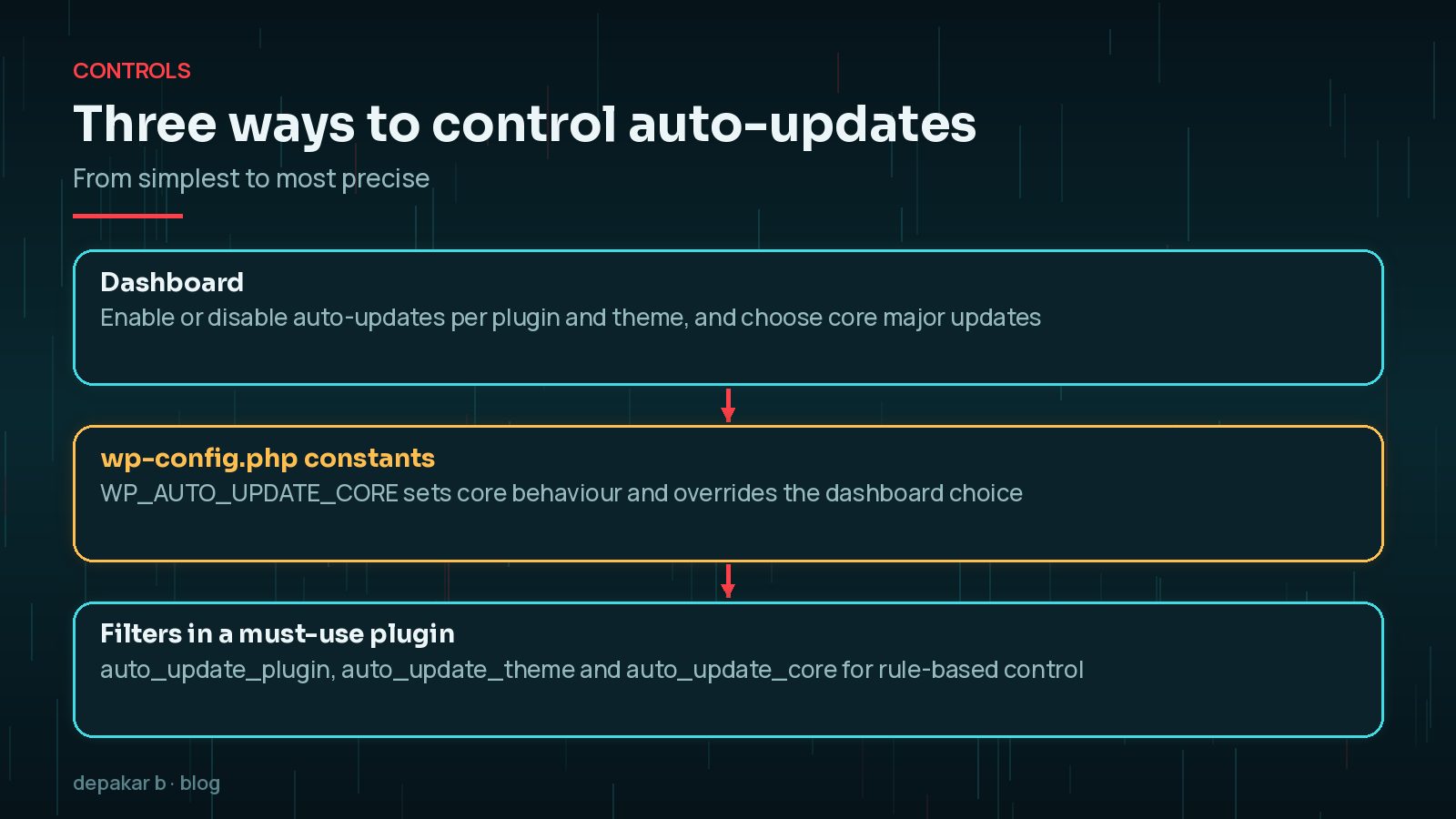
Dashboard: on the Plugins and Themes screens, use the “Enable auto-updates” link for each item. On Dashboard > Updates you can choose whether core major releases update automatically.
wp-config.php: the WP_AUTO_UPDATE_CORE constant accepts true, false or 'minor' and overrides the dashboard setting.
// Allow only minor core updates
      define( 'WP_AUTO_UPDATE_CORE', 'minor' );
Filters: for rules such as “auto-update everything except WooCommerce”, WordPress recommends placing filters in a must-use plugin rather than in wp-config.php.
add_filter( 'auto_update_plugin', function ( $update, $item ) {
          $manual = array( 'woocommerce' );
          if ( isset( $item->slug ) && in_array( $item->slug, $manual, true ) ) {
              return false;
          }
          return $update;
      }, 10, 2 );
Avoid AUTOMATIC_UPDATER_DISABLED. It switches off all background updates, including security releases, and WordPress's own documentation strongly discourages it.
Auto-updates on WooCommerce and membership sites
Shops and membership sites have more moving parts: payment gateways, subscriptions, emails and customer accounts. A broken checkout may not cause a fatal error, so 6.6's rollback will not catch it.
- Keep core minor updates and translations on.
- Put commerce, payment and membership plugins on manual and test them on a staging site first.
- Schedule a regular update window when traffic is low and someone can check orders.
- After each update, place a test order or renew a test membership, so you know the whole journey still works, including the confirmation emails customers receive.
My guide on how to safely update WordPress plugins walks through that routine.
Monitoring so you know when an update fails
Automatic updates are only safe if you hear about problems quickly.
- Admin email: make sure the site administrator address is real and read, because WordPress sends update and rollback notices there.
- Uptime monitoring: an external check alerts you if the site goes down.
- Backups: daily backups mean a bad update is a short rollback; see my WordPress backup strategy.
- Key journeys: after update days, test the contact form and checkout.
A sensible auto-update policy for small businesses
There is no single right setting, but this policy suits most small business sites:
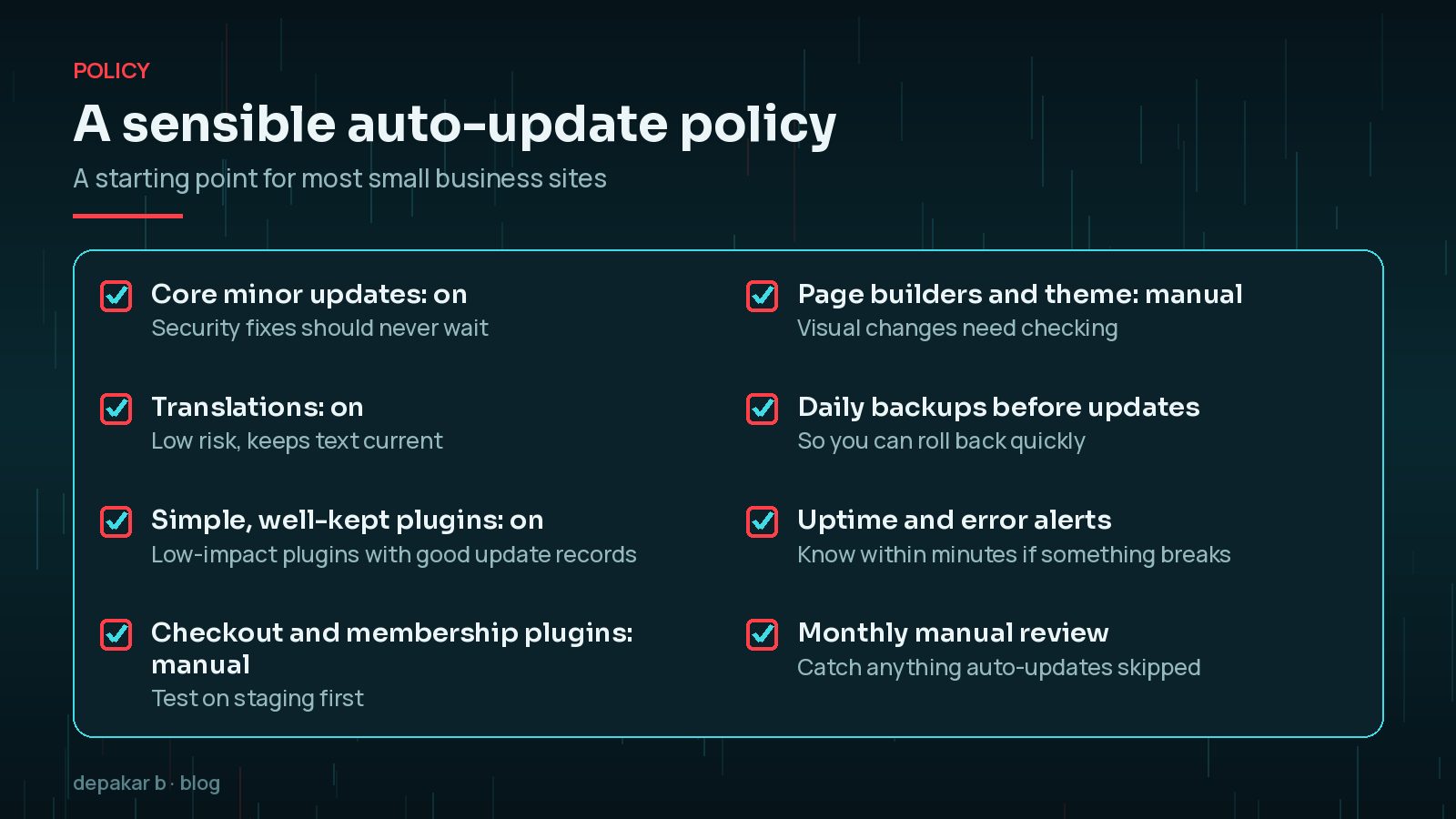
Revisit the policy whenever the site changes. Adding a shop, a membership area or a new page builder usually means moving a few plugins from automatic to manual. Removing old plugins does the opposite: fewer plugins means fewer updates to worry about, which is often the simplest improvement of all. Review the update log each month as well, so you can spot a plugin that keeps failing or needing rollbacks.
Write the policy down, even briefly, so everyone knows which plugins are manual and who checks them. It belongs in your maintenance plan; see what to include in a WordPress maintenance plan. For details of the latest release, read my note on the WordPress 7.1.4 security update.
Frequently Asked Questions
Does WordPress update itself automatically?
Yes, partly. Translations and core minor releases update automatically by default, and core major releases do too on sites installed since WordPress 5.6. Plugins and themes only auto-update if you enable them.
Can a WordPress auto-update break my site?
It can. Since WordPress 6.6, a plugin auto-update that causes a PHP fatal error is rolled back automatically, but layout or feature problems are not detected. Backups and monitoring cover the rest.
How do I turn off auto-updates for one plugin?
Click “Disable auto-updates” next to it on the Plugins screen. For rules that cannot be changed from the dashboard, use the auto_update_plugin filter in a must-use plugin.
Should I disable all automatic updates?
No. Disabling everything, for example with AUTOMATIC_UPDATER_DISABLED, also blocks security releases. WordPress's documentation strongly discourages it.
What does WP_AUTO_UPDATE_CORE do?
It is a wp-config.php constant that controls core updates. Set it to true for all core updates, 'minor' for minor releases only, or false to disable core updates. It overrides the dashboard setting.
Final Thoughts
WordPress automatic updates are a security tool, not a gamble, as long as you choose what to automate. Keep core security releases and translations on, automate simple plugins, keep commerce and builder plugins manual, and make sure backups and monitoring will tell you when something goes wrong. If you would rather not manage this yourself, my website maintenance service handles updates, testing and monitoring for you.
Official References
Sources checked on 29 October 2026:
- WordPress Developer Resources: Configuring automatic background updates
- Make WordPress Core: Controlling plugin and theme auto-updates UI in WordPress 5.5
- Make WordPress Core: Auto-updates interface for core major versions in 5.6
- WordPress Documentation: Version 6.6 (rollback for plugin auto-updates)
- WordPress News: WordPress 7.1.4 security release