
A WordPress site redirecting to spam is one of the most common signs of a hack, and one of the most frustrating, because the redirect often refuses to happen when you test it. Visitors complain about casino, pharmacy or fake prize pages, yet the homepage looks fine on your laptop. That is by design: redirect malware is written to avoid the people most likely to remove it.
This guide explains why the redirect is selective, the places in WordPress where the code usually hides, how to tell whether the attacker used a plugin flaw or stolen passwords, and how to clean up and let Google know the site is safe again.
Why is my WordPress site redirecting to spam only sometimes or on mobile?
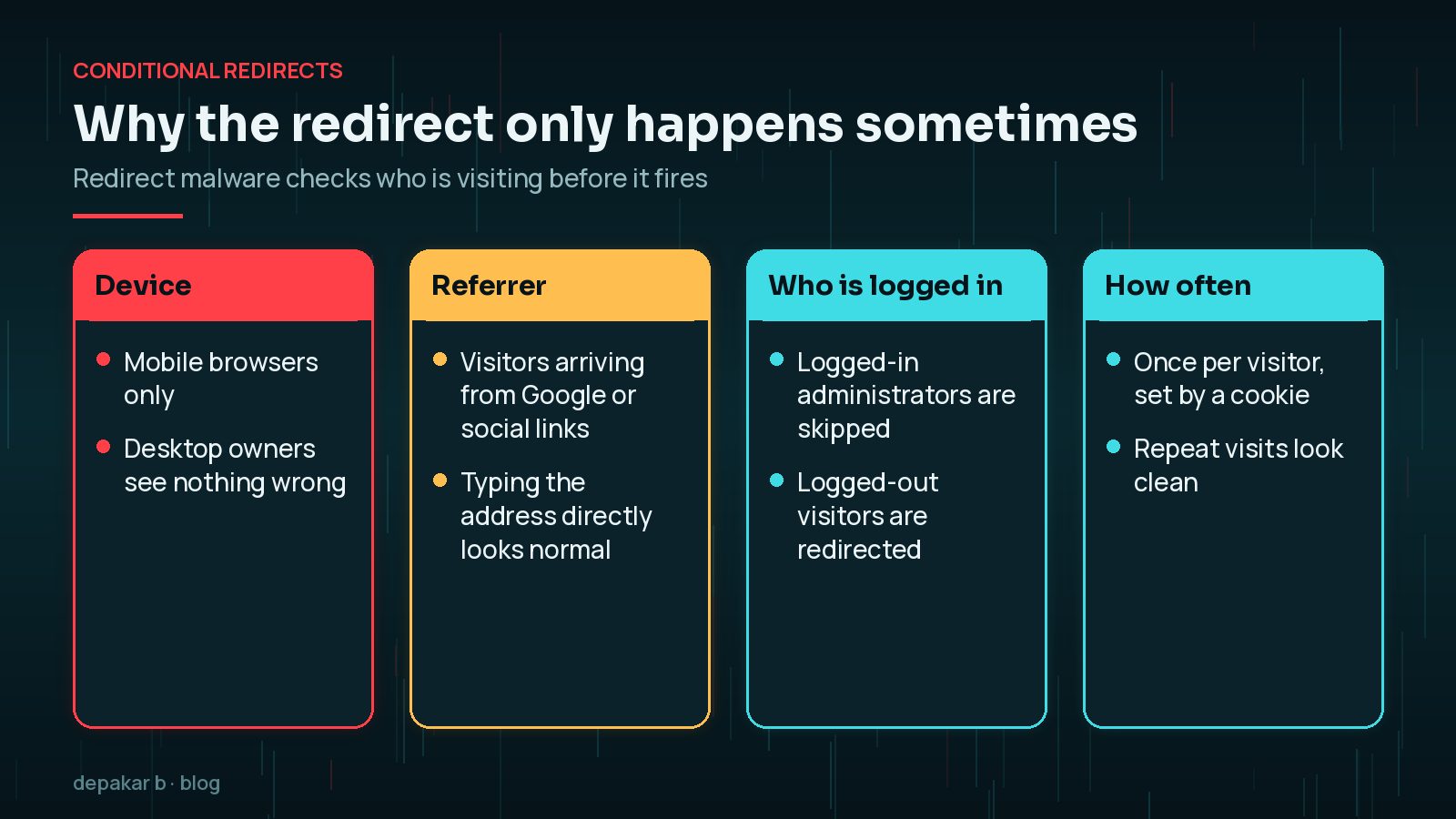
Most redirect malware is conditional. Before it sends anyone away, it checks a few things about the visitor, and only redirects the ones who are unlikely to be the site owner:
- Mobile only. The code looks at the browser's user agent and redirects phones, because owners usually check from a desktop.
- Visitors from search. It checks the referrer, so people arriving from Google are redirected while someone typing the address is not.
- Logged-out visitors. Administrators logged in to WordPress are skipped.
- First visit only. A cookie marks visitors who have already been redirected, so repeat visits look clean.
Google's spam policies describe exactly this behaviour as sneaky redirects, including showing desktop users a normal page while redirecting mobile users to a spam domain. To reproduce it, use a phone on mobile data, open a private window, search for your business name and click through from the results.
Common places redirect malware hides
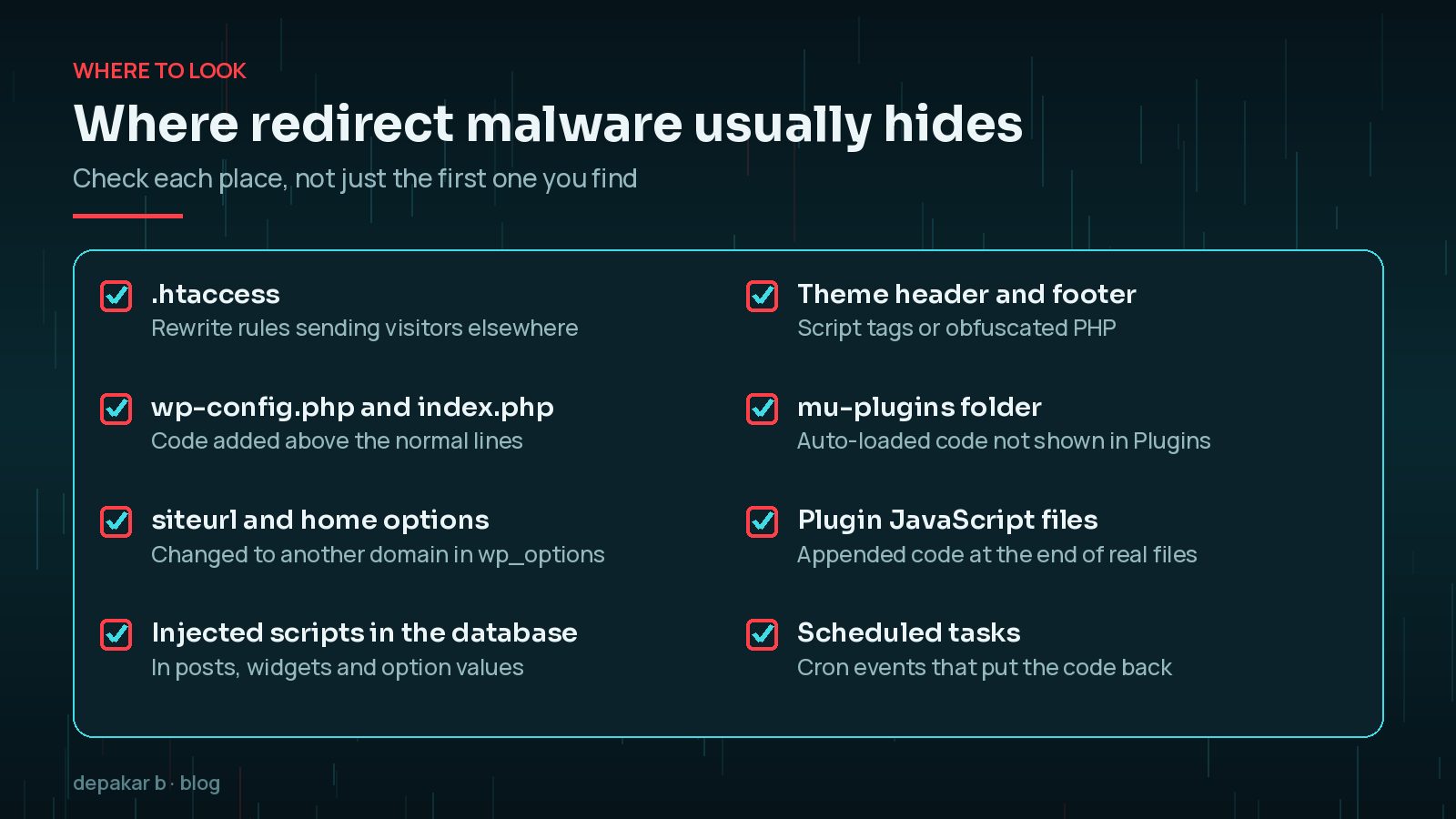
Redirect code needs to run on every page load, so it lives in places WordPress loads early or often. It rarely sits in just one place; attackers usually leave a second copy, or a small loader that rewrites the first if you delete it.
Before you change anything, take a full backup or hosting snapshot of the infected site. It feels odd to back up malware, but that copy is your evidence, and it lets you undo a cleanup step that breaks something.
Checking .htaccess, wp-config and the database
Start with the server-level files, because they act before WordPress even loads.
- .htaccess: open it in the site root and in
wp-content/uploads. Look forRewriteCondlines that testHTTP_USER_AGENTorHTTP_REFERER, followed by a rewrite to an unfamiliar domain. A normal WordPress block is short; long or unexplained rules deserve suspicion. - wp-config.php and index.php: check the top of each file for extra PHP, especially long encoded strings or calls such as
evalandbase64_decode. - Site URL settings: confirm the
siteurlandhomevalues still point to your own domain, using Settings > General or WP-CLI. - Database content: search posts, widgets and options for unexpected
<scripttags or iframes pointing to domains you do not recognise.
wp core verify-checksums to list core files that differ from the official release.Malicious JavaScript in themes, plugins and widgets
Many redirects run in the browser rather than on the server. Attackers append obfuscated JavaScript to the end of genuine theme or plugin scripts, add a script tag to header.php or footer.php, or paste code into a custom HTML widget. View the page source from a phone or a mobile emulator, and look for scripts loading from domains that have nothing to do with your site.

Do not forget wp-content/mu-plugins. Must-use plugins load automatically and do not appear in the normal Plugins list, so a malicious file there can keep re-adding the redirect. Scheduled tasks can do the same; list them with wp cron event list and look for hooks with random-looking names.
Is it a plugin vulnerability or stolen credentials?
Knowing how the attacker got in matters more than finding every line of code, because the same door will be used again. The two most common routes are an exploited plugin or theme, and a stolen or guessed password.
- Plugin or theme flaw: check whether any installed plugin has a recent security advisory, and look at access logs for unusual requests to its files just before the first symptom.
- Stolen credentials: look for unknown administrator accounts, logins from unfamiliar locations, or changes made via SFTP or the hosting file manager rather than WordPress.
- Neighbouring sites: on shared hosting, another compromised site in the same account can infect yours.
If several sites in one hosting account are affected at the same time, suspect the hosting or SFTP credentials first.
Cleaning up and closing the entry point
Once you know where the code is and how it got there, clean in a sensible order so it cannot rebuild itself while you work:
- Remove auto-loading code first: mu-plugins, cron jobs and loaders.
- Replace WordPress core, themes and plugins with clean copies from official sources rather than hand-editing them.
- Clean the database of injected scripts and restore the correct site URLs.
- Update or remove the vulnerable plugin, delete unknown users and rotate every password and security key.

The WordPress hardening guide's basics help here: keep everything updated, remove unused plugins and themes, and disable the built-in file editor. For the full order of work, see how to clean a hacked WordPress site and the WordPress malware cleanup checklist.
Telling Google the site is clean
If Google has spotted the problem, the Search Console Security issues report lists what it found, with sample URLs. Visitors may also see a browser warning. Fix everything first, then request a review from the report and explain briefly what you removed and how you closed the entry point.
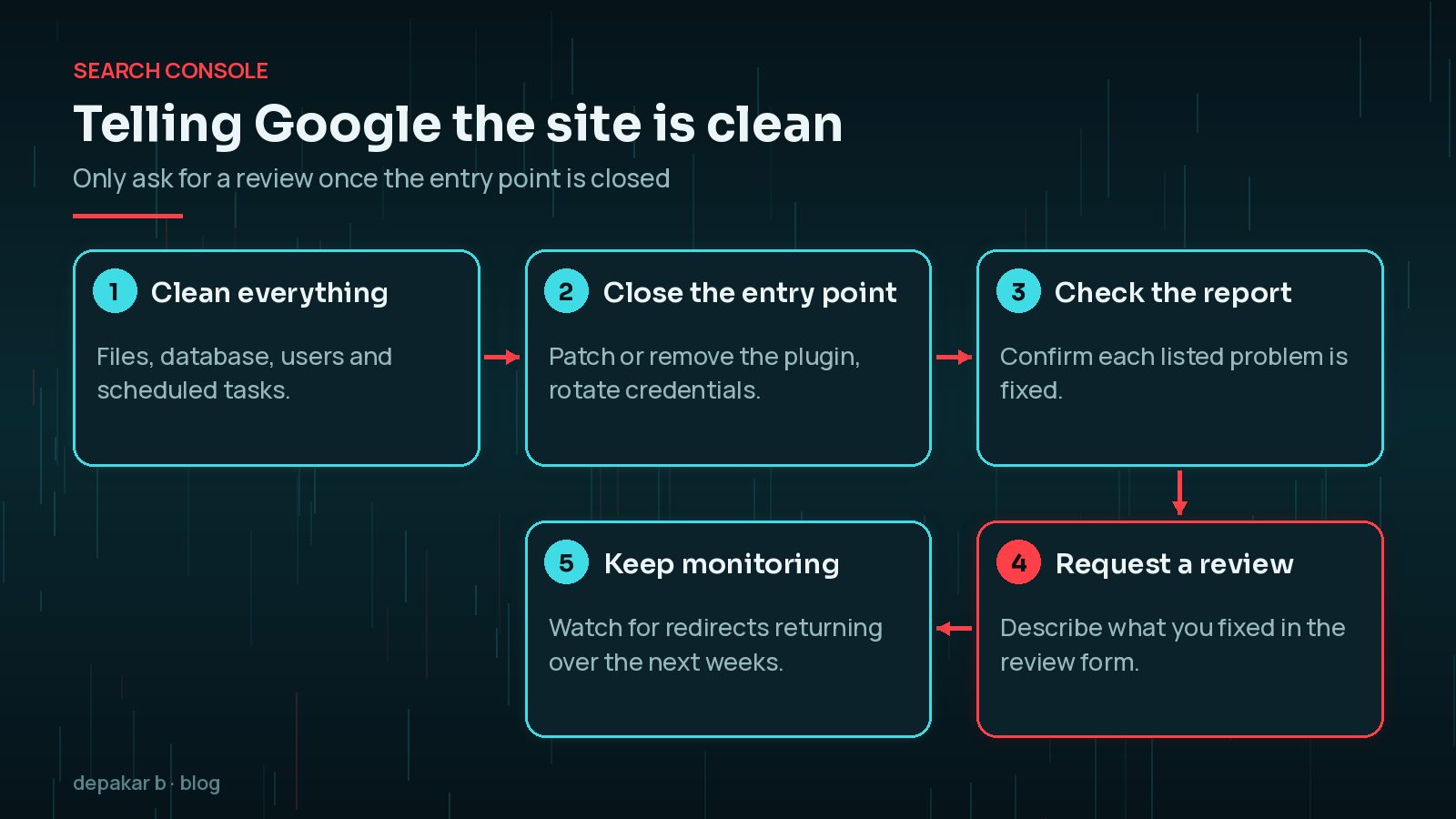
If the review fails, Google will usually tell you what is still wrong; treat that as a sign that a copy of the code is still present. My guide to removing Google's dangerous site warning covers the review process in more detail.
Frequently Asked Questions
Why is my WordPress site redirecting to spam only on mobile?
Redirect malware often checks the browser type and only redirects phones, because site owners usually test from a desktop. Test on a phone using mobile data and a private window, clicking through from a search result.
Why can't I see the redirect when I visit my own site?
Many redirects skip logged-in administrators, visitors who type the address directly, and people who have already been redirected once. Log out, use a private window and arrive from a search engine to reproduce it.
Will a security plugin remove a redirect hack?
A scanner may find known redirect code, but it can miss obfuscated scripts, database injections and the original entry point. Use it alongside clean reinstalls, database checks and a review of users and scheduled tasks.
Does a spam redirect hurt my Google rankings?
It can. Google treats sneaky redirects and hacked content as spam, and may show warnings or remove affected pages until the site is clean. Fixing it quickly and requesting a review limits the damage.
How do I stop the redirect coming back?
Find and close the entry point: update or remove the vulnerable plugin, rotate all passwords and security keys, delete unknown users and remove any auto-loading code in mu-plugins or cron.
Final Thoughts
A spam redirect that only appears for some visitors is not a mystery; it is malware doing its job of hiding. Reproduce it the way a real visitor would, check every place the code can live, find out how it got in, and close that door before you ask Google for a review. Work calmly and in order, and the redirect will not come back. If you would rather hand it over, my hacked site recovery service handles the full cleanup. For other early warning signs, read signs your WordPress site is hacked.
Official References
Sources checked on 29 October 2026: