
A red warning page in front of your website is one of the most stressful things a site owner can see. Whether it is the Deceptive site ahead warning in Chrome, a "Dangerous site" screen or a "This site may be hacked" label in search results, the message to visitors is the same: do not go in.
The good news is that Google tells you what it found and gives you a way to ask for the warning to be removed. The work is in cleaning the site thoroughly first.
What the Deceptive Site Ahead Warning Means
Google's Safe Browsing system flags sites that it believes could harm visitors, for example by phishing for passwords or installing malware. Browsers that use this data, including Chrome, then show a full-page warning before the site loads.
Google's Security issues report explains that affected pages can appear with a warning label in search results, or with an interstitial warning page in the browser when someone tries to visit. On a WordPress site, the cause is almost always a compromise: injected code, spam pages, a malicious redirect or a fake login page planted by an attacker.
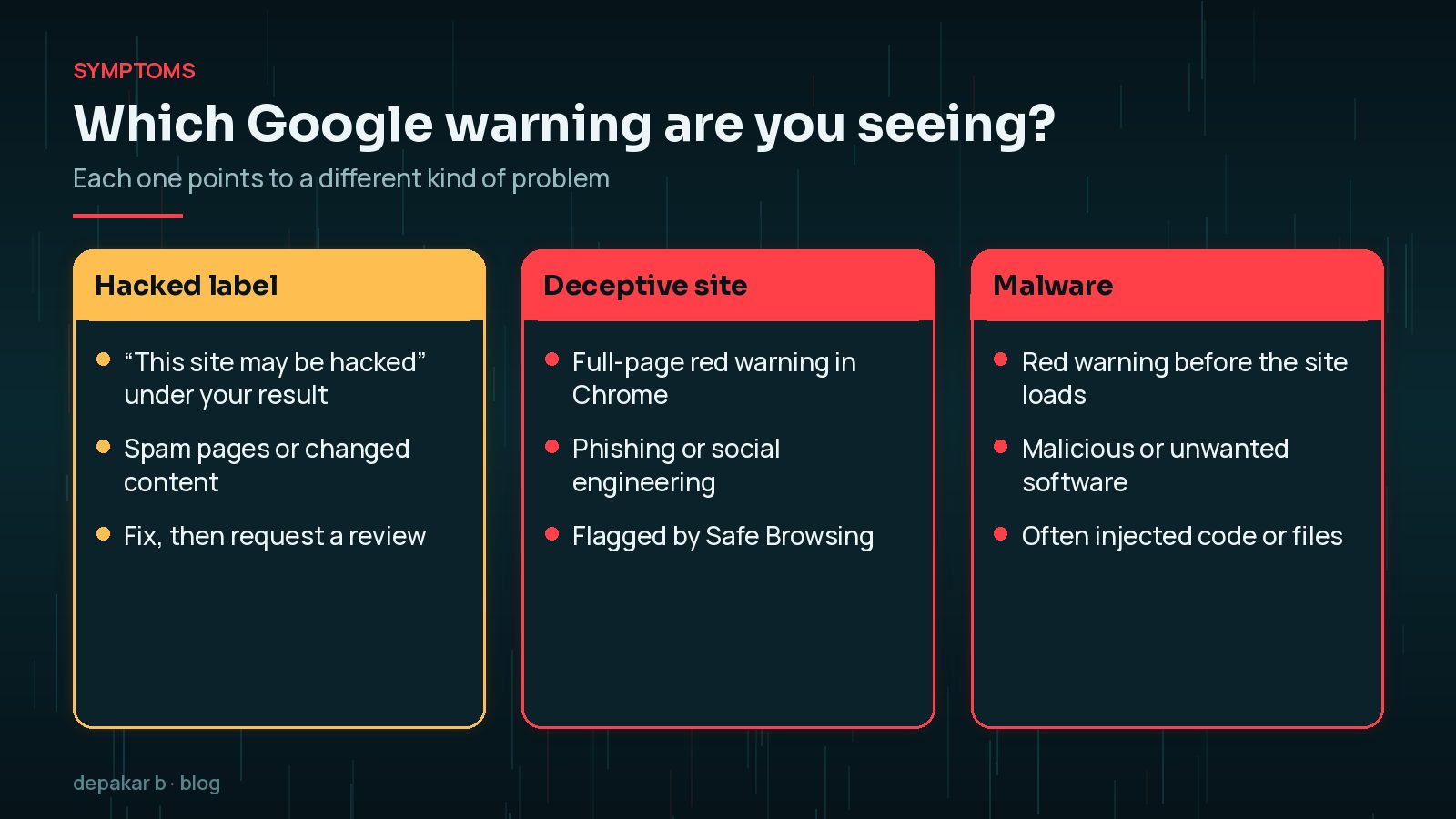
"This Site May Be Hacked" vs "Deceptive Site Ahead"
The two messages appear in different places and usually mean different things.
- "This site may be hacked" appears under your result in Google Search. Google says it shows when it believes a hacker may have changed existing pages or added new spam pages. Visitors can still click through.
- "Deceptive site ahead" is a full-page browser warning. Google's documentation says Chrome may show it when it detects social engineering content: pages that trick people into revealing information or downloading software.
- Malware warnings appear when Google finds the site hosting or distributing malicious or unwanted software.
All three are removed the same way: fix the problem, then request a review in Search Console.
Checking the Security Issues Report
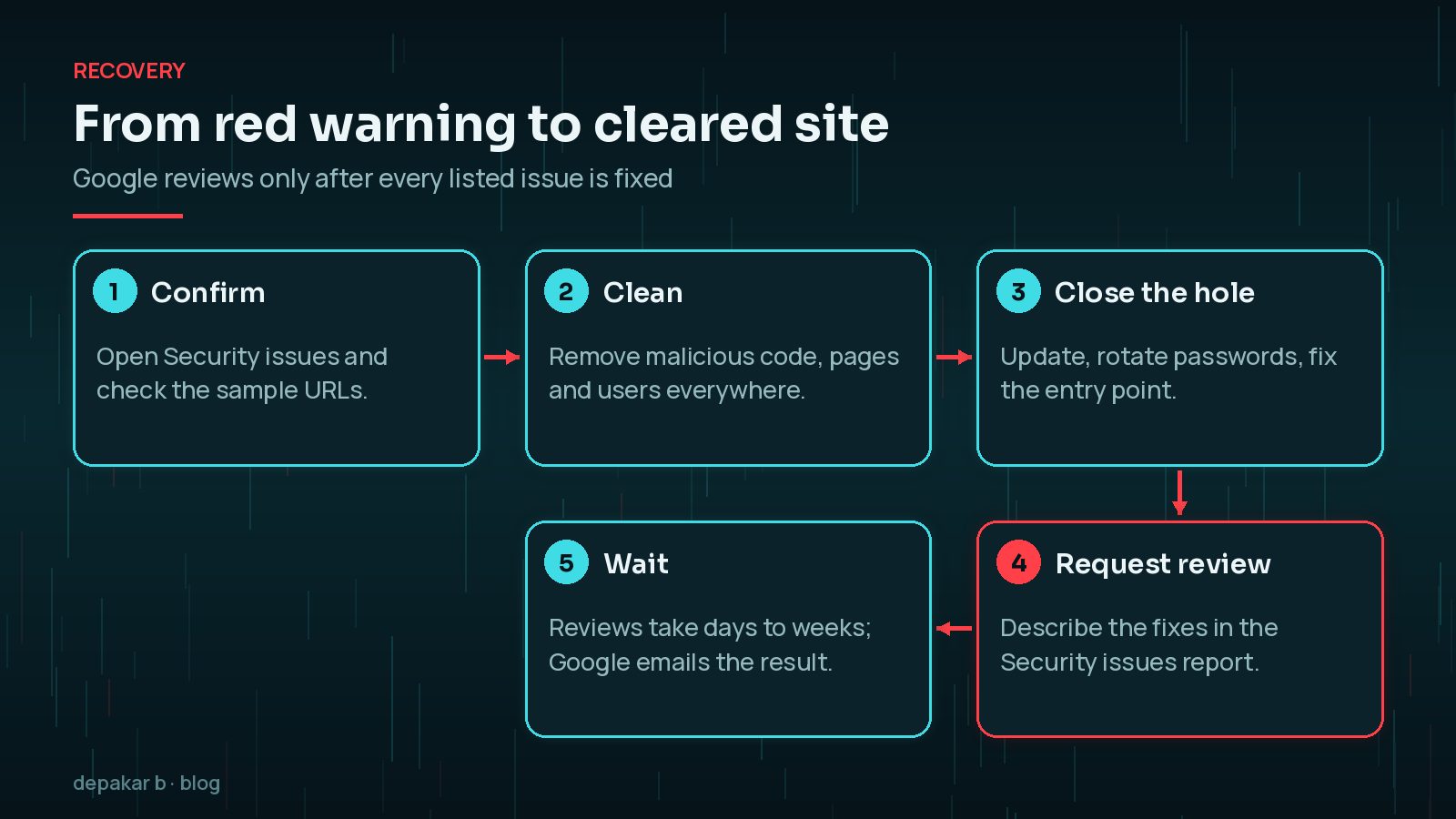
Sign in to Google Search Console, verify the site if you have not already, and open Security & Manual Actions › Security issues. The report lists each issue Google found, such as hacked content, code injection, URL injection or deceptive pages, often with sample URLs.
- Note every issue type, not just the first one. Google warns that a site can be affected by more than one.
- Open each sample URL while logged out, in a private window and on a phone. Attackers often hide content from administrators.
- View the page source and look for unfamiliar scripts, iframes or links.
- If the report shows no sample URLs and you are confident nothing deceptive is on the site, Google's guidance is still to request a security review in the same report.
You can also check a URL's current status with Google's Safe Browsing site status tool in the Transparency Report.
Cleaning the Site Before Requesting a Review
This is the step that decides whether your review succeeds. Google asks you to fix every listed issue on every page, not just the samples.

- Back up the site as it is, for evidence, then work on a copy where possible.
- Replace WordPress core files with fresh copies, and reinstall plugins and themes from trusted sources.
- Search for injected code in
wp-content, the uploads folder,.htaccessand the database, including posts and options. - Remove spam pages and unknown admin users.
- Close the way in: update everything, remove abandoned plugins, and change all passwords, keys and salts.
Clean first, review second. A request sent while malicious code is still on the site will be rejected and adds more delay. If you are not sure the site is clean, get help before you click Request Review.
My guide to cleaning a hacked WordPress site walks through the full process, and the malware clean-up checklist is a useful companion. If visitors are being sent elsewhere, see WordPress site redirecting to spam.
How to Request a Review and What to Write
When every issue is fixed, select Request Review in the Security issues report. Google's guidance says a good request does three things: explains the exact issue, describes the steps you took to fix it, and documents the outcome.
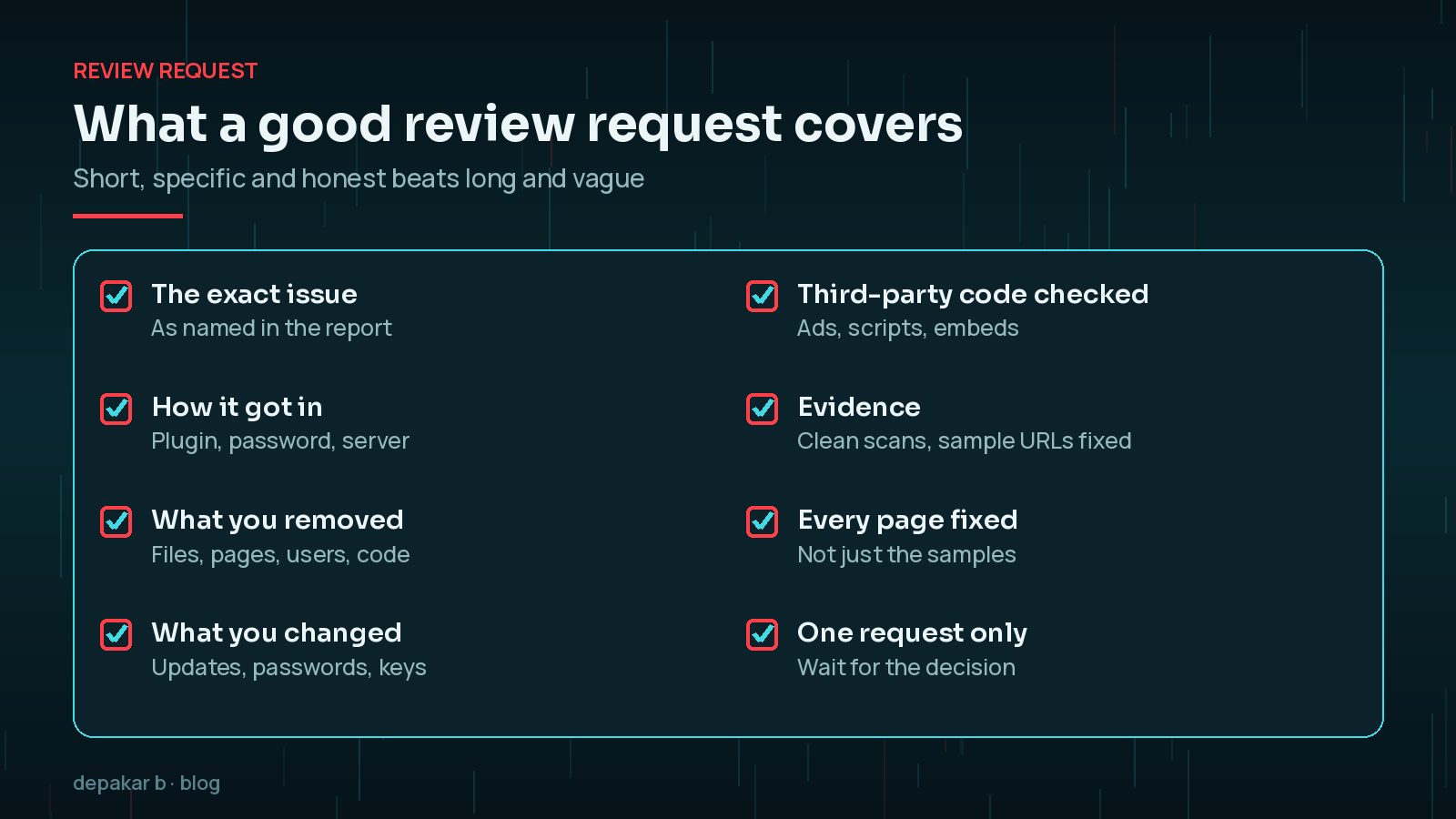
In practice, that means a few clear sentences:
- What Google reported and what you found, for example injected JavaScript in the theme header.
- How the attacker got in, if you know, and what you changed to stop it happening again.
- What you removed: files, spam pages, users, database entries.
- That you have checked all pages and any third-party scripts, ads or embeds.
Avoid vague promises. Concrete detail shows you understand the problem.
How Long Google Takes to Lift the Warning
Google says a security review can take from a few days to a few weeks. You receive a confirmation email when the request is received and another when the review is complete. Do not resubmit while a review is in progress.

If the request is rejected, read the response carefully, look again for what was missed, and fix it before trying again. Use the waiting time to harden the site, following my security hardening checklist after a hack.
Browser and Antivirus Blocklists Beyond Google
Google's list is the most visible, but it is not the only one. Microsoft Defender SmartScreen, which protects Microsoft Edge and Windows users, checks sites against its own list of reported phishing and malware sites. Antivirus products and company firewalls also keep their own blocklists.
- Test the site in Edge and other browsers once Google has cleared it.
- If a security product still blocks the site, look for its false-positive or site review form and explain that the site has been cleaned.
- Ask customers or colleagues who reported the warning which browser or product showed it.
Frequently Asked Questions
How long does it take Google to remove the warning?
Google says a security review can take from a few days to a few weeks. You get an email when the request is received and another when the review is complete. The warning is lifted once Google confirms the site is clean.
Can I request a review before the site is fully clean?
You can, but it is a bad idea. Google asks you to fix every listed issue on all pages before requesting a review, and a rejected request only adds delay. Do not resubmit while a review is still in progress.
Why does Google show a warning when I cannot see anything wrong?
Malicious code often hides from logged-in administrators or only appears for some visitors, such as mobile users or people arriving from search. Check the sample URLs from the Security issues report while logged out, on another device, and inspect the page source.
Does the warning affect my rankings?
Google says it tries to keep hacked content out of its results, and affected pages can show a warning label in search results or an interstitial in the browser. Either way, visitors are turned away, so treat the warning as an emergency rather than an SEO detail.
Do I need Search Console to remove the warning?
Yes. The Security issues report and the Request Review button are in Search Console, so verify ownership of the site first if you have not already.
Final Thoughts
To remove the deceptive site ahead warning, or any red Google warning, start with the Security issues report, clean every affected file and page, close the way in, and then request a review with a short, specific explanation. Expect it to take days rather than hours, and check other blocklists once Google is happy.
If your site is flagged right now and you need it cleaned and cleared quickly, my hacked site recovery service handles the clean-up and the review request for you.
Official References
Sources checked on 29 October 2026:
- Security issues report (Search Console Help)
- Social engineering (phishing and deceptive sites) (Google Search Central)
- Malware and unwanted software (Google Search Central)
- “This site may be hacked” message (Google Search Help)
- Safe Browsing site status (Google Transparency Report)
- Microsoft Defender SmartScreen overview (Microsoft Learn)