
If you want your website to talk to a CRM, a booking system, a mobile app or an internal tool, a WordPress REST API integration is usually how it happens. The REST API is built into WordPress, it's well documented, and it lets other software read and write your content in a predictable way.
This guide explains what the API is, common business uses, how reading and writing works, how custom endpoints are added in a plugin, which authentication options exist, and what to lock down for security and performance.

What the WordPress REST API Is
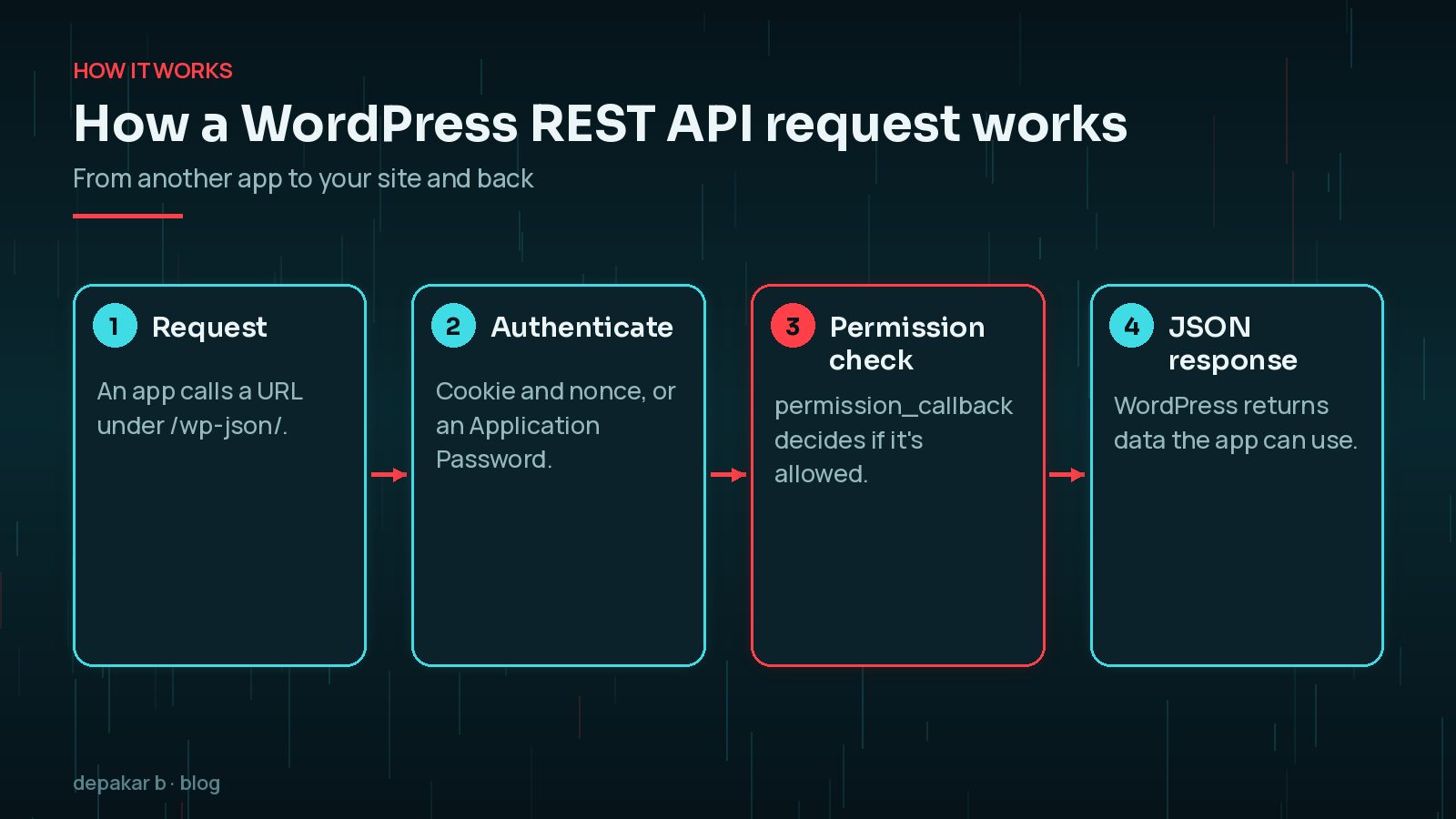
The WordPress REST API handbook describes it as an interface for applications to interact with your site by sending and receiving data as JSON. It is also the foundation of the block editor, so every modern WordPress site already uses it.
Endpoints live under /wp-json/. For example, https://yourdomain.com/wp-json/wp/v2/posts returns your published posts as JSON. Core provides endpoints for posts, pages, media, users, categories, tags and more, and plugins such as WooCommerce add their own.
Common Business Uses for It
- CRM syncing: sending form enquiries or customer records to a CRM. See my guide to WordPress CRM integration.
- Automation: creating posts or updating records from tools such as Zapier or Make. See WordPress webhooks and Zapier automation.
- Mobile apps and kiosks that show your site's content.
- Headless WordPress: using WordPress as the content back end for a separate front end built with another framework.
- Internal dashboards that pull orders, bookings or leads into one place.
- Publishing from other systems, such as a product database that keeps pages up to date.
Before building anything, check whether an existing plugin already connects the two systems. Many CRMs, form plugins and booking tools have official integrations that are cheaper to run than custom code. A custom integration makes sense when the existing options don't handle your data, your workflow or your volume properly.
It also helps to be clear about direction. The REST API is how other systems reach into WordPress. When WordPress needs to push data out, for example sending a new enquiry to a CRM the moment a form is submitted, your code calls the other system's API instead, usually with wp_remote_post(). Many integrations do both.
Reading and Writing Content in a WordPress REST API Integration
Reading public content needs no authentication. Your browser can open /wp-json/wp/v2/posts directly. Useful parameters from the handbook include:
per_page, an integer from 1 to 100, andpagefor pagination. Responses includeX-WP-TotalandX-WP-TotalPagesheaders._fieldsto return only the fields you need, which keeps responses smaller._embedto include related items such as the featured image or author.
Writing data, such as creating a post, needs an authenticated user with the right capability. A simple example using an Application Password from the command line:
curl -X POST https://yourdomain.com/wp-json/wp/v2/posts \
  -u "api-user:xxxx xxxx xxxx xxxx xxxx xxxx" \
  -H "Content-Type: application/json" \
  -d '{"title":"Hello from the API","status":"draft"}'
Visiting /wp-json/ on its own returns an index of the routes your site supports, including those added by plugins, which is a quick way to see what's available.
Creating drafts rather than publishing directly gives a person the chance to review what an automation sends.
Custom Endpoints in a Plugin
When the built-in endpoints don't fit, you can add your own. The handbook's approach is to call register_rest_route() inside a callback on the rest_api_init hook, with a namespace, a route and options:
add_action( 'rest_api_init', function () {
    register_rest_route( 'myplugin/v1', '/bookings/(?P<id>\d+)', array(
        'methods'             => 'GET',
        'callback'            => 'myplugin_get_booking',
        'permission_callback' => function () {
            return current_user_can( 'edit_posts' );
        },
        'args'                => array(
            'id' => array(
                'validate_callback' => function ( $value ) {
                    return is_numeric( $value );
                },
            ),
        ),
    ) );
} );
Keep custom endpoints in a plugin rather than your theme, so they survive a redesign. A namespace with a version, such as myplugin/v1, lets you change things later without breaking existing integrations. If you're weighing up the cost of a bespoke build, see custom WordPress plugin development cost.
Authentication Options
The handbook describes three main approaches.
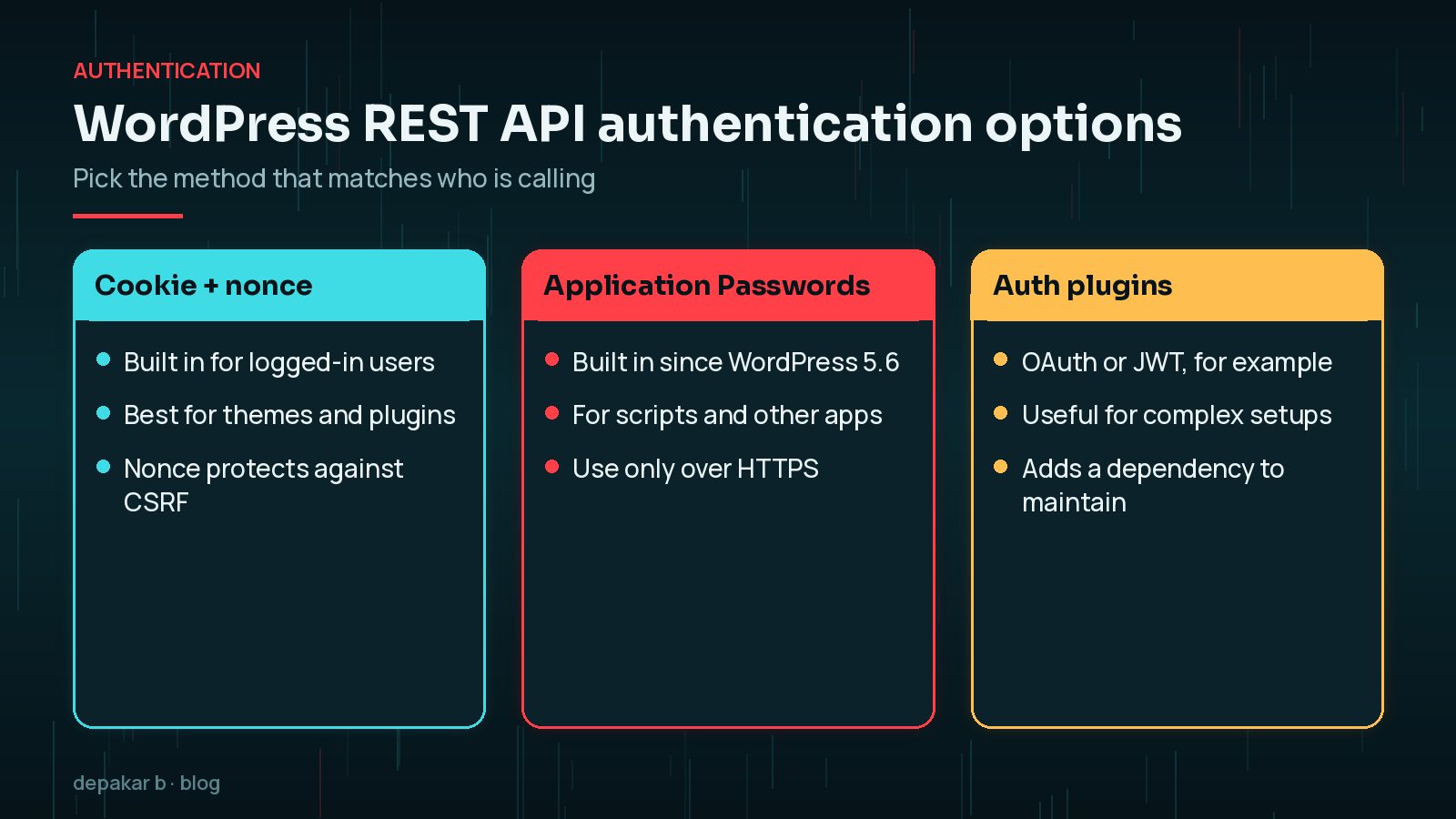
- Cookie authentication with a nonce is the standard method for code running inside WordPress for a logged-in user. The nonce, with the action
wp_rest, protects against cross-site request forgery. The handbook recommends this for plugins and themes. - Application Passwords have shipped with WordPress since 5.6. You generate them on a user's profile page, and other apps send them with Basic Auth over HTTPS. They suit scripts and external services. My guide to Application Passwords security covers safe use.
- Authentication plugins add other methods, such as OAuth 1.0a or JSON Web Tokens, for more complex remote applications.
Don't use the old Basic Authentication plugin in production. The handbook notes it sends your username and password with every request and should only be used for development and testing.
Security: What to Lock Down
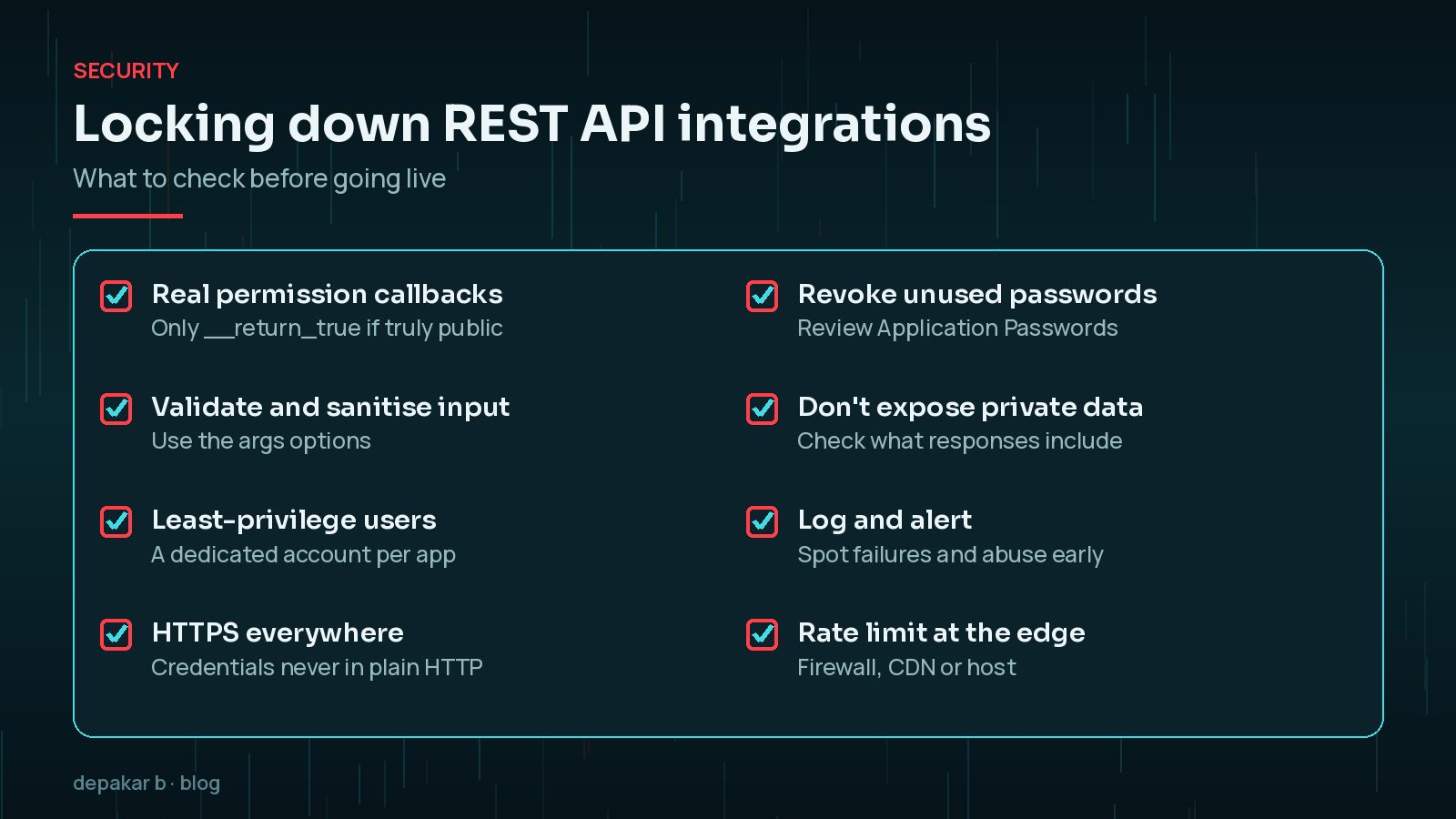
- Permission callbacks. Every route needs a
permission_callback. Use__return_trueonly for genuinely public data. - Validate and sanitise input with
validate_callbackandsanitize_callbackin your route's arguments. - Least-privilege users. Create a dedicated user for each integration with only the role it needs, and its own Application Password, so you can revoke one without affecting others.
- HTTPS only, so credentials are never sent in plain text.
- Check what responses expose. Custom endpoints shouldn't return email addresses, order details or private fields to anyone who asks.
- Review and revoke unused Application Passwords regularly, especially when a team member leaves or a service is retired.
- Keep secrets out of code. Store API keys for other services in
wp-config.phpor environment variables rather than hard-coding them in theme or plugin files that end up in version control.

Performance and Rate Limits
WordPress core doesn't rate-limit REST API requests itself, so limits usually come from your host, firewall, CDN or a security plugin. Meanwhile, the services you call often have their own limits.
- Request only what you need with
_fieldsand sensibleper_pagevalues. - Cache responses from external APIs in transients rather than calling them on every page load.
- Move heavy syncing to the background with scheduled jobs, rather than making visitors wait.
- Respect the other side's limits: back off and retry on errors, and log failures so you can see them.
- Protect busy endpoints with rate limiting at the firewall or CDN if bots start hammering them.
Frequently Asked Questions
What is the WordPress REST API?
A built-in interface that lets other applications read and write your WordPress content as JSON, through URLs under /wp-json/. It also powers the block editor.
Is the WordPress REST API secure?
It can be. Core endpoints check permissions, but custom endpoints need proper permission callbacks, input validation, HTTPS and least-privilege users. Most problems come from careless custom code.
How do I authenticate with the WordPress REST API?
Use cookie authentication with a nonce for code inside WordPress, Application Passwords for external scripts and services over HTTPS, or an authentication plugin for OAuth or JWT.
Can I add a custom REST API endpoint?
Yes. Use register_rest_route() on the rest_api_init hook in a plugin, with a namespace, a route, a callback and a permission_callback.
Can I use WordPress as a headless CMS?
Yes. The REST API lets a separate front end fetch content from WordPress, though you take on more development and maintenance.
Final Thoughts
A WordPress REST API integration can connect your site to almost anything, from a CRM to a mobile app. Use the built-in endpoints where you can, add custom routes in a plugin when you must, choose the right authentication, and lock down permissions before going live.
If you need an integration built properly, my custom plugin development service covers API work, security and documentation.
Authenticate carefully, check permissions on every route, and request only what you need.
Official References
Sources checked on 29 October 2026: