
WordPress Application Passwords have been part of core since WordPress 5.6. They let an app, script or service talk to your site through the REST API without ever knowing your real login password. That is a genuine security improvement, and it is also a quiet place for unwanted access to hide.
This guide covers what they are, why they turn up after a breach, how to audit and revoke them, when disabling them makes sense, and what the WordPress 7.2 roadmap says is coming.
What Are WordPress Application Passwords and Who Uses Them?
An Application Password is a separate, randomly generated password attached to one WordPress user. According to the core integration guide, each one is 24 characters long, made only of letters and numbers, and is shown to you a single time when you create it. WordPress stores a hashed copy, along with a name, the date it was created and when and from which IP address it was last used.
Typical users include:
- CRM, membership or accounting tools that sync data with your site
- Headless front ends built with frameworks such as Next.js
- Publishing and mobile apps that create or edit posts remotely
- Automation scripts, deployment tools and backup services
- AI agents connected through tools such as the WordPress MCP Adapter
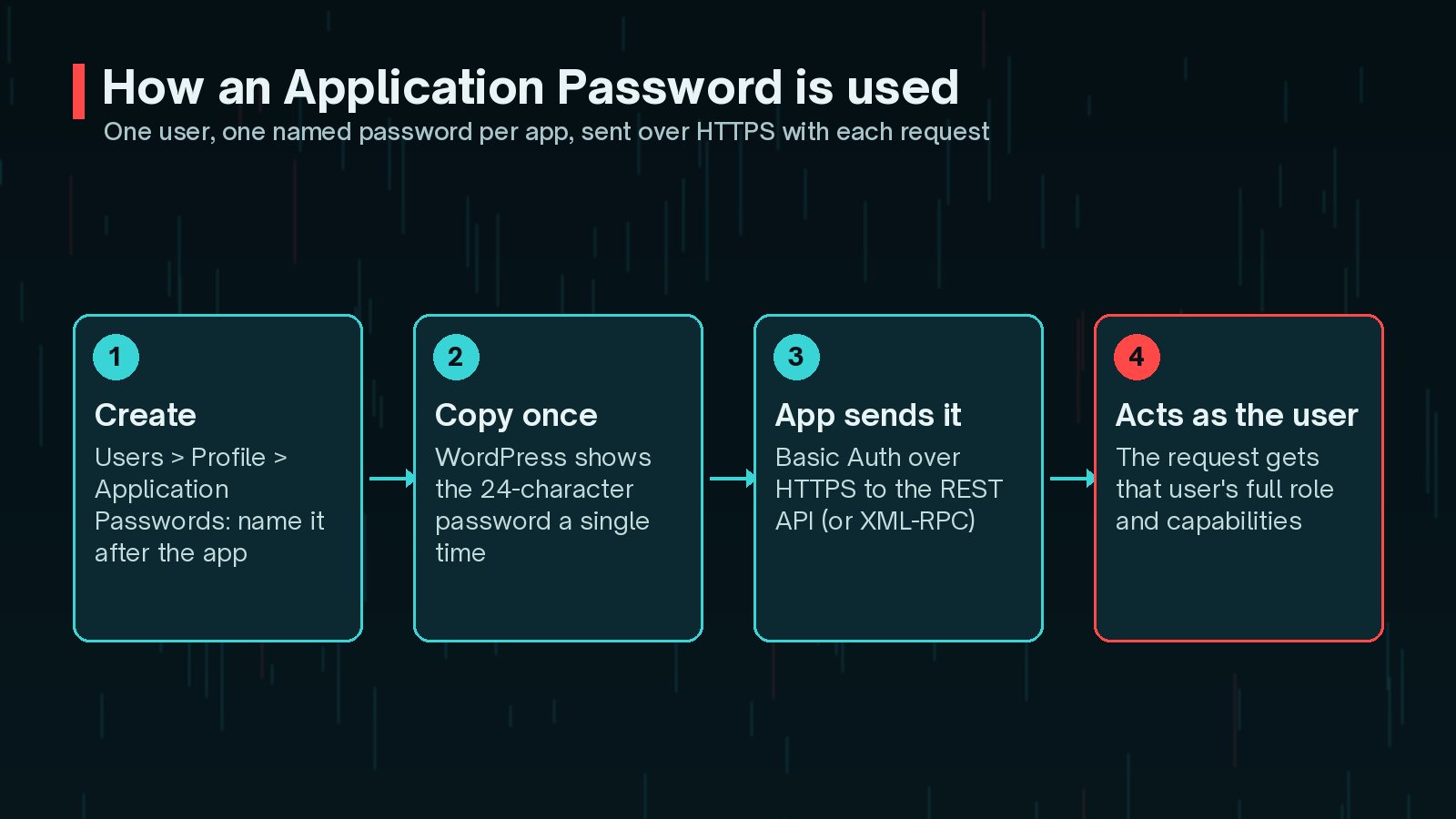
The key point sits in the last step. There is no built-in scoping: a password on an administrator account can do anything that administrator can do through the API.
Why Attackers Target Application Passwords After a Breach
When someone gains admin access, through a stolen login, a vulnerable plugin or a supply-chain incident, their first job is to make sure they can get back in. Creating an Application Password is attractive for three reasons:
- It does not show up where people look. Owners check the Users list and the Plugins screen. Few open each profile and scroll to the Application Passwords section.
- It is separate from the login password. Do not assume a password reset removes it. Check and revoke it explicitly.
- It works from anywhere. The API accepts it over HTTPS from any server, so there is no login screen, two-factor prompt or CAPTCHA in the way.
That is why my post-hack hardening checklist treats Application Passwords as one of the places to clear out, alongside admin accounts, salts and API keys.

How Do I See Which Application Passwords Exist on My Site?
In wp-admin, go to Users, open a user and scroll to Application Passwords. Administrators can view and revoke them on other users' profiles. On a site with many users, WP-CLI is much faster:
wp user list --role=administrator --fields=ID,user_login
      wp user application-password list 1 --fields=uuid,name,created,last_used,last_ip
Run the second command for each user ID that matters, starting with administrators and editors. If an administrator account looks unfamiliar, stop and read my guide to finding hidden admin users first, because the Users screen can be filtered by malicious code.
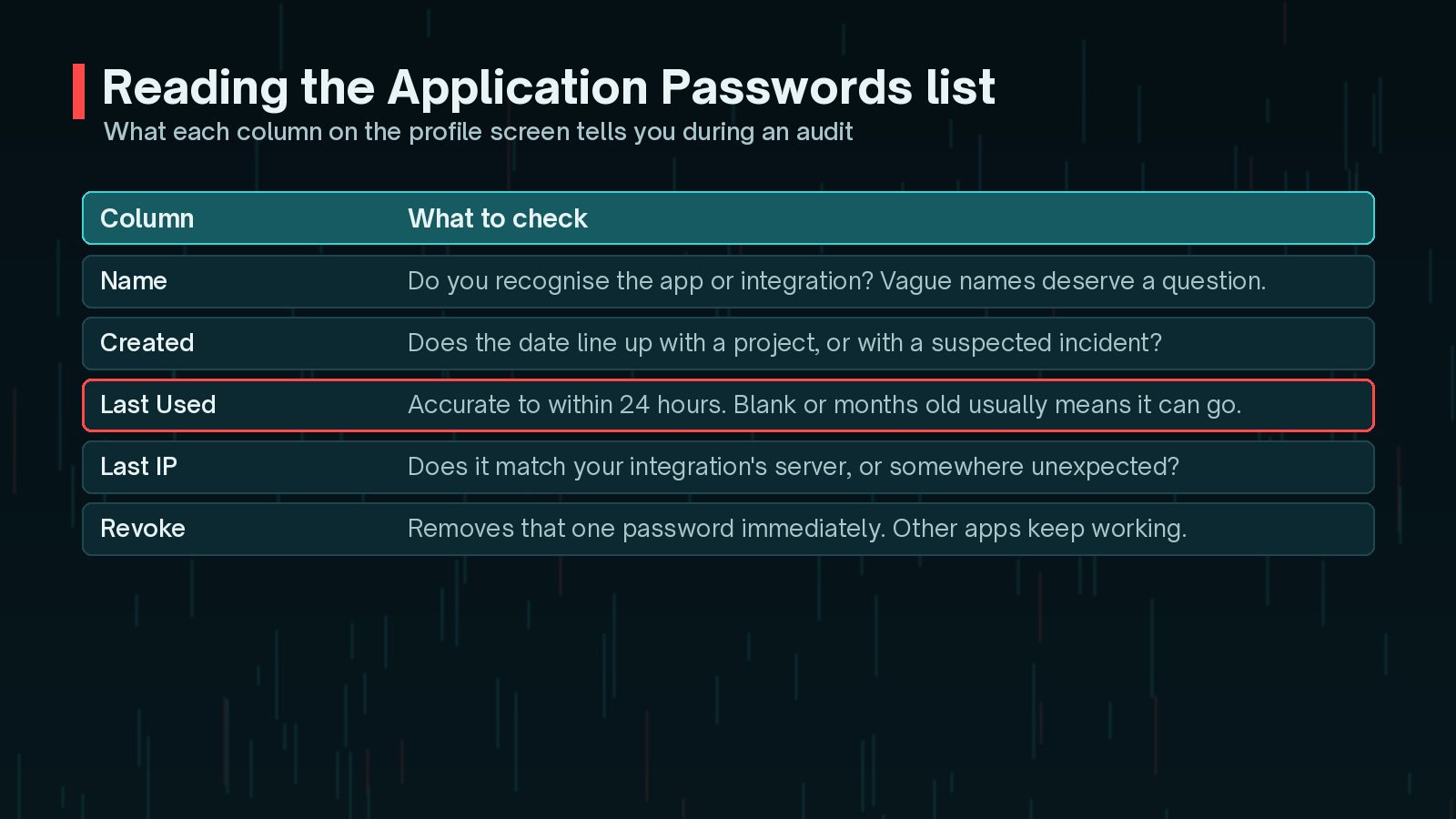
For each entry, ask three questions. Do I know what this is? Is it still in use? Should it really belong to this user, with this role?
How to Revoke an Application Password Safely
Revoking takes one click, but a little preparation avoids breaking a live integration by accident.
- Identify the owner. Match the name and Last IP to a known service. Ask colleagues or your agency if anything is unclear.
- Revoke the unknowns first. Anything you cannot explain goes immediately. If it was legitimate, someone will notice and you can issue a fresh one.
- Replace rather than reuse. For known integrations on an admin account, create a new password on a dedicated, lower-privilege user, update the integration, then revoke the old one.
- Use Revoke all after an incident. Each profile has a button to revoke every Application Password for that user. Then reissue only what you need.
The equivalent WP-CLI commands are:
wp user application-password delete 1 <uuid>
      wp user application-password delete 1 --all
After a breach, revoke before you rotate. Clean the site, revoke all Application Passwords on privileged accounts, then change passwords and salts. Otherwise a forgotten credential may still be working after you think you have locked the door.
Should You Disable Application Passwords Entirely?
Sometimes, yes. If nothing on the site uses the REST API with external authentication, switching the feature off removes a whole category of risk. The integration guide documents a one-line filter, which belongs in a small must-use plugin rather than a theme:
add_filter( 'wp_is_application_passwords_available', '__return_false' );A more flexible approach is to allow them only for certain users. The wp_is_application_passwords_available_for_user filter lets you limit the feature to, for example, administrators or one dedicated integration account. That keeps integrations working while stopping ordinary author or editor accounts from creating credentials.
My rule of thumb:
- Brochure site, no integrations: disable.
- Site with one or two integrations: restrict to a dedicated integration user with the lowest role that works.
- Headless or heavily integrated site: keep them, document every password and audit monthly.
Note that, by default, the feature is only available on sites served over HTTPS, or on environments WordPress recognises as local development. Without HTTPS, the password could be read in transit.
What Changes in WordPress 7.2 (Email Notice, HTTPS Checks)?
The official Roadmap to 7.2, published on 18 September 2026, lists a round of Application Passwords hardening. The tasks it names are:
- UX improvements to the Application Passwords screens
- An email notification when an Application Password is added
- A fix for non-HTTPS sites, where WordPress asks for a development environment but actually requires a local one
- Preventing the
default_rolesetting from being set to dangerous values - Support for the SameSite cookie attribute

The email notice is the change most site owners will see. If you receive one you did not expect, treat it as a possible compromise: revoke the password, change the account password and look for other changes. Tell clients about it before release, so a legitimate notice does not cause panic.
WordPress 7.2 is scheduled for 8 December 2026, and the roadmap says listed items may not all make the final release. My WordPress 7.2 update checklist tracks what has been confirmed so far.
A Monthly Application Password Audit Checklist
A short, regular check is far easier than an emergency hunt. Copy this into your maintenance routine.
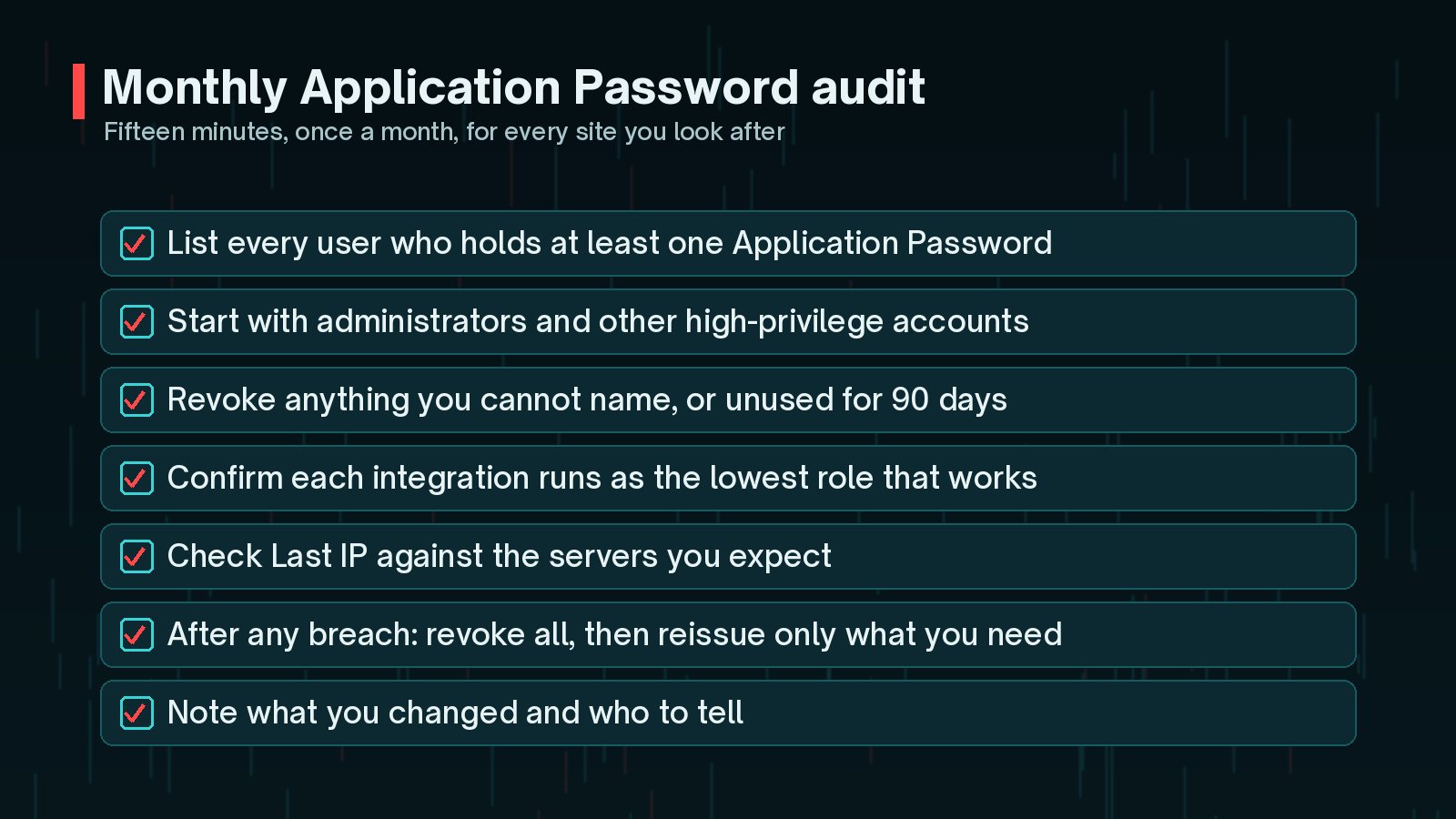
- List every user who holds at least one Application Password.
- Start with administrators and other high-privilege accounts.
- Revoke anything you cannot name, or that has not been used for around 90 days.
- Confirm each integration runs as the lowest role that works.
- Compare Last IP with the servers you expect.
- After any security incident, revoke all and reissue only what you need.
- Record what you changed and tell the people who own each integration.
Frequently Asked Questions
Does changing my WordPress password revoke Application Passwords?
Do not rely on it. Application Passwords are stored separately from your login password, so after a password reset you should still open the profile, check the Application Passwords list and revoke anything you do not recognise. After a suspected breach, use Revoke all and reissue only what you need.
Can someone log in to wp-admin with an Application Password?
No. WordPress accepts Application Passwords for API requests such as the REST API and XML-RPC, not for interactive logins on wp-login.php. They still matter, because an API request carries the same permissions as the user it belongs to.
Is it safe to disable Application Passwords?
It is safe for the site, but it will break any integration that relies on them, such as a CRM sync, a headless front end, some mobile or publishing apps, or an AI agent connection. List what uses them first. Restricting them to administrators or a dedicated integration user is often a better middle ground.
Will WordPress 7.2 email me when an Application Password is created?
The Roadmap to 7.2 lists an email notification when an Application Password is added, along with other hardening work. Roadmap items can still be dropped before the 8 December 2026 release, so check the final release notes before relying on it.
How often should I audit Application Passwords?
Monthly is a sensible rhythm for business sites, and immediately after any security incident, staff change or agency handover. The check takes a few minutes per site once you know where to look.
Final Thoughts
WordPress Application Passwords are a good design: revocable, named and never usable on the login form. The risk comes from neglect. Passwords pile up on admin accounts, nobody remembers what they are for, and a credential created during a breach sits there unnoticed.
Audit the list, revoke what you cannot explain, move integrations to low-privilege users and look out for the new email notice when 7.2 arrives. If you think someone has already used an Application Password to get back into your site, my hacked site recovery service covers the full clean-up and lockdown.
Official References
Sources checked on 29 October 2026: