
Most businesses add a CRM because leads are getting lost in inboxes and spreadsheets. A good WordPress CRM integration fixes that by sending enquiries and customer data straight from your site into your sales and support tools. A bad one quietly creates new problems. Here is how to get it right.
What a WordPress CRM Integration Should Do
Before choosing a tool, write down what you want the integration to achieve. For most small and medium businesses, the list looks like this:
- Create a contact or lead when someone submits an enquiry form.
- Update the existing record when the same person gets in touch again.
- Record where the lead came from, such as the form or page.
- Pass marketing consent accurately, so you only email people who agreed.
- Optionally sync WooCommerce customers and orders for follow-up and reporting.
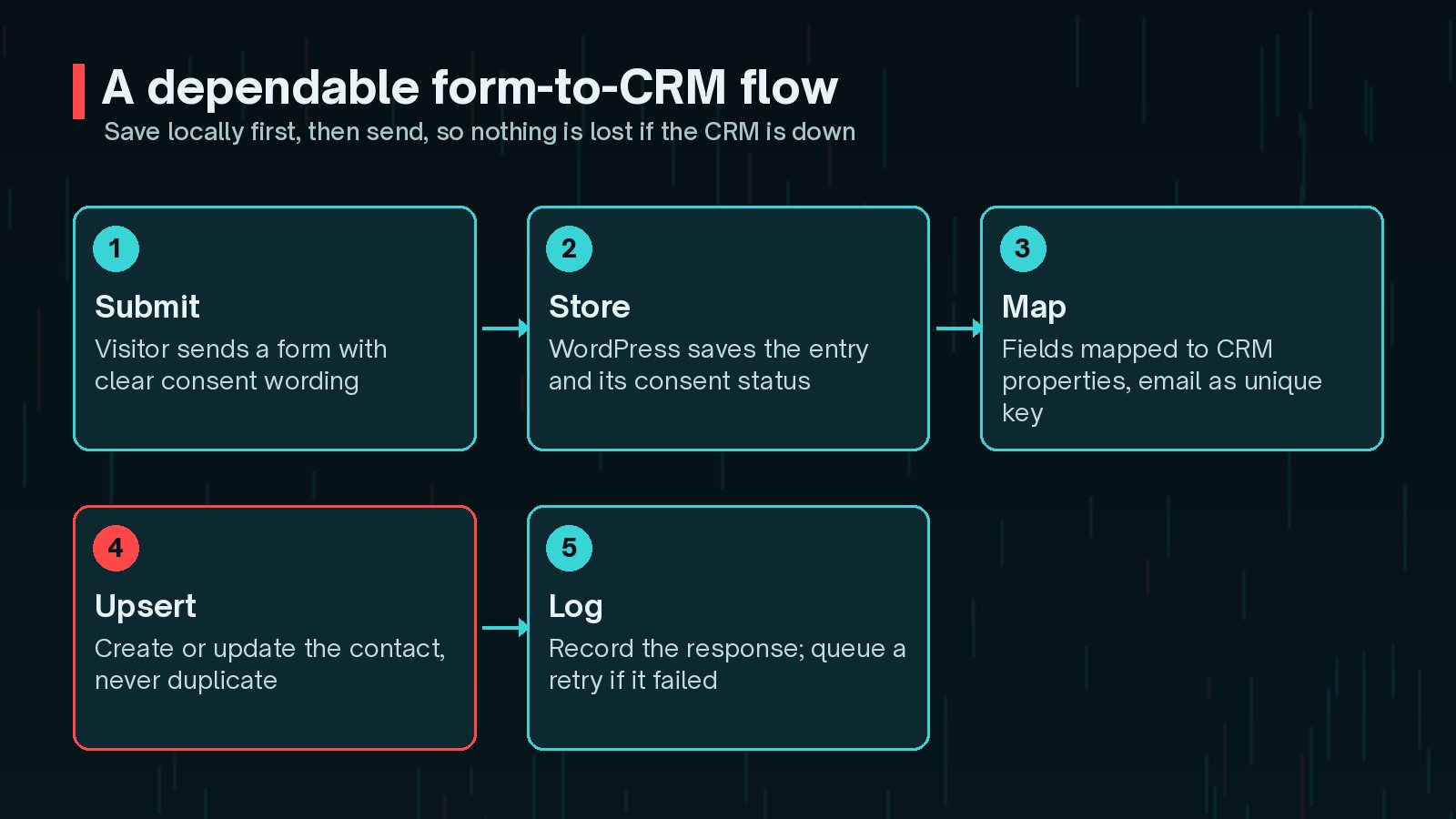
Just as important is what it should not do. It should not slow down the form for the visitor, send data the CRM does not need, or fail silently.
Plugin Connectors vs Custom
You have three broad options.
- Official CRM plugins: HubSpot, Zoho and others offer WordPress plugins or form add-ons. They are quick to set up and maintained by the vendor, but may not support every custom field or rule.
- Form plugin add-ons: many form plugins have CRM add-ons. These work well when your data starts in forms. I compare popular options in my guide to WordPress forms and integrations.
- Custom integration: a small plugin that calls the CRM's API. It takes more effort, but gives you full control over mapping, matching, logging and retries.
There are also automation platforms that sit between WordPress and the CRM. They are useful for simple flows, but add another service to pay for and monitor.
A sensible rule: use a well-maintained connector when it does exactly what you need, and go custom when you find yourself working around its limits. If you are weighing up a custom build, my article on custom WordPress plugin cost factors explains what affects the effort.
Mapping Form Fields and Avoiding Duplicates
Field mapping decides which form field goes into which CRM property. Do it on paper first. It forces useful decisions, such as how to split names and which dropdown values match your CRM's lead sources.
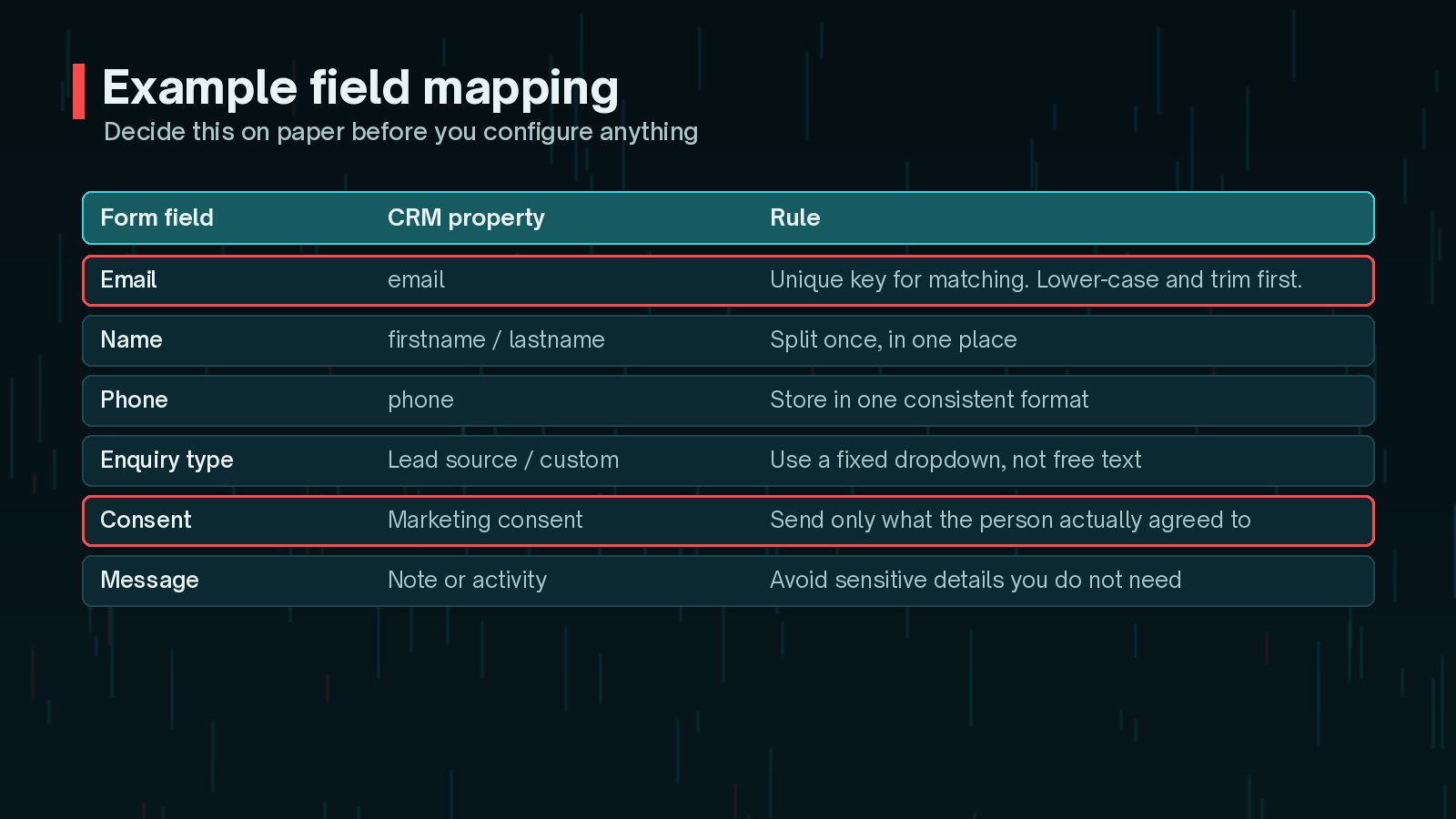
Duplicates are the most common complaint about CRM integrations. They usually happen because the integration always creates a new record. Both major CRMs offer a better way:
- HubSpot documents a batch upsert for contacts that matches on email or on a custom unique property, updating the record if it exists and creating it if not.
- Zoho CRM has an upsert method that checks system duplicate fields, such as email for leads, and any unique fields you define. You can set the order with
duplicate_check_fields.

Clean the matching value before sending it. Trim spaces and lower-case email addresses, so Jane@Example.com and jane@example.com are treated as the same person.
Syncing WooCommerce Customers and Orders
If you run a WooCommerce store, a CRM can help with follow-up, repeat purchases and support. Decide what level of detail your team actually needs:
- Customer level: name, email, total orders and last order date.
- Order level: order number, date, total, status and products.
- Events: order completed, refunded or cancelled, used to trigger CRM workflows.
Send changes when they happen, on WooCommerce order status hooks, rather than re-syncing everything on a schedule. Use the order ID as a reference in the CRM, so a status change updates the same record. Guest checkouts need care, because there is no WordPress user to match on, so fall back to the billing email.
Consent, GDPR/DPDP and Data You Shouldn't Send
A CRM integration copies personal data into another system, so privacy law applies. In the EU and UK, the GDPR expects a lawful basis, transparency and data minimisation. In India, the Digital Personal Data Protection Act, 2023 sets out duties around consent and the purpose of processing. I am not giving legal advice here, but some practical rules are widely sensible:
- Send only the fields your team uses. Data minimisation reduces risk.
- Pass marketing consent exactly as given. An unticked box must never become a subscriber.
- Mention the CRM in your privacy notice as a place you store data.
- Do not send passwords, payment card details or sensitive notes the visitor typed into a message field without thinking.
Never sync payment data. Card details belong with your payment provider. If a form or order note might contain sensitive information, leave it out of the sync or review it before it is sent.
Handling Failures and Retries
CRMs have outages, API tokens expire and rate limits get hit. A dependable WordPress CRM integration expects this.

WordPress includes an HTTP API for talking to external services. Its handbook notes that the default timeout is five seconds, and functions such as is_wp_error() and wp_remote_retrieve_response_code() help you check what happened:
$response = wp_remote_post( $crm_endpoint, array(
          'headers' => array(
              'Authorization' => 'Bearer ' . $token,
              'Content-Type'  => 'application/json',
          ),
          'body'    => wp_json_encode( $payload ),
          'timeout' => 10,
      ) );

      $code = wp_remote_retrieve_response_code( $response );
      if ( is_wp_error( $response ) || $code < 200 || $code >= 300 ) {
          // Log the failure and schedule a retry instead of losing the lead.
          my_crm_queue_retry( $entry_id );
      }
Good habits for failures:
- Store every entry in WordPress first, then send it.
- Send in the background, using WP-Cron or a queue, so visitors never wait for the CRM.
- Retry a few times with increasing gaps, then alert someone.
- Keep a simple log of successes and failures that a non-developer can read.
- Store API tokens outside the database where possible, and never in the theme.
If you are building more than one connection, my guide to the WordPress REST API for integrations covers authentication and structure in more depth.
Testing Before You Rely on It
Test on a staging site connected to a test CRM account or sandbox if your plan offers one. Then run a short check on live with your own details.
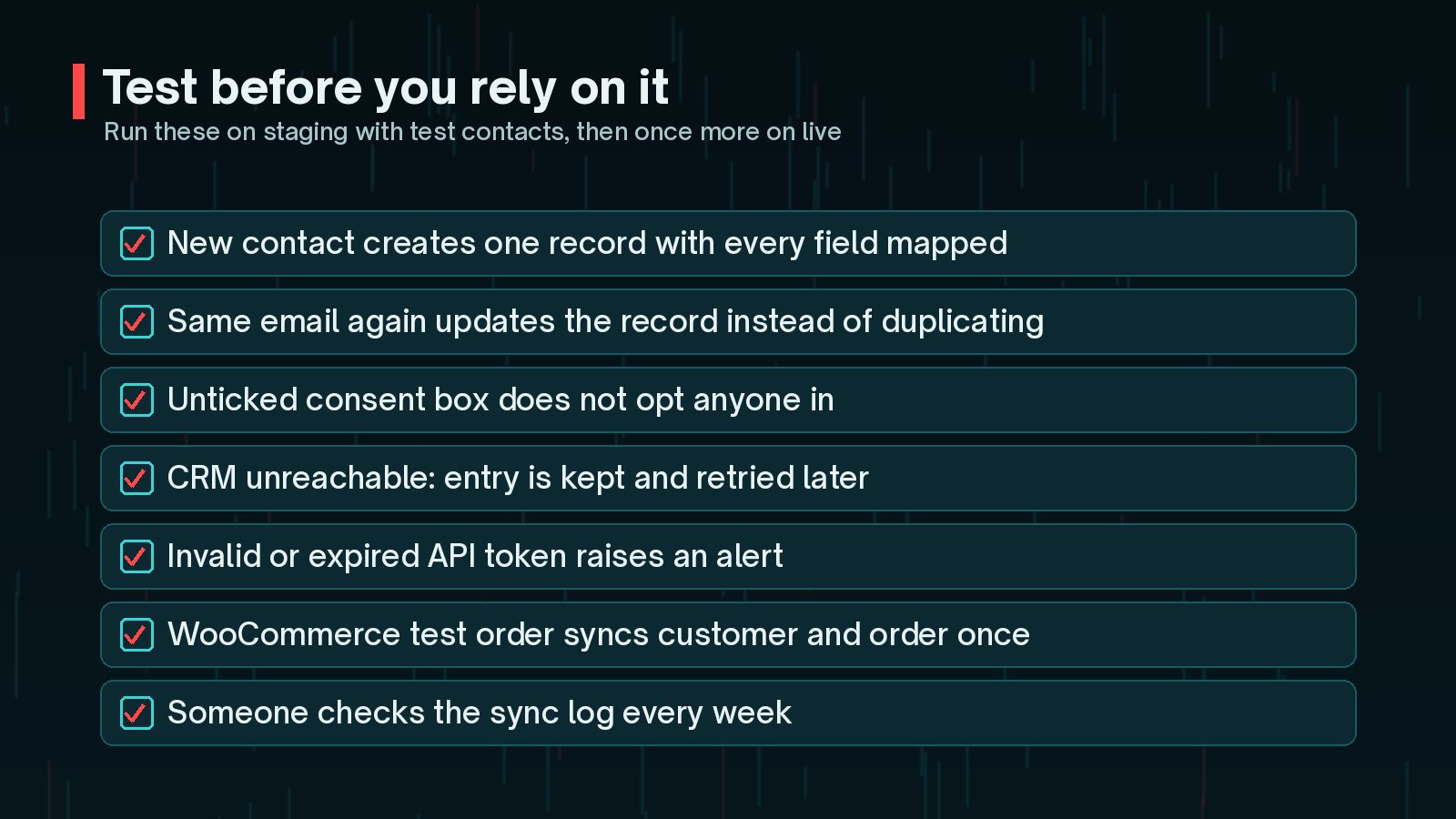
Keep going after launch. Check the sync log weekly for the first month, and compare the number of form entries in WordPress with the number of new contacts in the CRM. If they drift apart, something is failing quietly.
Frequently Asked Questions
Do I need a developer for a WordPress CRM integration?
Not always. If an official or well-maintained connector does exactly what you need, you can often set it up yourself. You need a developer when you have custom fields, unusual matching rules, WooCommerce data you want to shape, or a CRM without a good connector.
How do I stop duplicate contacts in my CRM?
Pick one unique identifier, usually the email address, clean it before sending, and use the CRM's create-or-update method instead of always creating new records. HubSpot and Zoho both document upsert options that match on a unique field.
Should I send every WooCommerce order to the CRM?
Only if your team will use it. Many businesses need the customer, total, date and products, not every line of order metadata. Sending less is easier to maintain and reduces the personal data you hold in two places.
What happens if the CRM is down when someone submits a form?
If the integration is built well, nothing is lost. The entry is saved in WordPress first, the failed request is logged and the sync is retried later. If your set-up only sends data live with no copy, a CRM outage can lose leads.
Is it legal to send form data to a CRM?
Usually yes, if you have a lawful reason, explain it in your privacy notice and respect what people agreed to. GDPR and India's Digital Personal Data Protection Act, 2023 both expect this. For advice on your situation, speak to a qualified privacy professional.
Final Thoughts
A WordPress CRM integration is worth doing carefully. Decide what it should do, map fields on paper, match on a clean unique value, send only what you need, and plan for failure from the start. Then test it as if your leads depend on it, because they do.
If you need a connector built around your own forms, fields and workflows, my custom plugin development service can design and build it with logging and retries included.
Official References
Sources checked on 29 October 2026: