
A WordPress plugin conflict happens when two plugins, or a plugin and your theme, interfere with each other. Each one may work perfectly alone. Together, they load clashing JavaScript, override the same function or change data the other relies on.
The fix starts with finding out exactly which pieces are involved. Guessing and switching things off on a live site usually makes matters worse.
What a WordPress Plugin Conflict Looks Like
Conflicts show up in different places depending on where the clash happens.
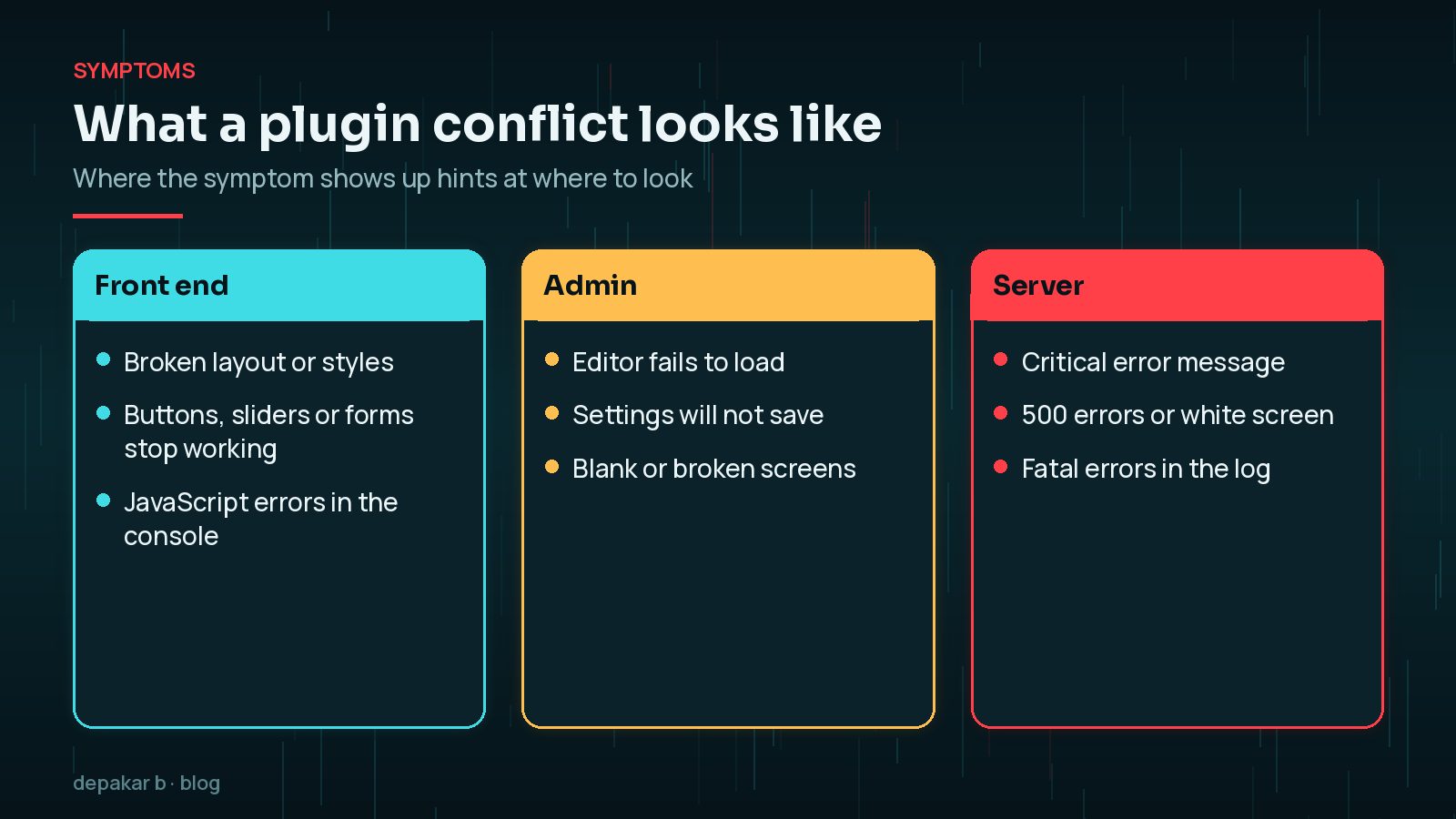
- On the front end: broken layouts, sliders or forms that stop working, buttons that do nothing.
- In the admin: the block editor fails to load, settings will not save, screens are blank.
- On the server: a critical error message, a 500 error or a white screen. If you see the critical error, my guide to the WordPress critical error covers recovery mode.
Before you change anything, write down exactly how to reproduce the problem: which page, which button, logged in or out, which browser. A reliable way to trigger the fault is what makes every later test meaningful. Take a screenshot too, because some conflicts look different after a cache clears.
Note when it started. If the problem appeared straight after an update, the updated plugin is your first suspect, but not necessarily the only one involved.
Using Troubleshooting Mode Without Affecting Visitors
The WordPress.org Health Check & Troubleshooting plugin offers a Troubleshooting Mode. Its description says it gives you a clean WordPress session where all plugins are disabled and a default theme is used, but only for your user, until you turn it off or log out. You can then enable plugins one at a time in that session while visitors see the normal site.
Checked October 2026: the plugin's WordPress.org page warns that it has not been tested with the latest three major WordPress releases. It may still work, but take a backup before using it on a live site, and prefer a staging copy for shops and membership sites.
A staging site is the safest place to troubleshoot in any case. You can switch plugins on and off freely, and nobody else is affected.
The Half-Split Method for Many Plugins
Testing one plugin at a time works for a handful of plugins. With thirty, it takes too long. The half-split method finds the culprit in a few rounds.
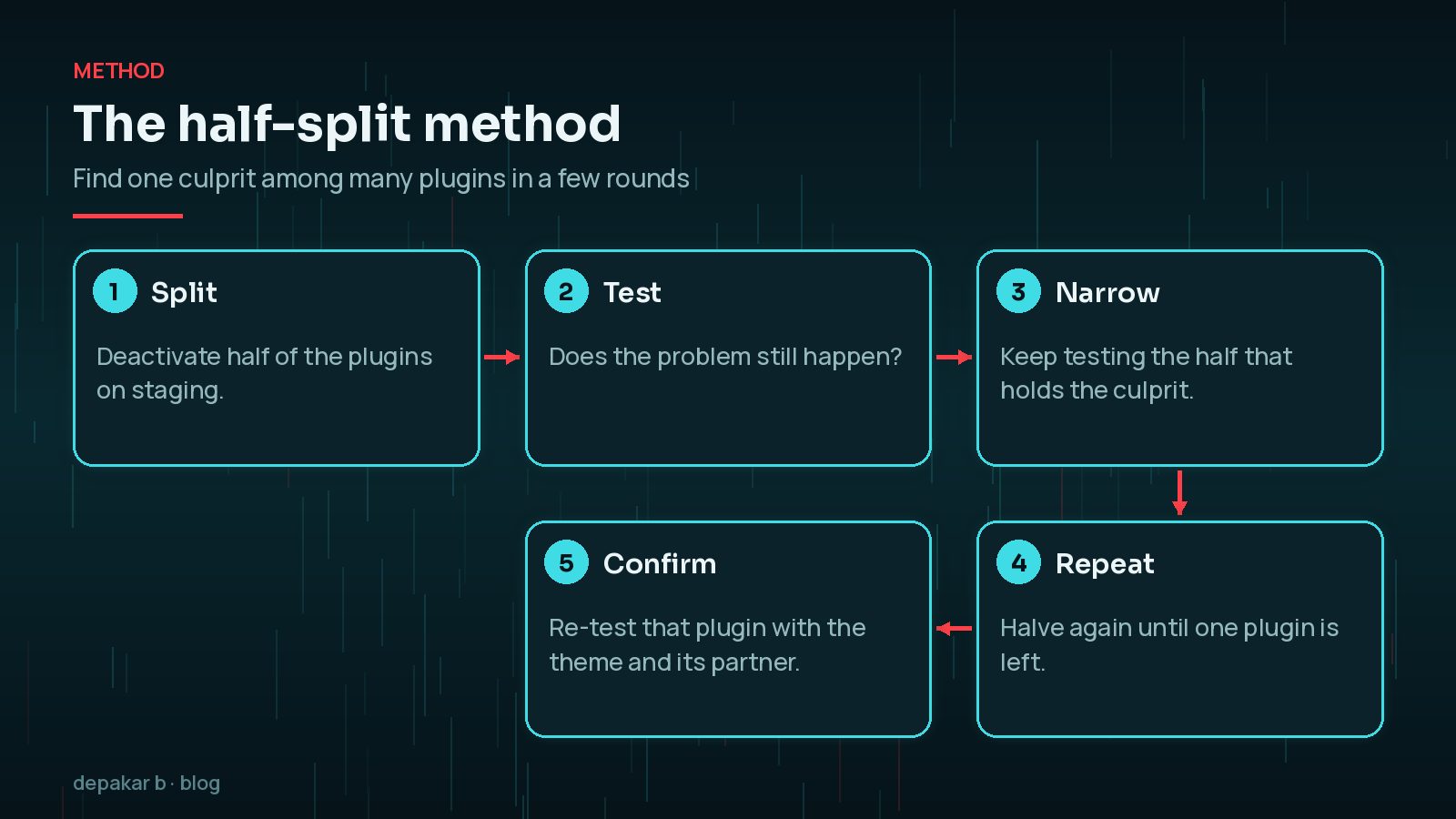
- Split: on staging, deactivate half of your plugins.
- Test: check whether the problem still happens.
- Narrow: if it is gone, the culprit is in the half you switched off. If not, it is in the half still active.
- Repeat: keep halving the suspect group until one plugin remains.
- Confirm: with only that plugin and the default theme active, see whether the problem returns. If not, add plugins back until you find its partner.
Keep plugins your site depends on, such as WooCommerce, active throughout if the problem involves them, and split the others around it.
Reading Browser Console and PHP Logs
Evidence is faster than trial and error. Errors usually name a file, and file paths include the plugin's folder name.
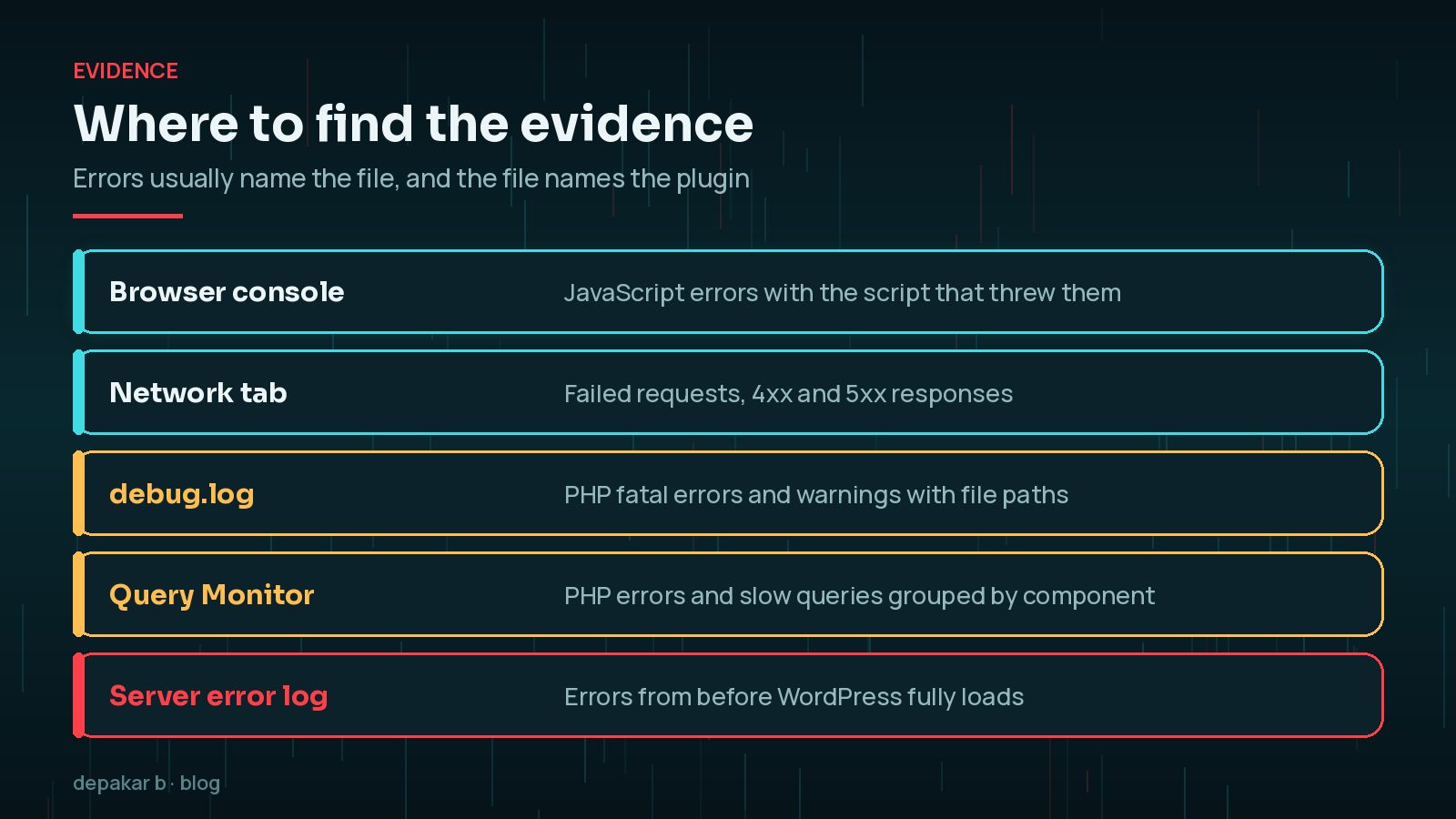
- Browser console: open developer tools and reload the page. JavaScript errors show the script that failed.
- Network tab: failed requests, especially to admin-ajax or the REST API, often reveal a PHP error behind them.
- PHP debug log: enable
WP_DEBUGandWP_DEBUG_LOGwith display turned off. Errors are written towp-content/debug.log. - Query Monitor: shows PHP errors, hooks and scripts, and can group them by plugin or theme.
- Server error log: your host's logs catch errors that happen before WordPress can log them.
define( 'WP_DEBUG', true );
      define( 'WP_DEBUG_LOG', true );
      define( 'WP_DEBUG_DISPLAY', false );
Theme vs Plugin Conflicts
The WordPress troubleshooting FAQ suggests switching to a default theme as one of the first checks. If the problem disappears with a default theme active, your theme is part of the conflict.
- Child theme snippets in
functions.phpoften override plugin behaviour or load old library versions. - Page builders and heavily customised themes bundle their own scripts that can clash with plugins.
- Optimisation settings that combine or defer scripts can break plugins that expect a certain load order.
To tell them apart, test in two stages: default theme with all plugins active, then your own theme with all plugins off. Whichever combination brings the problem back points to the side that needs attention, and often to a specific snippet or setting you can test on its own.

Reporting the Conflict to Developers
A clear report gets a faster fix. Post in the plugin's support forum on WordPress.org or contact the vendor with:
- The WordPress, PHP, plugin and theme versions involved.
- Exact steps to reproduce, ideally on a clean site with only the two conflicting components.
- The error messages from the console or debug log.
- What you have already tried.
The Health Check plugin describes a debug section that gathers information about your WordPress and server configuration for sharing with support. Remove anything private before posting it publicly.
Fixing It Permanently
Once you know the culprit, choose the most durable fix:
- Wait for a fix and roll back in the meantime, if the developer confirms the problem.
- Adjust settings, such as excluding a script from minification.
- Replace the plugin with a better-maintained alternative. My guide to replacing an abandoned plugin explains how.
- Reduce overlap: two plugins doing similar jobs are more likely to clash. See how many WordPress plugins is too many.
Then stop it happening again by testing updates on staging first, as in my guide to safely updating WordPress plugins.
Frequently Asked Questions
How do I know it is a plugin conflict and not a bug in one plugin?
You often cannot tell at first, and the process is the same. If the problem disappears only when two specific plugins are not active together, it is a conflict. If it happens with just one plugin and a default theme, it is a bug in that plugin.
Will Troubleshooting Mode affect my visitors?
The Health Check & Troubleshooting plugin is designed so that plugins are disabled and a default theme is used only for your logged-in session. As of October 2026 its WordPress.org page warns that it has not been tested with the last three major WordPress releases, so take a backup and prefer a staging copy for live shops.
What if the conflict is with my theme?
Switch to a default theme on staging and retest. If the problem disappears, the theme or child theme is involved. Child theme code in functions.php is a common source, especially old snippets that override plugin behaviour.
Can caching cause what looks like a plugin conflict?
Yes. Minification and combining of JavaScript or CSS by a caching or optimisation plugin often breaks other plugins' scripts. Turn those options off temporarily as part of your testing.
Should I just roll back the last update?
Rolling back can be a sensible short-term fix if an update caused the problem, but it leaves you on an older version. Report the issue and plan to update again once it is fixed.
Final Thoughts
A WordPress plugin conflict feels mysterious until you narrow it down. Work on staging or in Troubleshooting Mode, halve the plugin list until one remains, read the logs for evidence and check the theme. Then fix it properly, by reporting, replacing or reconfiguring, rather than leaving a plugin switched off and forgotten.
If you would like help resolving a stubborn conflict, or replacing clashing plugins with one clean custom solution, my custom plugin development service can help.
Official References
Sources checked on 29 October 2026: