
How many WordPress plugins is too many? Owners ask it after a slow page test, a security scare or a look at a long Plugins screen. The short answer is that the count alone tells you very little. One badly built plugin can slow a site more than twenty well - built ones together.
A better question is: which of my plugins are heavy, risky or unnecessary? This guide shows you how to answer that with evidence, run a calm audit on a staging copy and end up with a shorter list you actually understand.
How Many WordPress Plugins Is Too Many? Is There a Magic Number?
No. WordPress does not set a limit, and there is no number at which a site suddenly becomes slow or insecure. WordPress itself is built around plugins: the developer handbook describes them as the way to add functionality without changing core.
The number still matters a little, for two reasons. Every active plugin is code that runs on requests, and every installed plugin is something that needs updating. But a site with 30 small, well-maintained plugins can be faster and safer than one with 8 bloated, abandoned ones.
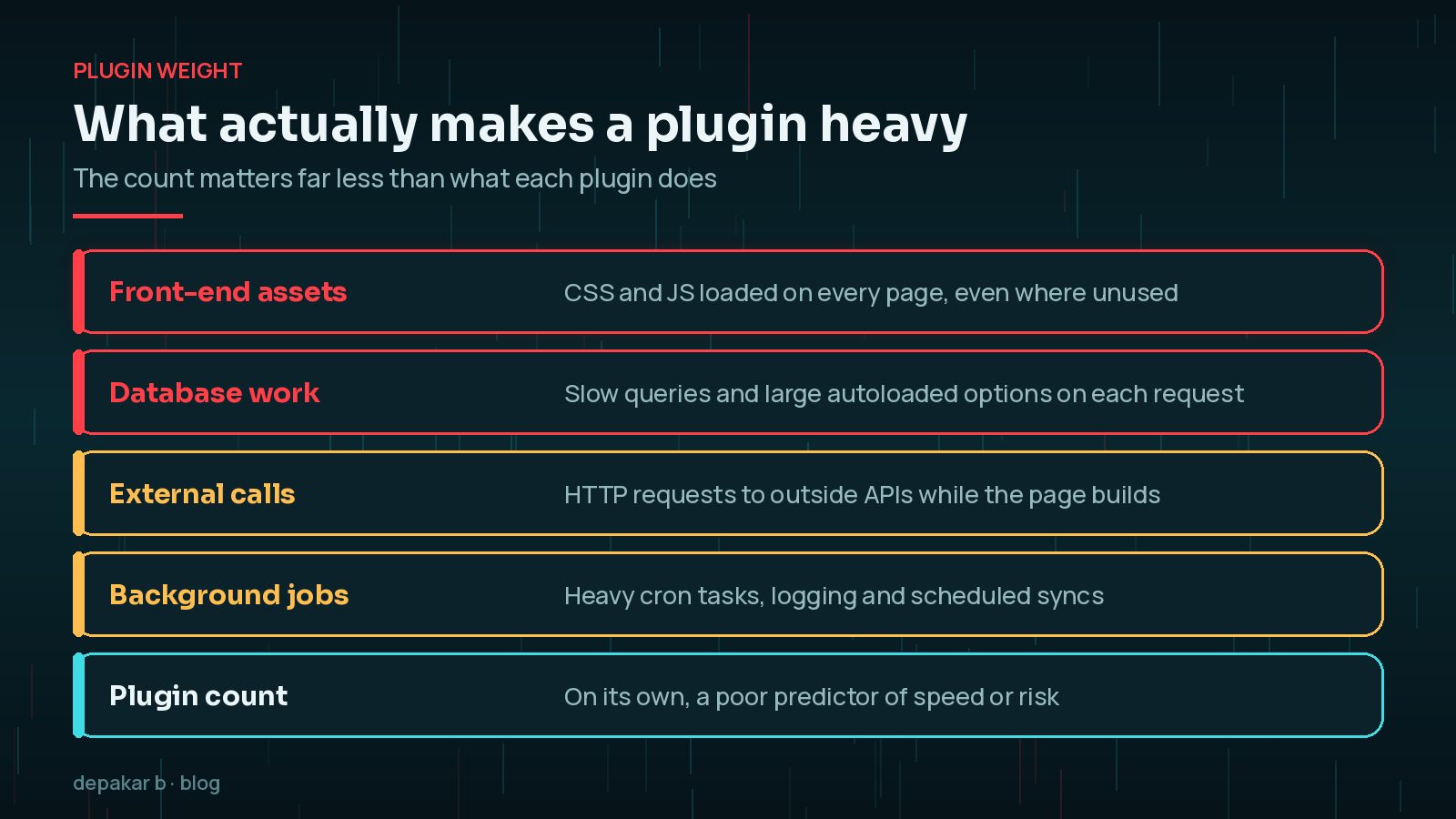
What Makes a Plugin Heavy?
Plugins cost resources in a few specific ways. When you know them, you can spot the expensive ones quickly.
- Front-end assets: CSS and JavaScript loaded on every page, including pages that never use the feature. A contact form plugin loading its scripts site-wide is a classic example.
- Database work: extra or slow queries on each request, and large amounts of data stored in autoloaded options, which WordPress loads on every page.
- External calls: requests to outside services, such as licence checks or social feeds, while the page is being built.
- Background jobs: scheduled tasks, logging and syncing that compete with visitors for server resources.
- Admin overhead: dashboard widgets, notices and checks that make wp-admin sluggish.
A plugin that does none of these heavily is cheap, however many of them you have.
How to Measure a Plugin's Impact
Guessing leads to removing the wrong things. Measure first, ideally on a staging copy of the site.

- Query Monitor: this free developer tools panel shows database queries, PHP errors, hooks, scripts and styles, and HTTP API calls for each page. It can group queries by component, so you can see which plugin or theme is responsible, and narrow output to a single plugin.
- Browser DevTools: the Network tab shows which plugin folders the front end loads assets from, and how large they are.
- Page tests: run PageSpeed Insights before and after deactivating a suspect plugin on staging, and compare.
- Site Health: the Status tab flags critical issues and recommended improvements, and the Info tab lists active and inactive plugins.
My WordPress speed optimisation checklist covers the other speed checks to run alongside a plugin review.
The Security and Maintenance Cost
Speed is only half the picture. Every plugin is third-party code with access to your site, and each one adds work.
- More updates: each plugin needs updating and occasionally testing after an update.
- More attack surface: a vulnerability in any active plugin can affect the whole site, and outdated plugins are a common way in.
- Abandonment risk: plugins that stop receiving updates become harder to trust over time.
- Conflicts: two plugins solving similar problems can clash, particularly around caching, SEO and security.
Deactivated is not the same as removed. Inactive plugins do not run, but their files stay on the server. If you are not going to use a plugin again, delete it. The WordPress hardening guide stresses keeping your software up to date, and every plugin you remove is one less thing to keep updated and one less set of files that could be exploited.
Before installing anything new, my guide to choosing a safe WordPress plugin explains what to check on its directory page.
A Step-by-Step Plugin Audit
Work on a staging copy with a fresh backup, and keep notes as you go.
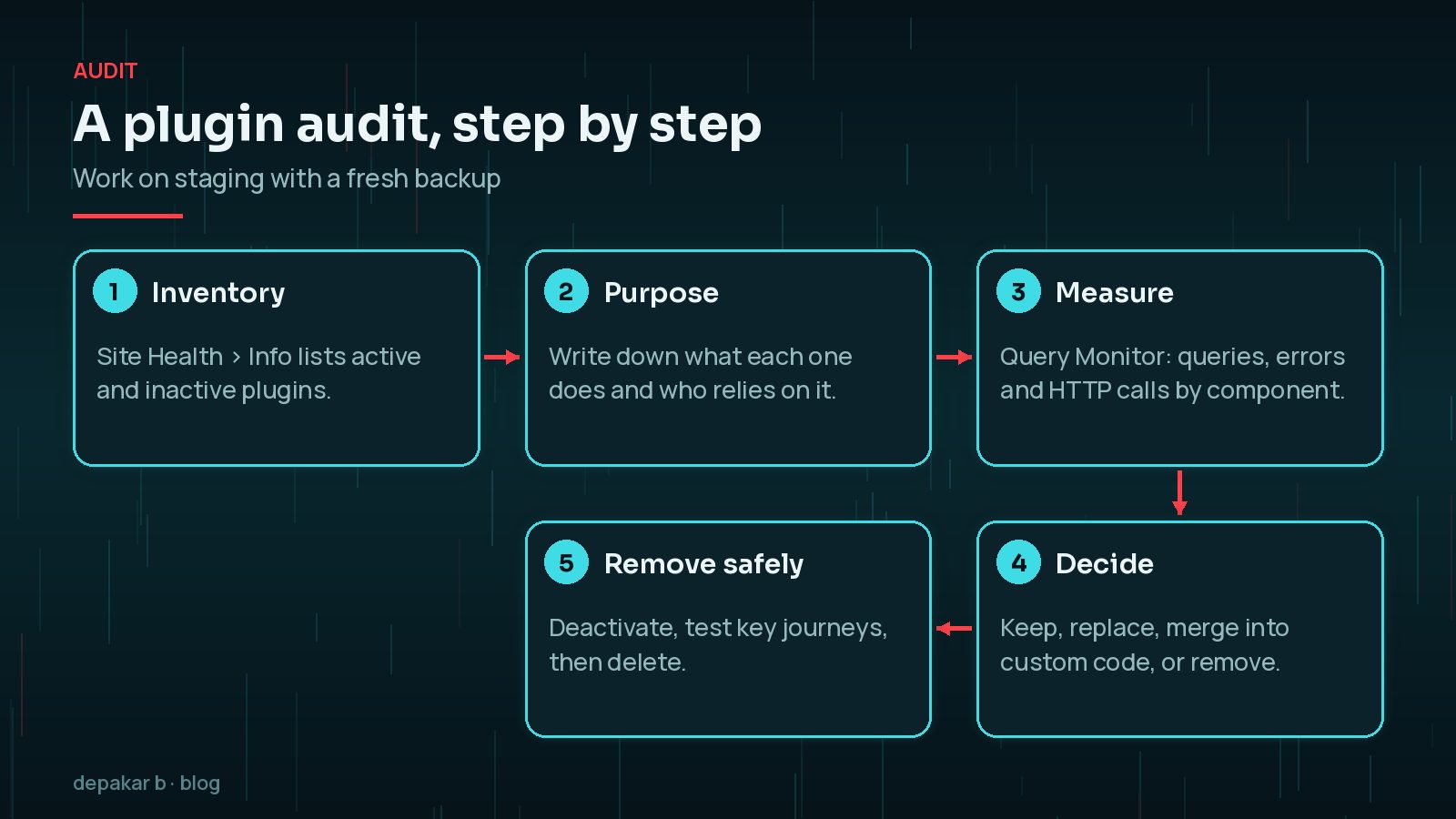
- Inventory. List every installed plugin from the Plugins screen or Site Health's Info tab, including inactive ones.
- Purpose. Write one line for each: what it does, which pages use it and who relies on it.
- Measure. Use Query Monitor and DevTools on your key templates to note queries, assets and external calls by plugin.
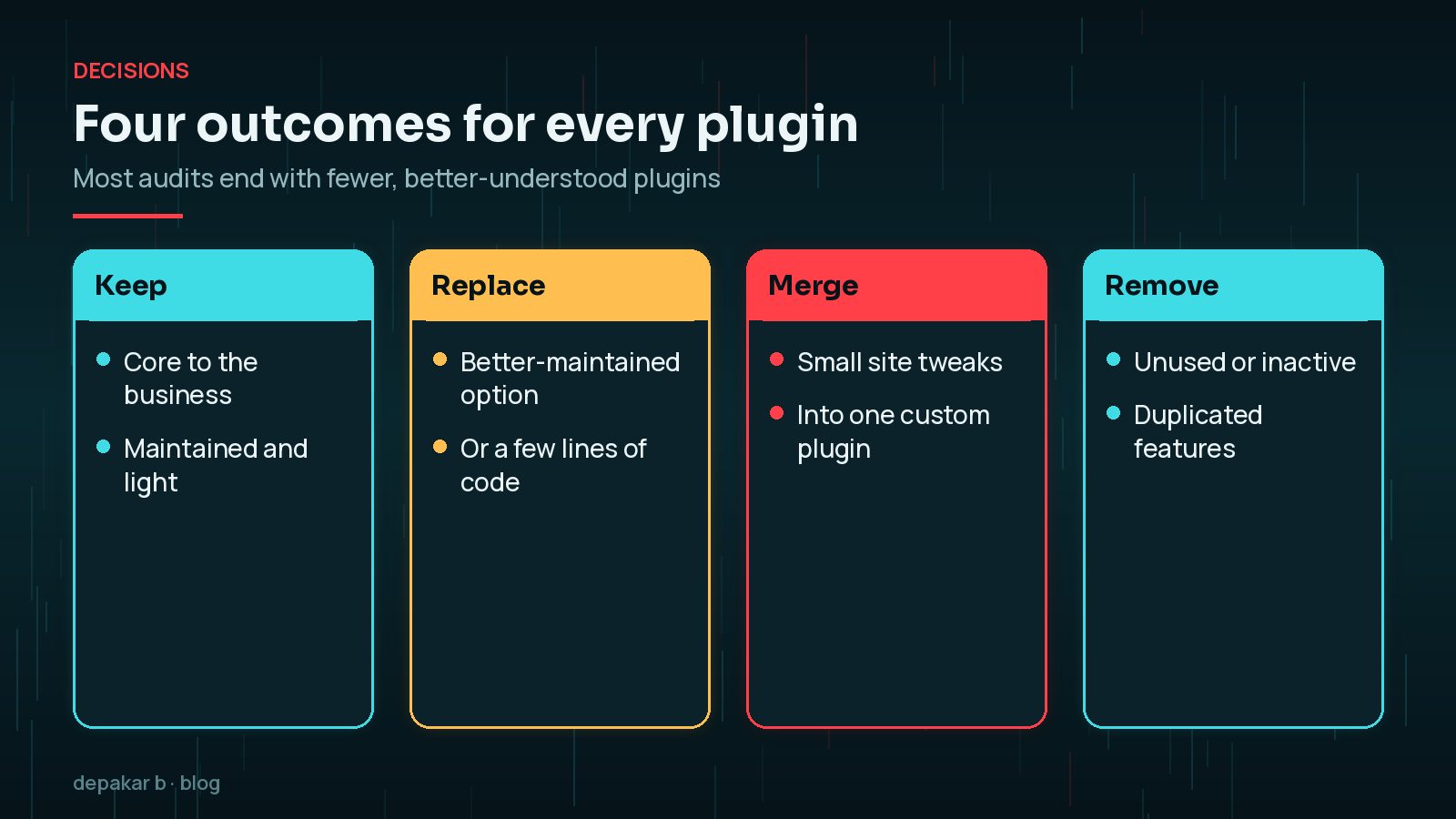
- Decide. Mark each one as keep, replace, merge into custom code or remove.
- Remove safely. Deactivate one at a time, test key journeys such as forms, checkout and login, then delete.
Look out for duplicates in particular: two SEO plugins, two caching plugins or several plugins that each add one small snippet.
Replace Plugins with a Few Lines of Code
Some plugins exist to do one tiny job, such as adding a tracking snippet, changing the login logo, disabling a feature or adding a custom post type. These are often a few lines of code.
- Small tweaks are easy to review when they sit in one place you control.
- There is no settings screen, licence check or admin notice to load.
- You remove one more update and one more piece of third-party code.
Where should that code live? Not in the theme, if you can avoid it, because it disappears when the theme changes. My comparison of a custom plugin vs functions.php explains the trade-offs.
Consolidate Into a Custom Plugin
If you end up with several small snippets, collect them into one site-specific plugin. It keeps your customisations together, documented and version-controlled.

This works well for features unique to your business, such as a custom booking rule, a data export or an integration with your CRM. It is not a reason to rebuild large, well-maintained plugins such as WooCommerce or a forms plugin you rely on. My article on when you need a custom WordPress plugin helps you draw that line.
Frequently Asked Questions
Is 20 plugins too many for WordPress?
Not necessarily. Twenty small, well - built plugins can be lighter than three heavy ones. Judge each plugin by what it loads, what it queries and whether it is maintained, rather than by the total.
Do deactivated plugins slow down WordPress?
Deactivated plugins do not run, so they do not slow page loads. They do still sit on the server, and their files can matter for security if they are outdated. Delete plugins you no longer need rather than leaving them deactivated.
Which plugins tend to be the heaviest?
There is no fixed list, and it depends on configuration. Plugins that load assets on every page, run complex database queries, call external APIs while pages build or run heavy scheduled jobs are the ones to examine first. Query Monitor shows which components are doing the work on your site.
Should I replace plugins with code in functions.php?
For small tweaks, a few lines of code can replace a whole plugin. Put that code in a small custom or must-use plugin rather than a theme's functions.php, so it survives theme changes and is easy to switch off.
How often should I audit my plugins?
A light review every few months is sensible, plus a check before any major WordPress update, redesign or change of developer. Look for unused, duplicated and unmaintained plugins each time.
Final Thoughts
How many WordPress plugins is too many depends entirely on which plugins they are. Measure what each one costs, remove what you do not use, replace tiny plugins with a few lines of code and bring site-specific tweaks together in one custom plugin. The result is usually a shorter list that is faster, safer and easier to maintain.
If you would like help consolidating plugins or replacing a heavy one with something lighter, my custom plugin development service can take that on.
Official References
Sources checked on 29 October 2026: