The functions.php vs plugin choice sounds technical, but the deciding question is simple. If you switched to a completely different theme tomorrow, should this code keep working? If the answer is yes, it probably belongs in a plugin. Let's look at why, and at the options in between.
What functions.php Is For
Every theme can include a functions.php file. The WordPress Theme Handbook explains that it behaves like a plugin, adding features and changing default behaviour, but only while that theme is active.
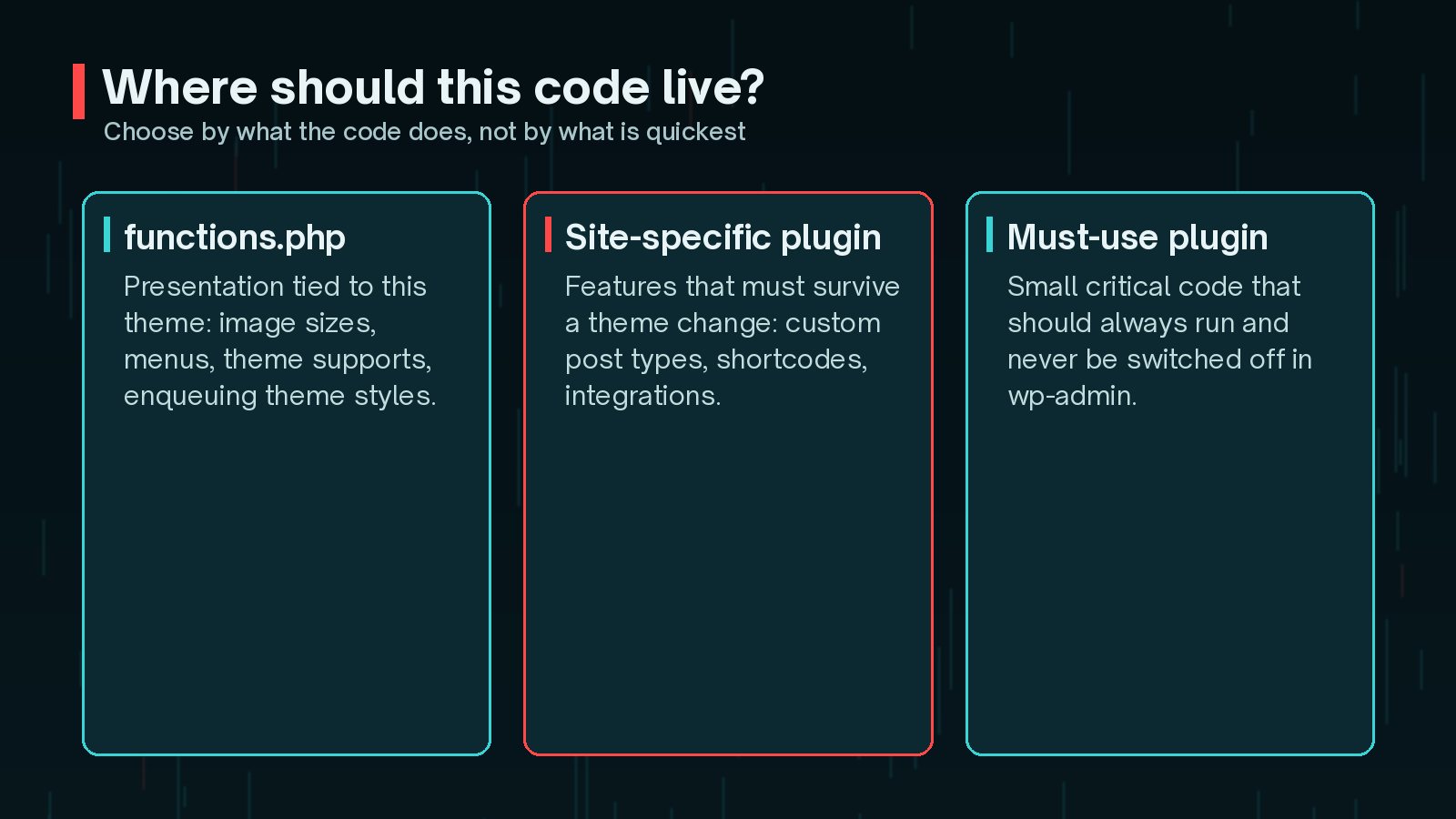
That makes it the right home for code that is genuinely part of the theme:
- Registering navigation menus and widget areas.
- Adding theme support, such as featured images or custom logos.
- Defining image sizes used by the theme's layouts.
- Enqueuing the theme's own stylesheets and scripts.
If you use a child theme, its functions.php loads in addition to the parent theme's, and before it. It does not replace the parent file. The handbook also recommends prefixing your function names, so they do not clash with other themes or plugins.
Why Snippets Disappear on Theme Change
Because functions.php only runs for the active theme, any feature you put there stops when the theme changes. The Theme Handbook says it directly: if you are creating features that should be available no matter what the website looks like, it is best practice to put them in a plugin.

Typical things that vanish:
- Custom post types and taxonomies, which can make content seem to disappear from the admin.
- Shortcodes, which then show up as raw text inside your pages.
- Tracking or integration code, which stops silently.
- Changes to login, emails or WooCommerce behaviour.
There is a second risk. If you edit a parent theme's functions.php directly, a theme update can overwrite your changes. A child theme protects against that, but not against a theme change.
What a Site-Specific Plugin Is
A site-specific plugin is a small plugin written just for your website. It holds the features that belong to the site rather than its design. According to the Plugin Handbook, a plugin lives in wp-content/plugins, needs a header comment so WordPress recognises it, and works regardless of the active theme.
<?php
      /**
       * Plugin Name: Example Site Features
       * Description: Custom post types and shortcodes for example.com.
       * Version:     1.0.0
       */

      if ( ! defined( 'ABSPATH' ) ) {
          exit;
      }

      add_action( 'init', 'examplesite_register_post_types' );
      function examplesite_register_post_types() {
          register_post_type( 'examplesite_project', array(
              'label'  => 'Projects',
              'public' => true,
          ) );
      }
Keep each plugin focused. The Plugin Handbook encourages plugins to do one job well. On a bigger site, two or three small, clearly named plugins are easier to manage than one huge file. If you are unsure whether you need a bespoke plugin at all, my guide on when you need a custom WordPress plugin helps you decide.
Code Snippet Plugins: Convenient but Risky?
Code snippet plugins let you add PHP through a screen in wp-admin, without touching files. They are popular because they are easy, and they do keep code separate from the theme.
The trade-offs are worth knowing:
- The code usually lives in the database rather than in files, so it is harder to review and version-control.
- Anyone with access to the snippet screen can run PHP on your site, so keep that access to trusted administrators.
- A broken snippet can still take the site down. Check how your snippet plugin lets you recover if that happens.
- Dozens of small snippets with vague names become hard to understand over time.
A good middle ground: use a snippet plugin for small, low-risk tweaks, and move anything business-critical, such as integrations or content types, into a proper plugin that lives in version control.
Must-Use Plugins for Critical Code
Must-use plugins, often called mu-plugins, live in wp-content/mu-plugins. WordPress's Advanced Administration handbook explains how they differ from normal plugins:
- They are always on. They cannot be deactivated from the Plugins screen, only by removing the file.
- They appear in a separate Must-Use list rather than the main plugin list.
- They load before normal plugins, in alphabetical order.
- WordPress only loads PHP files placed directly in the folder, not files inside subfolders, unless you add a small loader file.
- They do not receive update notifications, and activation hooks do not run.
That makes them a good fit for small pieces of critical code, such as security settings or behaviour the site must never lose. The same features are also a risk. Because they are always on and easy to miss, keep them small, documented and in version control, and review them during security checks.
A Decision Checklist: functions.php vs Plugin
When you are about to add a snippet, run through these questions.
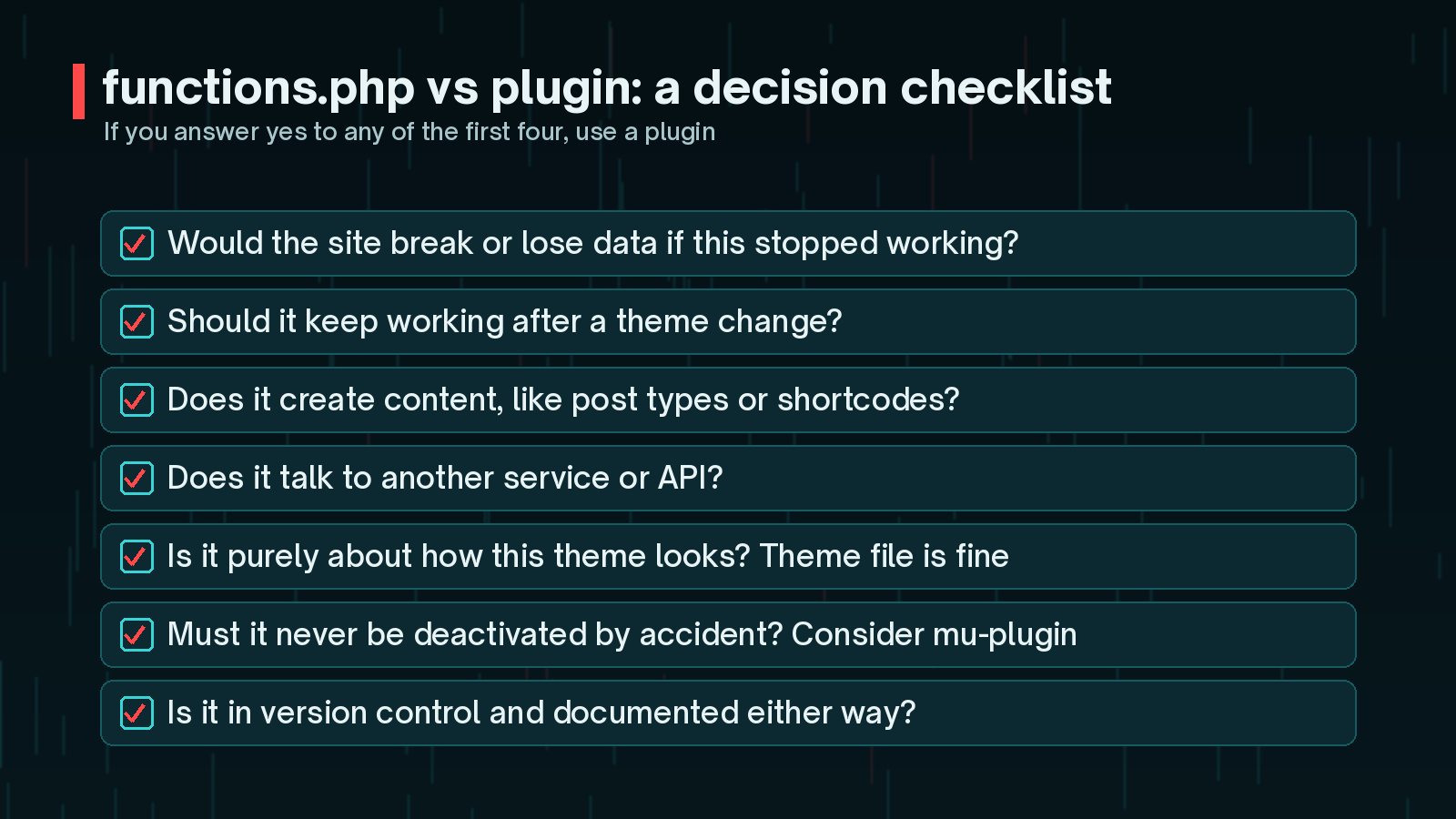
- Would the site break or lose content if this code stopped? Use a plugin.
- Is it purely about how this theme looks or lays things out?
functions.phpin a child theme is fine. - Must it always run and never be switched off by mistake? Consider a must-use plugin.
- Is it a quick, low-risk tweak? A snippet plugin may be acceptable.
If you already have a long list of plugins and snippets, my guide to having too many WordPress plugins explains why the number matters less than quality.
How to Move Code Safely
Moving code from a theme into a plugin is usually simple, but the order matters. If the same function is declared in both places at once, PHP stops with a fatal error.
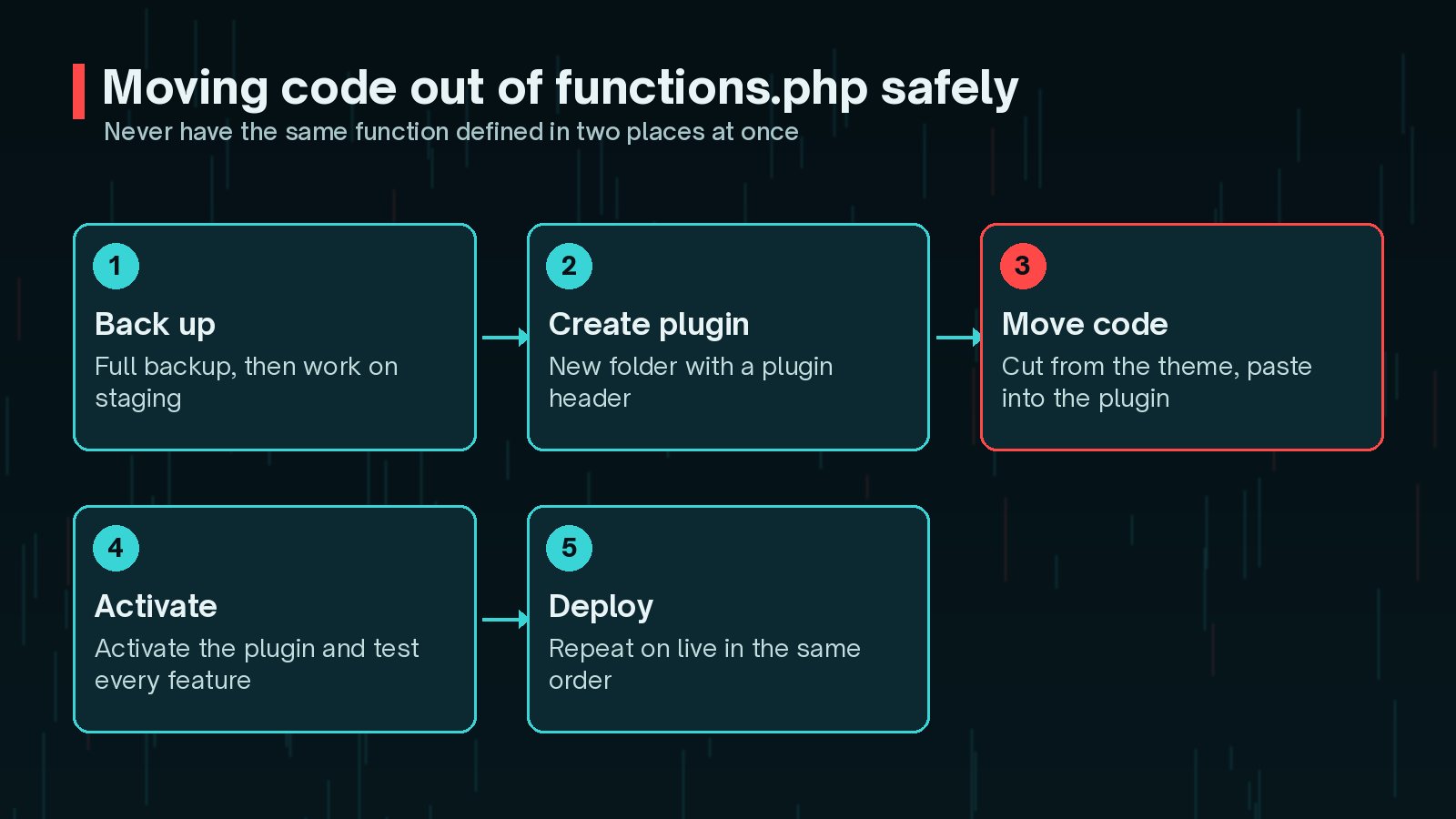
- Take a full backup and work on a staging site first.
- Create the plugin folder and main file with a proper header.
- Cut the code from
functions.phpand paste it into the plugin, keeping the function prefixes. - Activate the plugin and test each feature: post types, shortcodes, forms and anything else the code touched.
- Repeat the same steps on live, ideally through version control or a deployment process.
If you work across several sites or with a team, a consistent approach helps. My article on a WordPress development process that scales covers version control and deployments.
Frequently Asked Questions
Is it bad to add code to functions.php?
No, as long as the code is about the theme itself, such as registering menus, image sizes or theme support. It becomes a problem when you put site features there that should keep working whatever theme you use.
Will my code be lost when the theme updates?
If you edited the parent theme's functions.php directly, a theme update can overwrite your changes. A child theme protects theme-related code from updates, and a plugin protects feature code from both updates and theme changes.
Are code snippet plugins safe?
They can be useful for small tweaks, but they store and run code from the database and give anyone with access a way to run PHP on your site. Limit who can use them, keep snippets small and documented, and move anything critical into a proper plugin.
When should I use a must-use plugin?
For small pieces of code that must always run and should never be switched off by accident, such as security hardening or essential site behaviour. Keep them small and documented, because they are easy to overlook.
Does a site-specific plugin slow down my site?
Not because it is a plugin. The same code costs the same whether it runs from functions.php or a plugin file. What affects speed is what the code does, not where it lives.
Final Thoughts
The functions.php vs plugin decision comes down to dependence. Theme-related code belongs in the theme, ideally a child theme. Site features belong in a small site-specific plugin. Critical always-on code can go in a must-use plugin, kept small and documented. Put each piece of code in the right home and theme changes stop being scary.
If you have years of snippets scattered across themes and plugins, my custom plugin development service can tidy them into well-organised, documented plugins.
Official References
Sources checked on 29 October 2026: