
Knowing how to choose a WordPress plugin used to be about features and price. In 2026 it is just as much about security. Every plugin you install is code from someone else running with full access to your site, your database and often your customers' data.
This guide gives you a calm, repeatable way to judge a plugin before it goes anywhere near your live site, even if you are not a developer. It takes about five minutes per plugin, and it can save you a very long week.
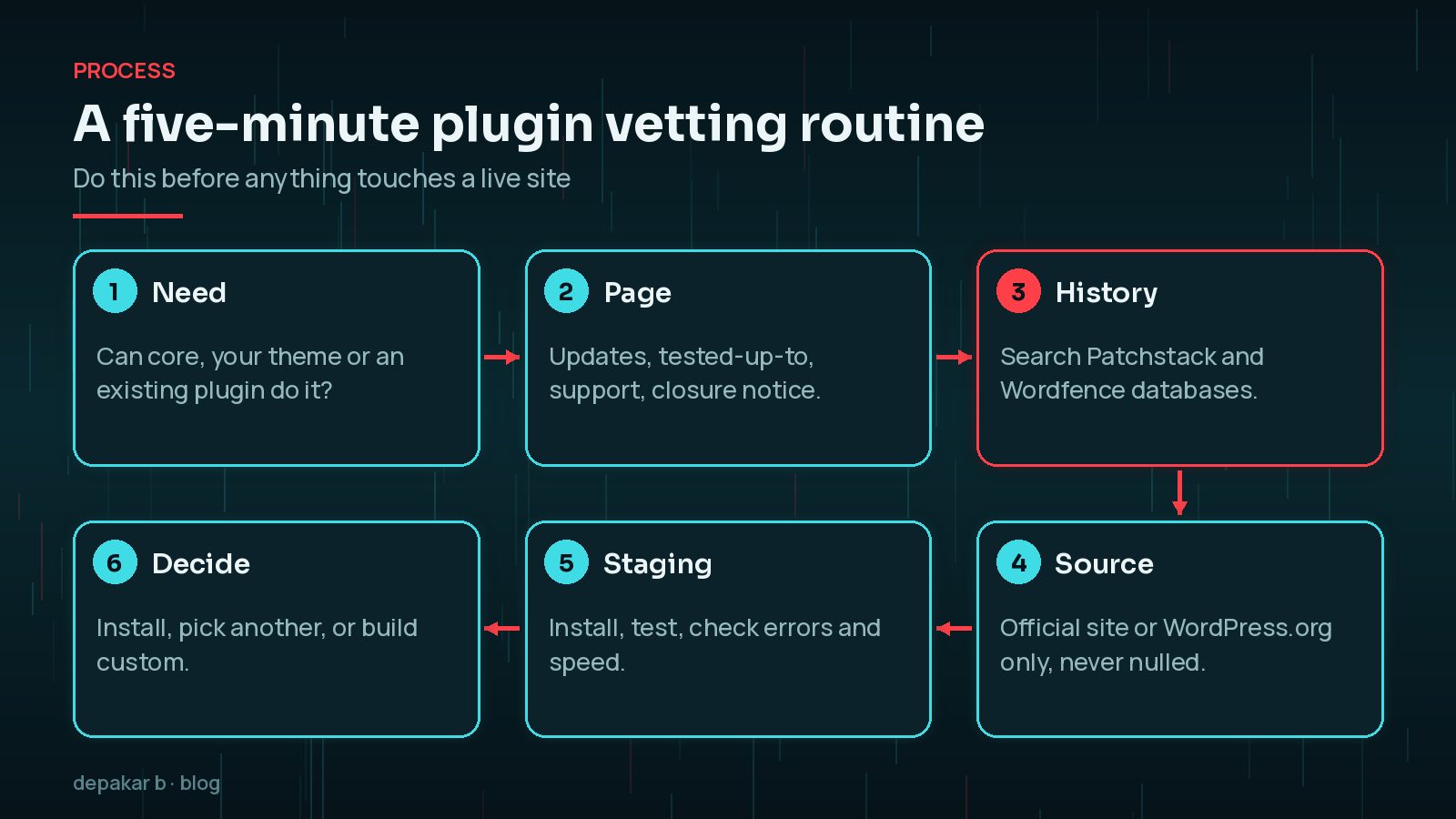
Why Plugin Choice Is Now a Security Decision
Most WordPress security problems I see start with a plugin: an outdated one, an abandoned one, or one from the wrong place. October 2026 alone brought a long list of patched issues, which I covered in WordPress plugin vulnerabilities to patch this month.
It is not only small or unknown plugins, either. The Rank Math PRO 3.0.123 backdoor showed that a trusted, paid plugin can ship malicious code through a compromised release. Choosing well lowers your risk; it does not remove it. That is why the steps below also cover what happens after you install.
WordPress.org's own plugin guidelines put it plainly: security is the ultimate responsibility of the plugin developer, and a plugin found to have security issues is closed until it is resolved. Your responsibility as the site owner is to pick developers who take that seriously.
How to Choose a WordPress Plugin: Signals That Matter
A plugin's WordPress.org page tells you more than its star rating. These are the signals I look at first:
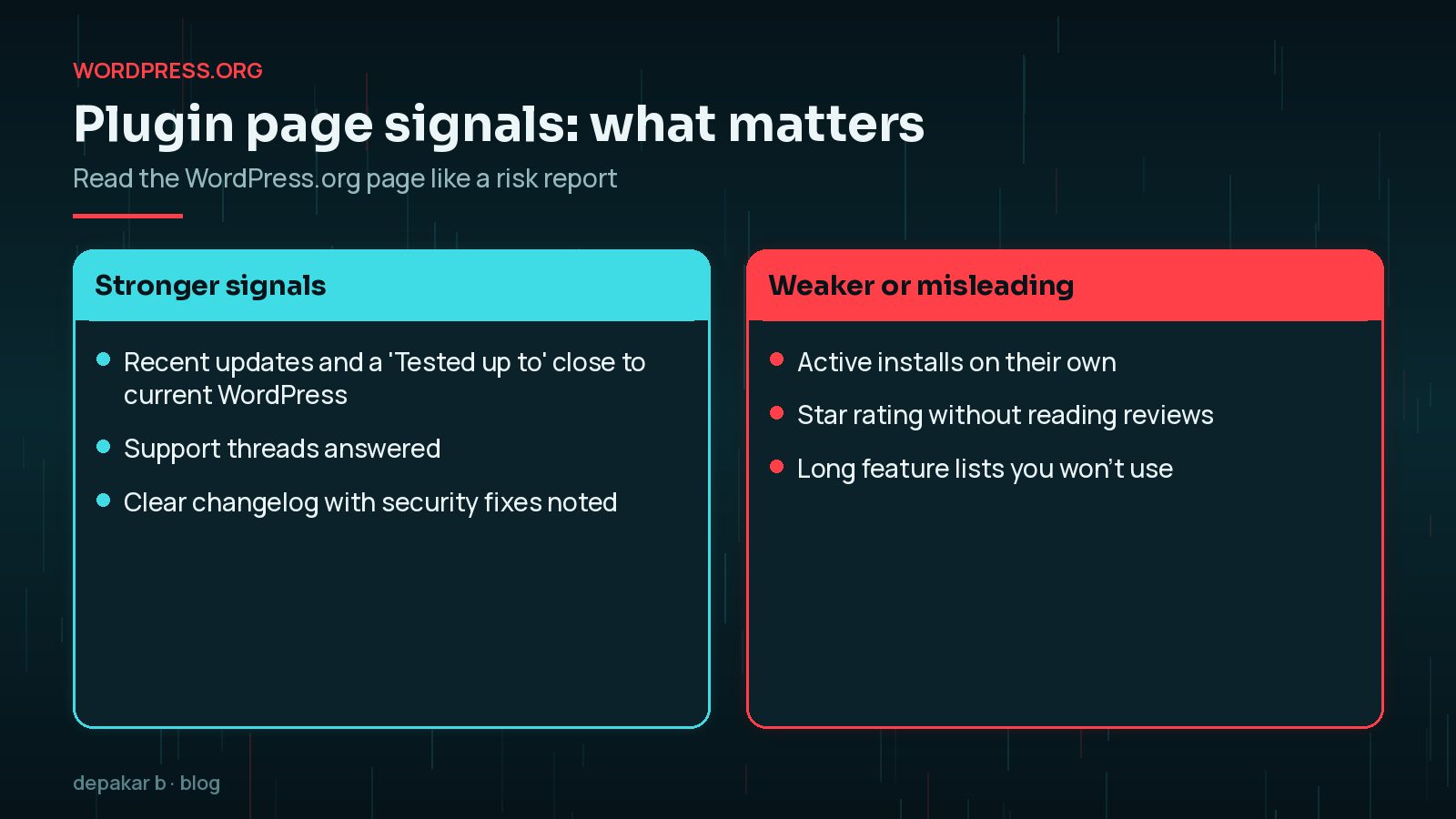
- Last updated. Recent updates suggest someone is maintaining the code. A long gap is not always fatal for a tiny, simple plugin, but it is worth a closer look for anything that handles forms, payments, logins or file uploads.
- "Tested up to". WordPress.org shows a yellow warning when a plugin has not been tested with the latest three major WordPress releases. Treat that as a sign it may no longer be maintained.
- A closure notice. A red banner means the plugin has been closed and is not available for download. WordPress.org adds the reason after 60 days, which can include a security issue. Do not install a closed plugin, and replace it if you already have it.
- Support forum. Are recent threads answered? Do replies fix problems or just ask for a paid ticket?
- Changelog. A clear changelog that mentions security fixes openly is a good sign, not a bad one. It means the developer fixes and discloses issues.
- Reviews. Read the recent one-star and three-star reviews. They often reveal conflicts, slowdowns or support problems.
How to Check a Plugin's Vulnerability History
Two free, public databases make this easy:
- Patchstack Database, searchable by plugin name.
- Wordfence Intelligence vulnerability database, also searchable by plugin.
Search the plugin's name in both. What you are looking for is not "zero vulnerabilities ever". Popular, well-maintained plugins often have a history, because researchers look at them closely. What matters is the pattern:
- Was each issue fixed? Look for a "patched in" or fixed version.
- How quickly? A fix within days of disclosure is a good sign.
- Is the same type of bug repeating? Repeated issues of the same kind can point to weak coding habits.
- Is there an unpatched issue right now? If so, wait or choose another plugin.
Free vs Premium vs Nulled: The Real Risks
Free plugins on WordPress.org are reviewed when first submitted and must follow the directory guidelines. That includes keeping code (mostly) human-readable, which the guidelines note is because obfuscation is a common way to hide malicious code. A review at submission is not a guarantee for every later release, though.
Premium plugins bought from the developer's own site usually come with support and updates for as long as your licence is active. Let the licence lapse and you may stop receiving security fixes, so budget for renewals.
Nulled plugins are premium plugins redistributed from unofficial sites with the licence checks removed. Avoid them completely.
- You have no way to verify what else was changed in the code.
- They do not receive official updates, so known vulnerabilities stay open.
- If your site is compromised, cleaning it costs far more than the licence would have.
Only download plugins from WordPress.org or the developer's own website. "Free premium" downloads, file-sharing links and unofficial marketplaces are where many infections begin.
How to Judge Code Quality Without Being a Developer
You do not need to read PHP to spot warning signs:
- Does it do one job well? Plugins that try to do everything tend to load more code on every page.
- Does it slow the site? Test a page before and after activating it on staging. Check whether it adds scripts and styles to every page or only where needed.
- Does it nag? WordPress.org guidelines say plugins should not hijack the admin dashboard with constant notices. Heavy upsell banners can hint at priorities.
- Does it phone home? Guidelines say plugins may not track users or contact external servers without consent. An unexplained opt-in or data collection deserves a question.
- Is the developer reachable? A real website, documentation and a support channel are good signs.
Also ask whether you need another plugin at all. Each one adds maintenance. I'll cover that balance in how many WordPress plugins is too many?
Questions to Ask Before Installing on a Live Site
Before you click Install, answer these honestly:
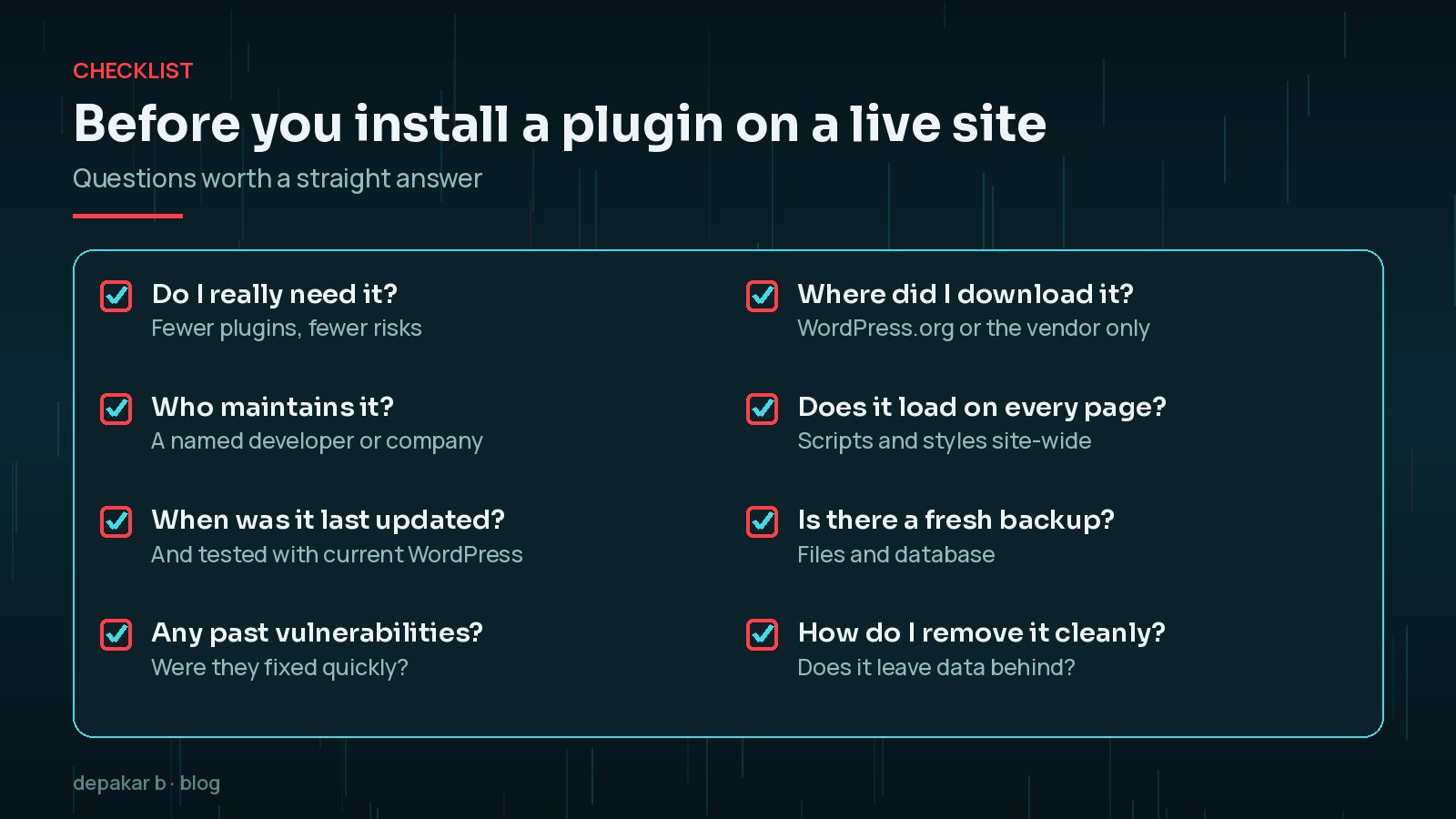
- Can WordPress core, my theme or a plugin I already have do this?
- Who maintains it, and when was it last updated?
- Does it have any unpatched vulnerabilities today?
- Am I downloading it from WordPress.org or the official vendor?
- Have I tested it on staging with my theme and other plugins?
- Do I have a fresh, tested backup?
- Will it leave data behind if I remove it?
- Who will keep it updated after today?
Once it is installed, keep it updated, remove it if you stop using it, and check security news for the plugins you rely on.
When a Custom Plugin Is the Safer Option
Sometimes the safest choice is not another off-the-shelf plugin. If you only need a small, specific feature, a large multipurpose plugin can bring far more code, and more risk, than the job needs.

A focused custom plugin can make sense when:
- You need one feature from a plugin that does fifty things.
- The only available plugins are abandoned or have a poor security record.
- You are connecting to an internal system or a specific API.
- You want code you own, can review, and can hand to another developer.
Custom code also needs maintenance, so it is not automatically safer. It is safer when it is small, follows WordPress coding standards and is kept up to date. My post on when you need a custom WordPress plugin covers how to decide.
Frequently Asked Questions
How do I know if a WordPress plugin is safe?
Check that it is actively updated and tested with recent WordPress versions, that it has no unpatched issues in the Patchstack or Wordfence databases, that support threads are answered, and that you download it only from WordPress.org or the official vendor. Then test it on staging.
Is an old WordPress plugin always dangerous?
Not always, but WordPress.org warns when a plugin has not been tested with the last three major releases, because it may no longer be maintained. For plugins that handle forms, logins, payments or uploads, prefer actively maintained options.
Are nulled WordPress plugins safe to use?
No. You cannot verify what has been changed in the code, and they do not receive official security updates. Buy the licence from the developer or choose a free alternative.
What does it mean when a plugin is closed on WordPress.org?
It is no longer available for download. WordPress.org shows a closure date and, after 60 days, the reason, which can be a security issue. Replace closed plugins rather than leaving them active.
Is a premium plugin safer than a free one?
Not automatically. Premium plugins often include support and updates while your licence is active, but security depends on the developer's practices. Check vulnerability history and update habits for both.
Final Thoughts
Choosing a WordPress plugin well is mostly about maintenance: who looks after the code, how quickly they fix problems, and whether you got it from the right place. A five-minute check, a staging test and a backup will catch most bad choices before they cost you anything.
If you need a feature that no trustworthy plugin covers, or you want an existing plugin reviewed before it goes live, my custom plugin service can help.
Install less, install from trusted sources, and keep what you install updated.
Official References
Sources checked on 29 October 2026: