
If Google is showing pages of Japanese text under your domain, you are probably dealing with the Japanese keyword hack, a WordPress SEO spam attack that creates thousands of fake pages to sell counterfeit goods. Your own visitors often see nothing wrong, which is exactly why it can run for weeks before anyone notices.
This guide shows you how to confirm the hack, find what the attacker added, remove them from Search Console, clean the files and database, and get the spam out of Google's index. It follows Google's own clean-up guide, adapted for WordPress.
What Is the Japanese Keyword Hack in WordPress?
Google's web.dev guide describes it as a hack that creates new pages of autogenerated Japanese text, usually in randomly named directories such as /ltjmnjp/341.html. The pages carry affiliate links to stores selling fake brand merchandise, and the attacker's goal is to get them ranking in Google Search using your domain's reputation.
Typical signs include:
- Japanese titles and descriptions for your domain in search results.
- A sudden jump in indexed pages, or strange URLs in Search Console's Pages report.
- An email saying a new owner has verified your site in Search Console.
- A sitemap you did not create.
- Spam pages that redirect visitors elsewhere, or show a 404 to you but not to Google.
It is a form of what Google's Security issues report calls URL injection: new pages created on your site without your permission.
How to Confirm It With site: Searches and Search Console
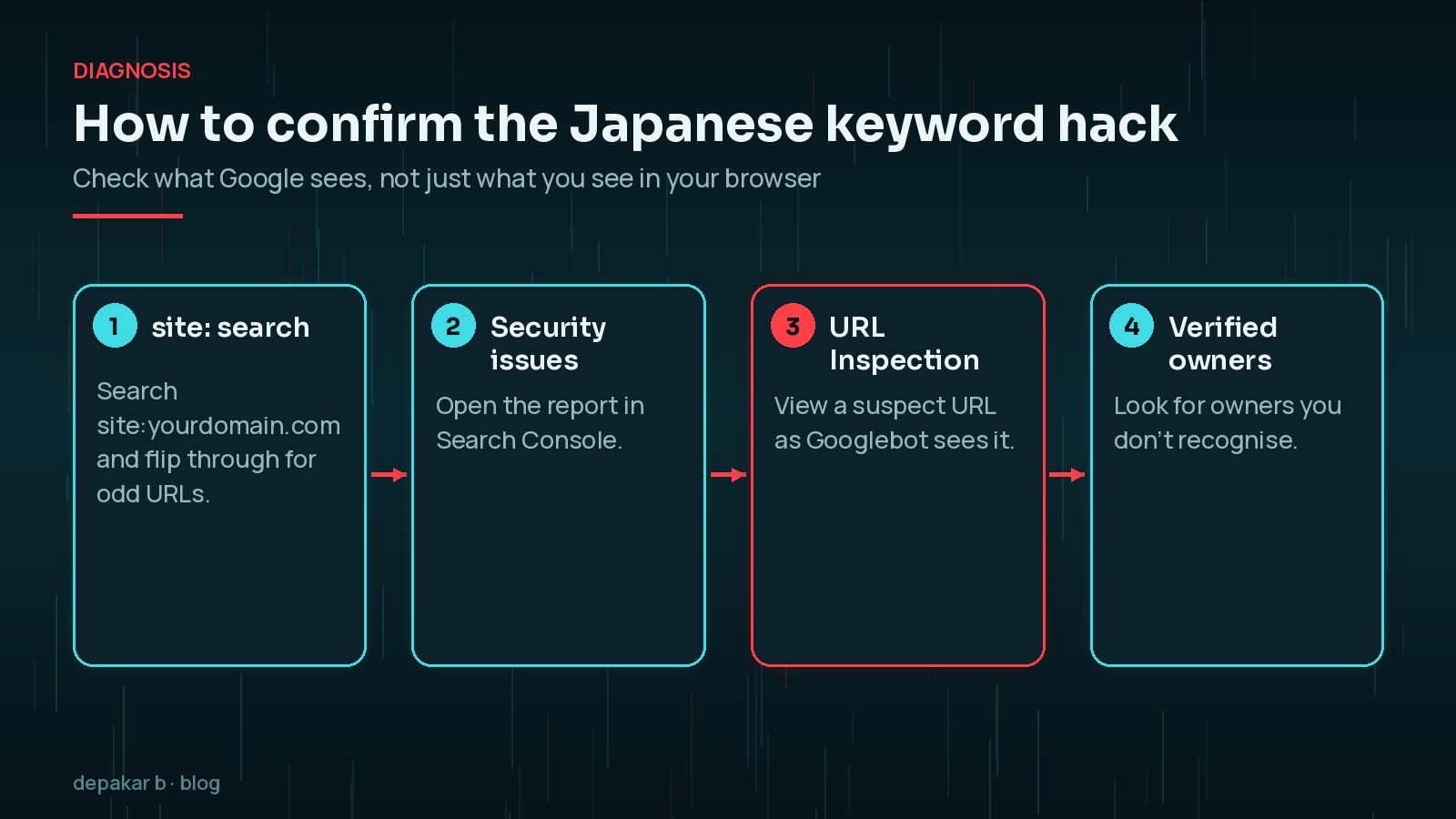
- Search
site:yourdomain.comin Google and click through a few pages of results. Look for URLs and titles you don't recognise. Google also suggests trying the same search in another search engine. - Open the Security issues report in Search Console. If Google has detected hacked content, it lists the issue and sample URLs. Google says this report is the source of truth for whether an issue still exists.
- Inspect a suspect URL with the URL Inspection tool. This shows the page as Googlebot fetched it, which matters for the next section.
- Check verified owners under Settings → Users and permissions.
Avoid opening suspect pages in your everyday browser. Google recommends viewing hacked pages with URL Inspection or command-line tools such as cURL instead, because some hacked pages try to attack visitors' devices.
Why Spam Pages Appear Only to Google
The attackers use cloaking: the injected code checks who is asking. If the request looks like Googlebot, or comes from a Google search click, it serves the spam. If it looks like you, it may show your normal page or a fake 404.

Google's help pages suggest using cURL with a Google referrer or crawler-style user agent to reproduce what the attacker targets. For example, from a terminal:
curl -sI -A "Mozilla/5.0 (compatible; Googlebot/2.1; +http://www.google.com/bot.html)" https://yourdomain.com/suspect-path/
curl -sI -e "https://www.google.com/" https://yourdomain.com/suspect-path/
If those requests return content or redirects that your normal browser does not, cloaking is confirmed.
Finding the Injected Files and Database Entries
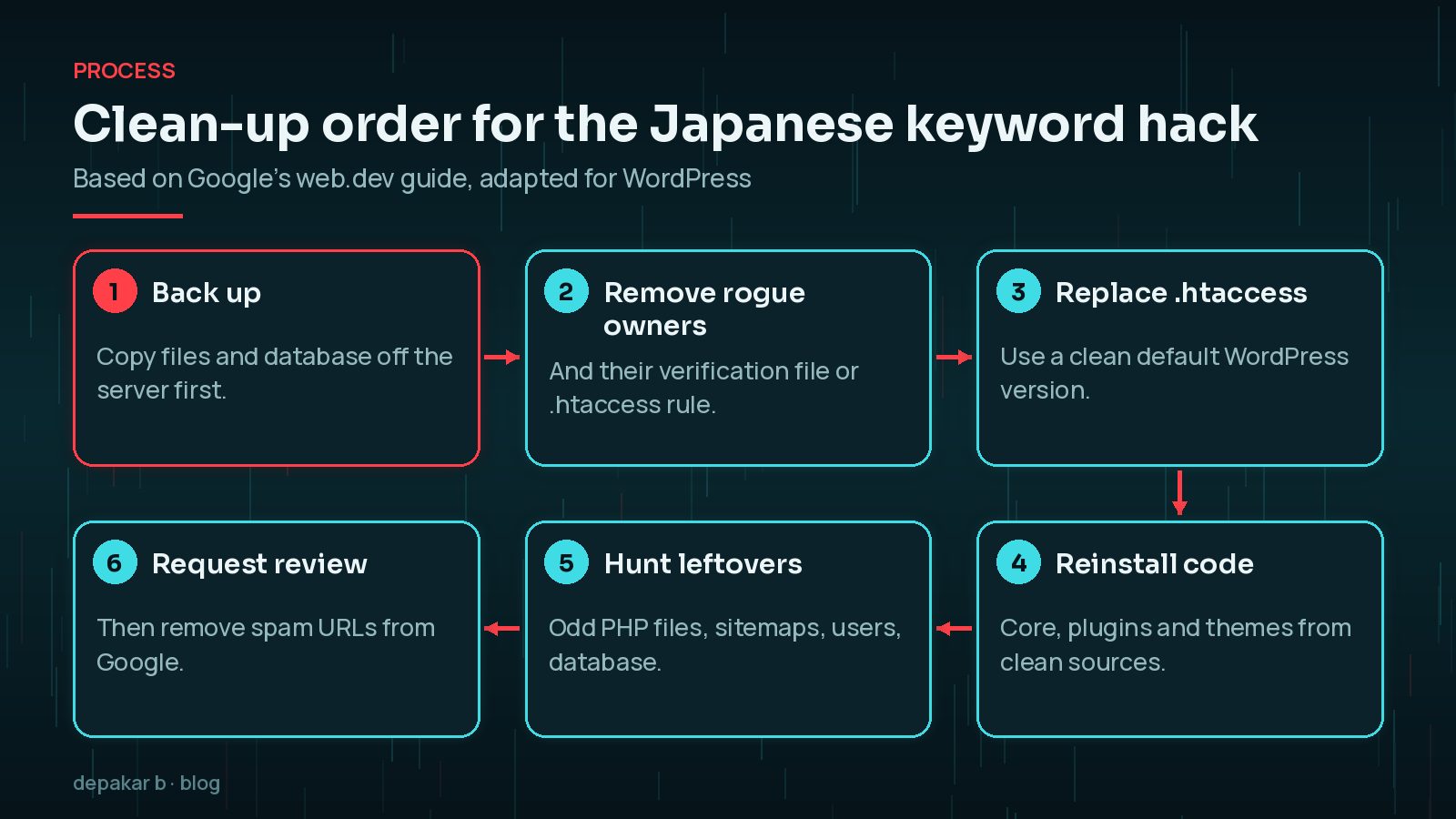
Take a full backup of files and database before you change anything, even though it contains the infection. You may need it to understand what happened. Then work through these places:

.htaccessfiles. Google notes attackers often use rewrite rules to generate spam pages, redirects or fake verification files. Replace each one with a clean WordPress default, keeping any rules you know you added.- WordPress core. Reinstall it from Dashboard → Updates, or with WP-CLI.
wp core verify-checksumslists core files that have been changed. - Plugins and themes. Delete and reinstall each from a clean source. For WordPress.org plugins,
wp plugin verify-checksums --allhelps spot changed files. - Unexpected PHP files in
wp-content/uploads, the site root or random folders. Sort by modified date and look around the time the spam started. - Obfuscated code. Google lists functions often used to hide malicious code, such as
base64_decode,eval,gzinflate,str_rot13andstrrev. - Sitemaps. Remove any sitemap files you didn't create, and check yours for spam URLs.
- The database. Look for unknown admin users, spam posts, and odd entries in
wp_options, including thesiteurlandhomevalues.
My guides on how to clean a hacked WordPress site and finding hidden admin users and rogue plugins go through these steps in more detail.
Removing Rogue Search Console Owners
Attackers add themselves as Search Console owners so they can submit sitemaps and change settings. Google's guide says to revoke their access as soon as possible.
- In Search Console, open Settings → Users and permissions and find owners you don't recognise.
- Remove their verification token first. It is usually an HTML file in your site root, such as
google1234abcd.html, or a rule in.htaccessthat fakes one. Google gives this example of such a rule:
RewriteEngine On
RewriteRule ^google(.*)\.html$ dir/file.php?google=$1 [L]- Then remove the owner in Search Console. If the token is still present, they can verify again.
- Check the property's sitemaps and remove any you didn't submit.
Getting the Spam Pages Out of Google's Index
Once the site is clean, the spam URLs should return a 404 or 410. Then:
- Request a review in the Security issues report if Google flagged your site. Describe what you found, what you fixed and the result. Google says reviews can take several days or weeks, and asks you not to resubmit while one is pending.
- Use the Removals tool for the worst URLs or URL prefixes. Google says removals take effect within about a day but last only about six months, so the pages must also be gone permanently.
- Submit your real sitemap so Google recrawls your genuine pages.
- Don't block the spam paths in robots.txt. Google advises against using robots.txt to remove pages, and blocking stops it from seeing that they now return 404.
Spam pages can take a while to drop out. If your rankings dipped around the same time, it is worth reading about the September 2026 spam update and recovery, so you don't confuse the two problems.
Preventing Reinfection
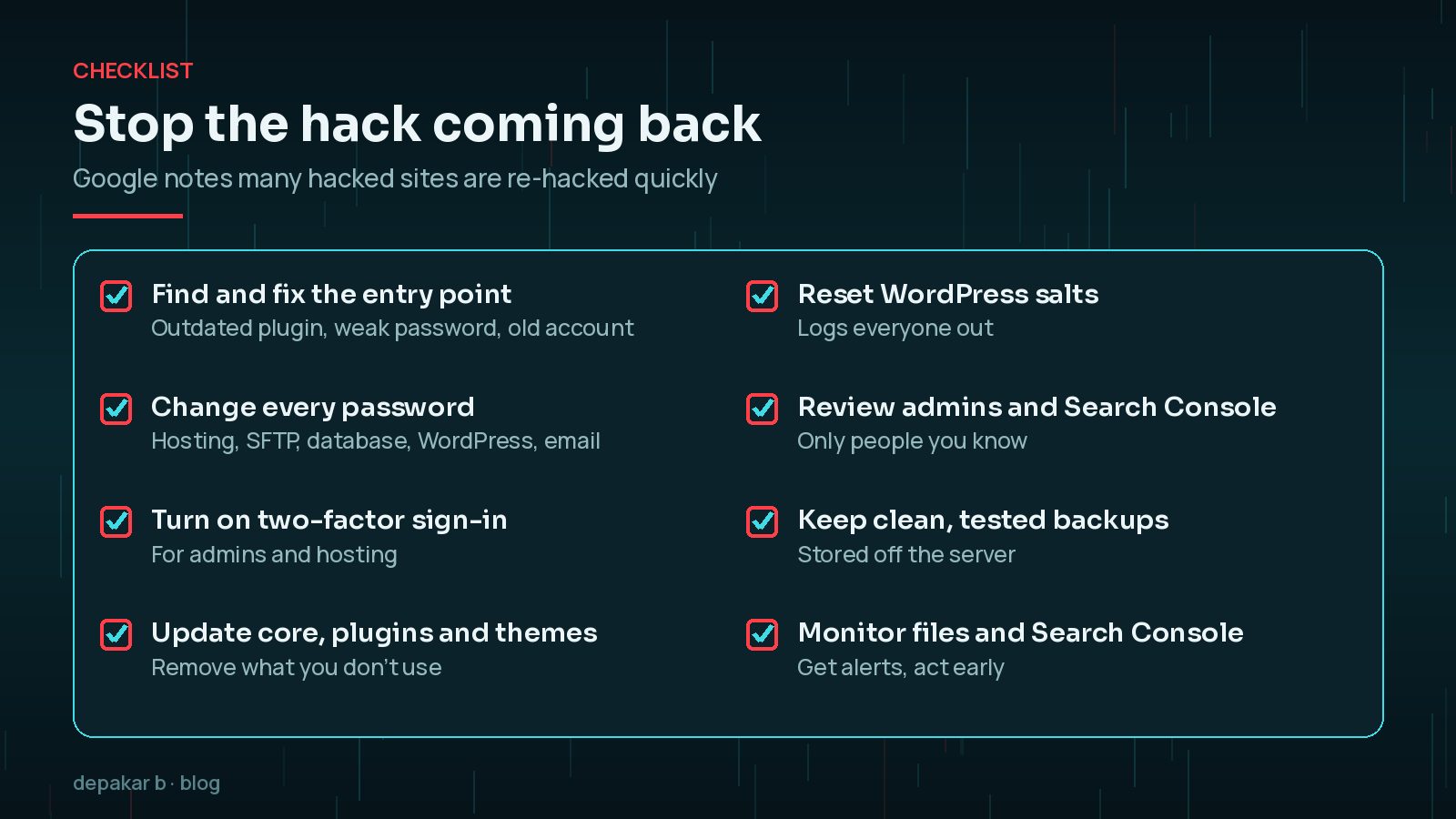
Google's guide cites a study finding that 20% of hacked sites are hacked again within one day. Clean-up without closing the way in rarely lasts.
- Find the entry point: an outdated plugin, a weak or reused password, an old user account or a leaked SFTP login.
- Change every password: hosting, SFTP, database, WordPress admins and the admin email account.
- Turn on two-factor sign-in wherever you can.
- Update or remove every plugin and theme, and reset the WordPress salts in
wp-config.php. - Monitor files, uptime and Search Console so you hear about it early next time.
If visitors are being sent to spam sites rather than seeing it only in Google, see my upcoming guide on a WordPress site redirecting to spam.
Frequently Asked Questions
Why do I see Japanese pages in Google for my WordPress site?
Usually because of the Japanese keyword hack. Attackers create autogenerated Japanese pages on your domain to promote counterfeit goods, often using cloaking so only Google sees the spam.
Why can't I see the spam pages when I visit them?
The injected code may show spam only to Googlebot or to visitors arriving from Google, and a normal page or a fake 404 to everyone else. Use URL Inspection in Search Console or cURL with a Googlebot user agent to see what Google sees.
How do I remove an unknown owner from Search Console?
Delete their verification token first, usually an HTML file in your site root or an .htaccess rewrite rule, then remove them under Settings, Users and permissions. Otherwise they can re-verify.
How long until the Japanese spam disappears from Google?
It varies. Once the pages return 404 or 410, Google drops them as it recrawls. The Removals tool can hide URLs within about a day, but only for about six months.
Is reinstalling WordPress enough to fix it?
Rarely on its own. The hack often lives in .htaccess files, uploads folders, plugins, sitemaps and the database too, and the original entry point must be closed.
Final Thoughts
The Japanese keyword hack is designed to stay hidden from you while it borrows your domain's reputation. Confirm it with what Google sees, remove the attacker's Search Console access, clean files and database thoroughly, then close the way they got in.
If you'd rather hand it over, my hacked site clean-up service covers the full process, including the Search Console review.
Back up, clean thoroughly, close the entry point, and keep watching Search Console.
Official References
Sources checked on 29 October 2026: