
Most advice on how to optimize WordPress database performance starts with deleting old revisions. A better place to start is the part that affects every single page load: autoloaded options. Revisions and spam get the attention, but the wp_options table is where real slowdowns often hide.
This guide explains what to look for, how to measure it and how to clean up without breaking anything.
Signs Your WordPress Database Is Slowing the Site
A slow database rarely announces itself. Look for patterns like these:
- Slow server response even on simple pages, especially for logged-in users who bypass the page cache.
- A sluggish admin dashboard. See my guide to a slow WordPress admin dashboard.
- A Site Health warning that autoloaded options could affect performance.
- Backups and migrations that take far longer than the size of your content suggests.
- Occasional database connection errors under load, covered in fixing the error establishing a database connection.
What Autoloaded Options Are and Why They Matter
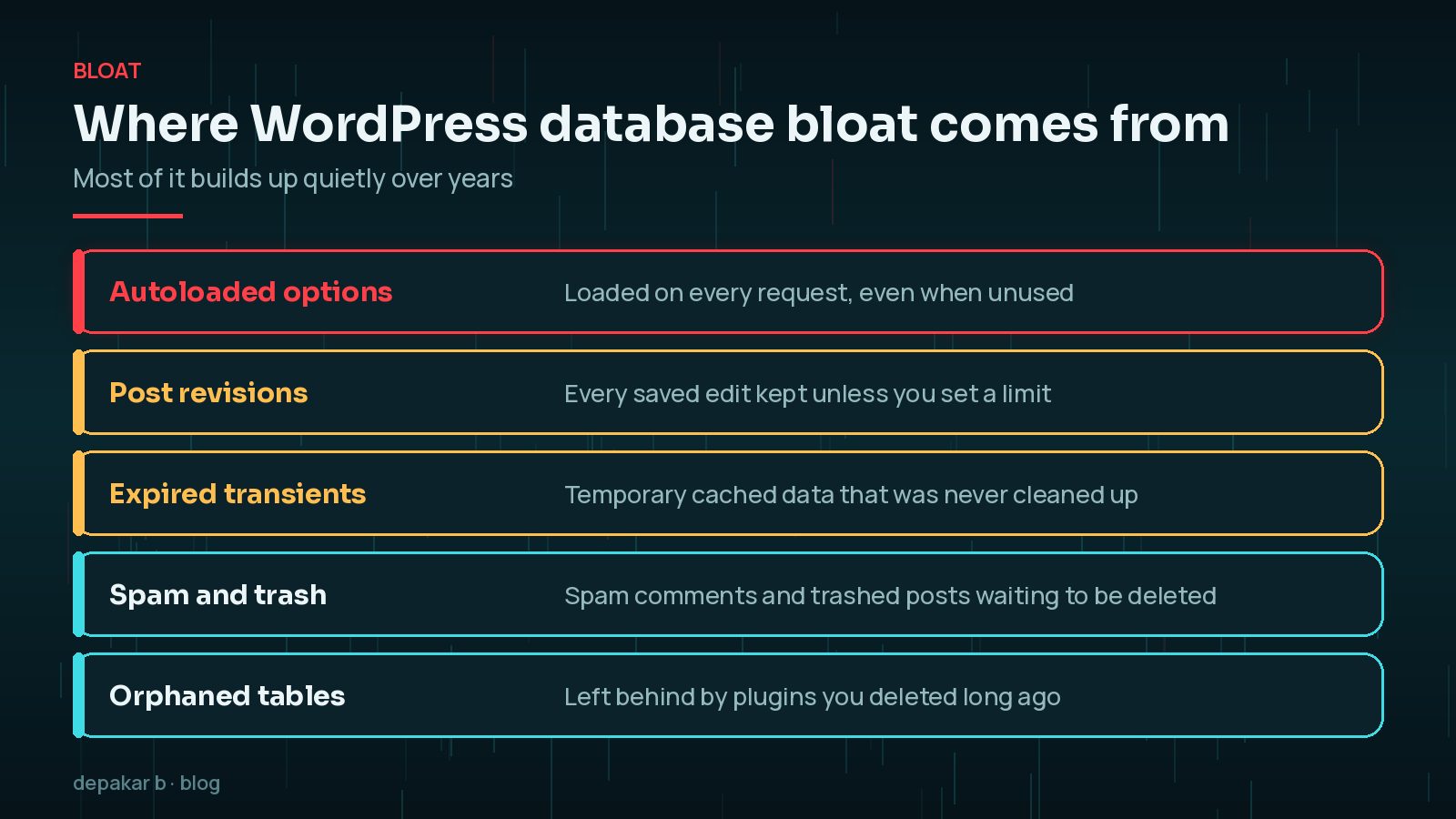
WordPress stores settings in the wp_options table. The WordPress core team explains that WordPress automatically loads multiple options with a single query on each page request, a technique called autoloading. That is efficient when the autoloaded data is small and needed.
The problem comes when plugins store large amounts of data, such as logs, caches or settings, as autoloaded options. All of it is loaded on every request, whether the page needs it or not. It also sits in memory and, with a persistent object cache, in the cache too.

WordPress 6.6 improved this. When an option is added or updated, WordPress now checks its size and by default does not autoload options larger than 150,000 bytes unless told otherwise. It also added a Site Health check that shows a critical issue when the total size of autoloaded options exceeds 800 KB. Options saved before that change keep their old autoload setting, so older sites can still carry large ones.
Finding Large Autoloaded Options
Start with Tools › Site Health. If the autoload warning appears, you know there is work to do. The WordPress core team notes that the Performance Lab plugin adds more detail to this check, listing the options involved.
With WP-CLI, you can measure and list them directly:
wp option list --autoload=on --format=total_bytes
      wp option list --autoload=on --fields=option_name,size_bytes | sort -n -k 2 | tail
The first command gives the total size in bytes; the second lists the ten largest autoloaded options, based on an example in the WP-CLI documentation. Run them on staging or with a backup in place, and note the results so you can compare after the clean-up.
Look at the largest entries. The option name usually reveals the plugin that owns it. Ask three questions for each: is the plugin still installed, does it need this data on every page, and is it growing over time?
Revisions, Transients and Spam Comments
These are the easy wins. They are low risk, quick to clear and they shrink backups, even if they rarely transform page speed on their own. Clear them first, then measure again, so you know how much of any improvement came from this step and how much from the autoload work that follows.
- Post revisions: WordPress saves a copy of each edit by default. On sites with years of edits, the posts table can hold far more revisions than live content.
- Expired transients: temporary cached values stored in the options table when no persistent object cache is used. Expired ones can linger. WP-CLI can remove them with
wp transient delete --expired. - Spam and trash: spam comments and trashed posts wait to be deleted. By default, WordPress empties the trash after 30 days.

Leftover Tables From Deleted Plugins
Many plugins create their own tables, and not all of them remove those tables when uninstalled. Over time, a database can collect tables from form builders, statistics tools and security plugins that left years ago.
- List tables with your hosting database tool or
wp db tables. - Match unfamiliar prefixes to plugin names. Check the plugin's documentation if unsure.
- Confirm the plugin is truly gone, not just deactivated.
- Export the table before dropping it, so you can restore it if needed.
Some plugins also leave rows behind in shared tables, such as options, post meta or user meta, with their own prefix. These are harder to spot and riskier to remove by hand, so treat them like tables: identify the owner, export first and delete only what you are sure of.
Leftover tables mainly cost disk space and backup time. They rarely slow page loads, so do not take risks with them.
How to Optimize WordPress Database Tables Safely
Work in an order that gets the safest gains first and measure as you go.
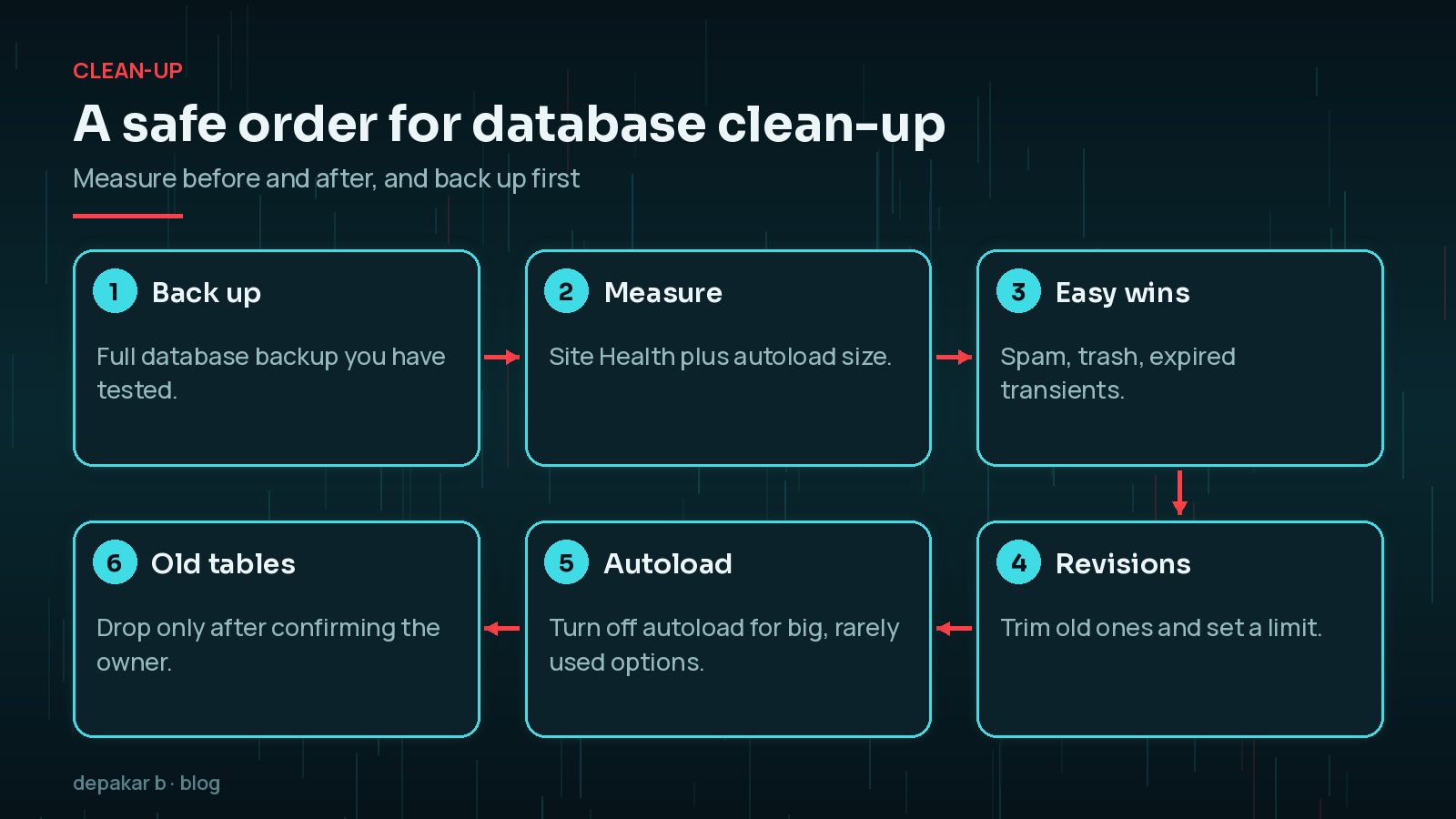
- Back up the database and confirm you can restore it. My WordPress performance guide explains where the database fits into overall speed.
- Measure the autoload size and note slow pages.
- Clear spam, trash and expired transients.
- Trim revisions you will never use.
- Deal with large autoloaded options: delete those from removed plugins, and ask active plugins' developers about the rest, or switch them to not autoload if you are confident.
- Drop leftover tables only once their owner is confirmed and exported.
Do not delete options blindly. Removing an option an active plugin depends on can reset its settings or break features. If you are unsure, change autoload rather than deleting, and test on staging first.
Keeping It Lean: Limits and Scheduled Clean-Ups
Once clean, a few settings stop the bloat returning. The WordPress wp-config.php documentation includes two useful constants:
define( 'WP_POST_REVISIONS', 10 );
      define( 'EMPTY_TRASH_DAYS', 14 );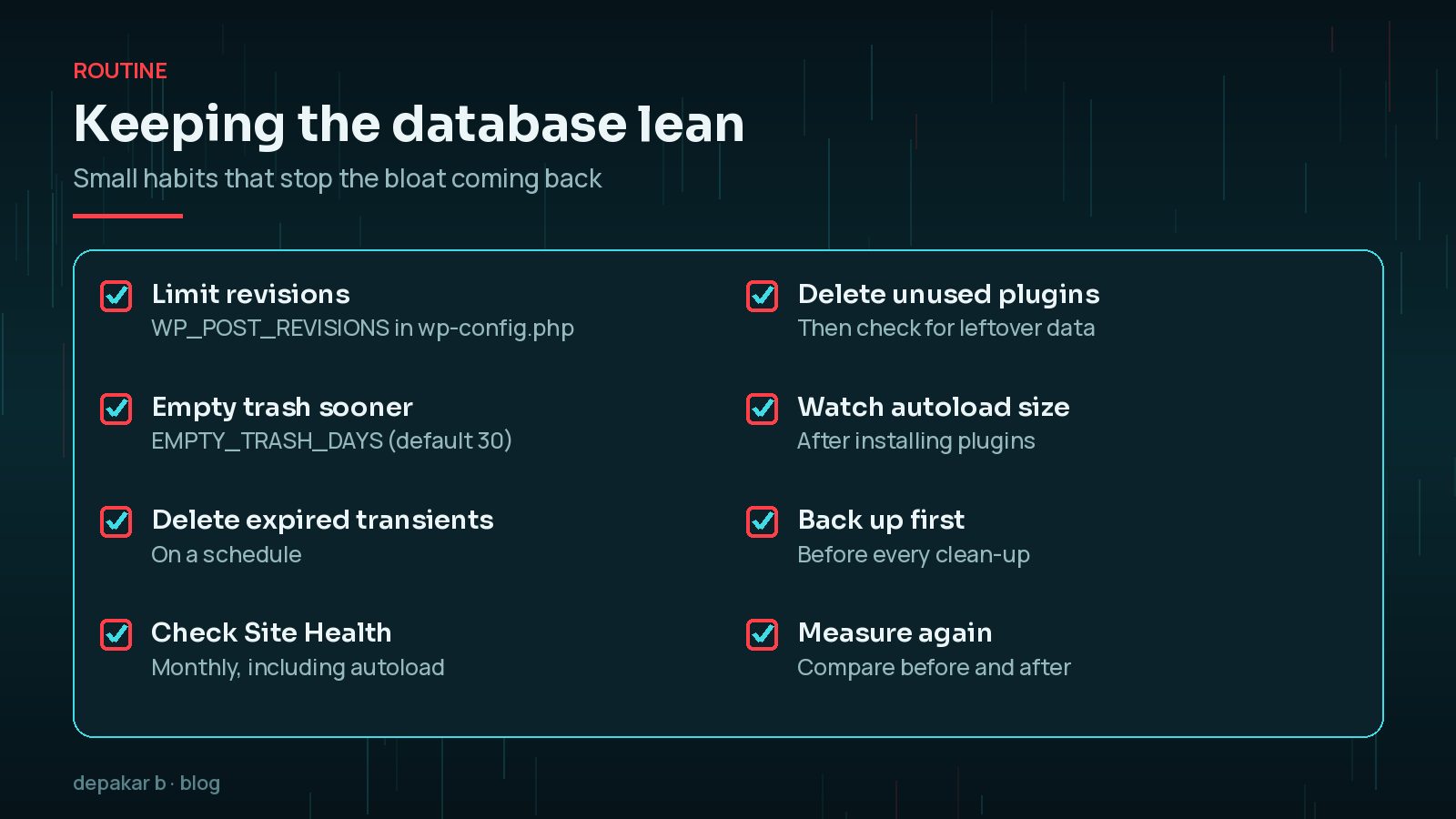
- Check Site Health monthly and after installing new plugins.
- Delete plugins properly rather than leaving them deactivated, then check for leftover data.
- Schedule expired transient clean-up if your host or plugin does not.
- Consider a persistent object cache. My guide to reducing TTFB explains when server-side work is the bottleneck.
Frequently Asked Questions
Will cleaning my WordPress database make my site much faster?
It depends on what is in it. Reducing a very large set of autoloaded options can make a real difference because that data loads on every request. Deleting a few thousand old revisions on a small site usually makes little visible difference, though it does shrink backups.
Is it safe to delete post revisions?
Yes, as long as you do not need to restore an older version of a post. Take a backup first. If you want a safety net, limit revisions to a sensible number with WP_POST_REVISIONS rather than turning them off entirely.
What does the Site Health autoload warning mean?
Since WordPress 6.6, Site Health shows a critical issue saying autoloaded options could affect performance when their total size exceeds 800 KB. It means a lot of data is loaded on every page, and you should find which options are responsible.
Can I just delete tables I don't recognise?
No. Some tables belong to active plugins or to WordPress itself on multisite. Only drop a table once you have confirmed which plugin created it, that the plugin has been removed, and that you have a tested backup.
Should I use a database cleaning plugin?
A reputable one can be convenient for revisions, transients and spam. Be cautious with one-click options that remove tables or options automatically, and always back up first.
Final Thoughts
To optimise a WordPress database, focus on the data loaded on every request before the clutter that merely takes up space. Check Site Health, measure autoloaded options, clear revisions, transients and spam, and only remove tables or options once you know who owns them. Then set limits so it stays that way.
If your site is slow and you suspect the database, my speed and performance service includes a full database review and clean-up.
Official References
Sources checked on 29 October 2026: