
A WordPress 500 internal server error or a 503 "service unavailable" page tells you something has gone wrong on the server, but not what. The good news is that the causes are fairly predictable, and the server's error log usually points straight at the problem.
This guide explains how 500, 502 and 503 differ, where to find the logs, and how to work through .htaccess problems, PHP limits, plugin and theme errors, and traffic spikes. Take a backup of any file before you change it.
500 vs 502 vs 503: What's the Difference?
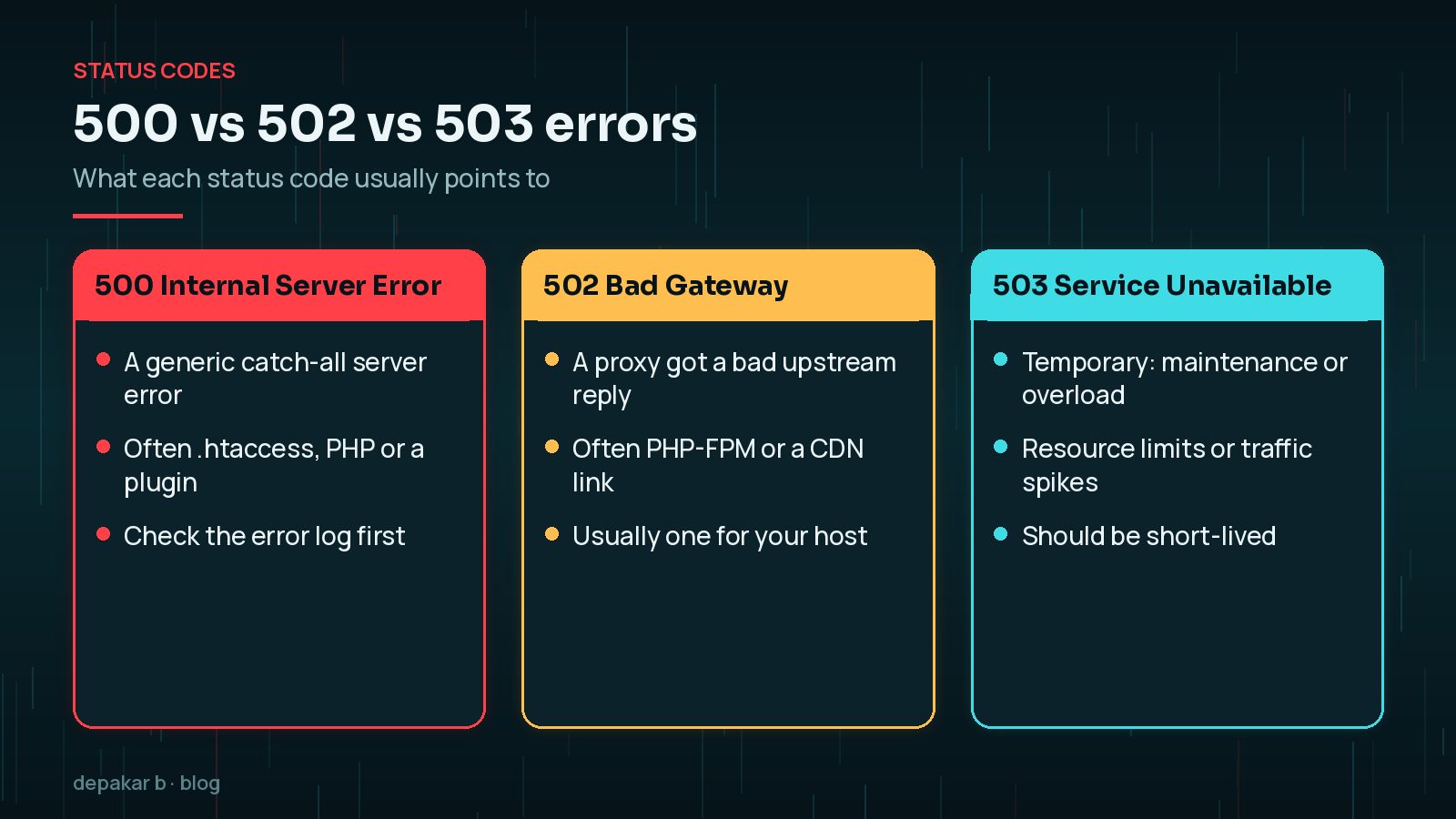
- 500 Internal Server Error. MDN describes it as a generic catch-all: the server hit an unexpected condition and couldn't find a more specific error to send. Causes include server misconfiguration, running out of memory, unhandled errors in code and wrong file permissions.
- 502 Bad Gateway. A server acting as a gateway or proxy, such as a CDN or the web server in front of PHP, received an invalid response from the server behind it.
- 503 Service Unavailable. The server isn't ready to handle the request, commonly because it is down for maintenance or overloaded. MDN notes it should be used for temporary conditions.
WordPress itself shows a 503 with "Briefly unavailable for scheduled maintenance" while updates run. If that message sticks, WordPress's common errors guide says to delete the .maintenance file from your site root.
If the whole site is down and you need a calm starting point, see my WordPress site down emergency checklist.
WordPress 500 Internal Server Error? Check the Error Log First
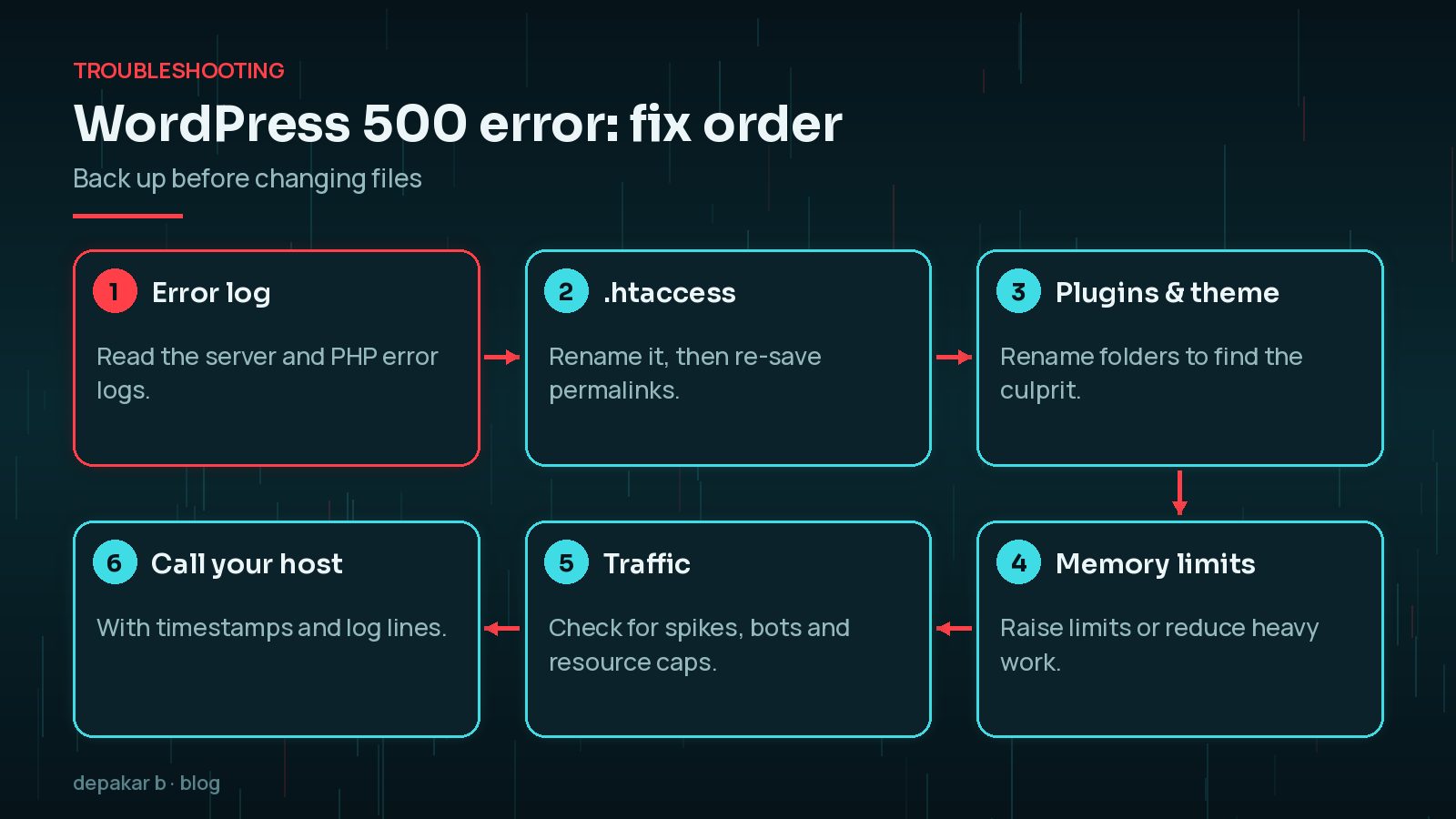
Guessing wastes time. The error log usually names the file and line that failed.

- Hosting control panel: most hosts provide error logs for the web server and PHP. Look for entries timestamped when the error started.
- WordPress debug log: add these lines to
wp-config.phpto write PHP errors towp-content/debug.logwithout showing them to visitors:
define( 'WP_DEBUG', true );
define( 'WP_DEBUG_LOG', true );
define( 'WP_DEBUG_DISPLAY', false );
Turn debugging off again when you've finished, and delete the log file, as it can contain information about your site.
Look for phrases such as "Allowed memory size exhausted", "Maximum execution time exceeded", or a fatal error naming a plugin or theme folder. Each points to a section below.
A Corrupt .htaccess File
WordPress's common errors guide says a corrupted .htaccess file is the most likely cause of a 500 error on Apache-based hosting. To test it:
- Connect by SFTP or your host's file manager and find
.htaccessin the site root. - Rename it to
.htaccess_old. - Load your site. If it works, go to Settings → Permalinks and click Save to generate a fresh file.
- Compare the old file with the new one and only re-add rules you understand and need.
Bad rules often come from security or caching plugins, manual edits, or occasionally a hack. Sites on Nginx don't use .htaccess, so skip this step there.
PHP Memory and Execution Limits
If the log mentions memory or execution time, a process is asking for more than the server allows. WordPress's guide notes this is particularly common on shared hosting.
- Raise the WordPress memory limit in
wp-config.php, for exampledefine( 'WP_MEMORY_LIMIT', '256M' );. This can't exceed what your host's PHP settings allow. - Ask your host to raise the PHP memory limit or maximum execution time if needed.
- Find what's heavy. Large imports, backups, image processing and badly written plugins are common culprits. Raising limits treats the symptom; fixing the heavy task treats the cause.
Plugin or Theme Fatal Errors
A plugin or theme update that conflicts with your PHP version or another plugin can cause a 500 error. Modern WordPress often shows "There has been a critical error on this website" instead, which my guide to fixing the WordPress critical error covers. A blank page is covered in the WordPress white screen of death.
If you can't reach the admin area:
- Rename
wp-content/pluginstoplugins_off. This deactivates every plugin. - If the site loads, rename it back, then rename individual plugin folders one at a time to find the culprit.
- If plugins aren't the cause, switch to a default theme by renaming your active theme's folder.
- As a last step, WordPress's guide suggests re-uploading the
wp-adminandwp-includesfolders from a fresh copy of WordPress.
Don't delete plugin folders while troubleshooting. Renaming is reversible; deleting can lose settings and custom files.
Traffic Spikes, Bots and Resource Limits
MDN notes that some servers return a 503 when they hit resource limits such as memory, CPU or connection pools. On WordPress hosting this often happens when:

- A campaign, newsletter or social post sends a burst of visitors.
- Bots or scrapers hammer search pages, login pages or uncached URLs.
- Background tasks such as backups or imports run at busy times.
- Pages are slow to generate, so each request holds resources for longer.
Page caching, a CDN, blocking abusive bots at the firewall and faster page generation all help. My guide to reducing TTFB on WordPress explains how to make each request cheaper for the server.
When to Call Your Host
Contact your host if the log points to the server rather than WordPress, if you see 502 errors, if 503s continue outside maintenance, or if you've worked through the steps above without a fix. Give them details so they can act quickly:
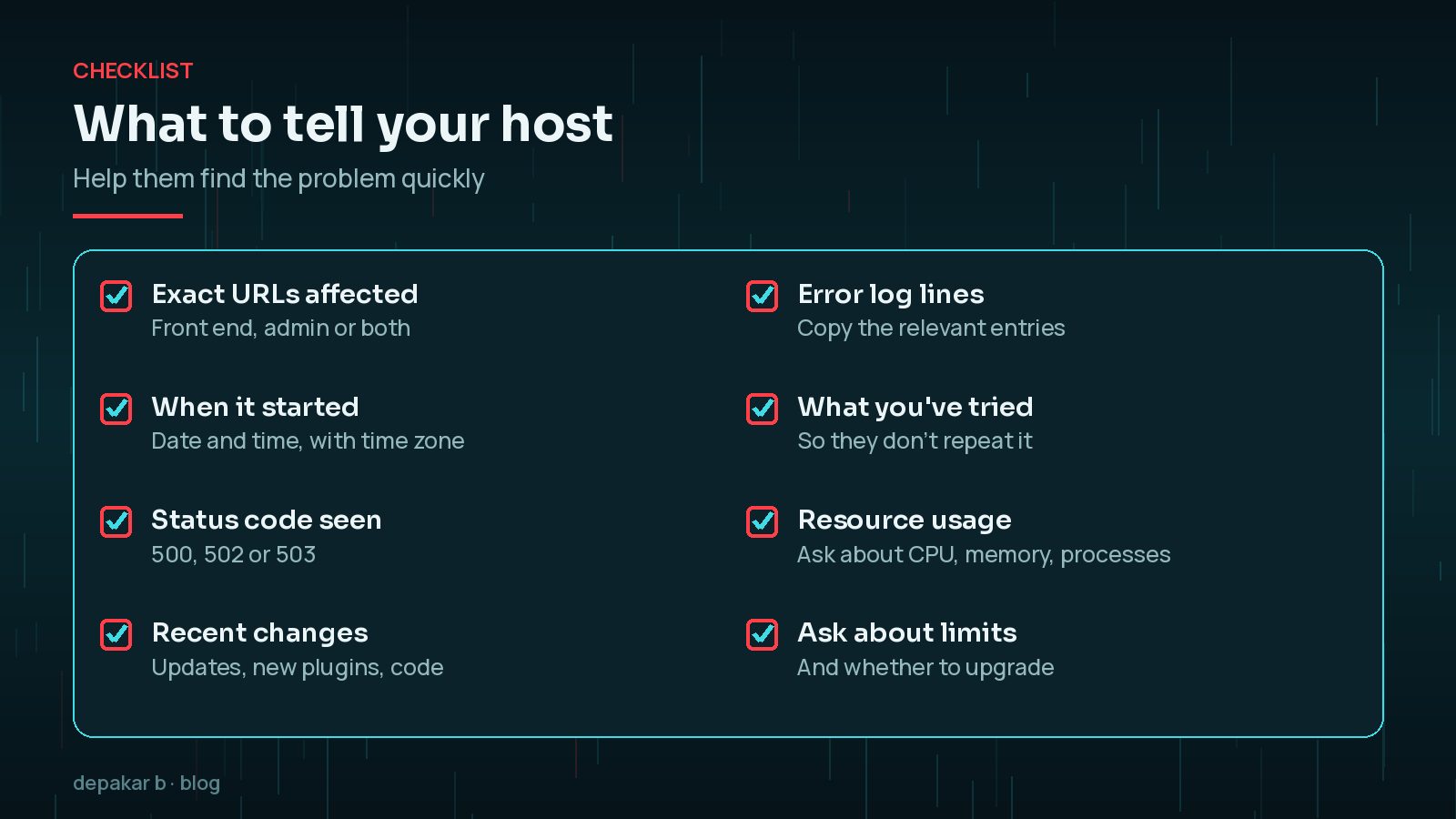
- The URLs affected, and whether the admin area is affected too.
- When it started, with your time zone.
- The exact status code and any error log lines.
- Recent changes, and what you've already tried.
- A request to check resource usage, limits and server health.
Frequently Asked Questions
What causes a WordPress 500 internal server error?
Common causes are a corrupted .htaccess file, PHP memory or execution limits, a plugin or theme fatal error, wrong file permissions or a server misconfiguration. The error log usually tells you which.
How do I fix a 503 service unavailable error in WordPress?
If it follows an update, delete the .maintenance file in your site root. Otherwise check for traffic spikes, bots and resource limits, and ask your host whether the server is overloaded.
What is the difference between a 500 and a 503 error?
A 500 is a generic error meaning something unexpected failed. A 503 means the server is temporarily unable to handle requests, usually because of maintenance or overload.
Where do I find the WordPress error log?
Check your hosting control panel for web server and PHP error logs, or enable WP_DEBUG_LOG in wp-config.php to write errors to wp-content/debug.log.
Will increasing the PHP memory limit fix a 500 error?
Only if the log shows memory exhaustion. Even then, it's worth finding what uses so much memory, as raising the limit only treats the symptom.
Final Thoughts
A WordPress 500 internal server error or a 503 looks alarming, but the error log usually tells you where to look. Work from .htaccess to limits, plugins, themes and traffic, change one thing at a time, and bring your host in early when the server itself is the problem.
If your site is down and you need help now, my site down recovery service can find and fix the cause.
Read the log, change one thing at a time, and keep backups of every file you touch.
Official References
Sources checked on 29 October 2026: