
A smooth WooCommerce payment gateway integration is invisible to customers: they pick a payment method, pay, and get a confirmation. Behind that, your shop, the payment provider and the bank pass messages back and forth, and small configuration mistakes can mean unpaid orders marked as paid, or paid orders stuck in “pending”.
This guide explains how gateways work in WooCommerce, how to choose one, official extensions versus third-party plugins, webhooks and refunds, checkout block compatibility, security basics, and when a custom gateway makes sense.

How WooCommerce payment gateway integration works
In WooCommerce, each payment method is a plugin that adds a gateway class. WooCommerce's developer documentation describes four broad types:
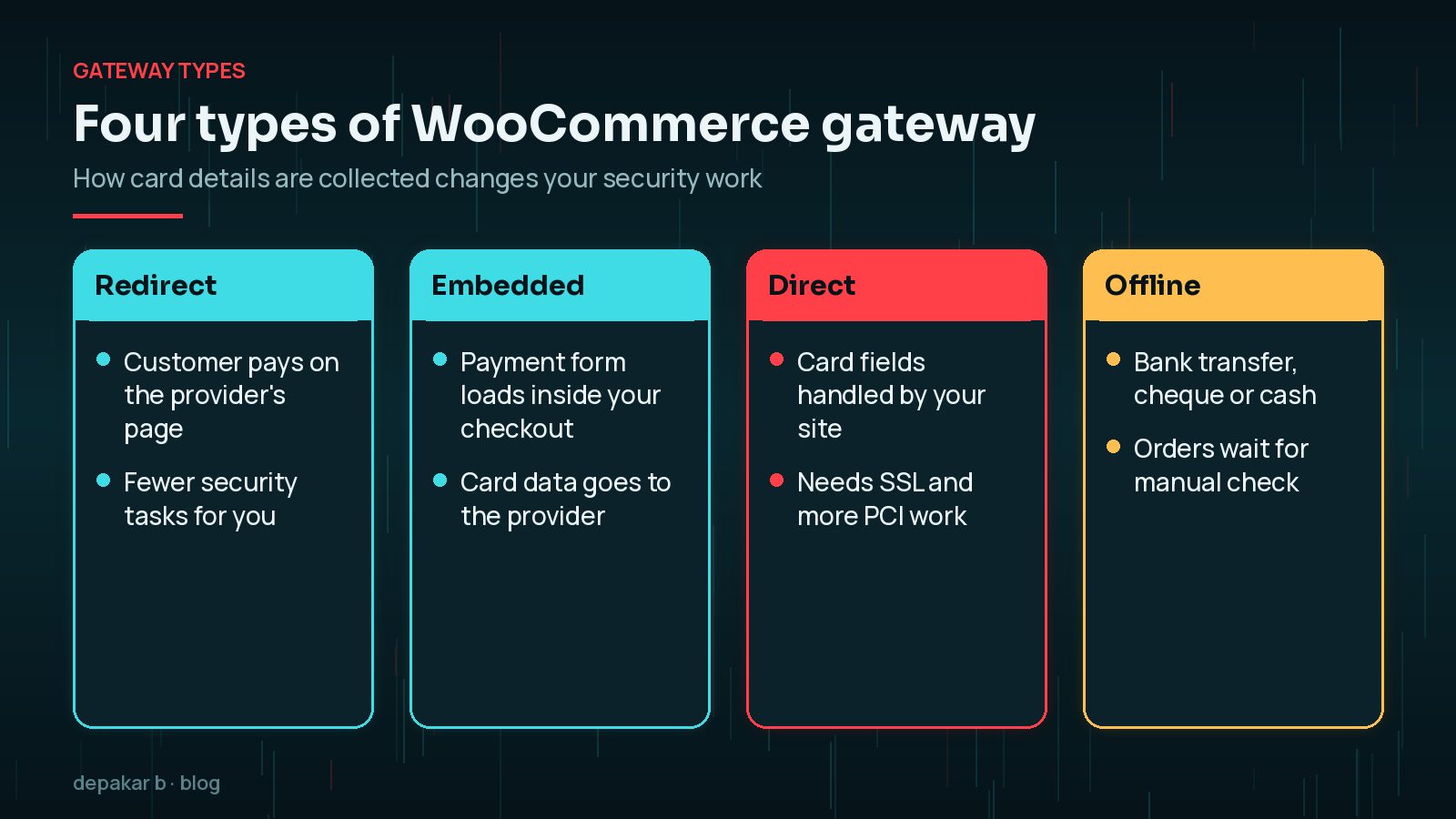
- Form or redirect based: the customer is sent to the provider's own page to pay.
- iFrame or embedded: the provider's payment form loads inside your checkout.
- Direct: payment fields appear on your checkout and payment is taken when the order is placed.
- Offline: bank transfer, cheque or cash on delivery.
The documentation notes that redirect and embedded gateways send data off-site, so there are fewer security issues for you to think about, while direct gateways need server security and may require a level of PCI compliance.
Choosing a gateway: fees, countries, payouts
The right gateway depends on where you trade and how your customers like to pay.
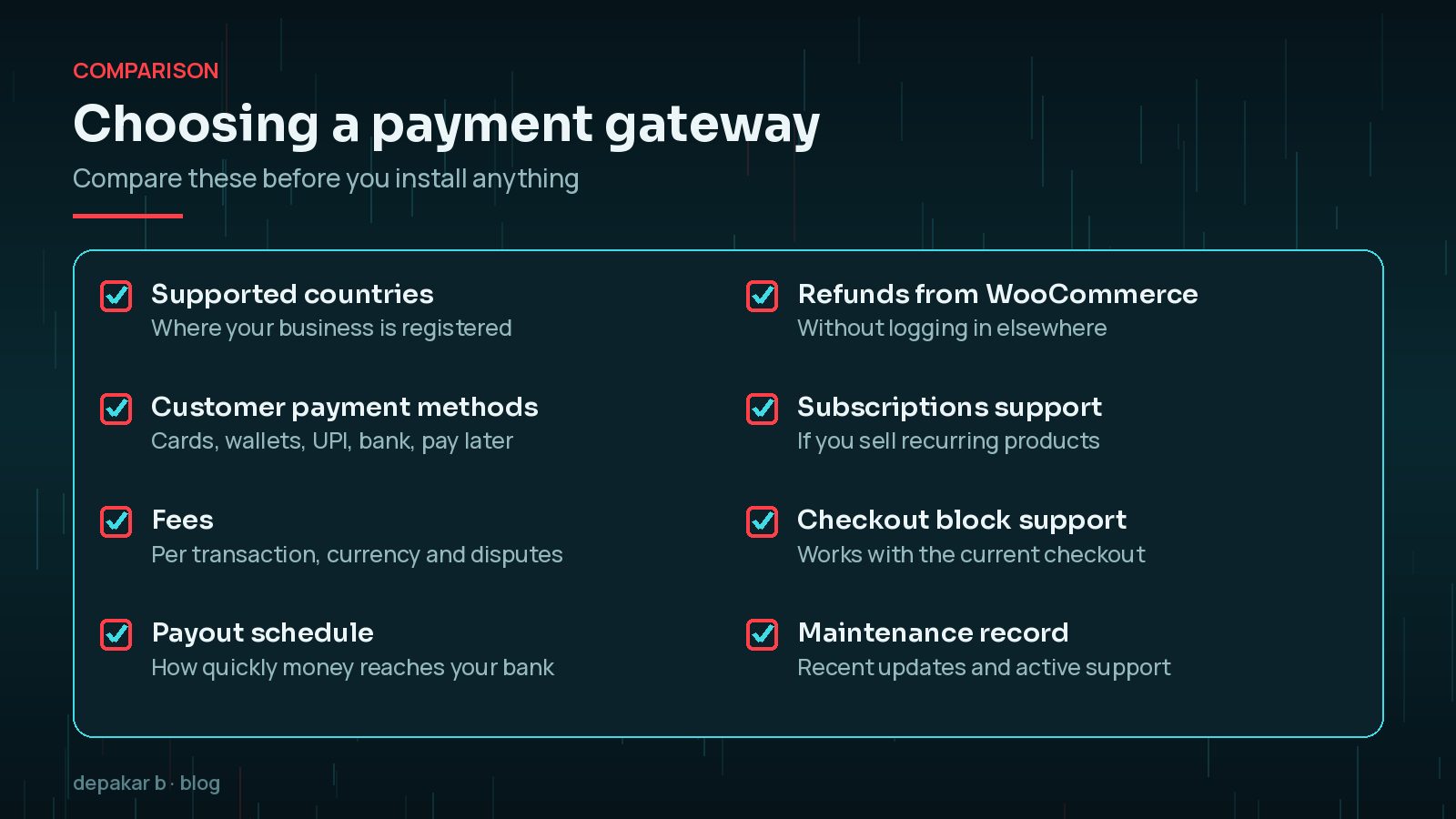
- Country support: WooPayments, for example, is only available to businesses in its supported countries, and the account country cannot be changed later.
- Payment methods: Stripe's WooCommerce extension supports cards, wallets such as Apple Pay, and buy now, pay later options. Razorpay's official plugin supports cards, net banking, UPI and wallets in India.
- Fees: check the provider's own pricing page; WooCommerce notes that Stripe's transaction fees are set by Stripe.
- Payouts: how often money reaches your bank, and any holding periods for new accounts.
Think about your customers' habits too. Business buyers may expect to pay by invoice or bank transfer, while shoppers on mobile often prefer wallets that skip typing card details. Look at your own enquiries and abandoned checkouts for clues before adding methods you may not need.
Offering one card gateway plus one popular local method usually covers most customers without cluttering the checkout.
Official extensions vs third-party plugins
Most major providers publish or endorse an official WooCommerce extension, such as WooPayments, the Stripe extension, PayPal Payments and Razorpay for WooCommerce. Official plugins tend to track WooCommerce changes and the provider's own API updates more closely.
Third-party plugins can fill gaps, for example local providers without an official plugin, but check them carefully: recent updates, compatibility with your WooCommerce version, support response and reviews from stores like yours. Payment plugins touch money and customer data, so the bar should be high. Gateways and extra scripts also affect checkout speed; see how to speed up a WooCommerce store.
Webhooks, refunds and order statuses
Many payment events happen after the customer leaves your checkout: a bank confirms a payment, a customer disputes a charge, or a subscription renews. Providers send these events to your site as webhooks. Stripe's documentation describes webhooks as the way your integration hears about these asynchronous events.
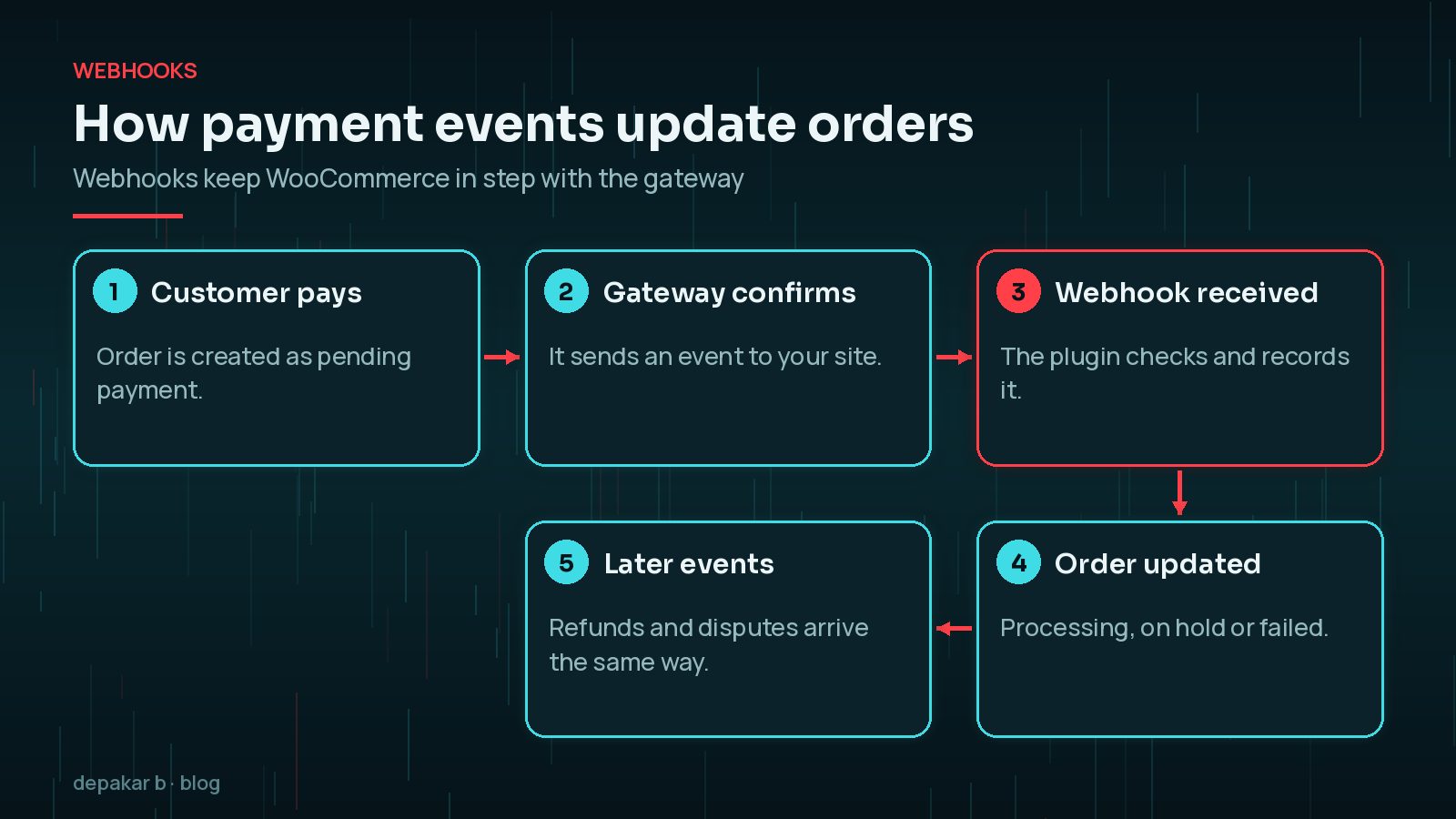
- Follow the extension's guide to set up webhooks, and check they are received after any domain or SSL change.
- Confirm that paid orders move to Processing (or Completed for orders that need no fulfilment, such as downloadable products) and failed payments are marked Failed.
- Test refunds from the WooCommerce order screen and check they appear in the provider's dashboard.
Checkout blocks compatibility
WooCommerce's Cart and Checkout blocks have been the default for new stores since version 8.3 in November 2023. Payment methods need a separate integration to appear in the Checkout block; WooCommerce's developer documentation explains that gateways register with the block using registerPaymentMethod.
Before switching an established store from the classic shortcode checkout to blocks, confirm every payment plugin you use supports the Checkout block. If one does not, it may simply not show as an option, which can quietly cost you sales.
Security, PCI and testing in sandbox
PCI DSS is the card industry's security standard. Stripe's integration security guide describes compliance as a shared responsibility: Stripe is certified as a Level 1 service provider, and businesses must accept payments in a compliant way. Its low-risk integrations send card data straight to Stripe without passing through your server, which reduces your obligations.

- Keep the site on HTTPS and WordPress, WooCommerce and the gateway plugin updated.
- Use the provider's test or sandbox mode; WooPayments, for example, offers a test account option.
- Test successful payments, declined cards, refunds and, if relevant, subscriptions and 3D Secure checks.
- Switch to live keys only after testing, and place one small real order to confirm.
When you need a custom gateway
A custom gateway makes sense when your provider has no reliable WooCommerce plugin, when you need a specific flow such as deposits or invoicing through a bank's API, or when an existing plugin is unmaintained. WooCommerce gateways are built as plugins that extend the WC_Payment_Gateway class, and should mark paid orders with payment_complete() so stock and statuses update correctly.
Custom payment code needs careful testing, ongoing updates and a plan for Checkout block support. For budgeting, see custom WordPress plugin cost factors. If you are still choosing a platform, my comparison of WordPress and Shopify for small businesses may help, and payment data often connects to forms and CRMs as described in WordPress forms and integrations.
Frequently Asked Questions
Which payment gateway is best for WooCommerce?
It depends on your country, customers and products. Compare supported countries, payment methods, fees, payouts and Checkout block support, and prefer an official, well-maintained extension.
Do I need PCI compliance for WooCommerce?
If you accept card payments, yes, but redirect and embedded gateways that keep card data off your server greatly reduce what you need to do. Check your provider's guidance for your setup.
Why are my WooCommerce orders stuck on pending payment?
Often because webhooks from the gateway are not reaching your site. Check the webhook settings in the gateway plugin and look for firewalls or security plugins blocking the endpoint.
Can I use more than one payment gateway?
Yes. Many stores offer a card gateway plus a local or wallet option. Keep the list short so the checkout stays clear.
Does my payment plugin work with the Checkout block?
Check the plugin's documentation or changelog. Gateways need a specific integration to appear in the Checkout block, so test on staging before switching from the classic checkout.
Final Thoughts
A reliable WooCommerce payment gateway integration comes down to choosing a provider that suits your country and customers, using a well-maintained official plugin where possible, setting up webhooks properly and testing every payment path in sandbox mode before going live. If you need a gateway that no plugin covers, or help untangling a checkout that misbehaves, my custom plugin development service can help.
Official References
Sources checked on 29 October 2026:
- WooCommerce Developer Docs: Payment Gateway API
- WooCommerce Developer Docs: Payment method integration for the Checkout block
- WooCommerce: WooPayments startup guide
- WooCommerce: Stripe extension documentation
- WooCommerce: Cart and Checkout blocks
- WordPress.org Plugins: Razorpay for WooCommerce
- Stripe Docs: Integration security guide
- Stripe Docs: Webhooks