
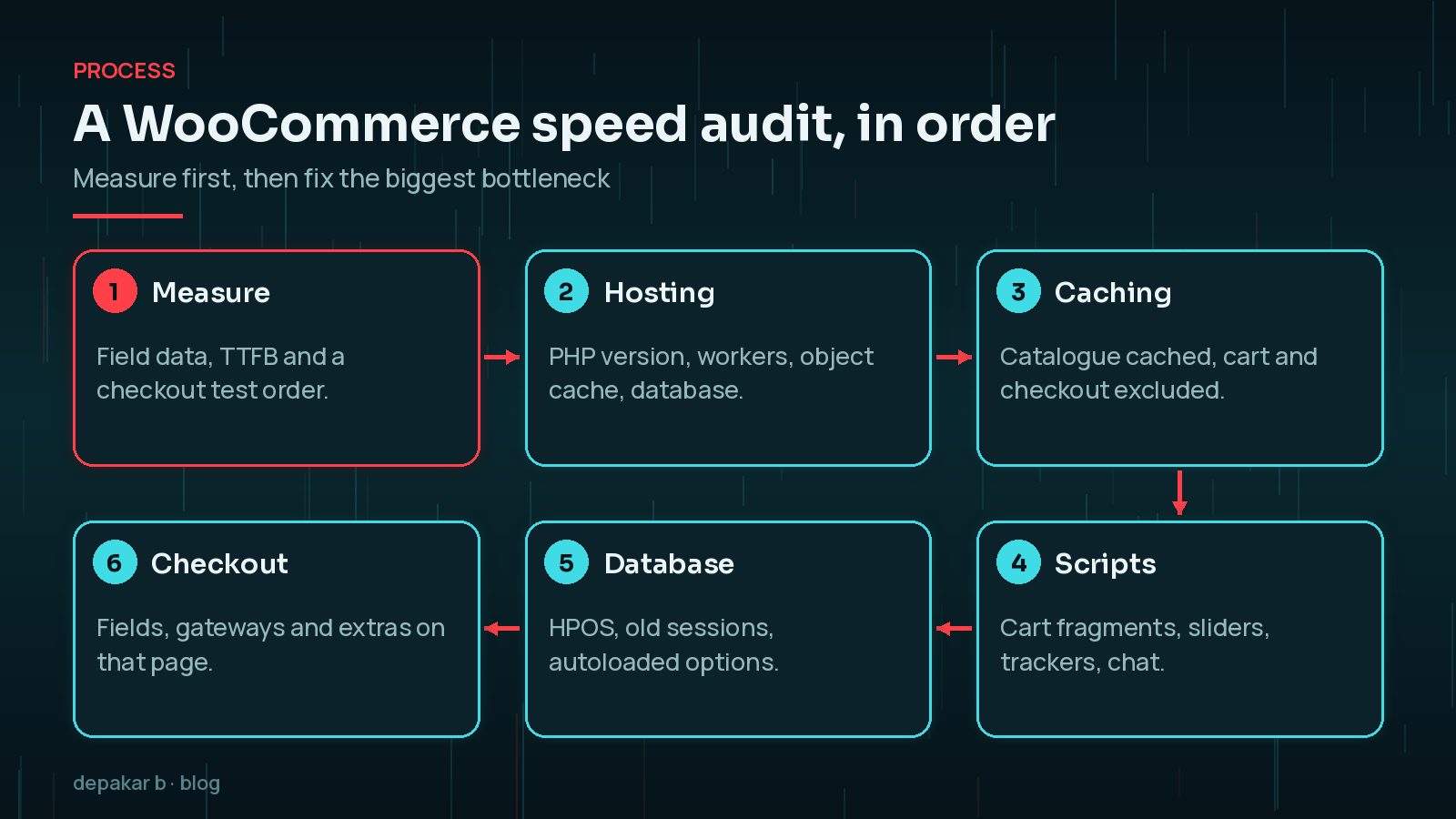
Is WooCommerce slow on your store? You are not alone, and it is rarely one single cause. A shop does far more work than a brochure site: carts, sessions, stock, shipping, tax and payment all happen on the server, often for every visitor at once.
The good news is that most stores can be made noticeably faster without a rebuild. This guide walks through where WooCommerce time actually goes and the order I would fix things in, from hosting and caching to cart fragments, High-Performance Order Storage and checkout.

Why Is WooCommerce Slow Compared With Normal Sites?
A normal blog page is the same for every visitor, so it can be built once and served from a cache. Many WooCommerce pages are different for each shopper:
- The cart and checkout are personal and change with every click.
- Sessions and cookies track what each visitor has added.
- Product data lives across several database tables, and filters can run heavy queries.
- Extensions for shipping, tax, payments, reviews and marketing each add their own scripts and server work.
That is why a WooCommerce slow-down usually shows up first as a slow server response (TTFB) and laggy cart or checkout pages, even when the home page seems fine. My guide to reducing TTFB on WordPress goes deeper on the server side.
What Hosting Does a WooCommerce Store Need?
I will not quote a plan or a price, because the right size depends on your traffic, product count and extensions. These are the factors that matter:
- A current, supported PHP version. Newer PHP is generally faster, and older versions stop getting security fixes. PHP 8.2 reaches end of life on 31 December 2026, so plan an upgrade if you are still on it.
- Enough PHP workers (processes) to handle uncached requests at the same time. Carts and checkouts are uncached, so busy sales periods use them up quickly.
- A persistent object cache such as Redis or Memcached, so repeated database queries are not rerun on every request.
- A healthy database server with room to grow as orders build up.
- Staging, so you can test changes before they reach paying customers.
If your host cannot tell you how many PHP workers you have, or whether object caching is available, that is useful information in itself.
Caching a Store Without Breaking Carts and Checkout
Full-page caching is still the biggest single win for a store, as long as it is set up correctly. WooCommerce's own documentation says the Cart, My Account and Checkout pages must be excluded from page caching, because they show information specific to the current customer.
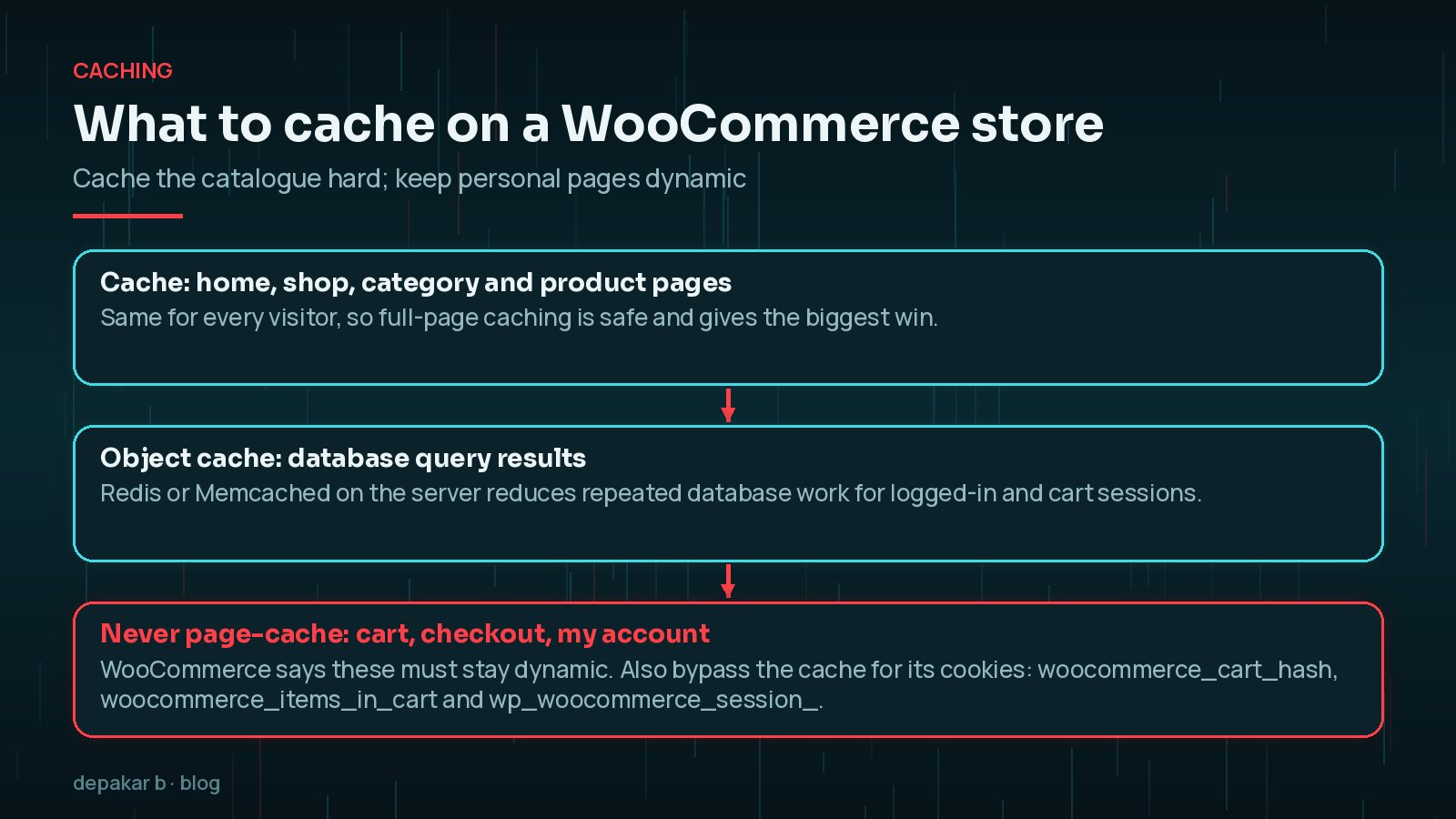
WooCommerce also lists the cookies that track carts and sessions, including woocommerce_cart_hash, woocommerce_items_in_cart and wp_woocommerce_session_. Your cache should bypass visitors who carry them. If your caching tool offers database caching, WooCommerce suggests excluding _wc_session_ too.
Most popular caching plugins handle this automatically. WooCommerce notes that WP Super Cache excludes these pages by default, and that you should make sure WP Rocket does not cache them. It also recommends avoiding JavaScript minification with WP Rocket. Server-level caches such as Varnish or a host's own cache need the same rules. For more on the different layers, see WordPress caching explained.
Test with a real order after any cache change. A cached checkout can show one customer's details to another, or leave carts empty. Place a test order, log in and out, and try the password reset, which WooCommerce notes can loop if My Account is cached.
Cart Fragments, AJAX and admin-ajax Load
"Cart fragments" is a script that keeps the mini cart up to date without reloading the page. It does this by sending an AJAX request called get_refreshed_fragments, which WooCommerce describes as using the WordPress admin-ajax API. On busy stores those extra requests can add noticeable server load.
Since WooCommerce 7.8 (June 2023), the script is no longer loaded on every page. According to the WooCommerce developer blog, it now loads only when the Mini Cart widget is used, when a theme or plugin depends on it, or when code enqueues it. Some themes hard-code the widget, so it may still load everywhere.
What to do:
- Open your home page with the browser's Network panel and filter for
get_refreshed_fragmentsrequests. - If they appear on pages that do not need a live cart, find out which theme feature or plugin loads the script.
- Consider the Mini Cart block, which WooCommerce suggests as an alternative that does not use the cart fragments API.
- Check other
admin-ajax.phpcalls too: live search, stock counters and some analytics tools use it heavily.
Is High-Performance Order Storage Worth Switching On?
For most stores, yes, once your extensions support it. High-Performance Order Storage (HPOS) moves orders out of the general WordPress posts tables into dedicated order tables with their own indexes. WooCommerce says this means fewer read and write operations and fewer busy tables.
Since WooCommerce 8.2 (October 2023), HPOS has been enabled by default for new installations. Older stores may still be using the legacy posts storage.
- Go to WooCommerce → Settings → Advanced → Features.
- If the HPOS option is disabled, click to view incompatible plugins. WooCommerce lists them for you.
- Update or replace those plugins, then test on staging.
- Enable compatibility mode so the old and new tables stay in sync while you check orders, refunds and reports.
- Switch to HPOS, keep testing, and only turn off compatibility mode once you are confident.
WooCommerce's documentation also explains how to switch back to posts storage if an extension misbehaves. Take a full backup first either way.
Product Images, Filters and Search
Catalogue pages are where shoppers browse, so they shape both speed and sales.
- Images: upload sensibly sized product photos, use modern formats such as WebP where your setup supports them, and let WordPress serve responsive sizes. Keep the main product image from being lazy-loaded, because it is often the Largest Contentful Paint element.
- Filters: layered navigation across many attributes can run expensive queries. Limit filters to the ones shoppers actually use, and check that the filter plugin supports caching.
- Search: default WordPress search can be slow on big catalogues. A dedicated search index can help larger stores.
- Page builders and sliders: heavy shop templates add scripts and DOM size that slow taps and clicks.
Measure with real-user data where possible. Google's Core Web Vitals thresholds for a good experience are LCP within 2.5 seconds, INP of 200 milliseconds or less and CLS of 0.1 or less, at the 75th percentile of visits. My WordPress performance guide explains how to read them.
Speeding Up Checkout Specifically
Checkout cannot be page-cached, so every improvement there comes from doing less work.

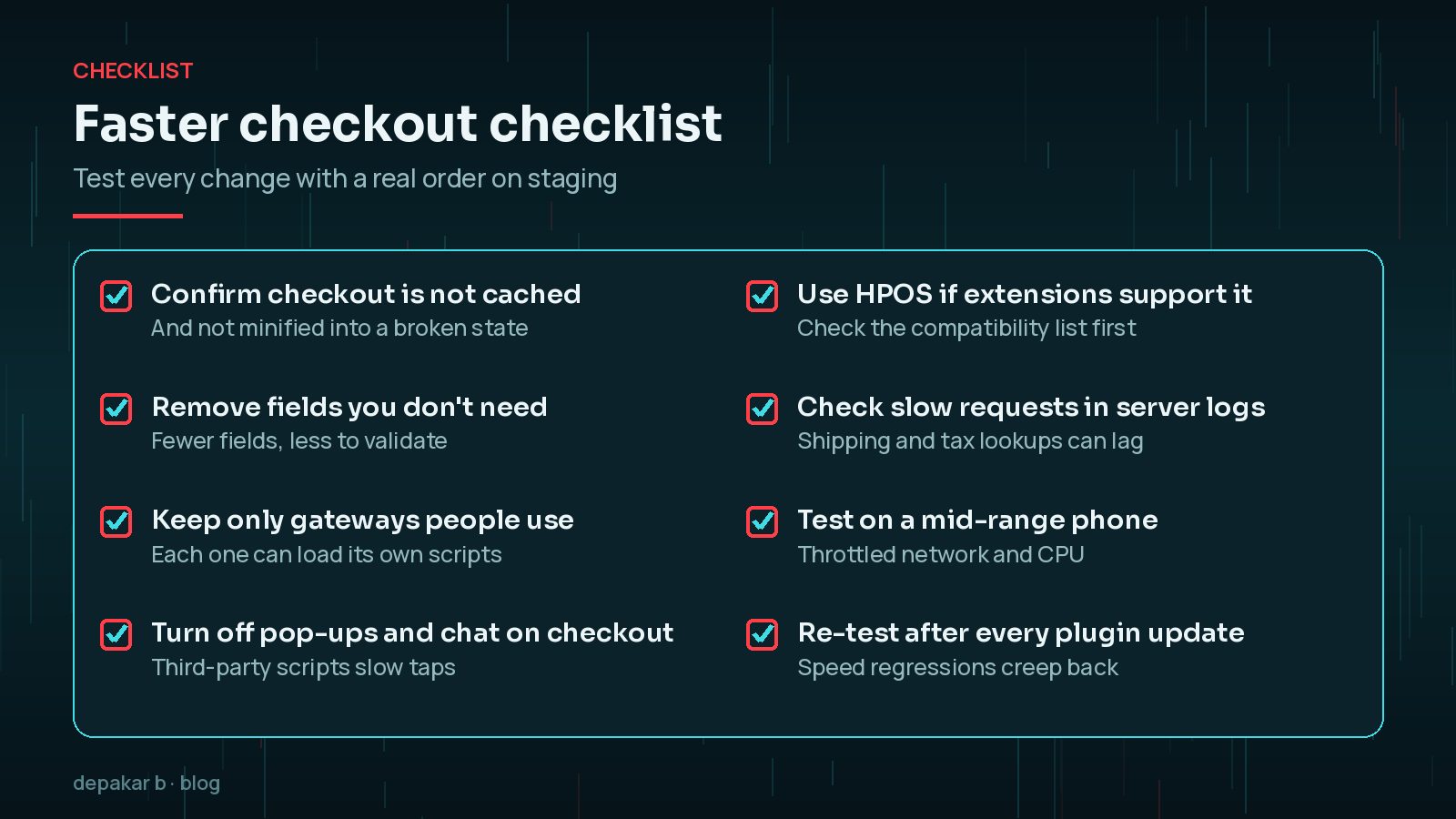
- Remove fields you do not need. Every field is something to fill in and validate.
- Keep only the payment gateways customers use. Each gateway can load its own scripts. If you are adding one, my guide to adding a payment gateway to WooCommerce covers doing it cleanly.
- Switch off pop-ups, chat widgets and heatmaps on checkout. Customers are already buying.
- Watch slow external calls for live shipping rates, tax or address lookups in your server logs.
- Test on a mid-range phone with a throttled connection, not just a fast laptop.
Frequently Asked Questions
Why is my WooCommerce store slow when the home page is fast?
The home page is usually cached, but cart, checkout and account pages are not. Those depend on PHP workers, the database and every extension that runs on them, so they show the real speed of your hosting and plugins.
Should I disable cart fragments in WooCommerce?
Since WooCommerce 7.8 the cart fragments script only loads when the Mini Cart widget is used or something depends on it. If it still loads everywhere, find out what needs it first. Removing it blindly can stop a theme's mini cart updating.
Is it safe to cache WooCommerce pages?
Yes for shop, category and product pages, as long as the cache bypasses cart cookies. WooCommerce says Cart, Checkout and My Account must not be page-cached.
Does High-Performance Order Storage speed up the front end?
HPOS mainly helps order-related database work, such as placing orders and managing them in the admin. It is the default for new stores since WooCommerce 8.2; existing stores should check extension compatibility first.
What is the quickest WooCommerce speed win?
For most stores it is correct full-page caching of the catalogue plus a persistent object cache, followed by removing heavy scripts from product and checkout pages. Measure before and after so you know what helped.
Final Thoughts
A slow WooCommerce store is usually a stack of small problems: tight hosting, cache rules that are too timid or too aggressive, scripts loading everywhere, and a checkout carrying more than it needs. Work through them in order and measure each change.
If you want a second pair of eyes, my speed and performance service covers exactly this kind of store audit, tested on staging before anything reaches your customers.
Cache the catalogue, keep carts dynamic, and make checkout do as little as possible.
Official References
Sources checked on 29 October 2026: