
WordPress caching means keeping a ready-made copy of something so the server, or the visitor's browser, does not have to rebuild it every time. Without it, WordPress runs PHP and queries the database for every request. With it, many requests are answered from a stored copy in a fraction of the time.
There is no single "cache", though. There are layers, and each one stores something different in a different place.
What Does WordPress Caching Actually Do?
When someone requests a page, WordPress normally loads its core files, your theme and every active plugin, runs database queries, assembles the HTML and sends it back. Then the browser downloads CSS, JavaScript, fonts and images. Every one of those steps can be cached somewhere.
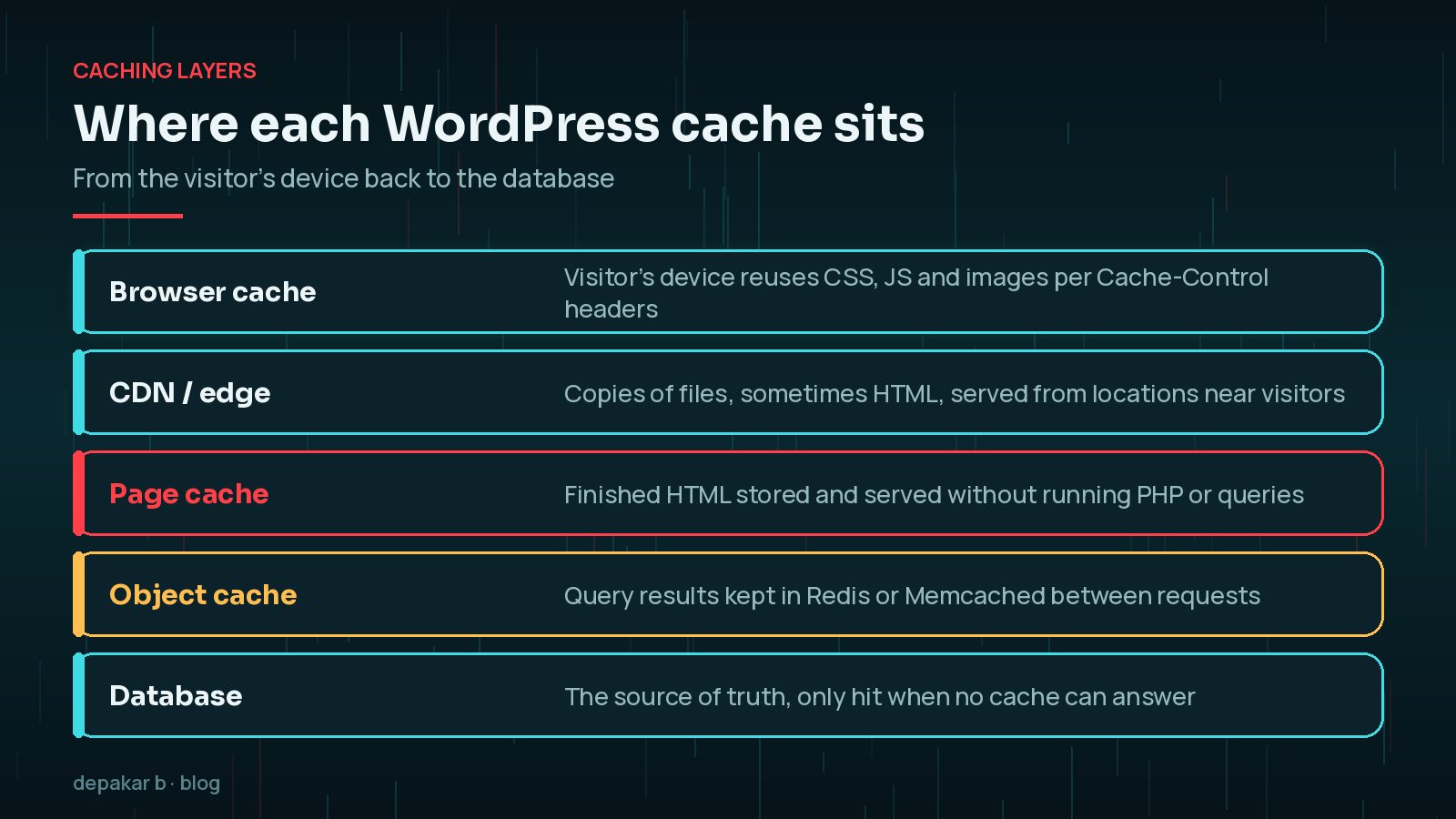
Think of it as a chain. The closer to the visitor a request can be answered, the faster it is and the less work your server does. The database is the source of truth, and the aim is to touch it only when nothing else can answer.
Page Caching: Serving Finished HTML
A page cache stores the complete HTML of a page after WordPress builds it once. The next visitor gets that stored copy without WordPress running PHP or querying the database at all. For anonymous visitors to blogs and brochure sites, this is the layer that makes the biggest difference.
The WordPress caching documentation lists several places this can happen:
- At the server or host level, for example with a reverse proxy such as Varnish or the host's own system.
- With a WordPress plugin that writes HTML files and serves them early in the request.
- At a CDN, if it is configured to cache HTML as well as static files.

The catch is freshness. When you publish or edit content, the stored copy must be purged, or visitors will keep seeing the old version. Good setups do this automatically.
Object Caching with Redis or Memcached
WordPress has a built-in object cache, the WP_Object_Cache class. By default it is non-persistent: it keeps data in memory only for the duration of a single request, then throws it away. That avoids repeating the same query within one page load, but the next request starts from scratch.
A persistent object cache changes that. With a drop-in connected to a memory store such as Redis or Memcached, query results and other objects survive between requests. WordPress transients are stored there too when persistent caching is available.

This matters most where page caching cannot help: logged-in users, WooCommerce carts, membership sites and the admin area. If your site has many logged-in visitors or a slow dashboard, an object cache is often worth asking your host about. My guide to reducing TTFB on WordPress shows how to tell whether server work is your bottleneck.
Browser Caching and Cache Headers
Browser caching happens on the visitor's own device. Your server sends HTTP headers, mainly Cache-Control, telling the browser how long it may reuse a file without asking again.
- Static files such as CSS, JavaScript, fonts and images can usually be cached for a long time, especially when their filenames or query strings change with each new version.
- HTML usually gets a short lifetime or must be revalidated, so visitors see updates.
- Personalised responses should be marked
private, which MDN explains stops shared caches, such as CDNs and proxies, from storing them.
These headers are set by the web server, a host control panel or a plugin. Set them in one place only, so you are not debugging two sets of rules.
CDN and Edge Caching
A content delivery network keeps copies of your files on servers in many locations. A visitor in another country is served from a nearby location instead of your origin server.
Most CDNs cache static files by default. Some can also cache full HTML pages at the edge, which works much like a page cache that sits closer to visitors. That brings the same responsibilities: purge when content changes, and bypass the cache for logged-in users and personal pages.
A CDN is especially useful for sites with international audiences or heavy media. For a WooCommerce shop, read my notes on speeding up a WooCommerce store before you turn on HTML caching at the edge.
Pages You Should Never Cache
A shared cache hands the same copy to everyone. Anything that differs per visitor must bypass it, or one person can see another person's information.
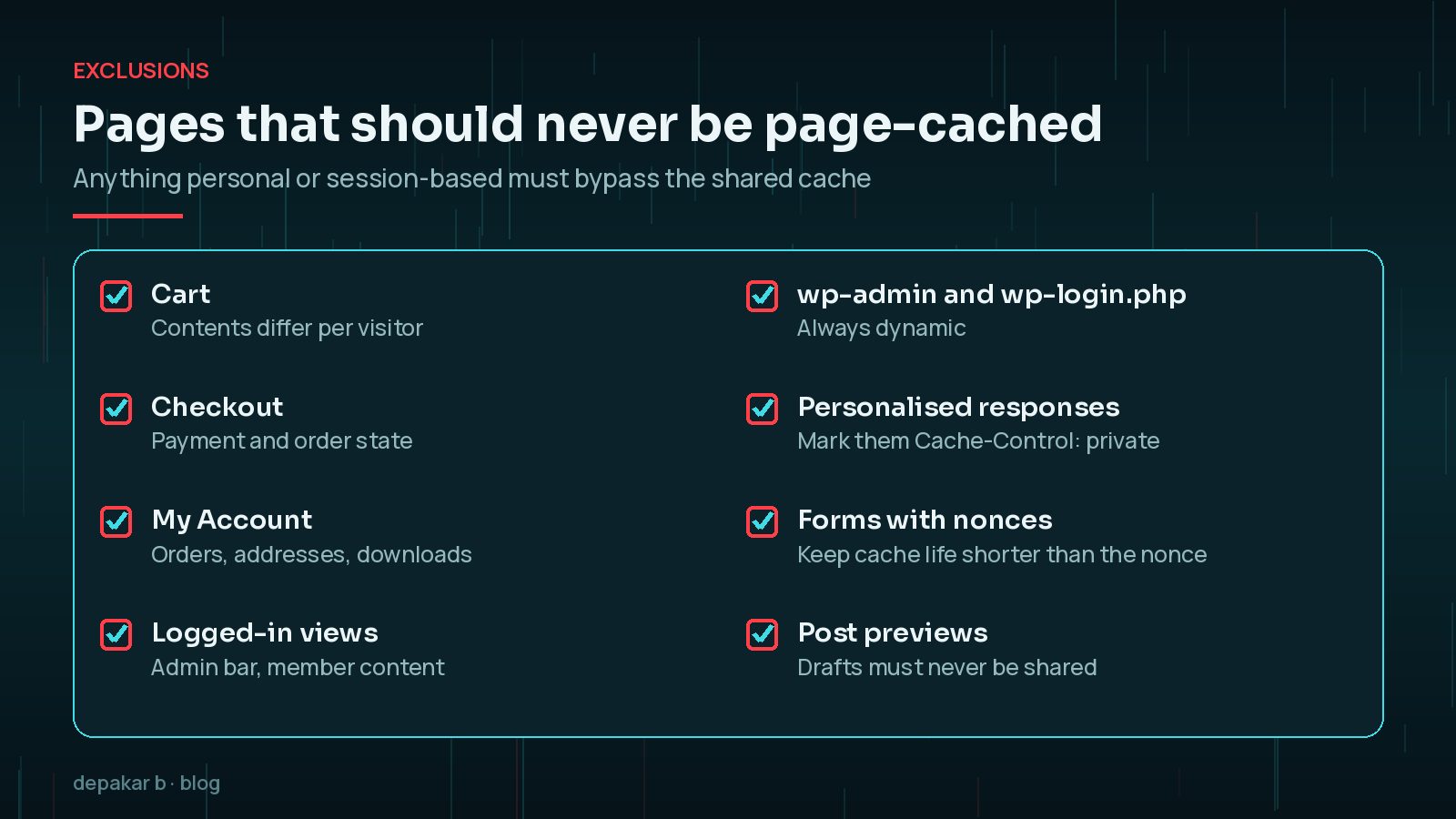
- Cart, checkout and account pages on WooCommerce and membership sites.
- Any page viewed by a logged-in user.
wp-adminandwp-login.php.- Post previews and drafts.
- Pages with forms that rely on short-lived security tokens (nonces), unless the cache lifetime is shorter than the token's.
Test while logged out. After any cache change, open a private browser window and add a product to the basket, check out, submit a form and log in. Caching mistakes are invisible while you are logged in as an administrator, because most setups bypass the cache for you.
Why You Should Not Stack Caching Plugins
It is tempting to install two or three caching plugins in the hope of extra speed. In practice, each layer should have exactly one owner.
- WordPress loads a single
advanced-cache.phpdrop-in for page caching and a singleobject-cache.phpdrop-in for object caching. Two plugins fighting over the same file causes errors or silent failures. - Two tools minifying or combining the same files can break scripts.
- When pages go stale, you have to purge several caches in the right order, and it is hard to tell which one is serving the old copy.
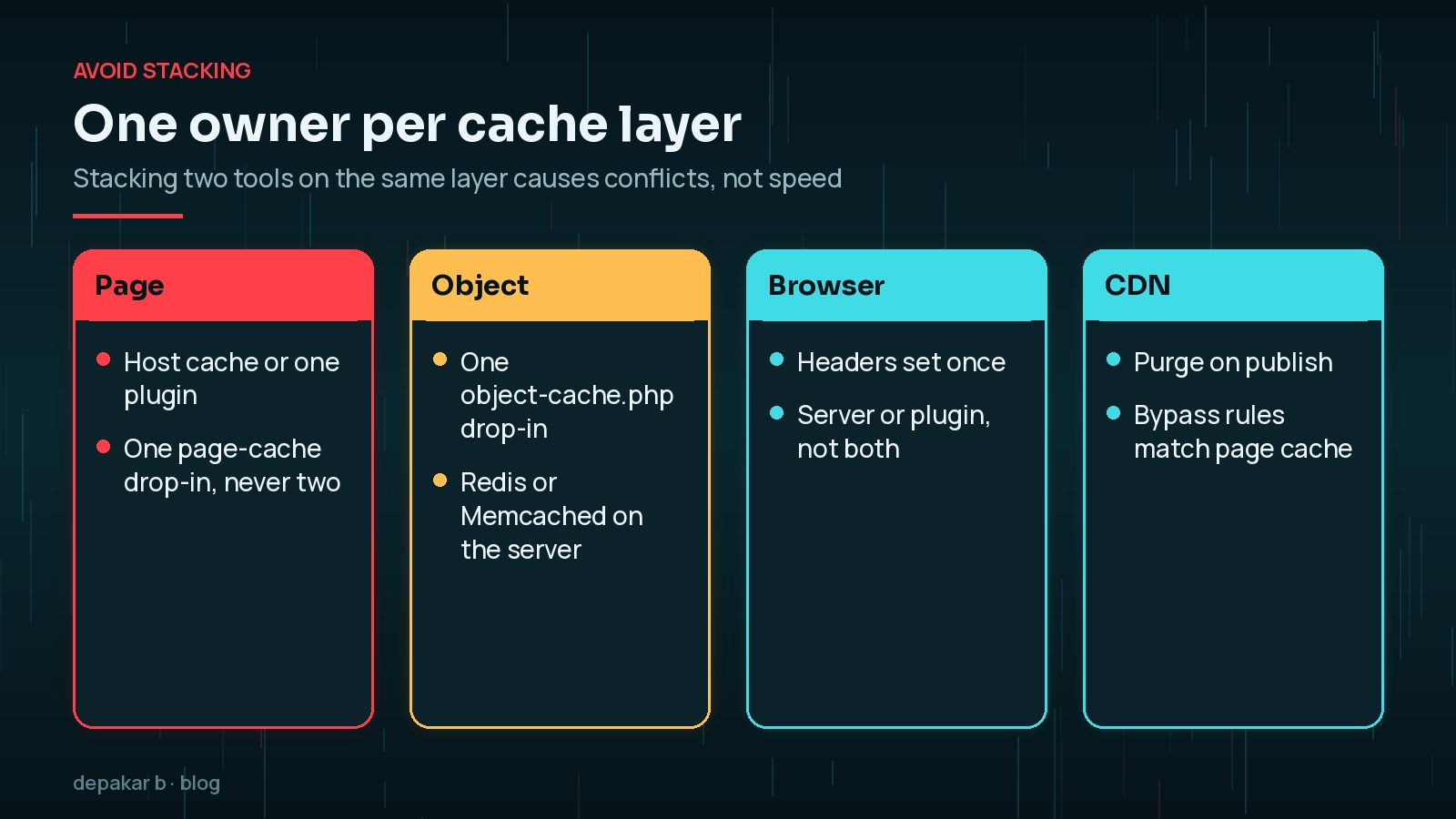
Start with what your host already provides. Fill the gaps with one well-maintained plugin, and document who owns each layer. My WordPress performance guide puts caching in context with the rest of the speed work.
Frequently Asked Questions
Do I need a caching plugin if my host already caches pages?
Usually not for page caching. Many managed WordPress hosts run a server-level page cache, and adding a plugin that does the same job can cause conflicts or stale pages. Check what your host provides first, then use a plugin only for the layers the host does not cover.
Is Redis better than Memcached for WordPress?
Both are memory-based stores that WordPress can use as a persistent object cache, and both are listed in the WordPress caching documentation. The right choice usually depends on what your host supports and manages well. A reliable, well-configured option matters more than the brand.
Why do I see old content after updating a page?
A cache layer is still serving an older copy. Clear the page cache first, then the CDN, then your own browser. If it keeps happening, check that your caching setup purges automatically when content is published or updated.
Can caching break WooCommerce?
It can if cart, checkout or account pages are cached for everyone. Good caching tools and hosts exclude these by default, but always test adding to the basket and checking out while logged out after changing any cache setting.
Will caching fix a slow wp-admin?
Page caching does not apply to logged-in admin screens. A persistent object cache can help, but a slow dashboard is often caused by heavy plugins or queries that need investigating directly.
Final Thoughts
WordPress caching is not one switch but four layers. Page caching serves finished HTML, object caching remembers database work, browser caching reuses files on the visitor's device and a CDN brings content closer to visitors. Give each layer one owner, exclude anything personal, and test as a logged-out visitor after every change.
If you would like your caching set up and checked end to end, my speed and performance service covers the full stack, from the server to the browser.
Official References
Sources checked on 29 October 2026: