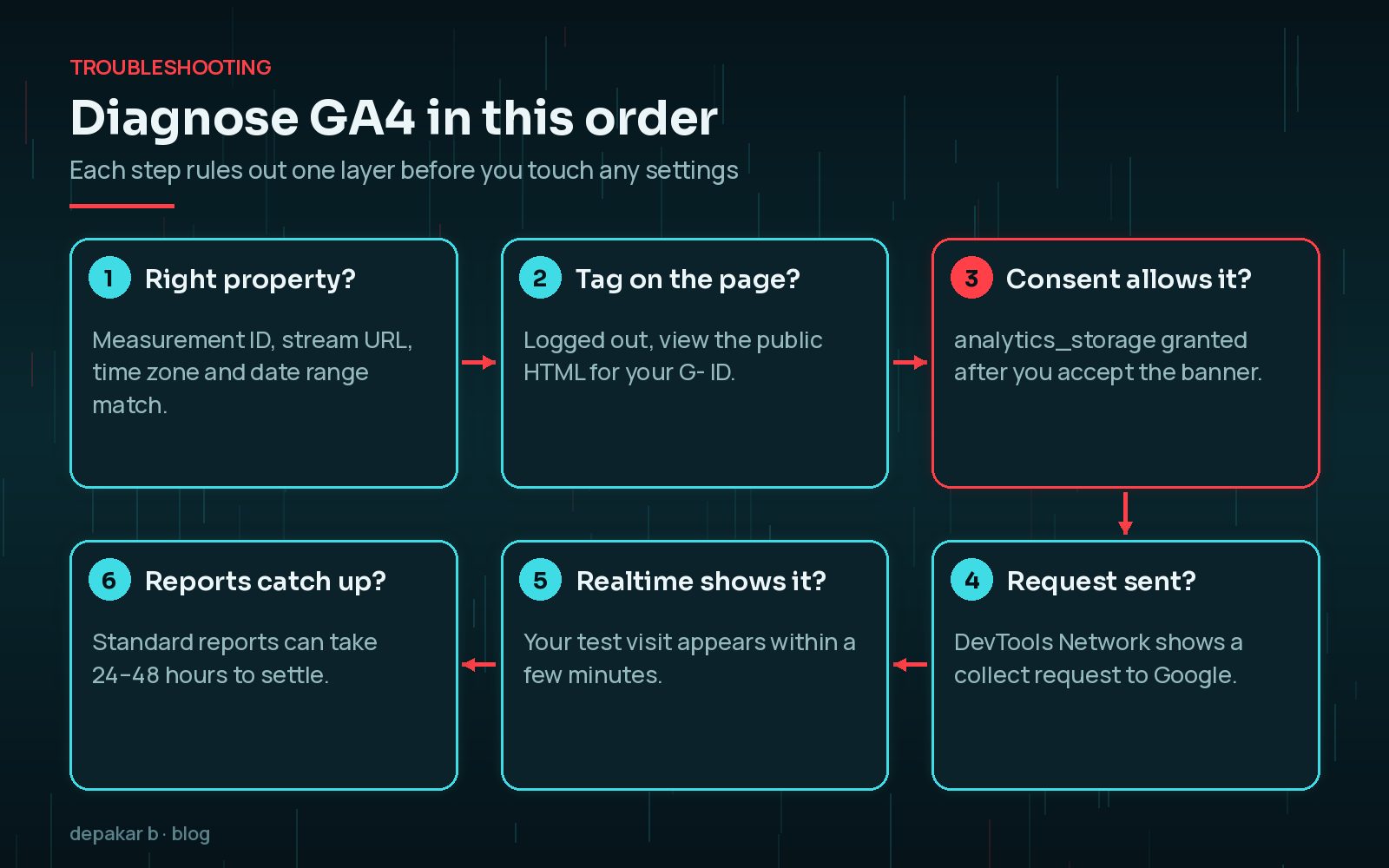
This guide walks you through that order. Each step rules out one layer, from the GA4 property itself to the tag, the consent banner, caching and finally the reports. You will not need to touch code for most of it, and nothing here is guesswork: every check is based on Google's own documentation.
First, Is It Really Broken or Just Delayed?
GA4 does not show everything instantly. According to Google's data freshness page, Realtime data typically appears within a few minutes, but data processing can take 24 to 48 hours, and numbers in your standard reports may change during that time. Google's setup guide also says data collection may take up to 30 minutes to begin after you add a new tag.
So before you change anything, ask three questions:
- Did you add or change the tag in the last day? If so, check Realtime rather than the standard reports.
- Are you comparing the same complete dates? Today's data is always partial.
- Is the property's reporting time zone the one you expect? Google notes that a visit is recorded in the property's time zone, so a different zone shifts traffic between days.
If Realtime shows your own test visit, tracking works and you are looking at a reporting delay or a real traffic change. For the second case, my guide to telling an AI Overviews drop from a core update is the better next read.
Check You Are Looking at the Right GA4 Property
It sounds obvious, but this catches a surprising number of sites, especially after a redesign, a migration or a change of agency. The tag can be working perfectly while sending data to a property nobody opens.
- In GA4, go to Admin → Data collection and modification → Data streams and open your web stream.
- Note the Measurement ID. It starts with
G-. - Confirm the stream URL matches your live domain, including whether you use
www. - Keep that ID handy. You will look for it on the live page in the next step.
If your WordPress plugin, your theme settings or a Tag Manager container shows a different G- ID, you have found your problem.
Make Sure the Google Tag Is on the Public Page
Your plugin's dashboard can say "connected" while visitors never receive the tag. Caching rules, page builder templates and script settings often behave differently for logged-in administrators, so always test as a visitor.
- Open a private browser window where you are not logged in to WordPress.
- Load your home page and a normal blog post, then view the page source.
- Search the source for your
G-ID, or for yourGTM-container ID if you use Google Tag Manager.
If the ID is missing, look at the plugin that should add it, any header and footer code plugin, and your theme's header template. If you recently changed a caching or optimisation plugin, clear every cache layer and test again. My guide to WordPress caching explains the page, browser and CDN layers that might still be serving an older copy.
Fix GA4 Consent Mode Problems on WordPress
This is the most common reason Google Analytics stops tracking on WordPress in 2026. A cookie banner is doing its job, but the way it talks to Google is out of order or missing a step, so measurement never switches on even after a visitor accepts.

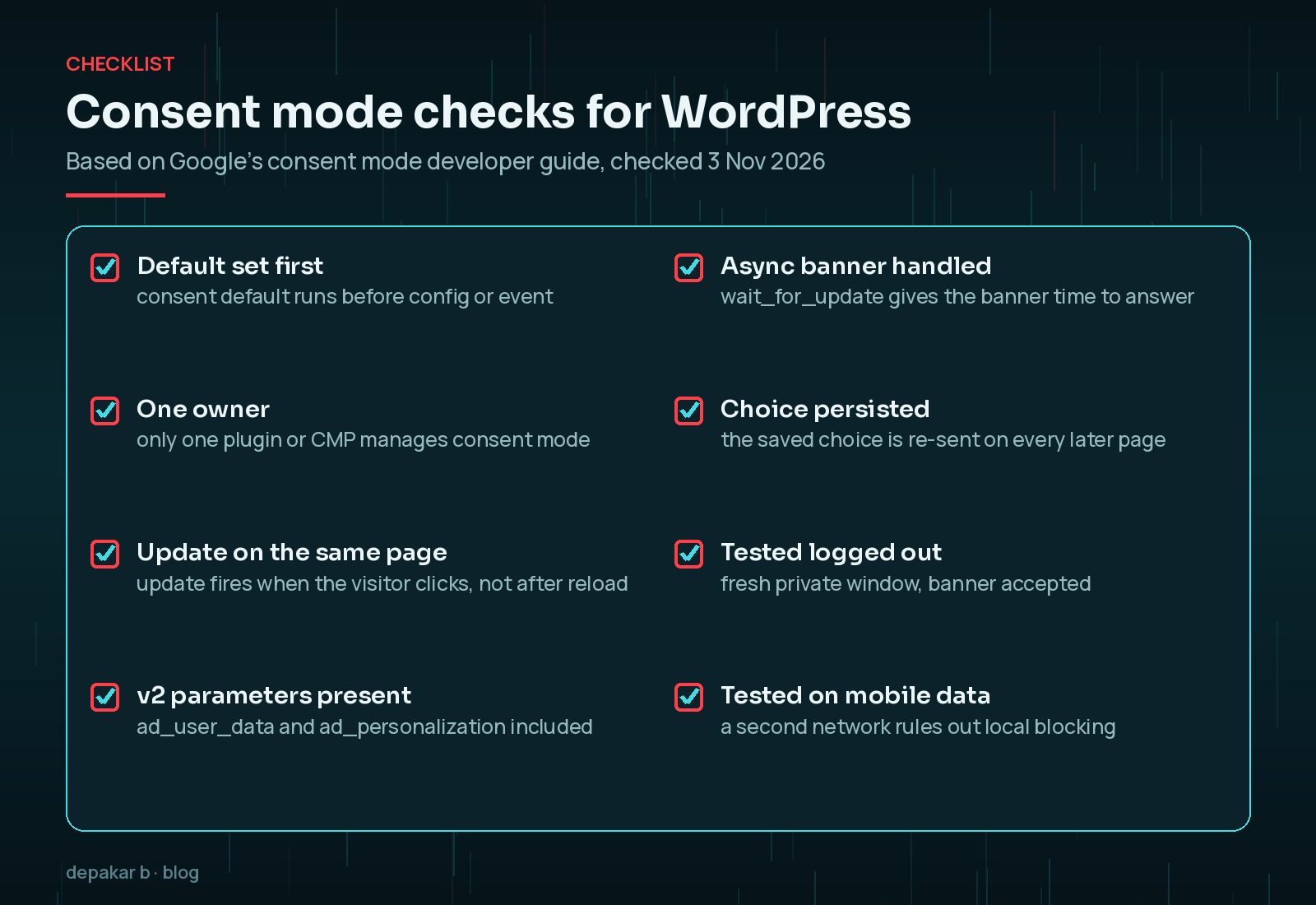
Google's consent mode developer guide sets out how it should work:
- A default comes first. The
gtag('consent', 'default', ...)command must run on every page before any command that sends measurement data, such asconfigorevent. Google states plainly that if the consent code runs out of order, the defaults will not work. - An update follows the click. When the visitor accepts, an
updatecommand should setanalytics_storagetogranted. Google recommends sending it on the page where consent happens, before any page transition, because a reload can lose data from that first page. - Slow banners need time. If your banner loads asynchronously, the
wait_for_updatesetting gives it a set number of milliseconds to answer before tags fire. - Version 2 parameters. Since November 2023, consent mode also expects
ad_user_dataandad_personalizationalongsidead_storageandanalytics_storage.
On WordPress the usual fault is that two things try to manage consent at once, for example a consent plugin and an analytics plugin that both offer a consent mode setting. Pick one owner, normally your consent management platform, and switch the feature off in the other.
Do not simply remove the banner to "fix" tracking. Consent rules exist for good reasons and may apply to your visitors. Fix the order of the signals instead, and check your own legal obligations before changing default consent states.
Watch the Request Leave the Browser
Once the tag is on the page and consent looks right, confirm that the browser actually sends data. This separates a configuration problem from a blocking problem.
- In your private window, open your browser's developer tools and select the Network tab.
- Accept the cookie banner, then load a second page.
- Filter the requests for
collect. A request to Google containing yourG-ID means data left the browser. - Open GA4's Realtime report and look for your visit within a few minutes.
If you use Google Tag Manager, its Preview mode is even clearer. Google's help page explains that it connects your site to Tag Assistant, so you can see which tags fired, in which order and why. If a tag shows as "not fired", the trigger or the consent requirement is the place to look.
No request at all usually means a JavaScript error, a script optimisation setting delaying or removing the tag, or a browser extension. Test once with extensions off and once on mobile data to rule out local blocking.
Rule Out Caching, Optimisation and Plugin Conflicts
Speed plugins are brilliant, but some settings change how scripts load. Delaying JavaScript until interaction, combining files or moving scripts to the footer can break the order consent mode depends on.
- Exclude the Google tag, your Tag Manager script and your consent banner's scripts from "delay JavaScript" and combine features.
- Clear the page cache, any server cache and your CDN cache after every change.
- If tracking still fails, switch off the caching plugin, then the optimisation plugin, then the consent plugin, testing after each. The one that makes tracking return is the one to configure.
Do this on a staging copy where you can. My guide to troubleshooting WordPress plugin conflicts shows how to isolate the culprit without taking your live site offline.
Duplicate Tags and Over-Eager Filters
Not every tracking fault means missing data. Sometimes you get too much, or numbers that quietly shrink.

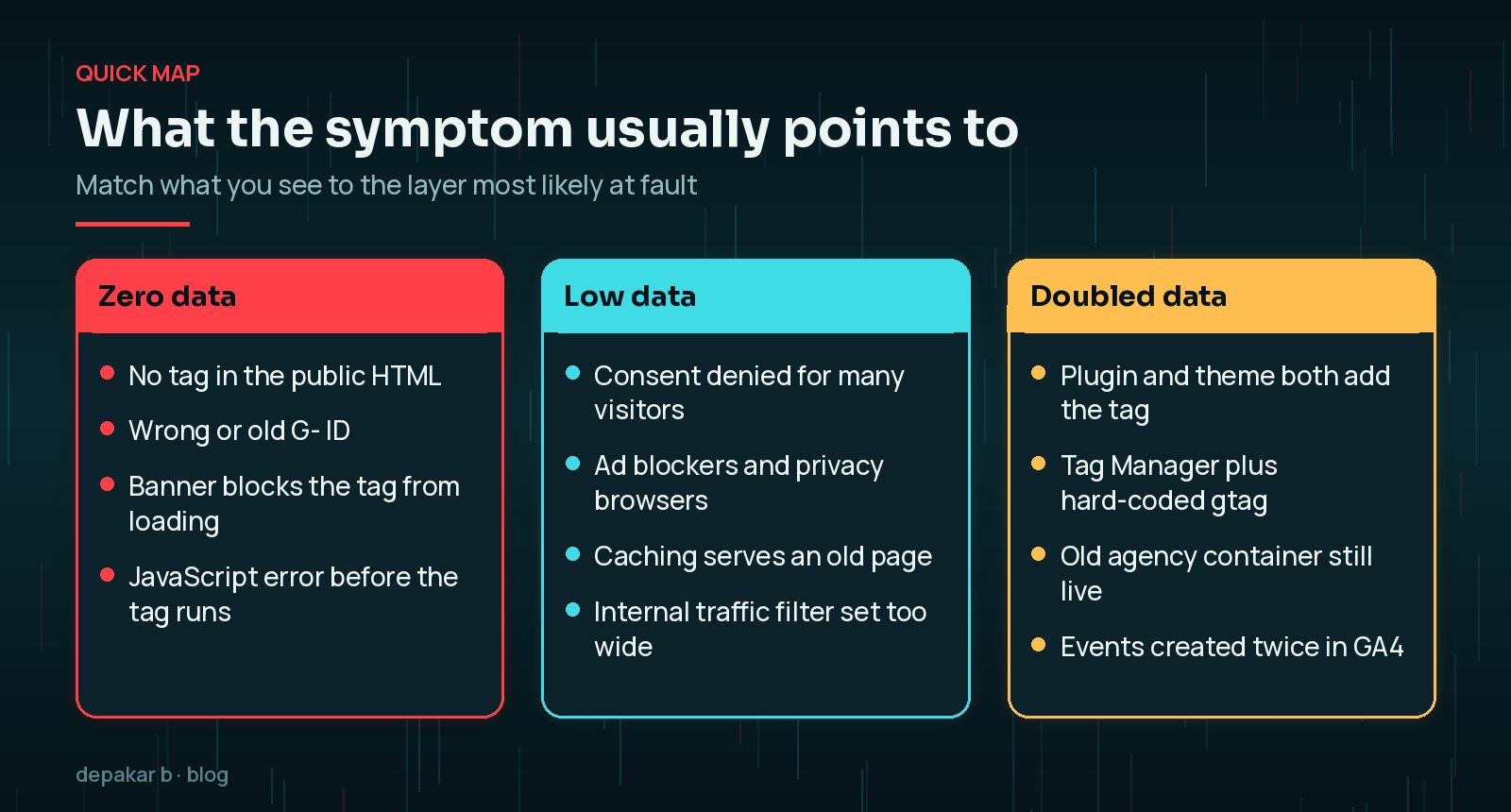
Duplicate tags. A plugin, the theme and a Tag Manager container can all add the same Google tag. Search the page source for your G- ID: it should be added once, through one route. Remove the extras rather than pasting another snippet into the header, which only makes the next diagnosis harder.
Internal traffic filters. GA4 lets you exclude traffic from chosen IP addresses. Google warns that once a data filter is active, the excluded data is never processed and cannot be recovered. A filter with an overly broad IP range can hide real visitors. Google also notes that new filters can take 24 to 36 hours to apply, and offers a Testing state so you can check a filter before you activate it. Use it.
A Simple Monthly Tracking Check
Once tracking works, keep it working. Plugin updates, redesigns and banner changes are when it usually breaks again. Once a month, or after any of those changes:
- Visit the site in a private window, accept the banner and confirm your visit in Realtime.
- Compare GA4 sessions with Search Console clicks for the same complete week. They will never match, but a sudden gap between them is a warning sign.
- Check that your key events, such as form submissions, still record.
- Note any change you made to plugins, themes or consent settings, so you know where to look first next time.
Good measurement is part of good technical SEO. My WordPress technical SEO checklist covers the rest of the foundations.
Frequently Asked Questions
Why is Google Analytics showing no data on my WordPress site?
The most common causes are a wrong or old Measurement ID, a tag that never reaches the public page, a consent banner that blocks measurement, or simply processing delay. Check Realtime with a private window first, then work through the layers in order.
How long does GA4 take to show data?
Google says data collection may take up to 30 minutes to begin after setup, Realtime typically updates within a few minutes, and full processing for standard reports can take 24 to 48 hours.
Does a cookie banner stop Google Analytics from tracking?
It can, and that may be correct for visitors who decline. Problems start when consent defaults load after the tag, or when no update is sent after a visitor accepts, so tracking stays off even with consent.
Should I install a second analytics plugin to fix tracking?
No. Adding another plugin or snippet usually creates duplicate tags. Find out which layer is failing first, then fix that one route.
Can I recover data lost to a GA4 filter?
No. Google states that data excluded by an active data filter is never processed. Test filters in the Testing state before you activate them.
Final Thoughts
When Google Analytics is not tracking WordPress, the cause is almost never mysterious. It is usually the wrong property, a missing tag, consent signals in the wrong order, or a speed setting that moved a script. Check those layers one at a time, test as a real visitor, and change only one thing before you test again.
If you would rather have someone trace it for you, or you want tracking, Search Console and your technical SEO checked together, my SEO improvement service includes exactly that kind of audit.
Official References
Sources checked on 3 November 2026:
- Google Analytics Help: Set up Analytics for a website and/or app
- Google Analytics Help: Data freshness
- Google for Developers: Set up consent mode on websites
- Google Analytics Help: Troubleshoot consent mode
- Google Analytics Help: Filter out internal traffic
- Tag Manager Help: Preview and debug containers