
Switching from a classic theme to block theme changes how your site is built and edited, even though your content stays put. Done carefully, it can make everyday changes easier and reduce your reliance on plugins. Done in a hurry, it can leave you with missing sidebars, broken menus and lost settings. This guide walks you through doing it the careful way.
The Difference Between Classic and Block Themes
The WordPress Theme Handbook describes two main types of theme. Classic themes use PHP template files and have been around since WordPress 1.5. Block themes use HTML templates made of blocks, which you can edit visually in the Site Editor. Block themes arrived in WordPress 5.9.
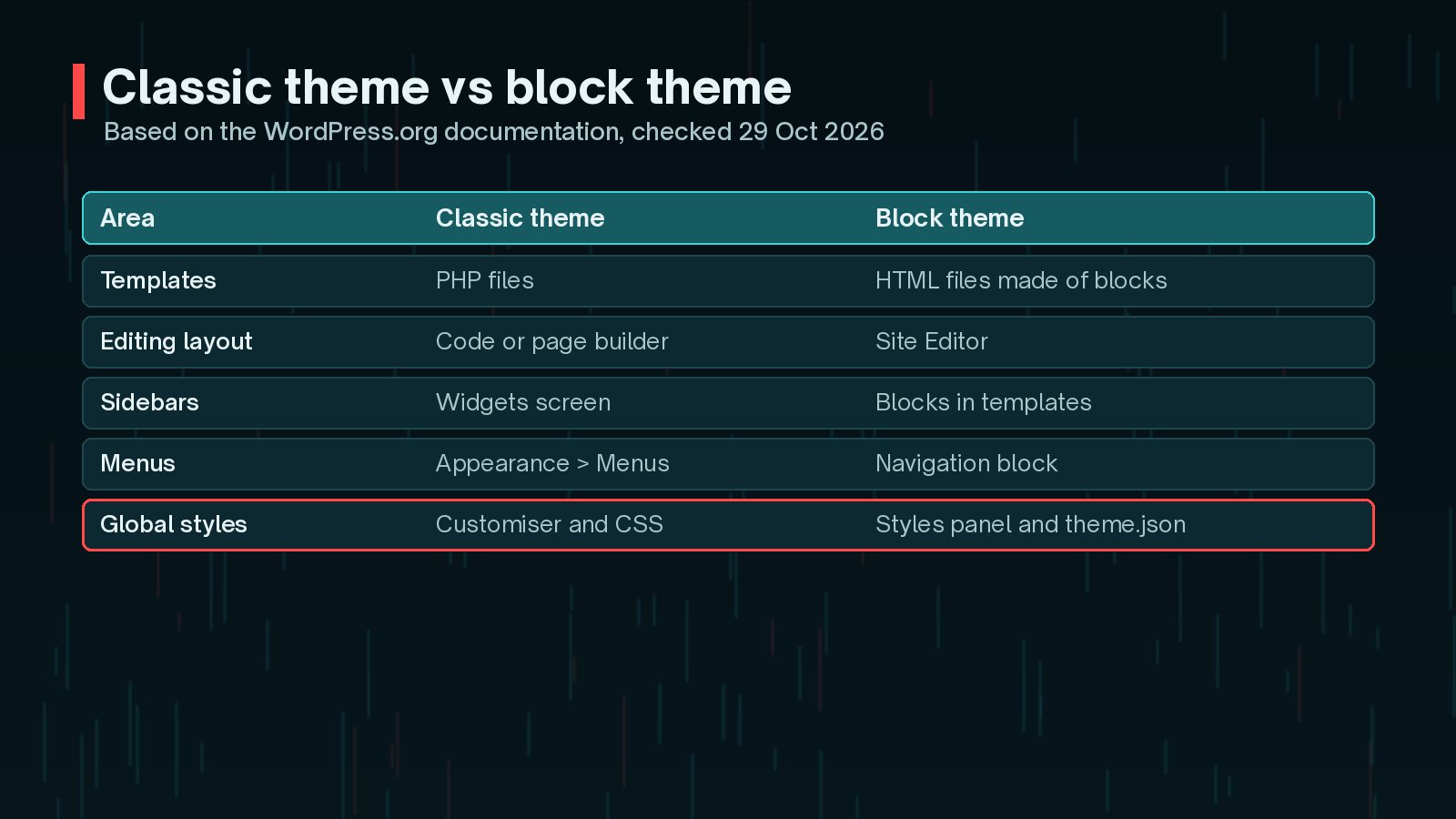
In a block theme, global settings and styles, such as colours, typography and spacing, are defined in a theme.json file and can be adjusted through the Styles panel. Headers and footers become reusable template parts that you edit like any other block content.
There is also a middle ground. The handbook mentions hybrid themes, which are classic themes that use some block features, such as theme.json or block template parts.
Is It Worth Switching in 2026?
There is no rule that says you must switch. Classic themes are still supported, and the handbook notes they remain in wide use. But the handbook also describes block themes as the modern way to build themes and the future of the WordPress project.
Switching tends to be worth it when:
- You want to edit headers, footers and templates without a developer.
- Your current theme is no longer maintained or is built on an old framework.
- You are planning a redesign anyway.
- You rely on several plugins just to control layout and styling.
It may be better to wait if your site works well, is heavily customised in PHP, and nobody needs to edit the layout often. Keep an eye on what each release adds. My overview of what's new in WordPress 7.2 is a good place to start.
What Breaks: Widgets, Menus and the Customiser
The WordPress.org block themes documentation explains three changes that catch people out:
- Widgets: block themes rely on blocks instead of widgets. Your widget areas will not carry over, so rebuild sidebar and footer content with blocks.
- Menus: navigation is handled by the Navigation block inside your templates, not the classic Menus screen. Check every menu location after switching.
- The Customiser: it is not available in block themes unless a plugin or theme needs it. Logos, colours and header settings move to the Site Editor and Styles.
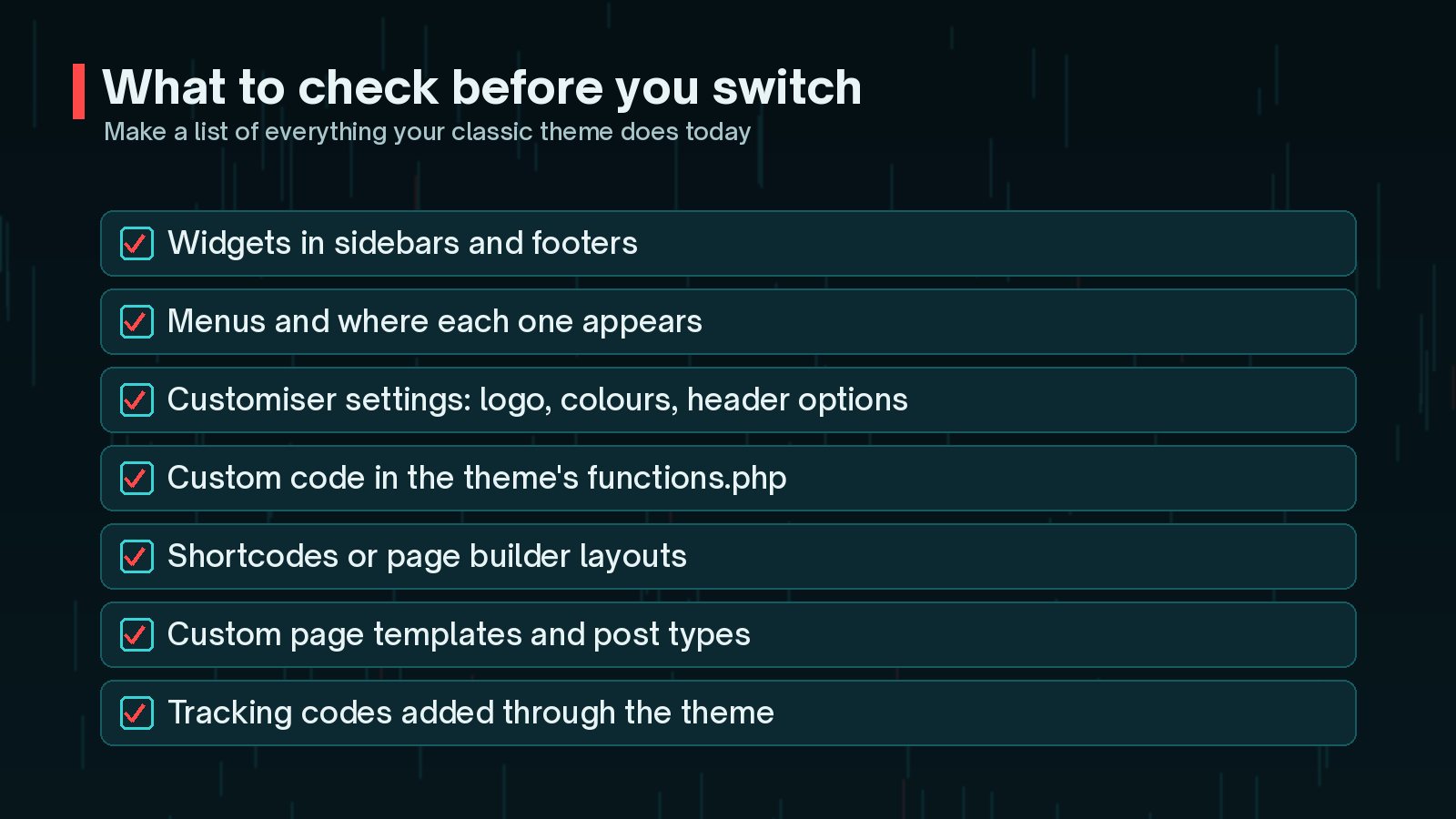
Theme code is the other big one. Anything added to the old theme's functions.php, such as custom post types, shortcodes or tracking scripts, stops working when the theme changes. Move that code into a small plugin first, so it survives the switch.
Page Builders and Block Themes
If your pages are built with a page builder, switching theme does not convert them to blocks. The builder still controls those pages, and the block theme mainly handles templates around them.
That leaves you with three options:
- Keep the builder for existing pages and use blocks for new ones.
- Rebuild your most important pages with blocks while you switch.
- Stay on a classic or builder-friendly theme until a full rebuild makes sense.
Builders can add weight, so a theme switch is a good moment to review them. My guide on whether your page builder is slowing WordPress explains how to measure the cost.
Planning a Classic Theme to Block Theme Move on Staging
The block themes documentation suggests trying a block theme on a test site first. That is good advice for any live business site.

A practical plan:
- Take a full backup, then create a staging copy of the live site.
- Record the current state: screenshots of key pages, speed results, and a crawl of titles, headings and URLs.
- Move any theme-dependent code into a plugin.
- Activate the block theme on staging and work through each template.
- Freeze big content changes on live during the final stage, or note them so they can be copied across.
Do not switch theme on a live site to see what happens. Visitors and search engines will see the half-finished result straight away, and some settings may be hard to get back.
Rebuilding Headers, Footers and Templates
In the Site Editor, headers and footers are template parts. You build them once and they appear wherever the template uses them.

Work through the templates in order of importance:
- Header and footer: logo, Navigation block, contact details and any calls to action.
- Single post and page: titles, featured images, author and date details, related content.
- Archive and blog index: use the Query Loop block for post listings.
- Search and 404: easy to forget, but they matter to visitors.
- Custom templates: landing pages or custom post types from the old theme.
Set colours, fonts and spacing in Styles or theme.json rather than styling each block separately. It keeps the design consistent and makes later changes much quicker. For a full revamp, my website revamp checklist covers the wider project.
SEO and Performance Checks After
A theme switch changes the HTML around your content, so check that nothing important was lost.
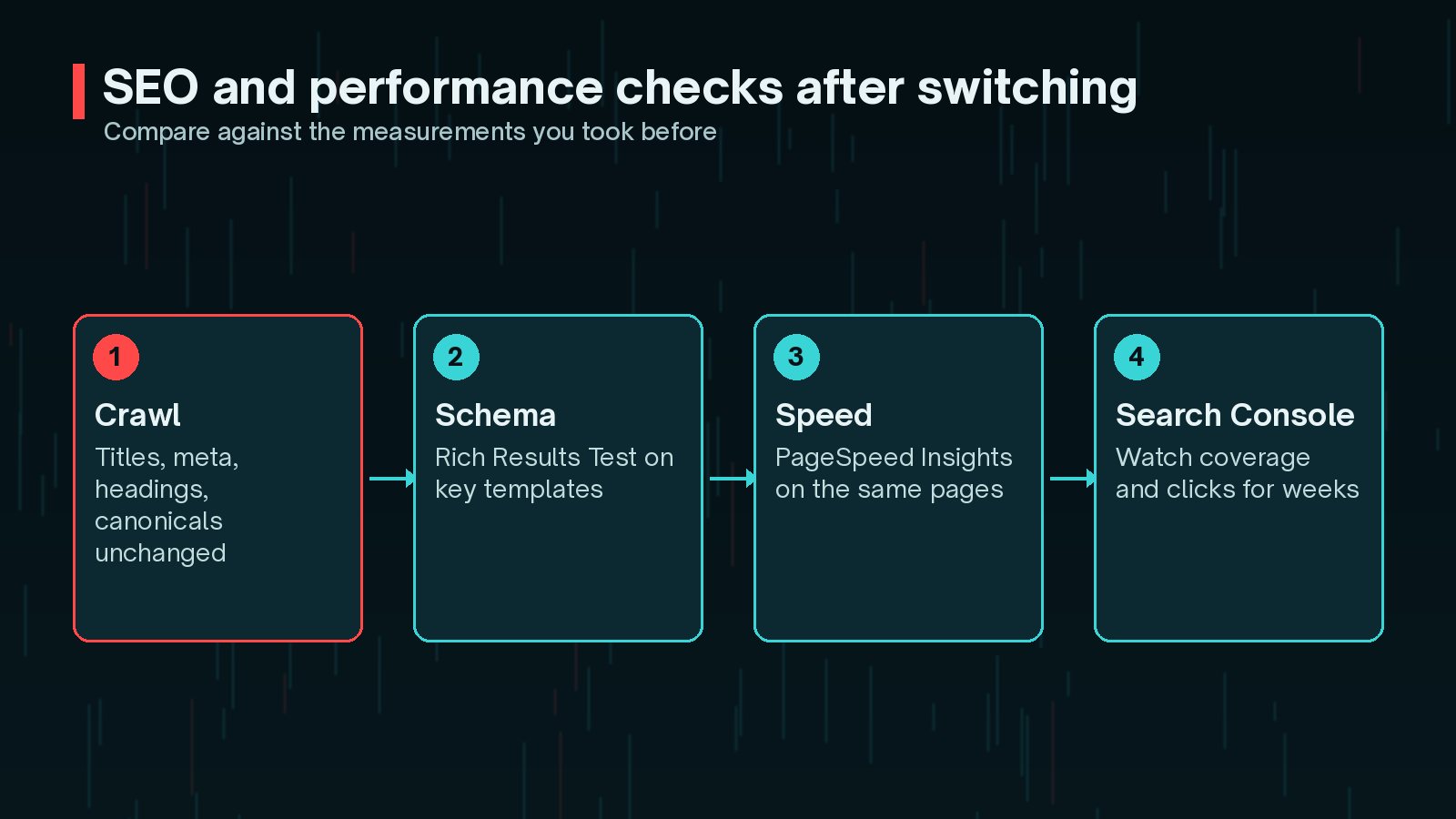
- Crawl the staging and live site: titles, meta descriptions, a single H1 per page, canonical tags and internal links.
- Structured data: run key templates through the Rich Results Test.
- Speed: test the same pages in PageSpeed Insights and compare.
- Tracking: confirm analytics and other scripts still load.
- Search Console: watch indexing and clicks over the following weeks.
If URLs change as part of the move, plan redirects carefully. My guide to a website redesign without losing SEO covers redirect mapping in detail.
Frequently Asked Questions
Will switching to a block theme delete my content?
No. Posts, pages and media stay in the database. What changes is how they are displayed. Theme-specific features, such as widgets, Customiser settings, shortcodes or code in the old theme's functions.php, may stop showing until you rebuild or move them.
Do I have to switch to a block theme?
No. WordPress still supports classic themes, and the developer handbook describes them as still widely used. Switch when the benefits, such as easier editing and fewer plugins, outweigh the effort for your site.
Can I use a page builder with a block theme?
Often you can, but you lose some of the benefit. If most pages are built in a builder, the block theme mainly controls headers, footers and templates. Check your builder's documentation for block theme support before you start.
What is a hybrid theme?
The WordPress theme handbook describes hybrid themes as classic themes that adopt some block features, such as theme.json settings or block template parts. It is a community term rather than an official theme type, but it can be a useful stepping stone.
Will a block theme make my site faster?
It can, but it is not guaranteed. Core blocks tend to output lean markup, but plugins, images, fonts and scripts still matter. Measure key pages before and after the switch rather than assuming.
Final Thoughts
Moving from a classic theme to block theme is less about the theme file and more about everything the old theme was doing for you. Record it, move theme code into a plugin, rebuild widgets, menus and Customiser settings with blocks on staging, and check SEO and speed before and after. Then the switch becomes a planned upgrade rather than a gamble.
If you would like help planning or carrying out the move, my website revamp service covers the whole process, from audit to launch.
Official References
Sources checked on 29 October 2026: